
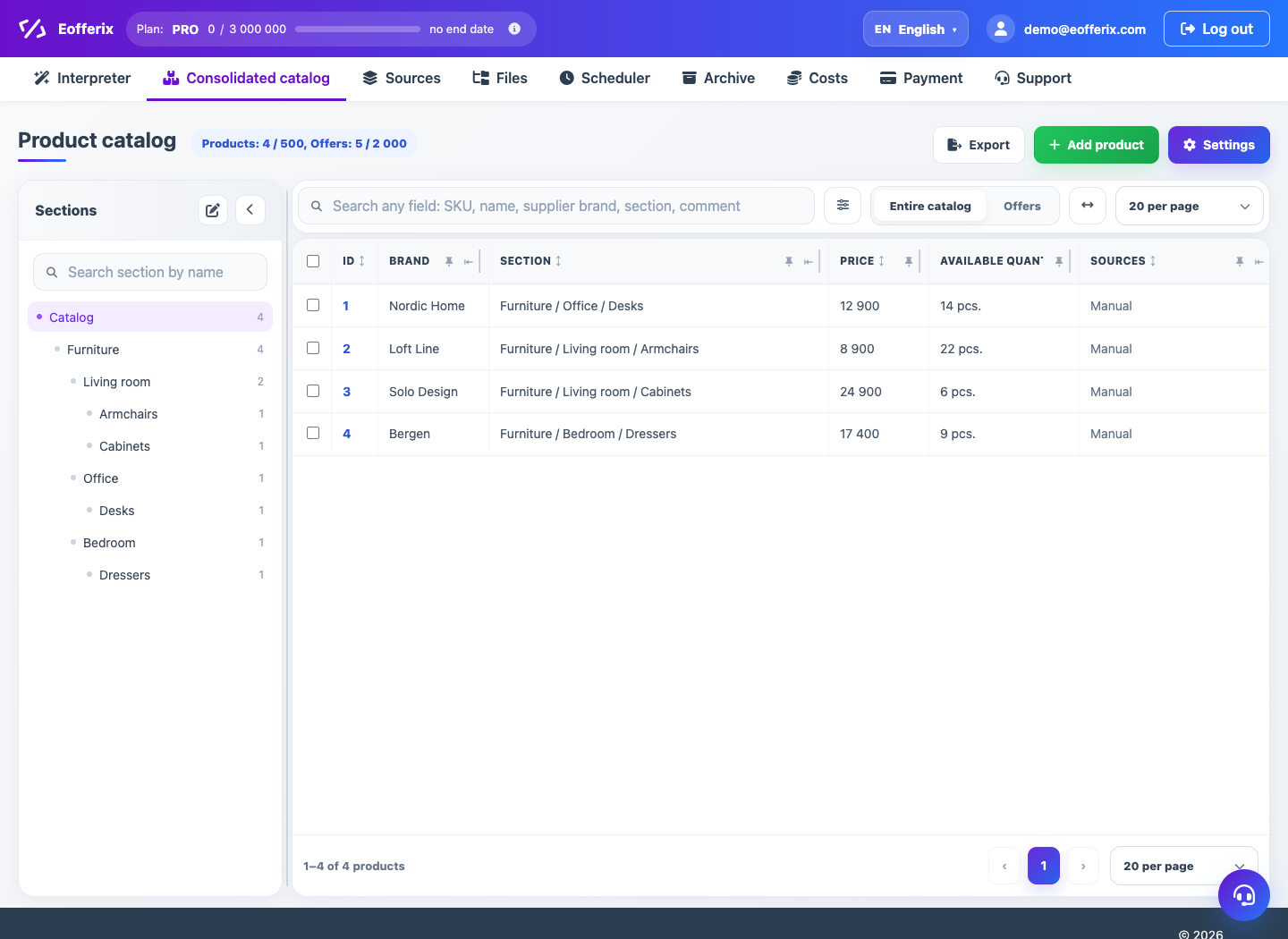
The union catalog supports search, field filters, sorting, switching products/offers and customizing visible columns.
When to use
Use column and filter settings to quickly check import results and operational data.
Setting procedure
- Open the Union Catalog.
- Select a table of products or offers.
- Use the search bar and field filters.
- Set the sorting of the desired column.
- In the column settings, select which fields to show.
- Change the sidebar width and display mode if necessary.
What to check
- The table shows the fields needed to check the import.
- The filter works on the correct field type.
- Sorting does not hide important rows due to active filters.
Notes
- Display settings do not change the catalog data itself.
- For complex checks, it is better to combine a field filter and search.