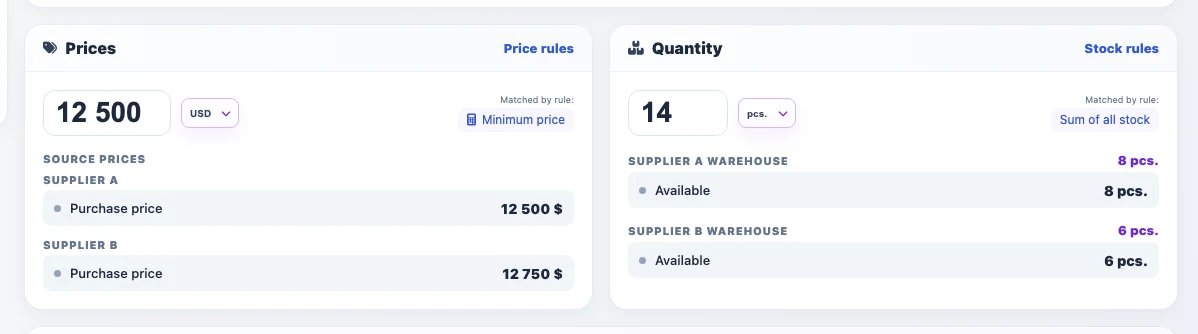
The Eofferix consolidated catalog brings products, offers, categories, attributes, prices, stock, and images from different sources into one working catalog. Suppliers often send catalogs as XML; ERP systems such as SAP ERP, Oracle NetSuite, Microsoft Dynamics 365, Odoo, 1C/CommerceML, and others can export data in the same format. YML is also XML: it uses XML syntax and a product-feed structure.
The source can be uploaded from your computer or received automatically on a schedule:
- from a direct URL or an authorized URL;
- from email;
- over FTP, FTPS, or SFTP;
- from cloud storage;
- from CommerceML, a supplier API, or another supported source module;
- from a ZIP archive if it contains an XML/YML file.
After the source is selected, Eofferix analyzes the file and creates an XML snapshot. The snapshot shows a compact version of the source data: unique nodes, elements, attributes, and sample values instead of the whole large file.
1. Create an import profile for the Consolidated catalog
Open app.eofferix.com/profiles, click "New profile", enter a profile name, and add a short source description. The name usually identifies the supplier or channel, for example Partner1. Then choose loading into the consolidated catalog.

If the XML file is on your computer, choose "Upload a new file" when creating the import profile. After upload, the profile detects the format, prepares the working XML, and opens the consolidated catalog import settings.
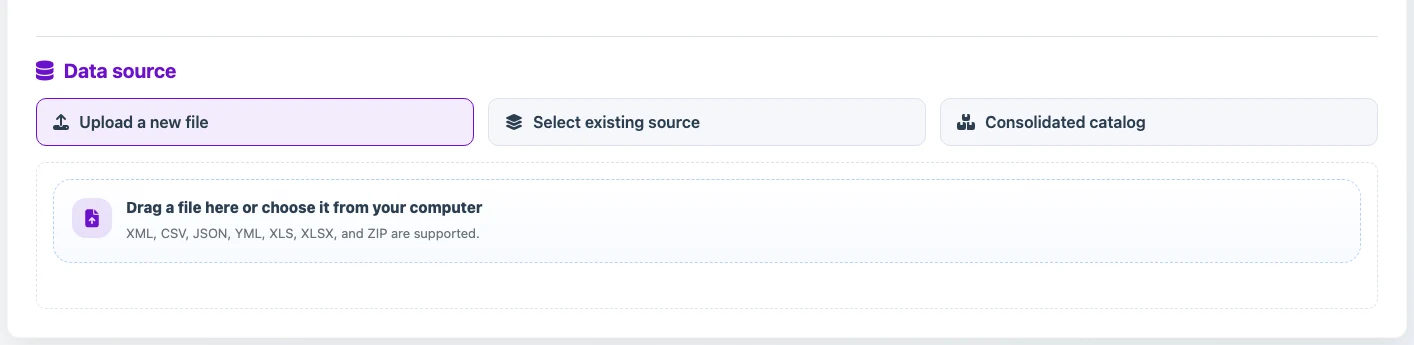
If the XML should be received regularly from a URL, email, FTP/FTPS/SFTP, cloud storage, or CommerceML, create a source in Sources first and then select it in the import profile. The source can be refreshed separately from the mapping settings.
2. Configure the keys used to identify products
Select the product and offer identification fields. Use unique, stable values such as id, SKU, external ID, or a combination of fields. These keys tell the profile which record to create and which record to update during later imports.
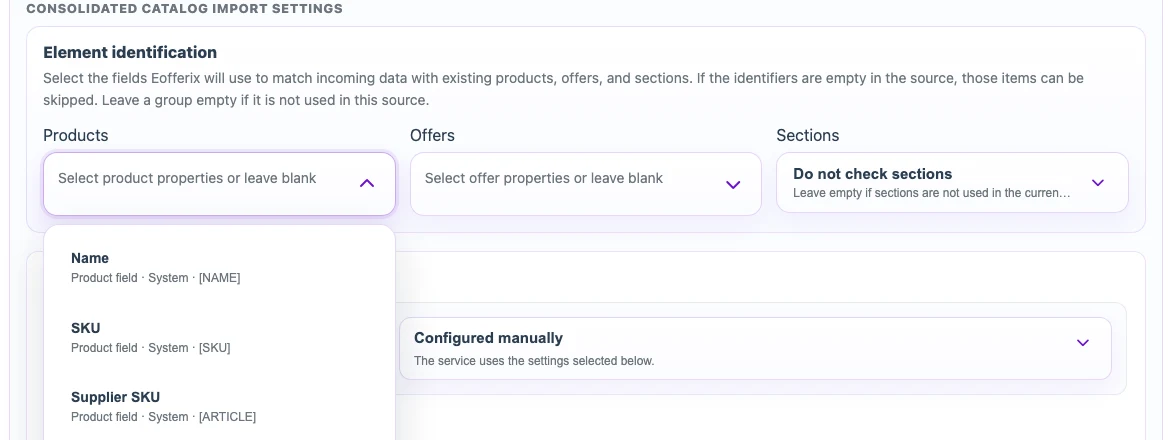
Then configure import rules: whether to create new products and offers, whether to update found records, and what to do with empty values, zero price, and zero stock. These settings matter for regular XML feeds because they define how each new file affects the existing catalog.
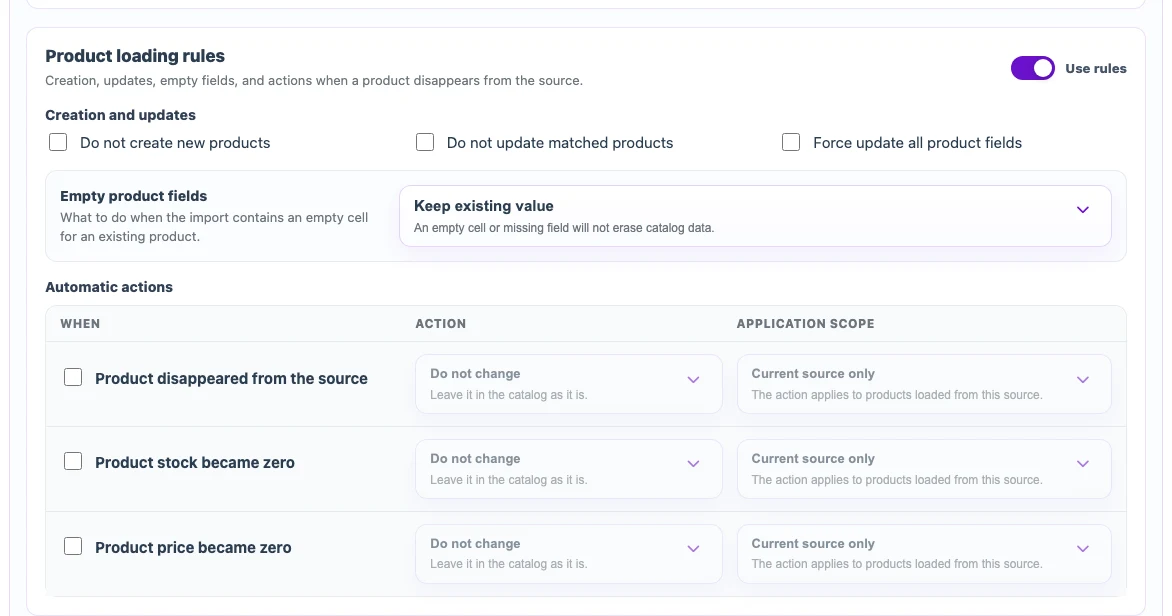
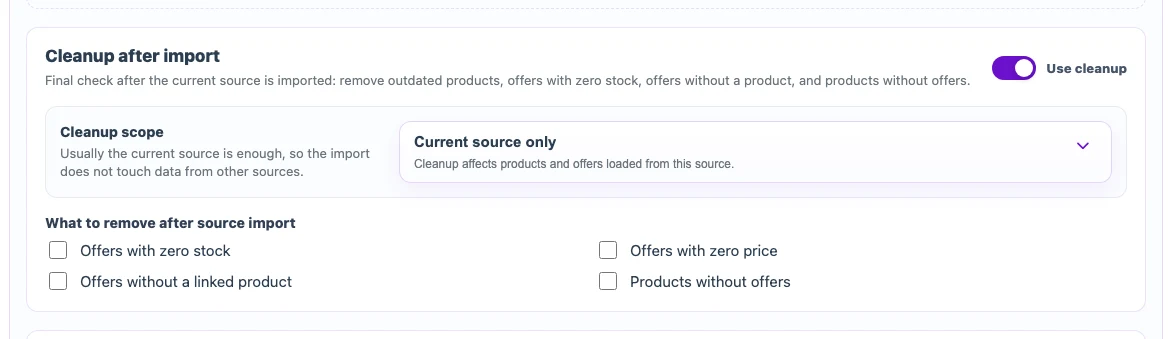
Cleanup settings define what happens to products, offers, and sections that already exist in the catalog but are missing from the current source: leave them unchanged, delete them, unpublish them, or set stock to zero. The scope is selected separately.
Automatic missing-data cleanup does not delete or unlink properties or dictionary values used by the profile. If they are temporarily absent from a later source, they remain in the catalog; when they appear again, Eofferix reuses the retained mapping when one compatible object can be identified unambiguously. Rules for missing products, offers, sections, and images work separately.
3. Configure the XML snapshot

After the profile is saved, the XML snapshot opens: a compact version of the source file where you configure the final structure and transformations.
In the XML snapshot, first find the node that repeats for each product. It can be product, offer, item, or another node from the supplier file. Visually identify the product node, click it, and assign it the "Product" role. If the XML contains separate offers, assign the "Offer" role to the repeated offer node.
Then click values inside the selected XML node and choose which consolidated catalog field should receive them: name, SKU, price, stock, category, description, image, or attribute.
Common XML import mappings include:
name- product name;sku,vendorCode, orarticle- SKU;price- price or purchase price;stockorquantity- stock quantity;categoryor category path - catalog category;imageorpicture- product image;property,param, or similar nodes - product attributes.
If attributes arrive as a repeated list, where one XML node contains the attribute name and a neighboring node contains the value, use the "Attributes" setting. Select the repeated property node, the path to the attribute name, and the path to the value. If an attribute arrives as a separate fixed node, it can be mapped as an individual field or used to create a new catalog attribute.
4. What can be transformed during import
Mapping does not have to copy the value exactly as it arrives. For each XML value, you can configure sequential transformations: clean text, remove extra spaces, replace values, convert numbers, round prices, calculate markup or discount, use a value from a neighboring XML node, create a new field, or create a variable.
Images can also be processed: save the file in the service, convert it to JPG, PNG, or WebP, resize it, process multiple links, and apply a watermark. Map an image field only when the image should be imported into the catalog or processed by these profile rules.
Build a longer product name
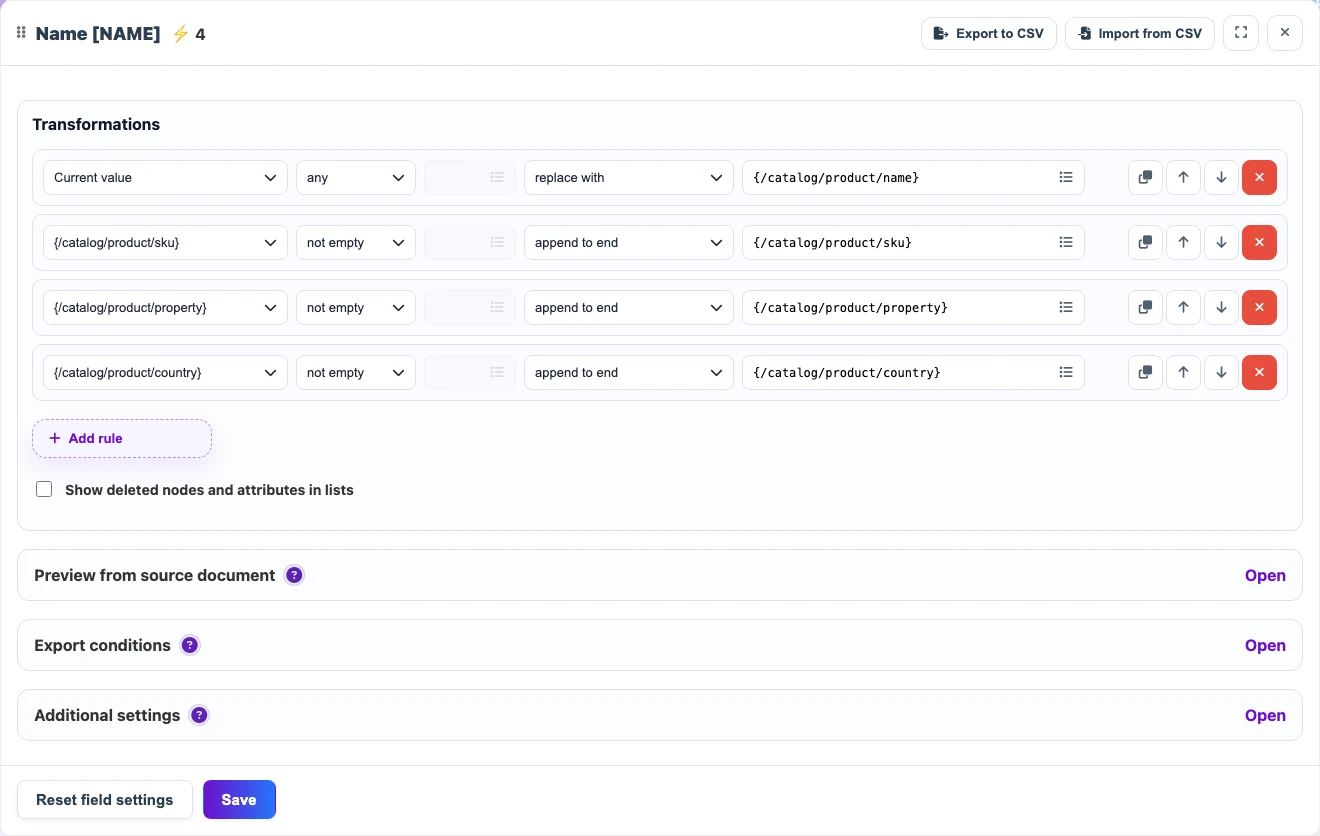
For example, the XML can contain separate values for name, SKU, material, and country of manufacture. In the "Name" field settings, take the source name first, then append only non-empty values: SKU, material in brackets, and country.
Before
<name>Nordic writing desk</name>
<sku>DESK-NORD-01</sku>
<material>solid oak</material>
<country>Italy</country>
After
Nordic writing desk DESK-NORD-01 (solid oak), ItalyPrepare a price step by step
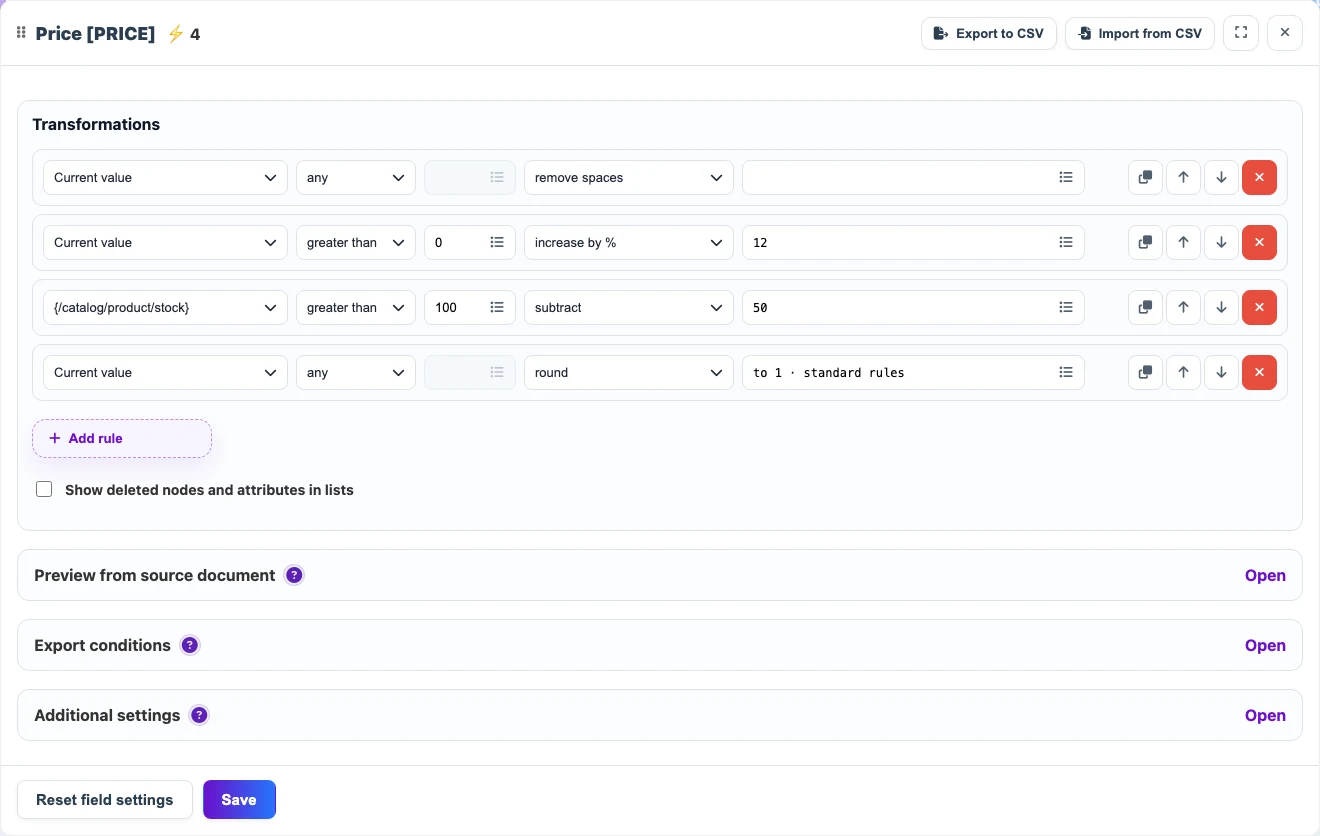
Example of sequential transformations for the Price field. Transformations can use not only the current value, but also other document nodes for calculations: first clean the value, then check conditions, use another node, change the value, and round the result.
Before
<price>129.00</price>
<stock>14</stock>
After
1445. What happens after launch
After launch, the profile creates or updates products, offers, categories, attributes, prices, stock, and images in the consolidated catalog. The link to the source is preserved, so later runs update matching records by the selected keys instead of creating duplicates.
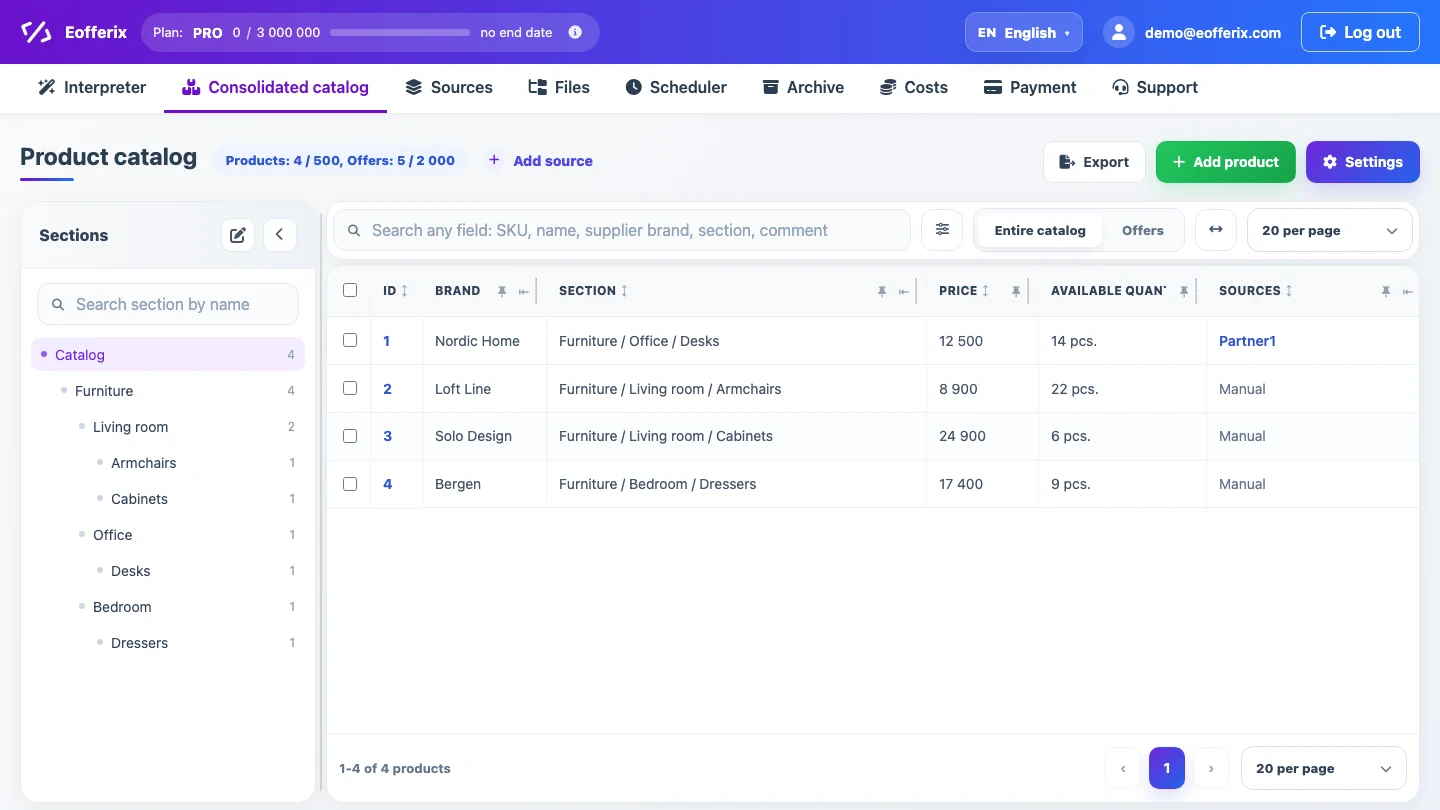
If the same product arrives from different sources - XML, spreadsheets, JSON, CommerceML, or another profile - it can remain one product card. Prices and stock from different sources can be separated into price groups and warehouse groups.