
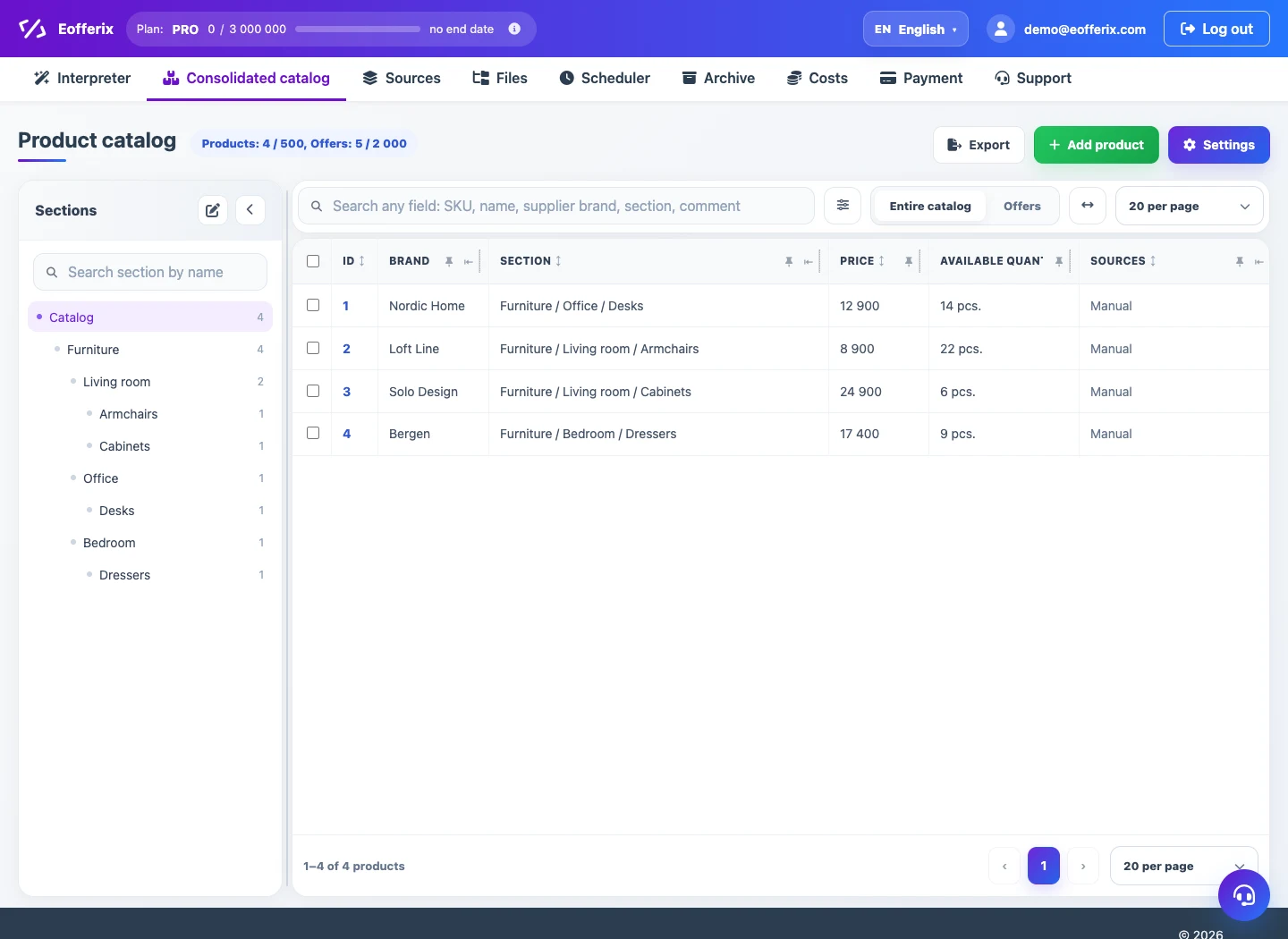
The consolidated catalog is a unified product database inside Eofferix. It lets you collect supplier data, normalize it into one structure, adjust product cards manually, and then use the catalog for exports, integrations, and storefronts.
You can upload a one-time file or create a source that updates automatically: by URL, from 1C, FTP/FTPS, spreadsheets, cloud drives, email attachments, and other supported channels. After the file is received, Eofferix builds a snapshot of the source structure. The snapshot is where you configure node roles, catalog fields, properties, transformations, prices, and stock.
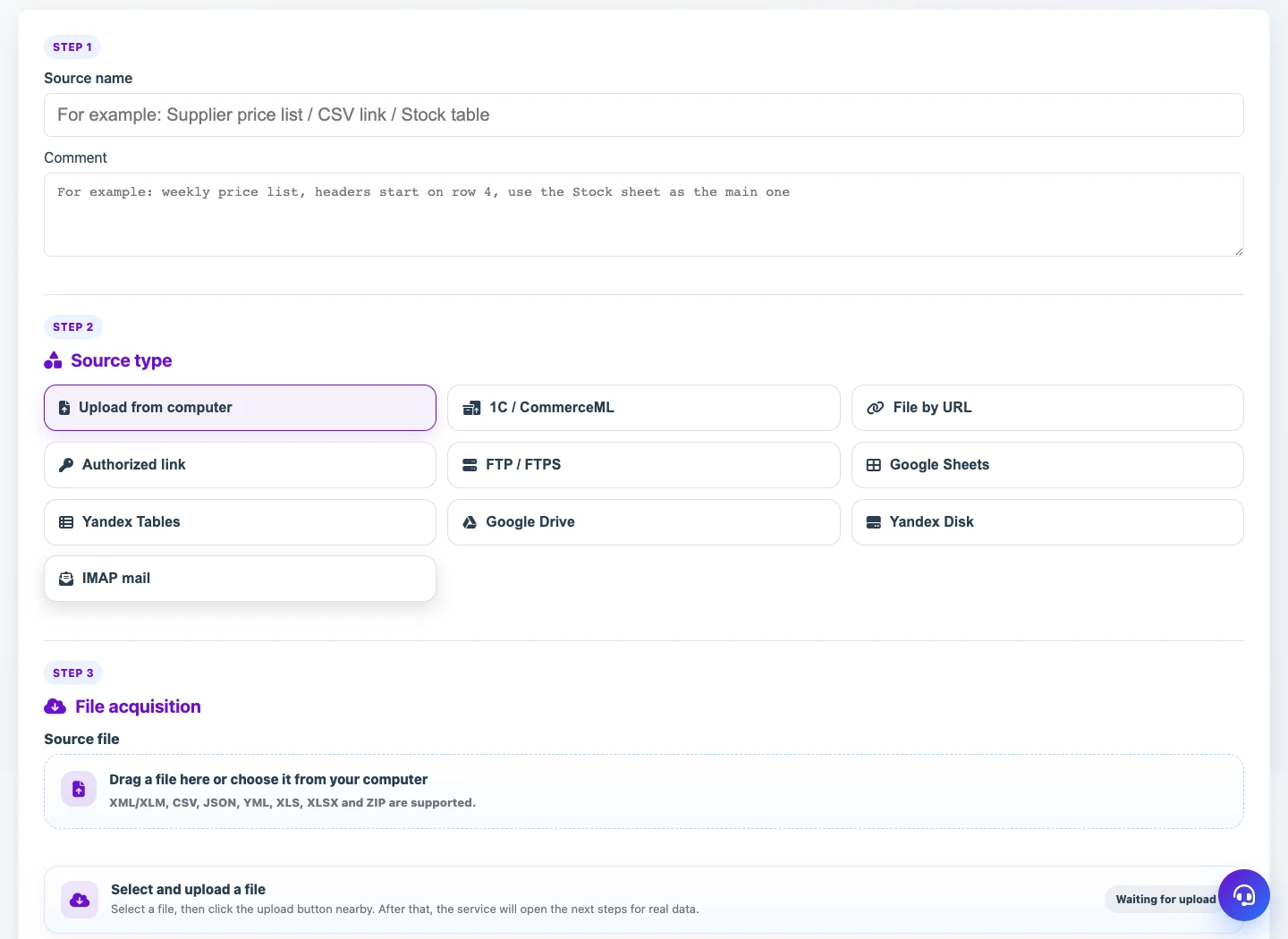
Where Data Can Come From
A source describes where Eofferix receives the original file or data flow. A single catalog can be filled from several sources: for example, each supplier sends its own price list, and the service brings them into one model.
- File from computer. One-time upload of
XML,YML,CSV,JSON,XLS,XLSX, or an archive. - URL. Receive a file by a direct URL or an authorized link.
- FTP / FTPS. Automatically pick up a file from the supplier folder.
- Spreadsheets and drives. Google Sheets, Yandex Tables, Google Drive, and Yandex Disk.
- Email. Receive a file from an email attachment through IMAP.
- 1C / CommerceML. Receive exchange files such as
import.xml,offers.xml,price.xml,rests.xml, and archives.
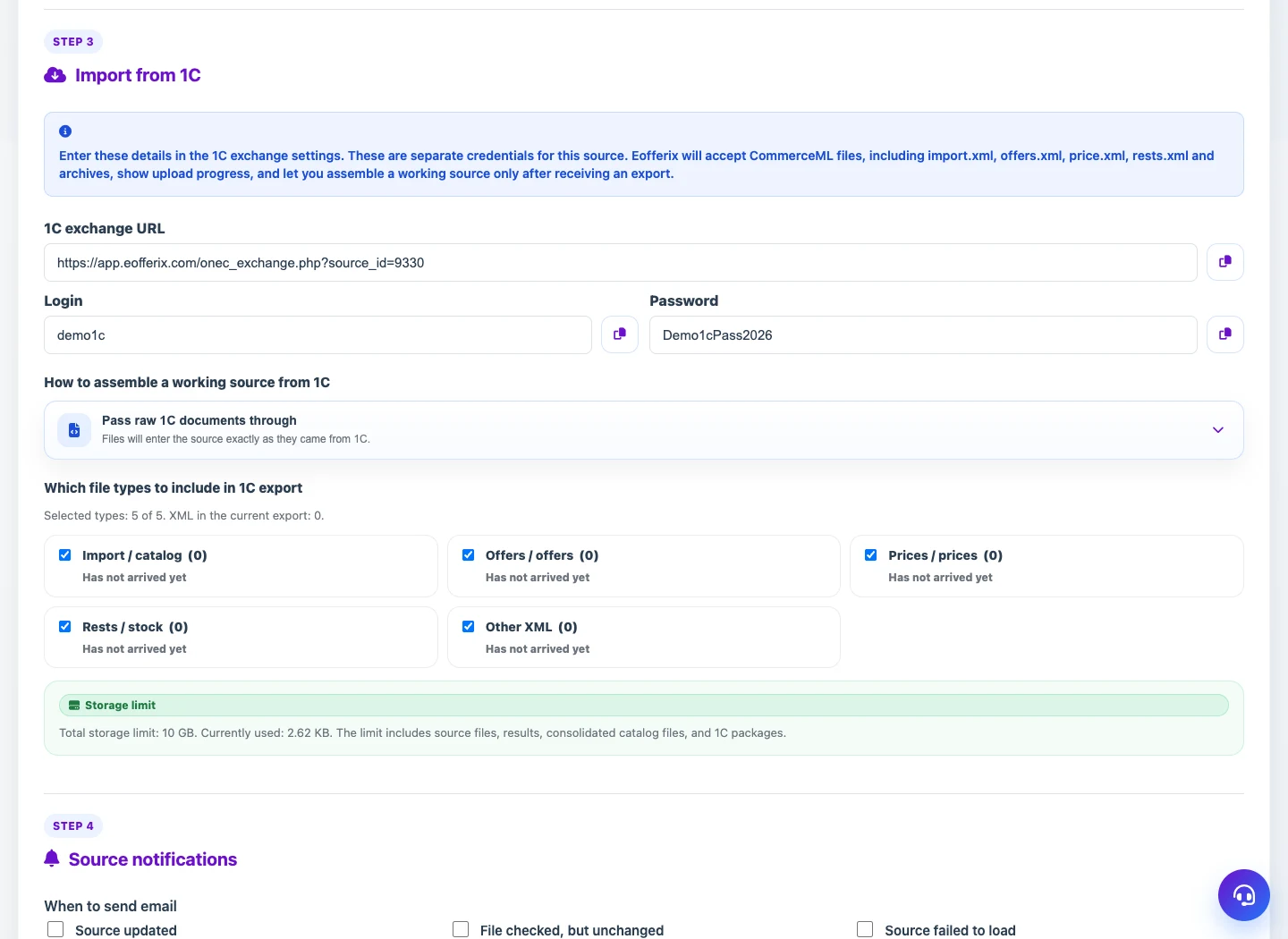
For 1C, Eofferix creates a dedicated source with an exchange URL, login, and password. Add these values to the 1C exchange settings, then Eofferix will accept CommerceML files and assemble a working source from them.
Product, Offer, and Section
Before configuring imports, it is useful to separate the three catalog entities. This keeps the product card, the supplier-specific offer, and the category tree from being mixed together.
- Product is the main card: title, brand, description, images, and shared properties. One product can have several offers.
- Offer is a row that can actually be sold: a concrete SKU, color, size, price, and stock. One product, such as
T-shirt, can have several offers:SKU Color Size Price Stock 11-11 Red M 10.00 12 11-12 Blue M 9.00 18 11-13 Red XL 11.00 3 - Section is a catalog branch. Map a separate section node when the source file has a separate category list, for example
sections/section. If the section path is already inside the product, for exampleproduct/category, it is usually easier to build the section tree from that property and not map a separate section node.
Snapshot and Field Mapping
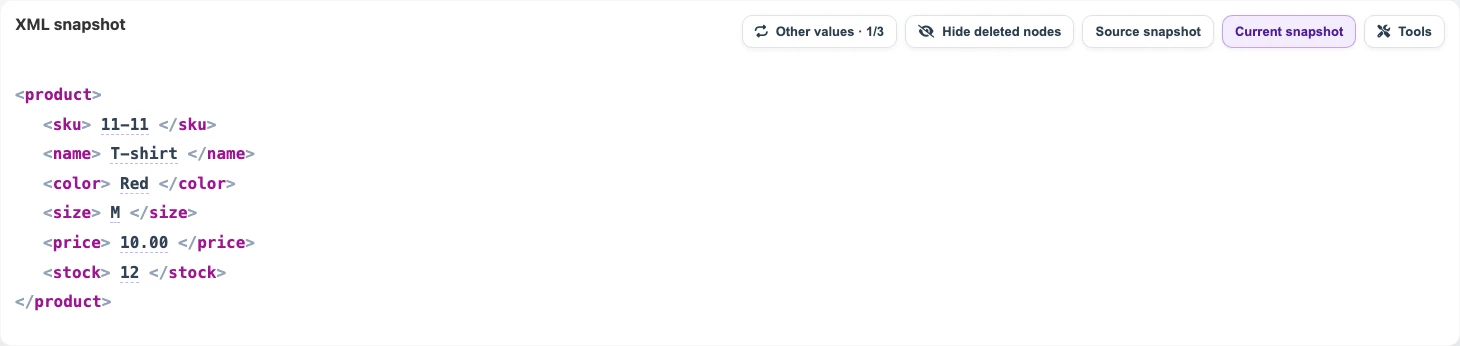

After the source file is loaded, Eofferix analyzes it and turns it into a short snapshot with unique nodes and sample values. If the document contains a thousand products, the snapshot shows one typical repeated element instead of a thousand identical branches. In the first example, the structure is flat: the product immediately contains SKU, title, color, size, price, and stock.
Node Roles
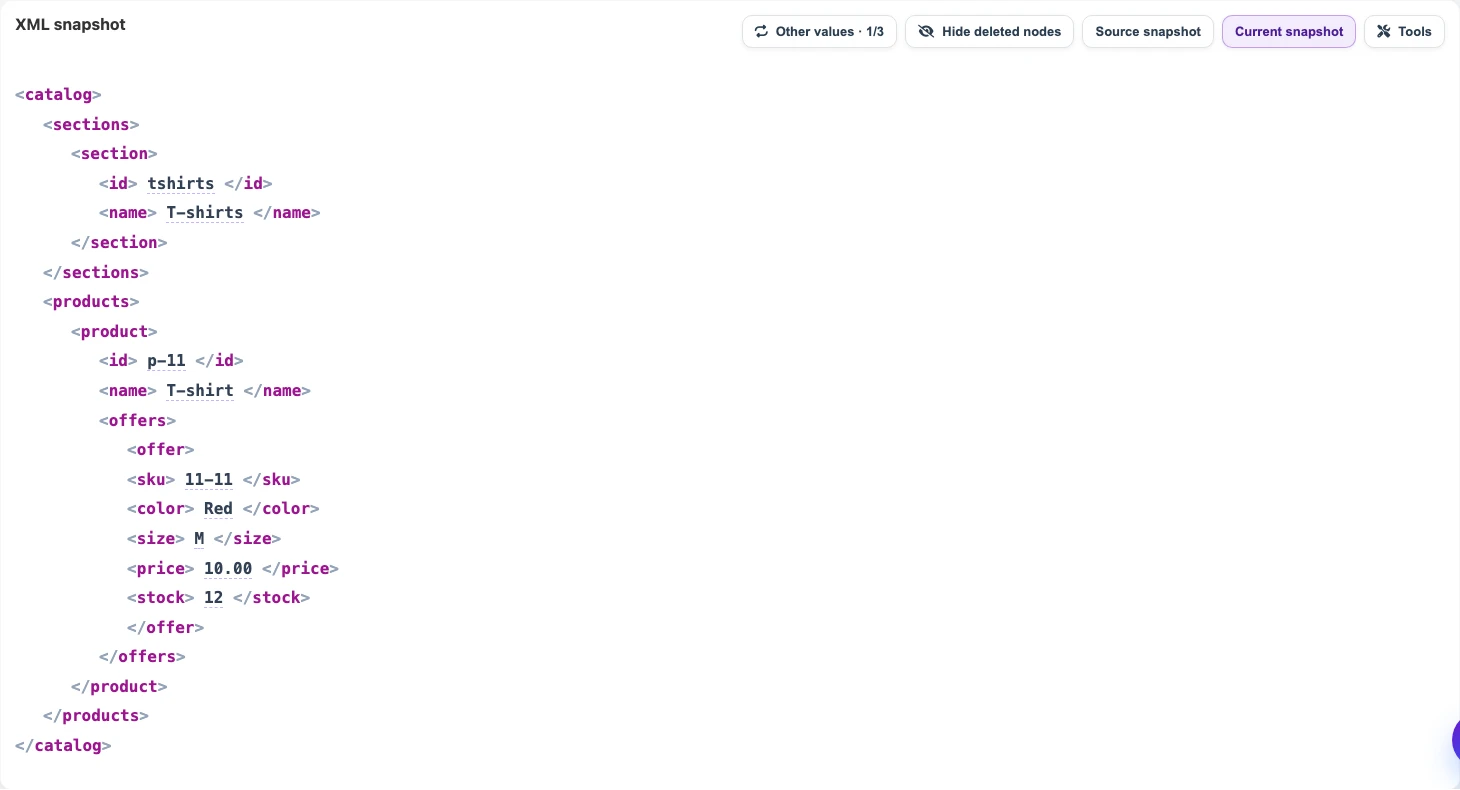
Repeated nodes receive a role: Section, Product, or Offer. In the second example, sections are a separate list, products are a separate list, and offers are nested inside the product. In this structure, sections/section can be mapped as sections, products/product as products, and offers/offer as offers.
How To Map a Value to a Catalog Field
Click a value in the snapshot and choose where to load it. For example, sku can be mapped to the supplier SKU, and name can be mapped to the product title. If the wrong field was selected, the binding can be removed and assigned again.
Properties Manually and in Bulk
Properties can be created directly from the snapshot. This is useful for material, color, size, country of origin, or any other product attributes sent by a supplier.
- Manually. Click the required value and choose an existing property or create a new one, such as
Material.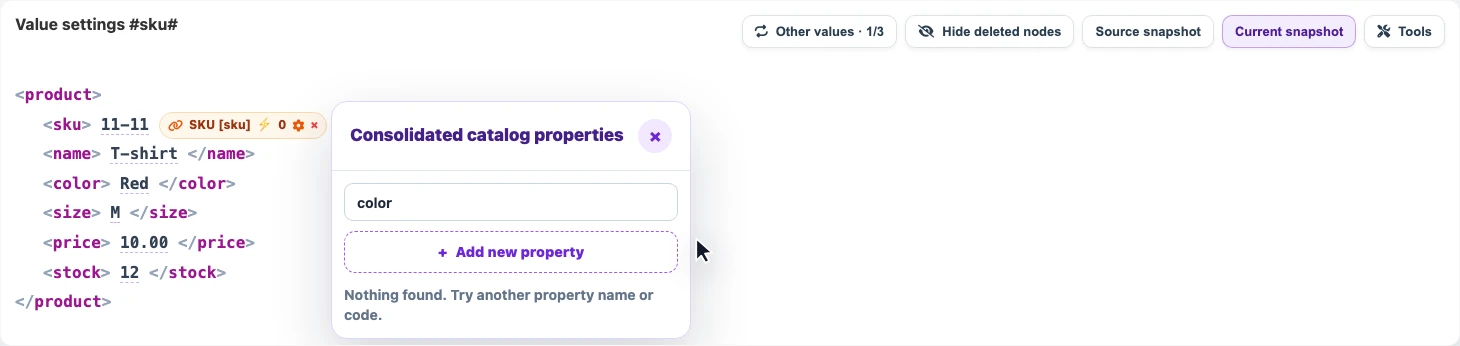
If the property does not exist yet, it can be created directly from the property picker. - In bulk. If properties arrive as pairs like
attributes[].name+attributes[].value, enable creation of new attributes from the source. Eofferix can then create properties using names from the file.
Clicking the properties button opens node settings where property creation from repeated fields is enabled.
If the supplier does not send separate fields for Material, Color, and Size, but sends name/value pairs, bulk creation avoids creating every property manually.
Transformations Before Import
Transformations run before data is written to the consolidated catalog. They can change the current value, check conditions, and use other document nodes: price, stock, brand, currency, warehouse, or an active flag.
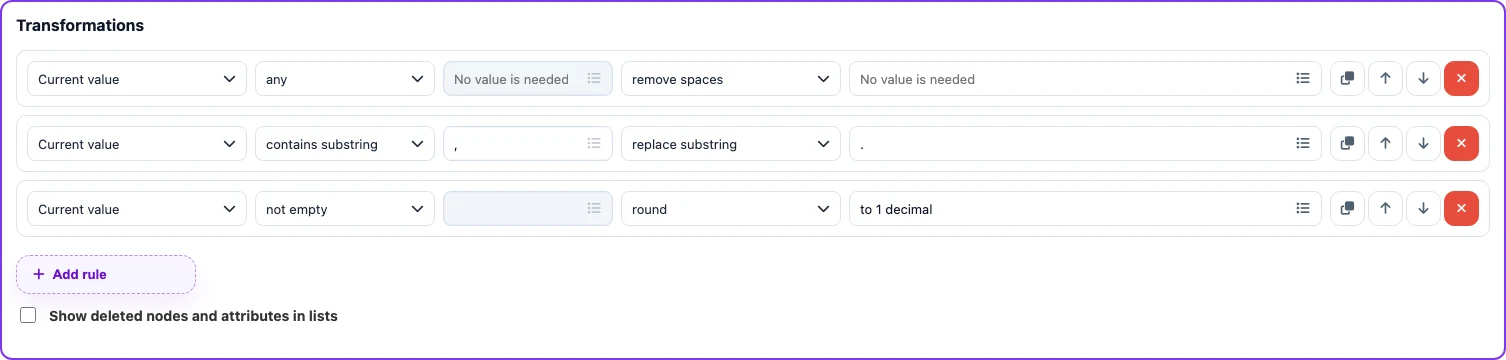
Common rule tasks:
- Clean values: remove spaces, extra characters, currency labels, and HTML.
- Normalize numbers: replace the decimal separator, round price, calculate markup or discount.
- Filter data: do not load offers without SKU, without price, without stock, or with an unsuitable brand.
- Use other nodes: for example, if
brand = TestBrand, multiply the price by a coefficient; if stock is below a threshold, do not load the offer.
Price and Stock Groups
It is best to create a separate price group and a separate stock group for each supplier.
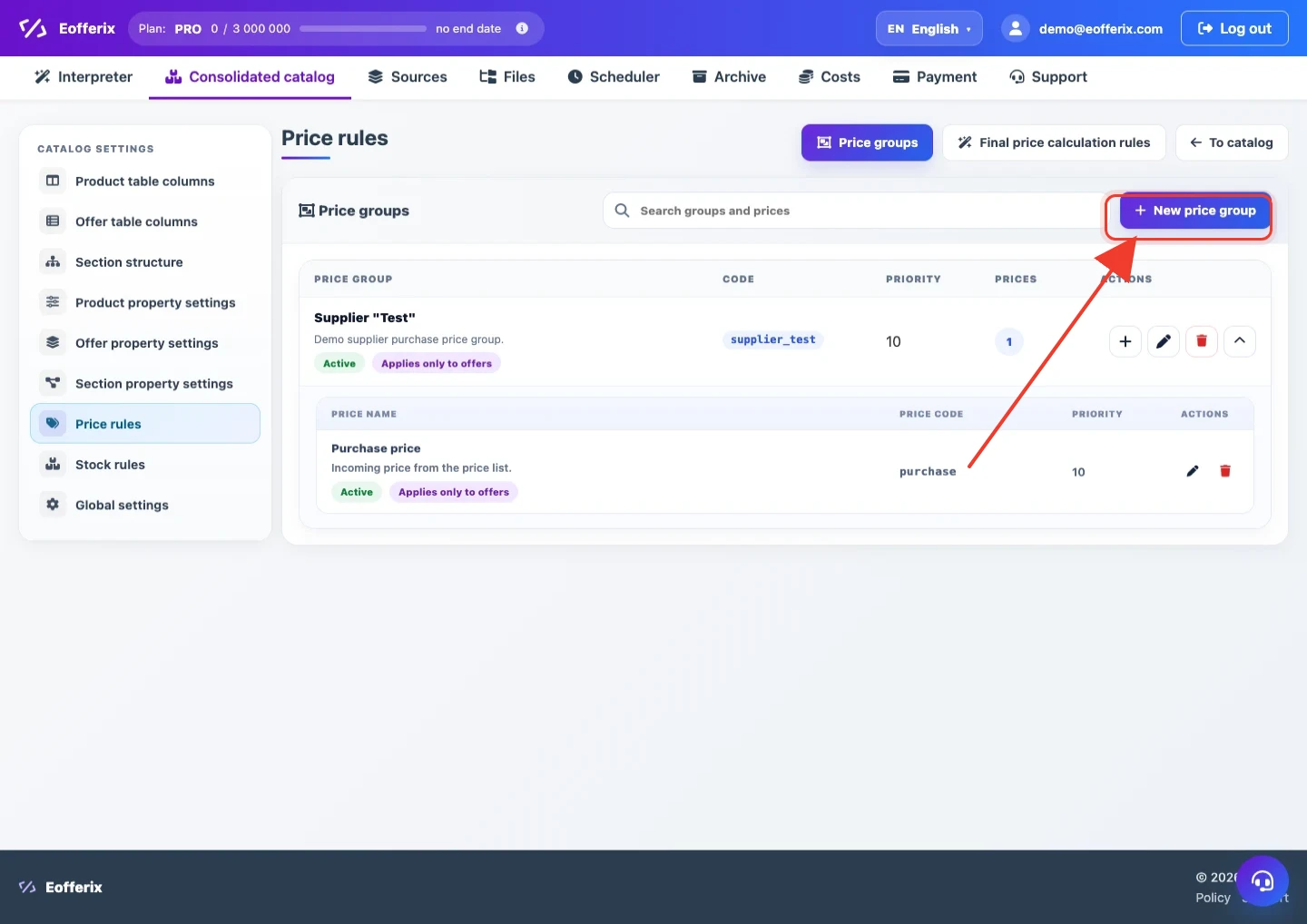
A stock group works the same way: usually one group corresponds to a supplier or a supplier warehouse, while the group can contain several values such as available, reserved, showroom, in transit, or total stock.
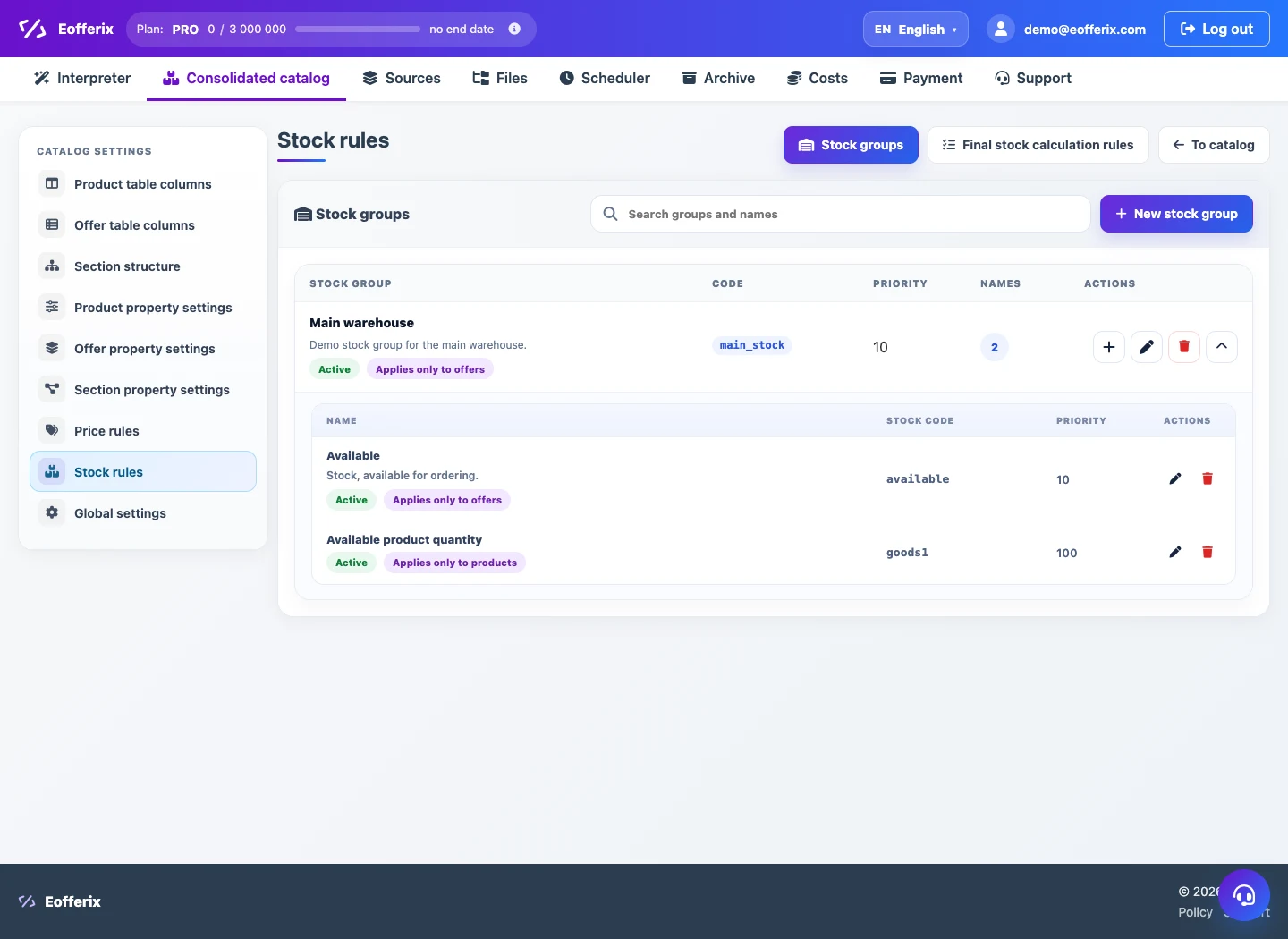
- If one supplier sends several prices, keep them in one supplier group instead of creating a separate group for every column.
- If the supplier has several warehouses, they can be stored as several values inside one stock group.
- Final price and final stock rules later choose which value the catalog should use and with what priority.
Simple Setup Example
Suppose a supplier sends JSON with products, prices, stock, and a list of attributes. For a first import, the setup can stay compact.
- Create a source: upload a file manually or choose an automatic data channel.
- Open the snapshot and assign the product array the Product role. If the structure has a separate array of sellable variants, assign it the Offer role.
- Click
skuand map it to the supplier SKU. Clicknameand map it to the product title. - For the price, add transformations: remove spaces, replace the separator, round the value. Add brand, stock, or activity conditions when needed.
- Create a separate price group and a separate stock group for the supplier.
- Run the import and check products, offers, sections, prices, and stock in the consolidated catalog.