
What counts as a catalog source
A source is the input data that a profile reads and then imports into the consolidated catalog. You choose it when creating a consolidated catalog import profile: app.eofferix.com/profiles/new?target_template=summary_catalog.
The profile can work with these input types:
- uploaded files: XML/YML, JSON, CSV, XLS, XLSX, XLSM, and ZIP;
- data prepared through Source Manager: URL, authorized URL, FTP/FTPS/SFTP, email, Google Sheets, Yandex Tables, Google Drive, Yandex Disk, 1C/CommerceML, and other supported supplier modules;
- the current account’s consolidated catalog selected as the source for an export profile.
If the input has fields with image URLs, map those fields to product images. Profile rules can then convert images to another supported format, resize them, or apply a watermark.
After a file is uploaded or a source is selected, Eofferix analyzes the input and creates a short snapshot. The snapshot shows unique nodes, elements, attributes, columns, and sample rows instead of displaying the entire large file.
Choosing the source in the profile
If the file is already on your computer, choose "Upload a new file". After upload, the profile detects the format, prepares the working file, and opens the import settings.
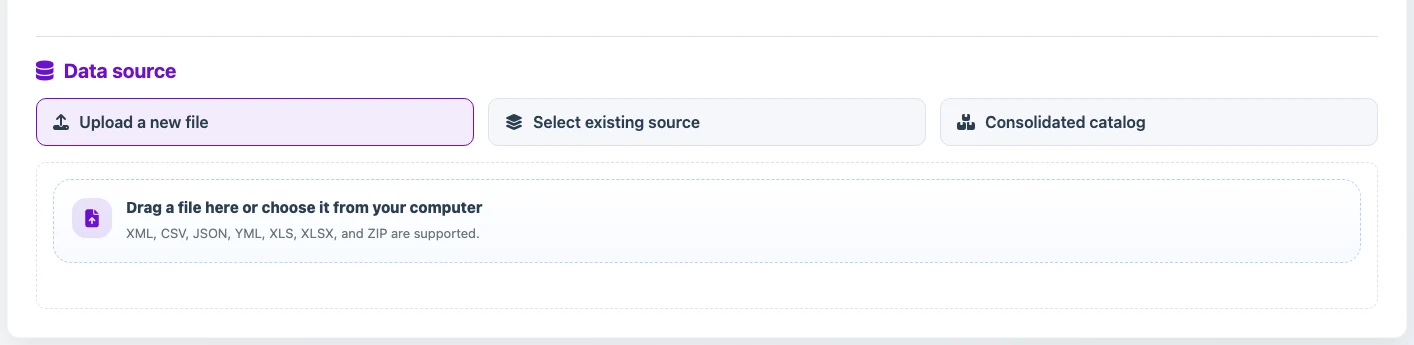
If the source is already configured in Sources, select it in the profile. This source can be updated separately from the profile, for example from a URL, email, cloud storage, 1C, or FTP/FTPS/SFTP.
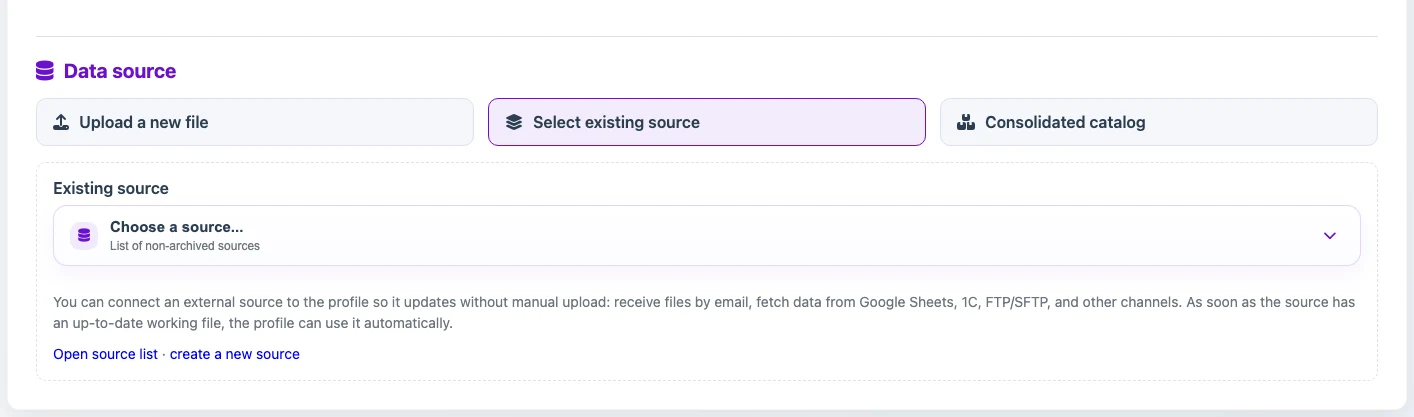
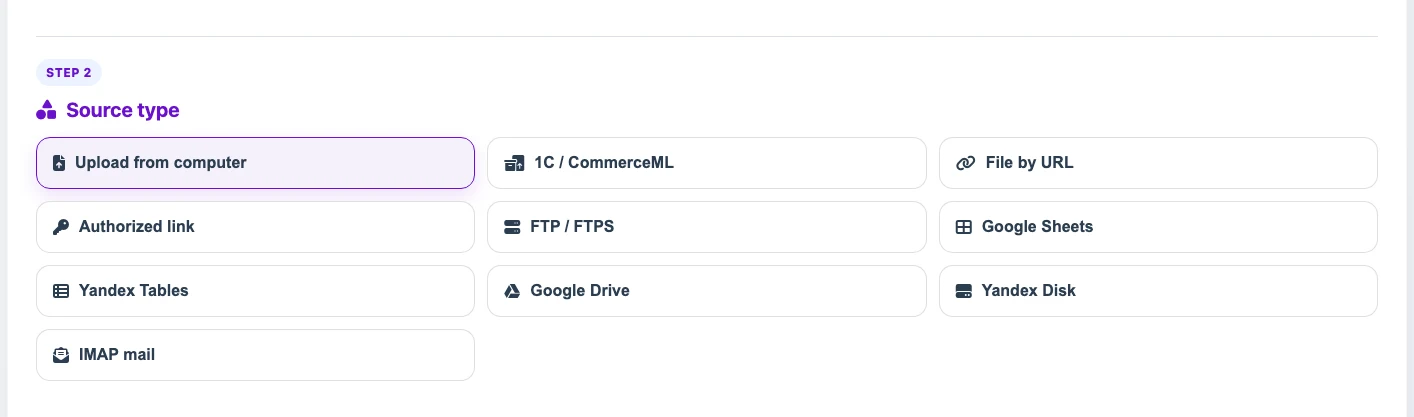
If the source does not exist yet, create it in Sources. On the new source page, choose how Eofferix should receive the data: computer upload, 1C/CommerceML, URL file, authorized link, FTP/FTPS, Google Sheets, Yandex Tables, Google Drive, Yandex Disk, or IMAP mail.
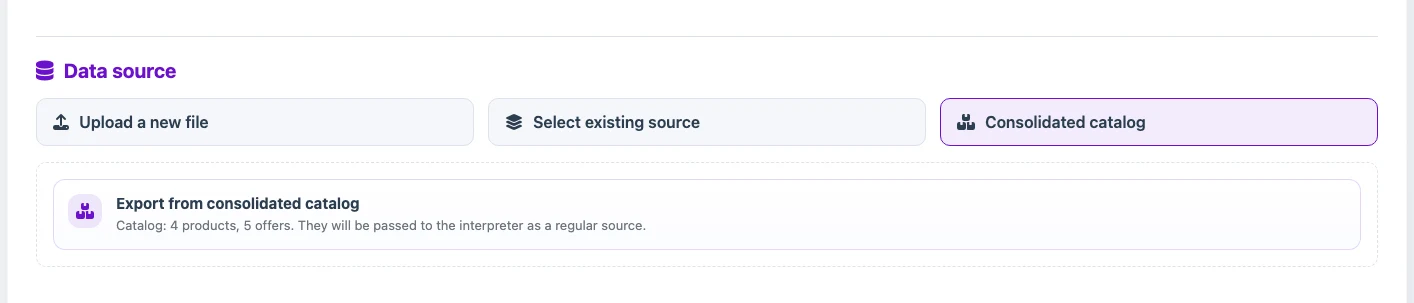
You can select the current account’s consolidated catalog as the source when creating an export profile. The profile receives products, offers, and sections from that catalog so you can filter and transform them, then export them to the selected external format. This source cannot be used to import the result back into the same consolidated catalog.
What to check in settings
Before configuring the snapshot, set the product and offer identification fields. Use stable values such as SKU, external ID, or a field combination that lets the profile recognize the same item during later runs.
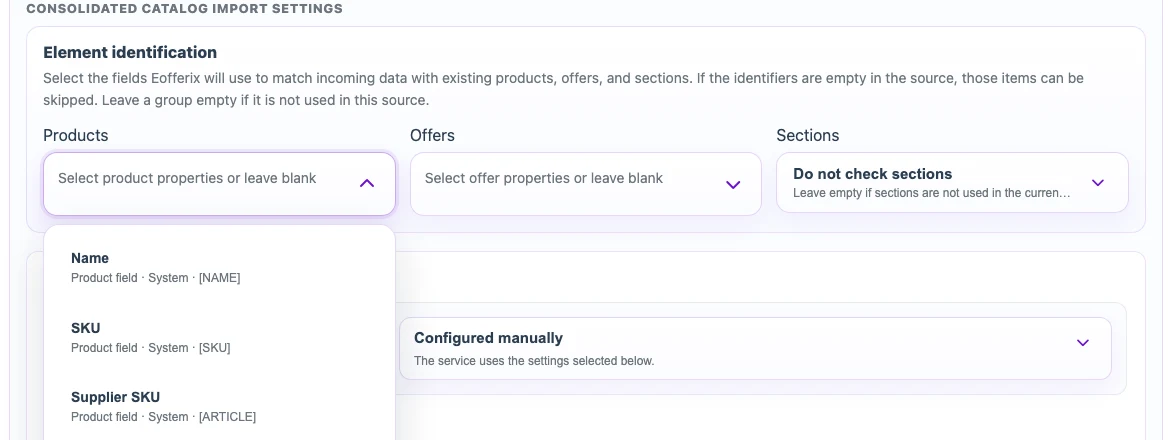
Import rules define actions for found and new records: whether to create products and offers, whether to update found records, and what to do with empty values, zero stock, or zero price.
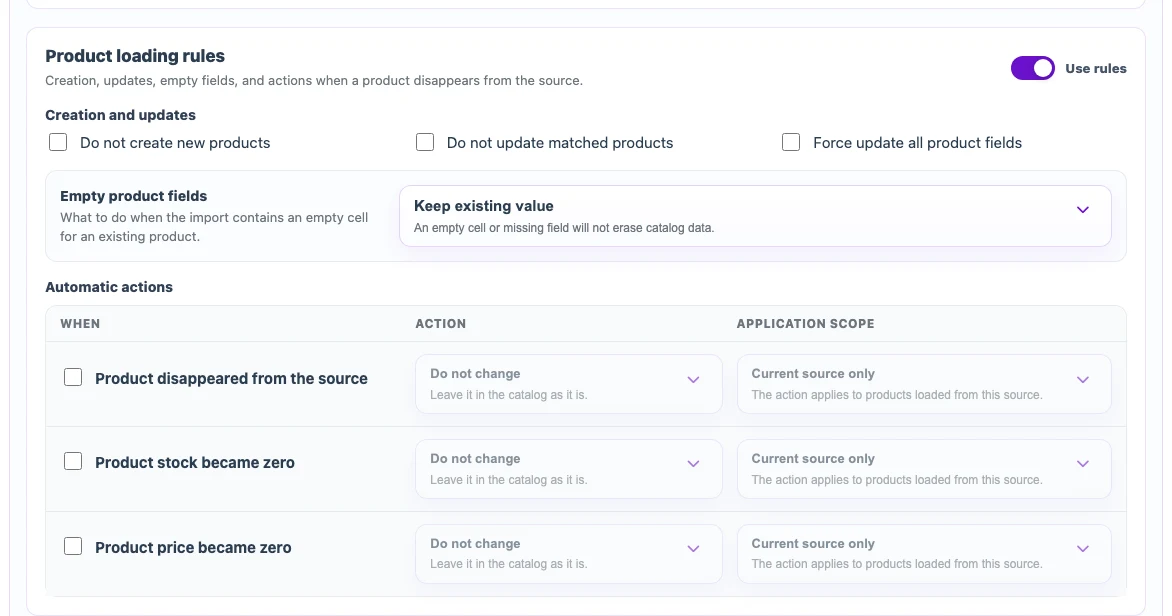
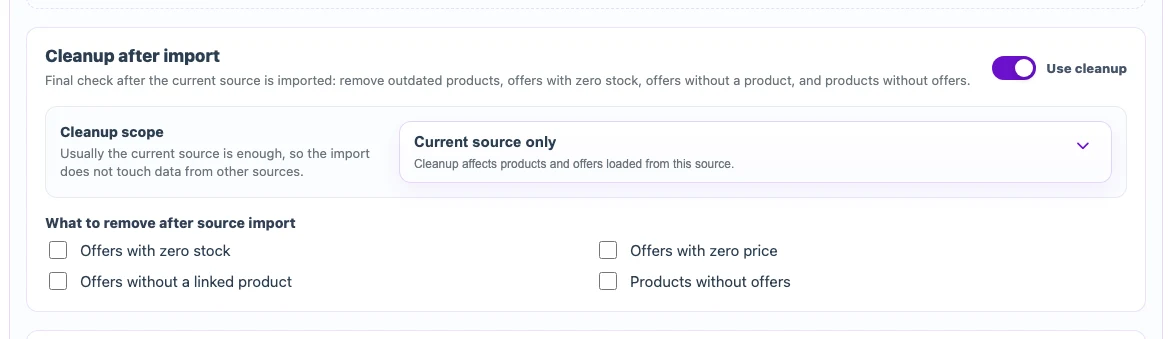
The profile processes the complete source. Cleanup settings define what happens to products, offers, and sections that already exist in the catalog but are missing from the current source: leave them unchanged, delete them, unpublish them, or set stock to zero. The scope is selected separately.
Automatic missing-data cleanup does not delete or unlink properties or dictionary values used by the profile. If they are temporarily absent from a later source, they remain in the catalog; when they appear again, Eofferix reuses the retained mapping when one compatible object can be identified unambiguously. Rules for missing products, offers, sections, and images work separately.
How the snapshot works
After you select a source or upload a file, the next step creates a snapshot: a short version of the source file where you configure the final structure and transformations. In this snapshot, choose which fields become product, offer, and section fields, which fields become product properties and values, whether images should be converted to another supported format, resized, watermarked, and more.
In practice, start with the XML node that repeats for each product. Open that node, for example product, and set its role to "Product". Then open a value inside that node, for example sku, and select the consolidated catalog field "SKU" for it.

Use the same pattern for price, stock, name, section, image, and property values: set the node context first, then assign each required value to its catalog field.
What happens after the run
After the run, the profile creates or updates records in the consolidated catalog and keeps the link to the source. This link lets later runs update matching products and offers instead of creating duplicates when the keys match.
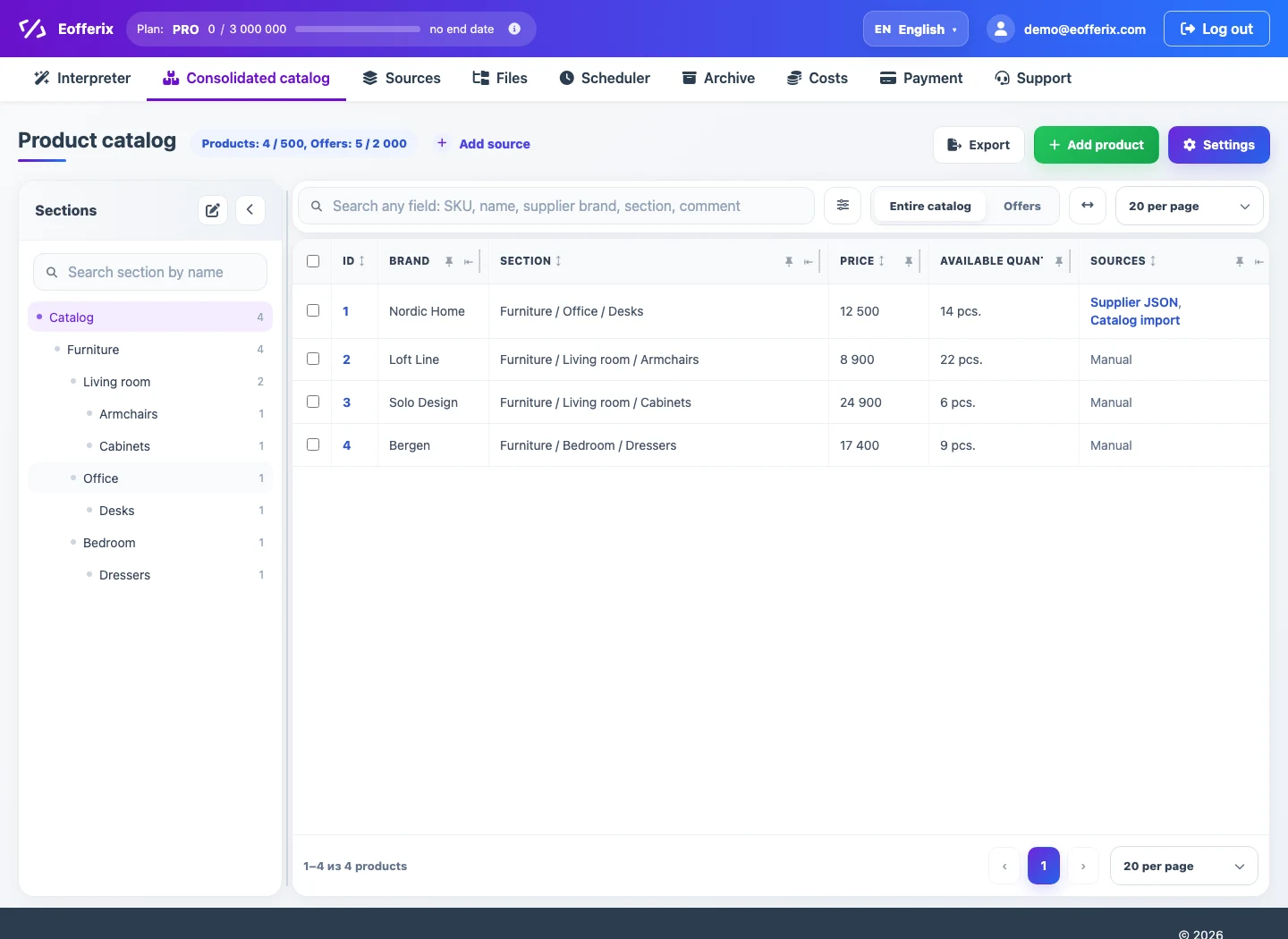
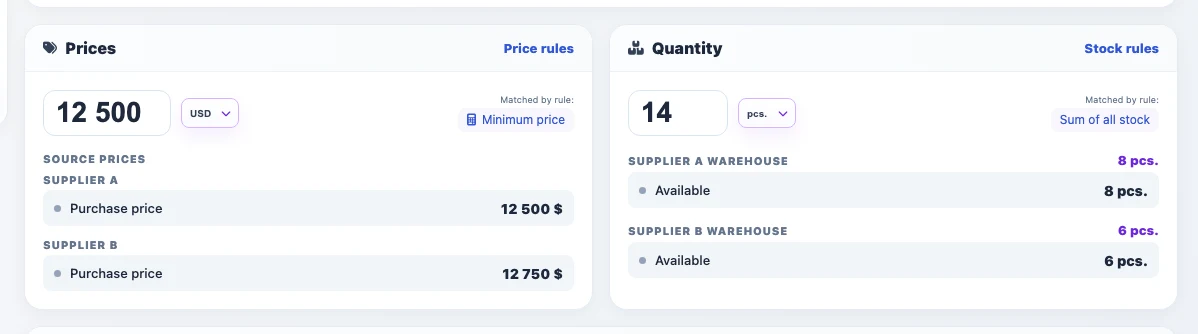
If one product comes from several sources, it can remain one product card. Values from different sources can be placed into separate price groups and stock groups, so the card can show different purchase prices, stock quantities, and warehouses.
Short checklist
- Product and offer identification fields are selected from unique, stable values. Most often this is an ID field, SKU, or external ID.
- Create, update, and empty-value rules match the import scenario. Check them especially carefully: an incorrect cleanup scope can remove missing products, offers, and sections within that scope; automatic cleanup retains properties and dictionary values.
- Cleanup settings apply to the intended scope: current source, current-source records without other links, or the whole catalog.
- Separate price and stock groups are configured for multiple suppliers, prices, or warehouses.
- Image fields are mapped only where images should be added to the catalog or processed by profile rules.