In Eofferix, the same source can be used in different ways. A regular export reads input data, applies profile settings, and creates a result: a file, feed, or data for a supported application. The consolidated catalog works differently: it first stores the data in a unified product structure inside Eofferix, and then separate exports can be built from that structure.
Both regular exports and consolidated catalog imports can start from the same input types:
- uploaded XML/YML, JSON, CSV, XLS, XLSX, XLSM, and ZIP files;
- data from Source Manager: URL, authorized URL, FTP/FTPS/SFTP, email, Google Sheets, Yandex Tables, Google Drive, Yandex Disk, 1C/CommerceML, and other supported modules;
- on plans where it is available, an Eofferix consolidated catalog can be selected as the source for a new export profile.
1. Main Difference
A regular export converts one source into the required result: a file, feed, or data transfer. The consolidated catalog is used when several sources need to be brought into one product model: one section structure, unified properties, normalized property values, and separate supplier prices and stock when needed.
| What differs | In source data | In the consolidated catalog |
|---|---|---|
| Sections | One supplier sends /catalog/mobile phones/, another sends /catalog/smartphones/. | Both branches can be loaded into one section: Catalog / Smartphones. |
| Property name | One file has Color, another has colour or product color. | The fields can be mapped to one Color property. |
| Property value | One supplier sends light blue, another sends pale blue. | Both values can be normalized to one value: blue. |
| Prices and stock | Suppliers send different purchase prices, warehouses, and stock values for the same product. | The product remains one card, while prices and stock are stored in separate price and warehouse groups. |
2. When a Regular Export Is Enough
Choose a regular export when you do not need to store a shared catalog inside Eofferix. For example, a supplier sends a price list and you need to clean columns, rename fields, filter rows, round prices, and create XML, JSON, CSV, XLSX, YML, or another supported result.
- there is one input file or one configured source;
- the result is needed directly in the final format;
- several suppliers do not need to be merged into one product card;
- separate price groups and warehouse groups do not need to be stored inside Eofferix.
3. When You Need the Consolidated Catalog
Choose the consolidated catalog when the data should become a shared product base instead of a one-time file. The catalog stores and lets you configure:
- products and offers;
- one section structure and category paths;
- unified properties and property values;
- images and linked files if they are mapped in the profile;
- price groups and warehouse groups;
- assortment update rules: create new products, update matched records, delete, unpublish, or set stock to zero for missing items;
- links between catalog records and the sources they came from.
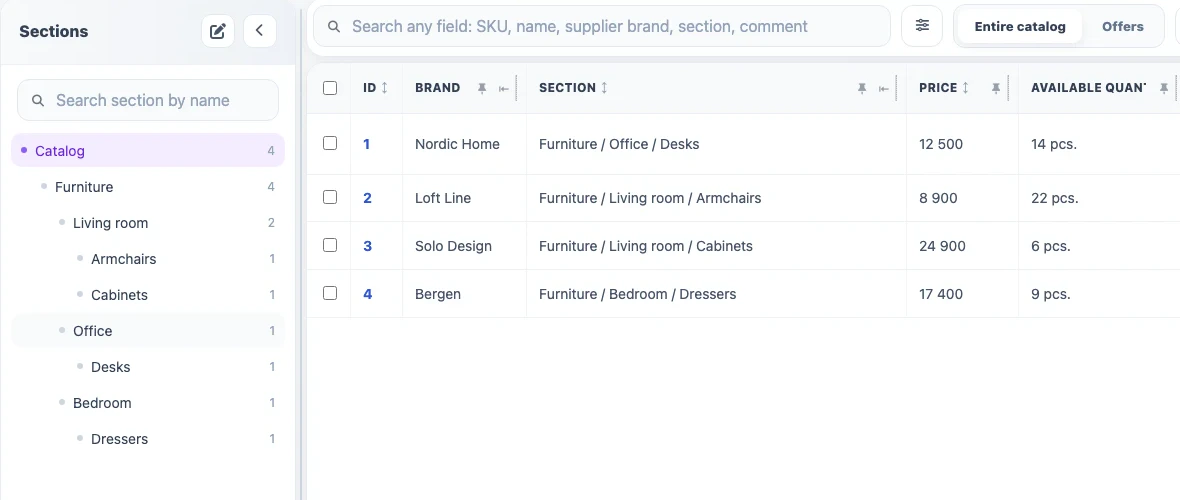
For example, different sources may send the same property as "Color", "Colour", or "Product color". In the consolidated catalog, these fields can be mapped to one property and their values can be normalized by shared rules. The same applies to sections: supplier categories can be imported into one catalog structure.
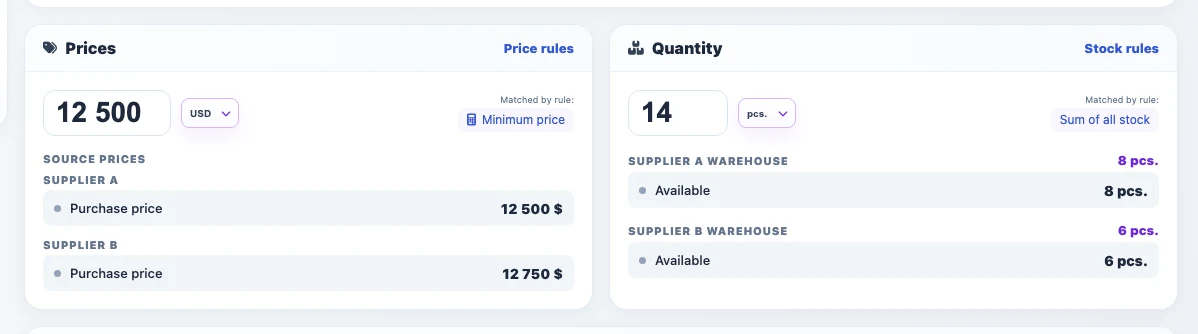
If the same product comes from several suppliers, it can remain one product card. Supplier prices and stock should be stored in separate price groups and warehouse groups, so the card shows which purchase price and stock value came from each supplier.
4. How to Configure an Import into the Consolidated Catalog
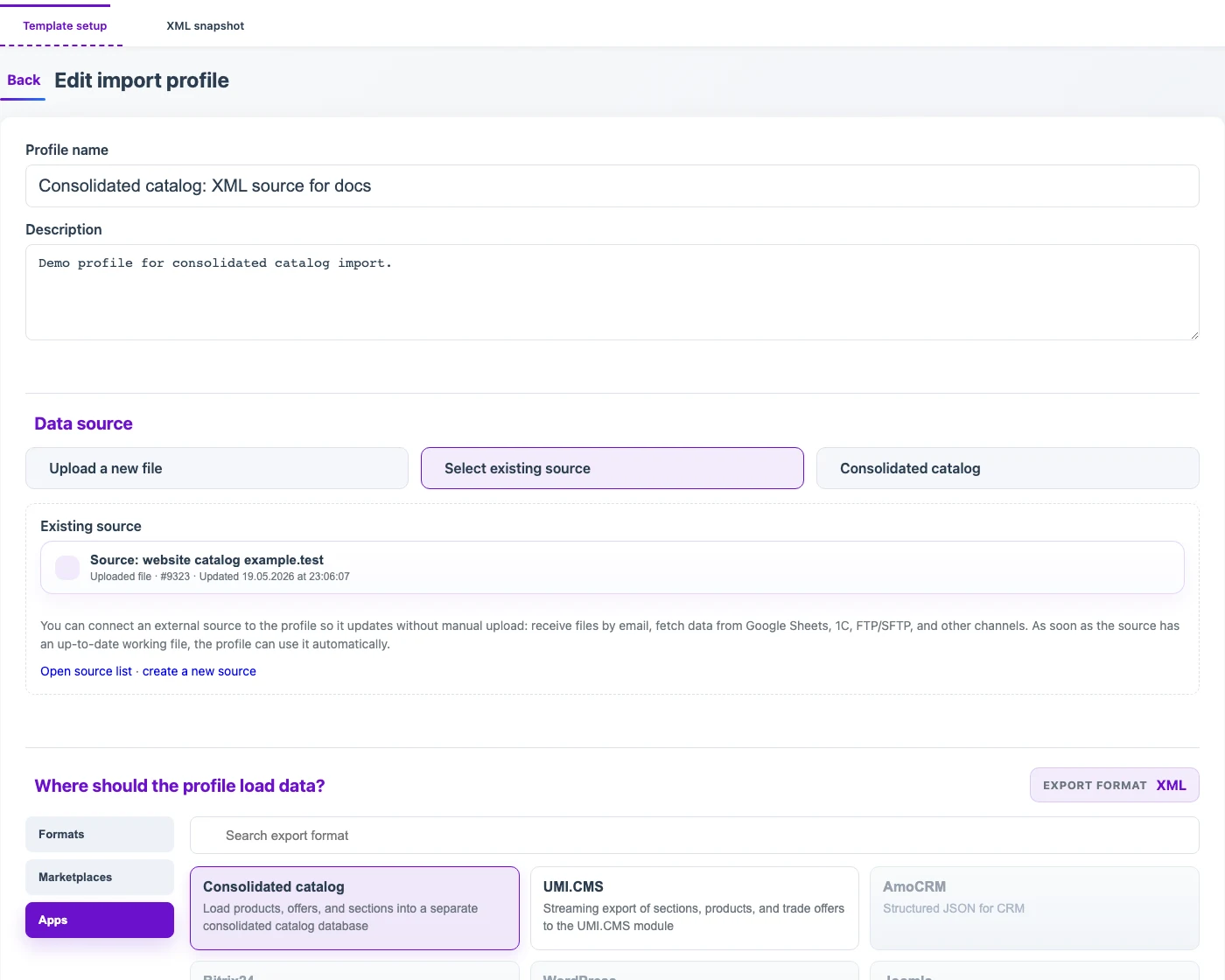
In the import profile, select the source and choose "Consolidated catalog" as the result. Before moving to the snapshot, set identification keys, product creation and update rules, and actions for items that disappeared from the source: keep them, delete them, unpublish them, or set stock to zero.

In the snapshot, first select the repeating product node, then map values to catalog fields. In this example, the product node receives the Product role, name becomes the product name, sku becomes the SKU, and transformations are opened for the SKU. The rule "current value contains substring -" with the action "replace substring with an empty value" turns 111-111 into 111111.