
A SKU should not be cleaned like a phone number or a barcode: letters, dashes, underscores, dots, and slashes can be part of the product code. A regular expression lets you keep the SKU and remove labels such as SKU:, supplier comments, or extra text.
You can choose an expression from the preset library with the star button or type it manually. For SKUs, a manual pattern is often more accurate because each supplier can use its own code format.
Example: extract the SKU and convert it to uppercase
The first rule uses the regular expression condition and the remove all except action. The second rule converts the result to uppercase.
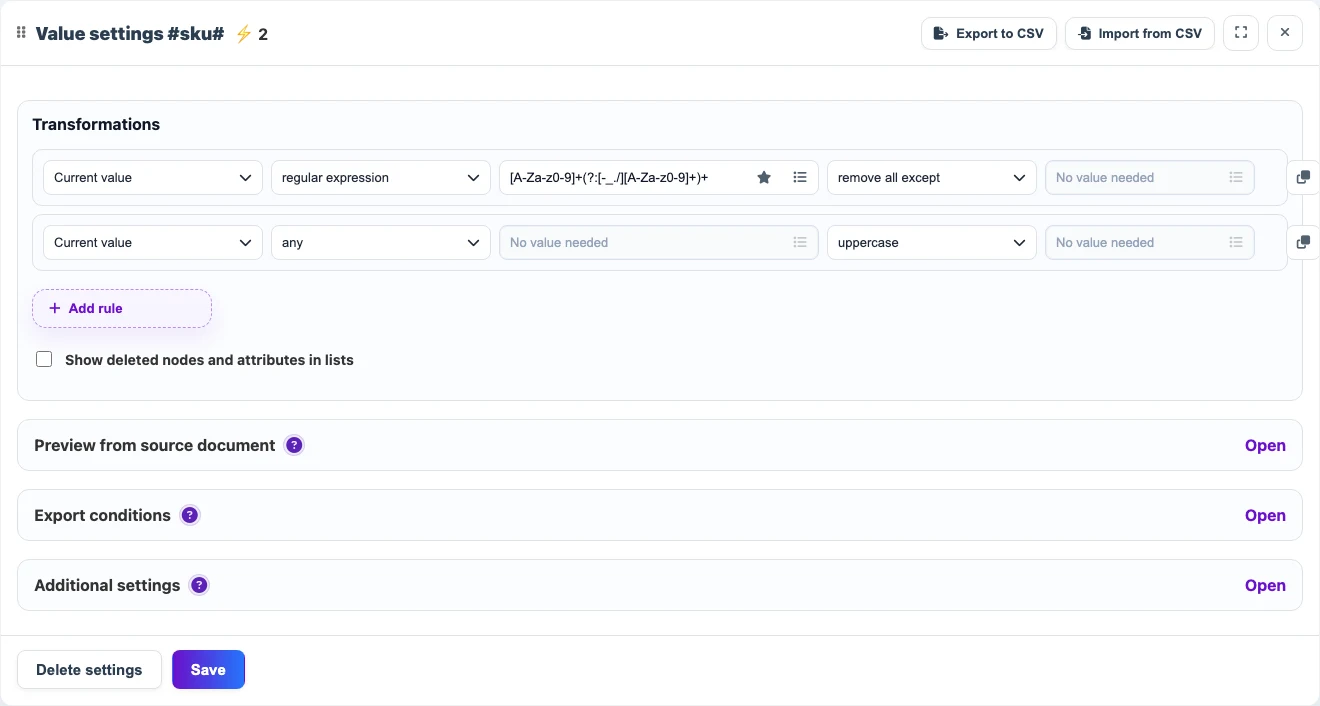
| Before | Rules | After |
|---|---|---|
SKU: ab-100/7 | [A-Za-z0-9]+(?:[-_./][A-Za-z0-9]+)+ → uppercase | AB-100/7 |
supplier code sku-55_blue | [A-Za-z0-9]+(?:[-_./][A-Za-z0-9]+)+ → uppercase | SKU-55_BLUE |
Useful patterns
| Scenario | Pattern | Result |
|---|---|---|
| Compound SKU with separators | [A-Za-z0-9]+(?:[-_./][A-Za-z0-9]+)+ | Keeps AB-100/7 from a value with a label. |
| SKU made of letters, digits, dash, and underscore | ^[A-Za-z0-9_-]+$ | Useful for checking an already cleaned value. |
| SKU may have no separators | [A-Za-z0-9]{3,} | Keeps a simple code such as ABC100. |
Important details
- Do not use a digits-only pattern for SKUs when letters are part of the product code.
- If lowercase letters matter in the SKU, do not add the
uppercaserule. - Use separate rules for suppliers whose SKU formats differ.