
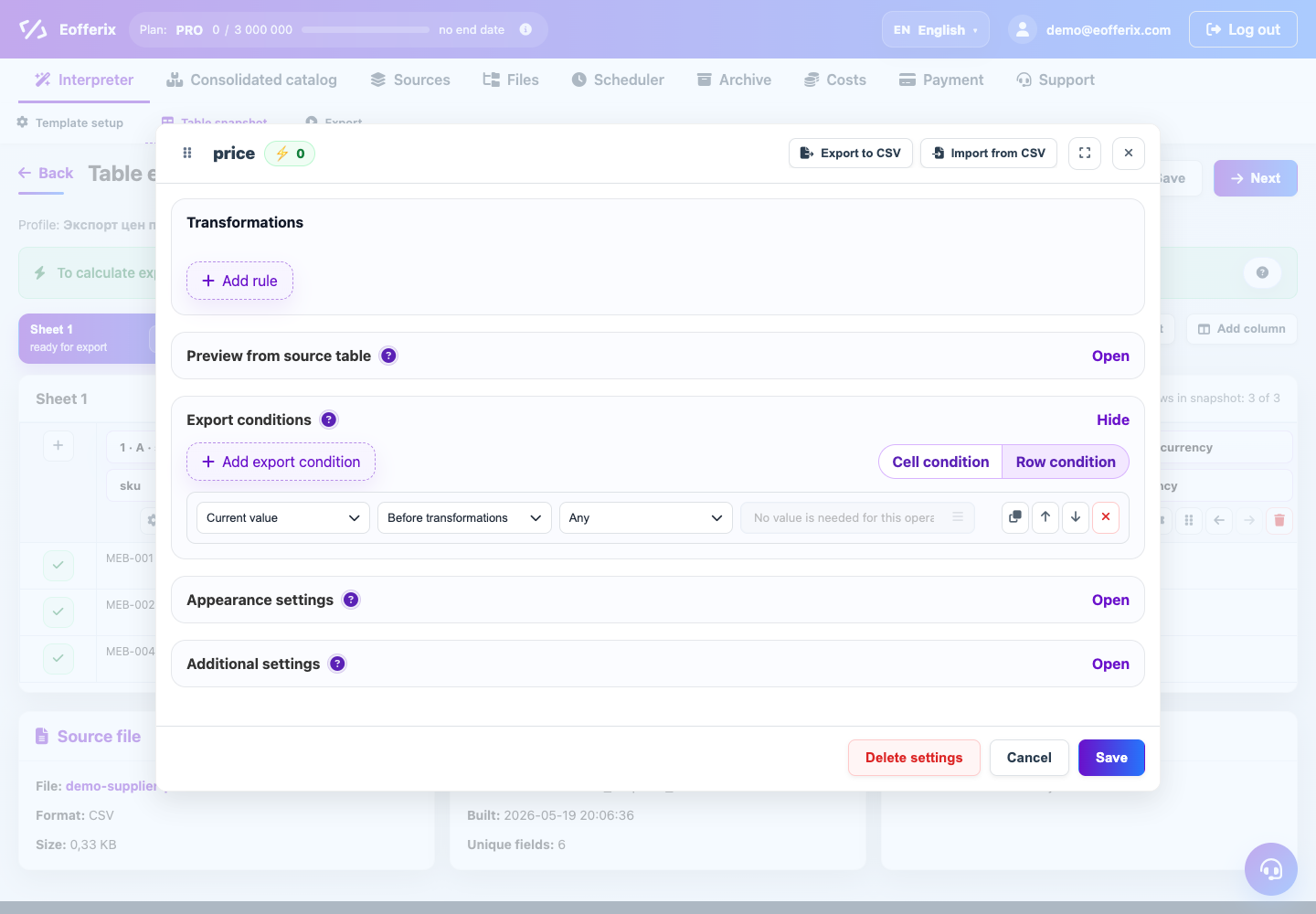
Conditions compare the current value or another source field with a specified value. If the condition is not met, the element is not included in the result.
When to use
Use conditions to download only the fields, products or rows you need.
Setting procedure
- Open the field or node that the condition applies to.
- Add an export condition.
- Select the field to compare the value to.
- Specify the match operator and value.
- Adjust case sensitivity if it is important to distinguish between text.
- Check which elements are left in the preview.
What to check
- The condition is applied to the desired level: field, element, or row.
- The comparison is made with the correct source field.
- The excluded data is not really needed by the recipient.
Notes
- Conditions that are too broad can remove a lot of data.
- To diagnose, temporarily simplify the condition and compare the preview.