
This article covers only delivery of the finished result via FTP, FTPS, or SFTP. A data source receives the input file into Eofferix. Delivery sends the processed profile result to an external system.
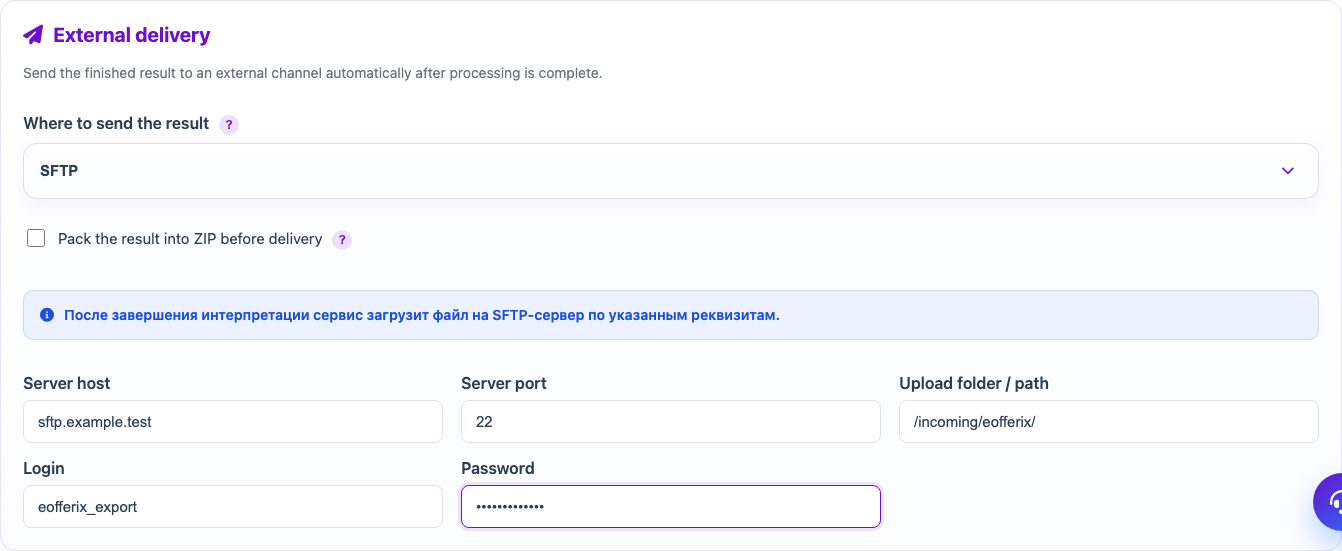
Where to configure it
- Open the profile.
- On the “Template creation” step, find the general settings area.
- In “External delivery”, choose “FTP / FTPS” or “SFTP”.
What to enter
- Server host — domain or IP address without protocol, for example
sftp.example.test. - Port — usually
21for FTP/FTPS and22for SFTP. - Upload folder / path — the folder where Eofferix should place the result file.
- Login and password — credentials with write access to that folder.
- ZIP before delivery — enable it if the receiving system expects an archive or the result file is large.
How to check
- Save the profile.
- Run a demo or full launch.
- After completion, check that the file appeared in the specified folder.
- If it did not, check the port, path, user permissions, and external availability of the server.
Important
Do not confuse this setting with an FTP/SFTP source. A source brings input data into Eofferix; delivery sends the finished Eofferix result outward.