
Use a CSV/XLSX price list when a supplier sends data as a table: SKUs, names, categories, prices, stock, currency, image links, and additional columns. Eofferix accepts CSV, XLS, XLSX, XLSM, and ZIP archives when they contain a supported table file.
1. Source and template setup
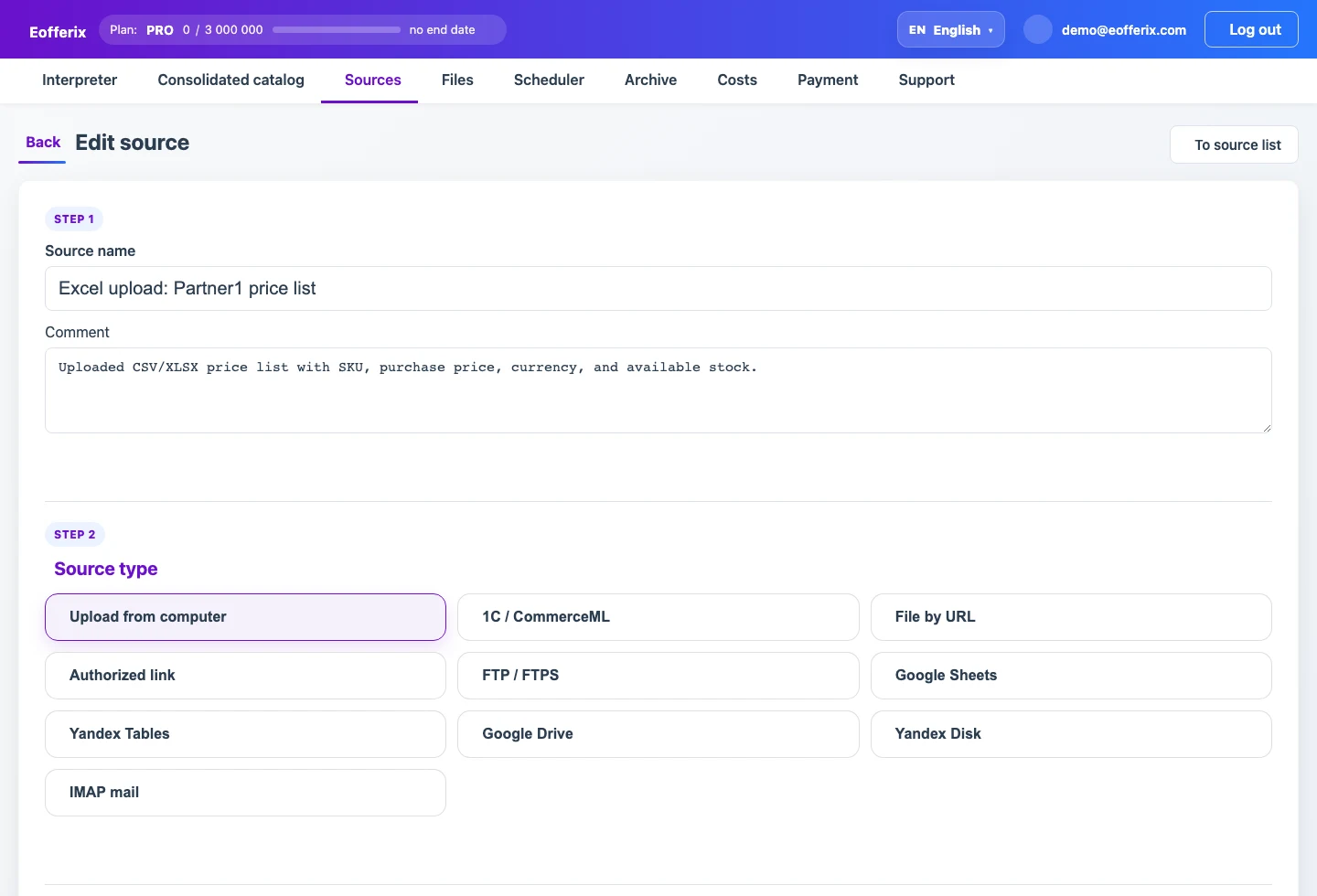
The source can be uploaded once or received regularly on a schedule:
- upload a file from your computer;
- receive a file from a direct URL or an authorized URL;
- download a file via FTP, FTPS, or SFTP;
- receive an email attachment;
- use Google Sheets, Google Drive, or another supported cloud source;
- receive a file through a supplier API or another supported source module.
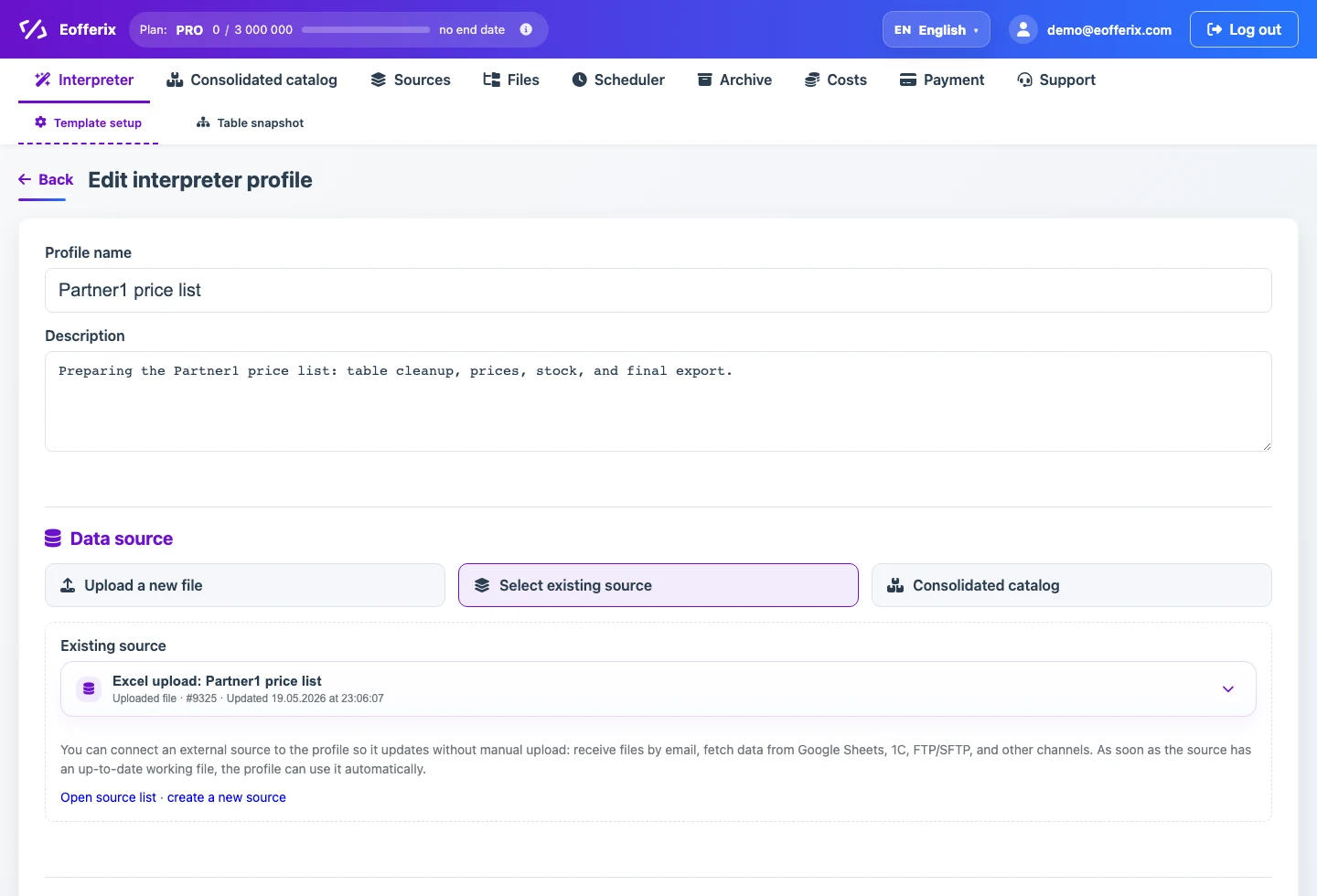
After the source is ready, create a table processing template: enter a name, add a short description, select the data source, and choose the result format. The template stores the rules for reading the file, building columns, and transforming values.
2. Table loading settings
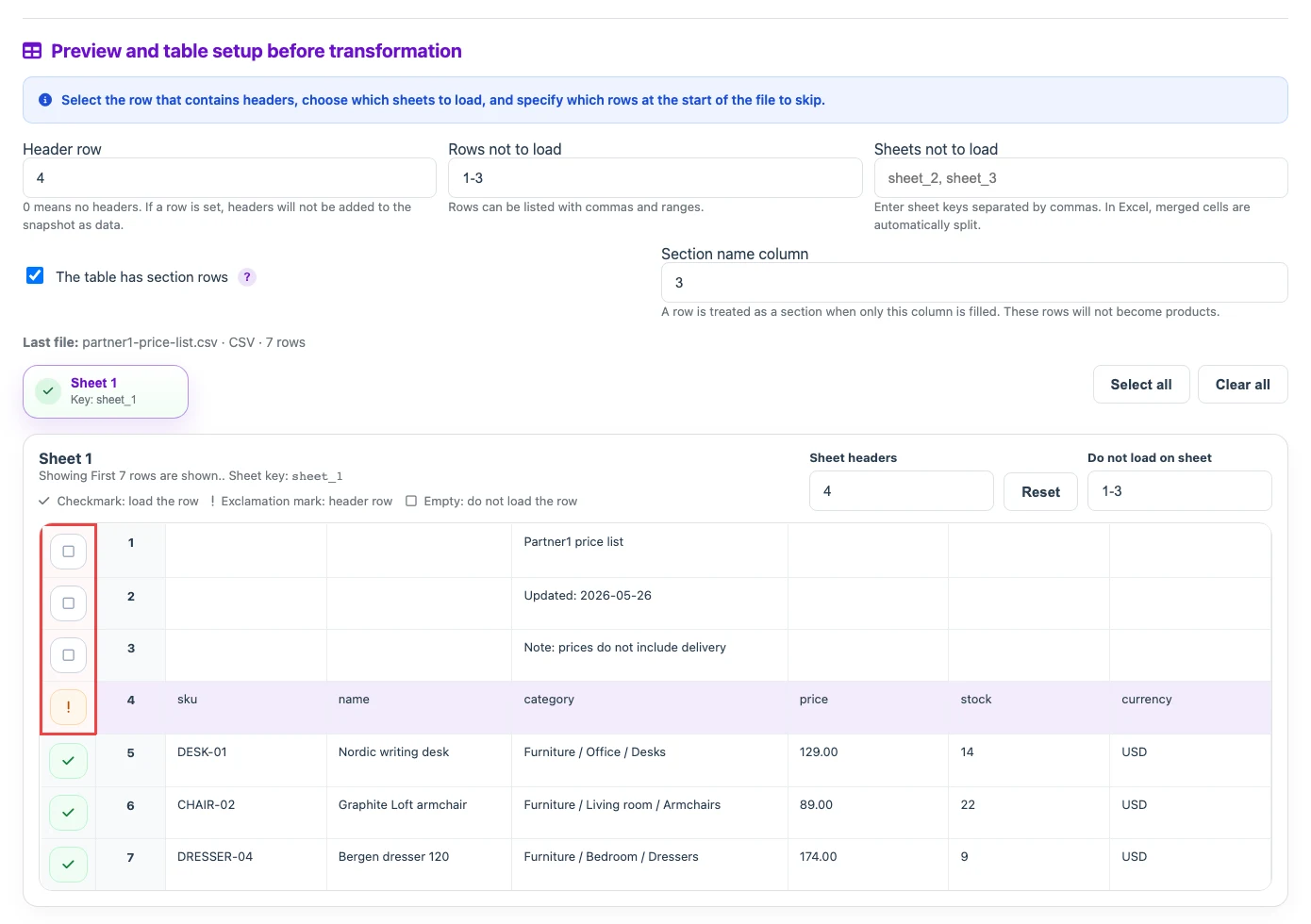
First check the table structure: the required sheet, the header row, rows that should not be loaded, and structure change checks. The header row is not loaded as a product row: for CSV/XLS/XLSX it becomes the header of the new document, for XML it provides node names, and for JSON it provides object keys. If the beginning of the price list contains supplier notes, an update date, or other reference information, enter those rows in "Rows to skip". This block is usually no longer than 20 rows, and the preview shows the first 30 rows, so you can mark them directly in the preview.
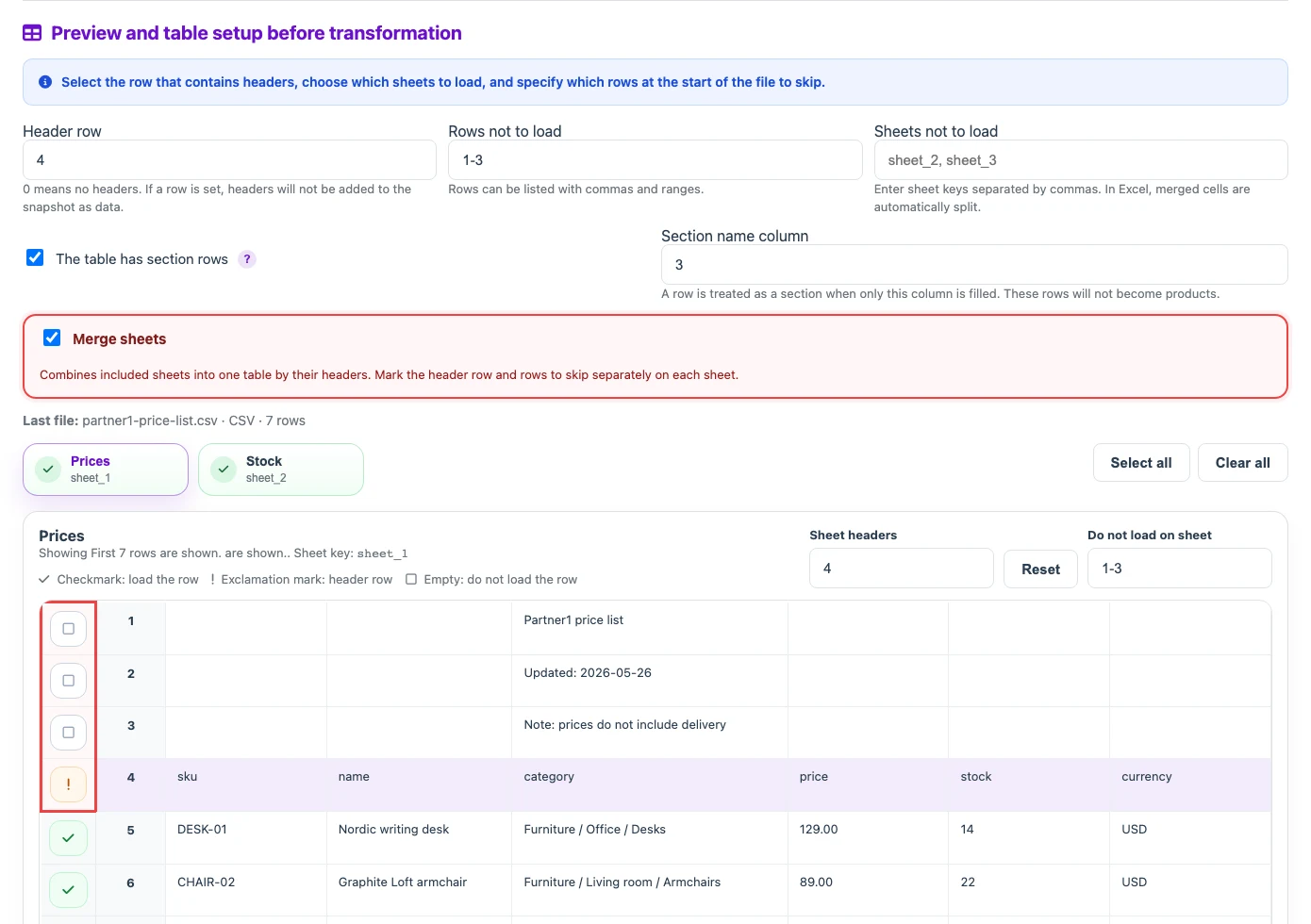
If the file contains several sheets with the same or similar structure, enable sheet merging. Before merging, set the header row and rows to skip separately on each sheet: for example, one sheet may have its header on row 4, while another uses row 2.
If categories are provided as separate rows in the price list, enable section rows. A row without product data will not be exported as a product; instead, it becomes part of the category path for the product rows below it.

Before
| Section | SKU | Name | Price |
|---|---|---|---|
| Furniture | |||
| Desks | |||
| DESK-01 | Nordic writing desk | 129.00 | |
| Armchairs | |||
| CHAIR-02 | Graphite Loft armchair | 89.00 |
After
| sku | name | section_path | price |
|---|---|---|---|
| DESK-01 | Nordic writing desk | Furniture / Desks | 129.00 |
| CHAIR-02 | Graphite Loft armchair | Furniture / Armchairs | 89.00 |
3. Table snapshot and field settings


After the table loading settings are configured, Eofferix analyzes the table and creates a short table snapshot. The snapshot shows sheets, detected columns, the header row, and a few sample rows, not the entire large file.
The snapshot is not meant for manually reading every row. It is used to configure the final structure: which columns go into the result, which fields should be renamed, and which values should be cleaned or calculated.
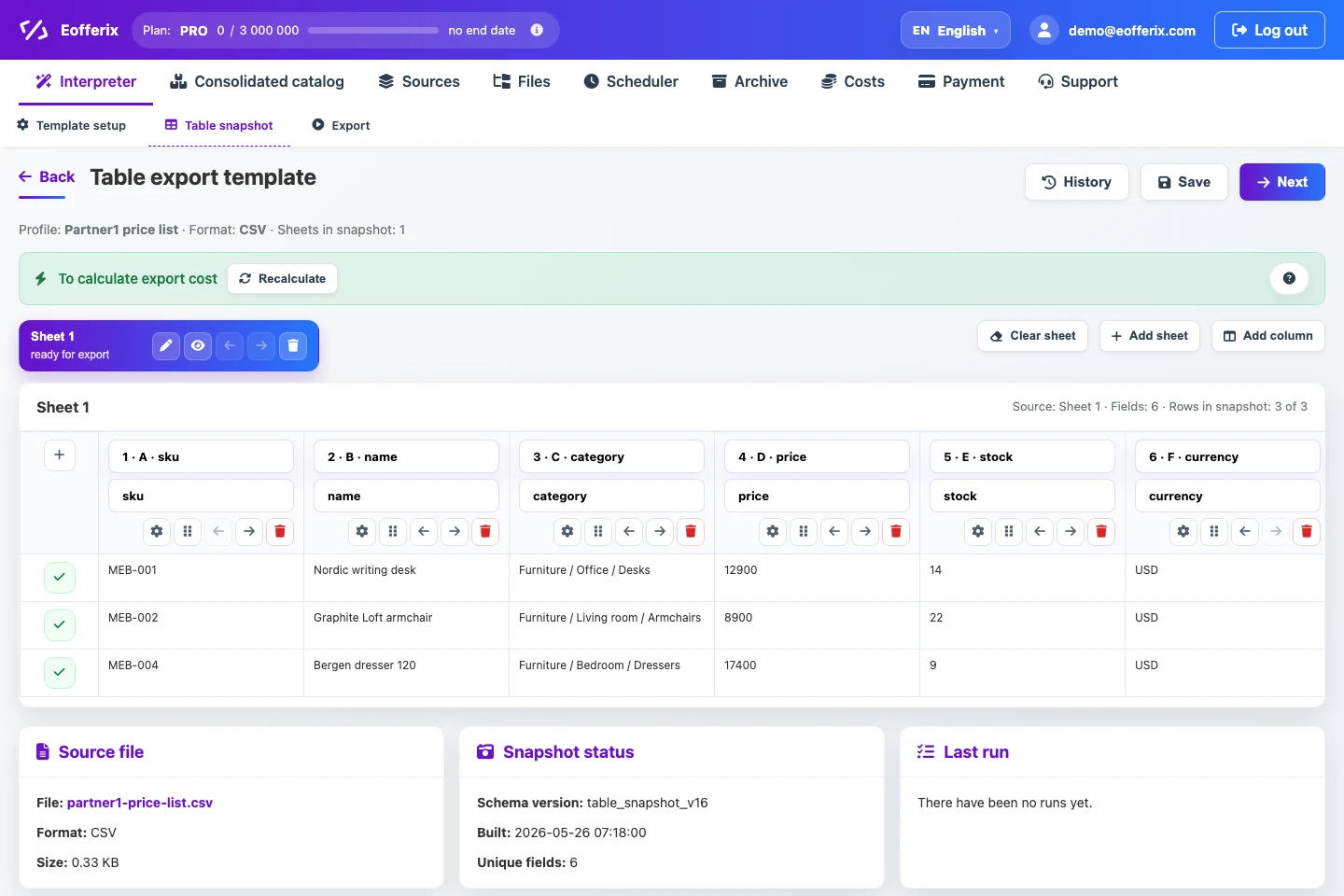
In the snapshot you can open settings for a specific column: rename the field, add transformation rules, set export conditions, change appearance, create a variable, or use values from other columns in the same row.
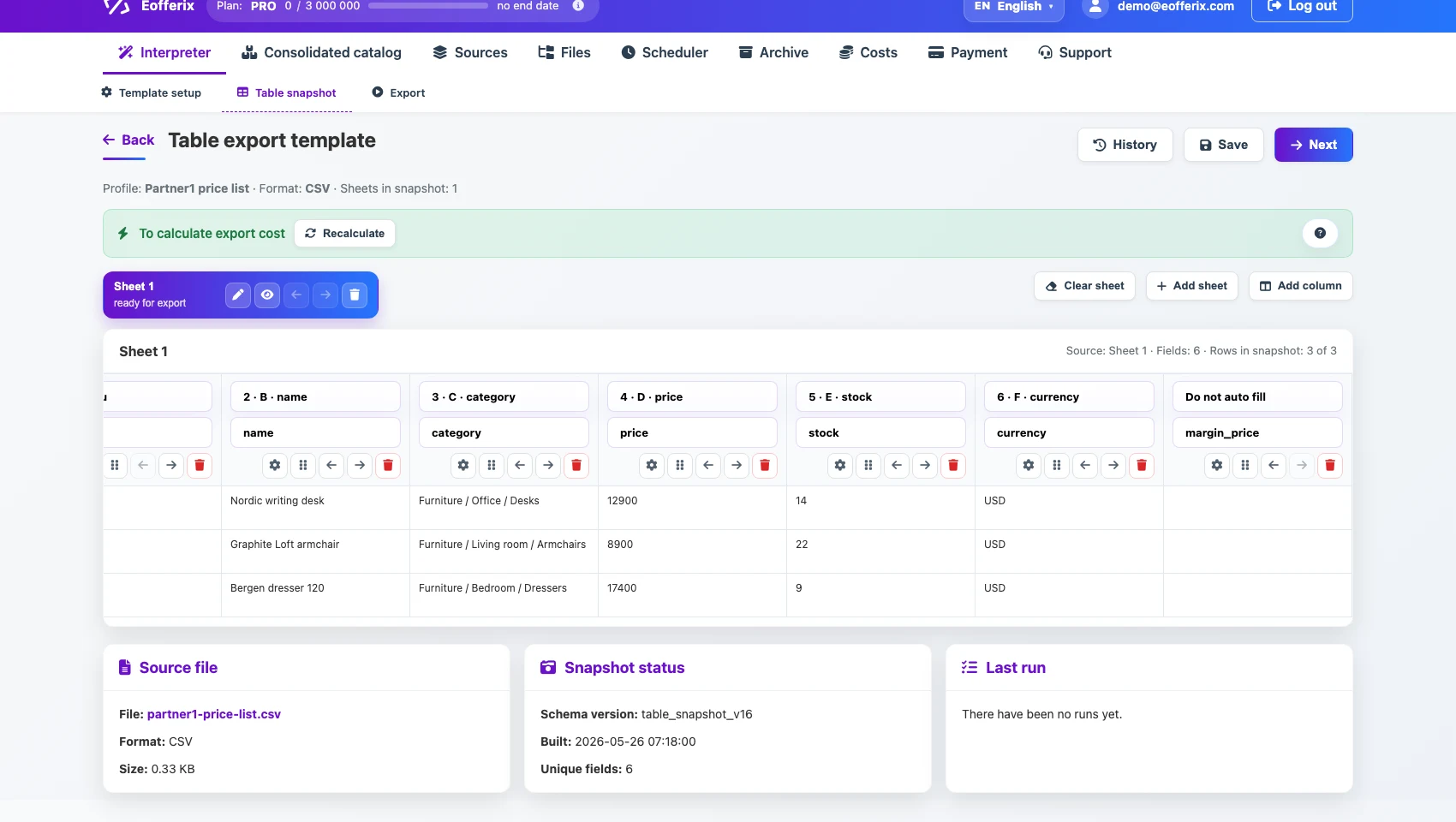
For example, for the price column you can open field settings, add a rounding rule, choose the 1000 step in the rounding rule window, save the setting, and immediately see updated values in the table.
What can be transformed
- rename columns and result fields;
- change column order or the final structure;
- remove unnecessary data;
- filter rows by price, stock, category, SKU, or another condition;
- clean text and remove spaces or service characters;
- replace values and normalize dictionaries;
- convert numbers, currencies, and dates;
- round prices;
- calculate markup, discount, or purchase price;
- use neighboring columns in calculations;
- create new columns;
- create variables for intermediate calculations;
- process images from links in a column: convert to JPG, PNG, or WebP, resize, and apply a watermark;
- import the result into supported applications or export it in the required format.
Transformation examples
The transformation tool can significantly reshape the final output: clean source data, build a new structure, create additional fields, filter products, calculate values, and prepare the result for the required format or application.
Simple example: remove service rows
The first rows of the price list contain the update date and a supplier note. In the table structure settings, select the header row and skip the rows above it.
Before
| Partner1 price list | |||||
| Updated: 2026-05-26 | |||||
| SKU | Name | Category | Price | Stock | Currency |
| DESK-01 | Nordic writing desk | Furniture / Office / Desks | 129.00 | 14 | USD |
After
| sku | name | category | price | stock | currency |
|---|---|---|---|---|---|
| DESK-01 | Nordic writing desk | Furniture / Office / Desks | 129.00 | 14 | USD |
Conditional example: export only rows with stock
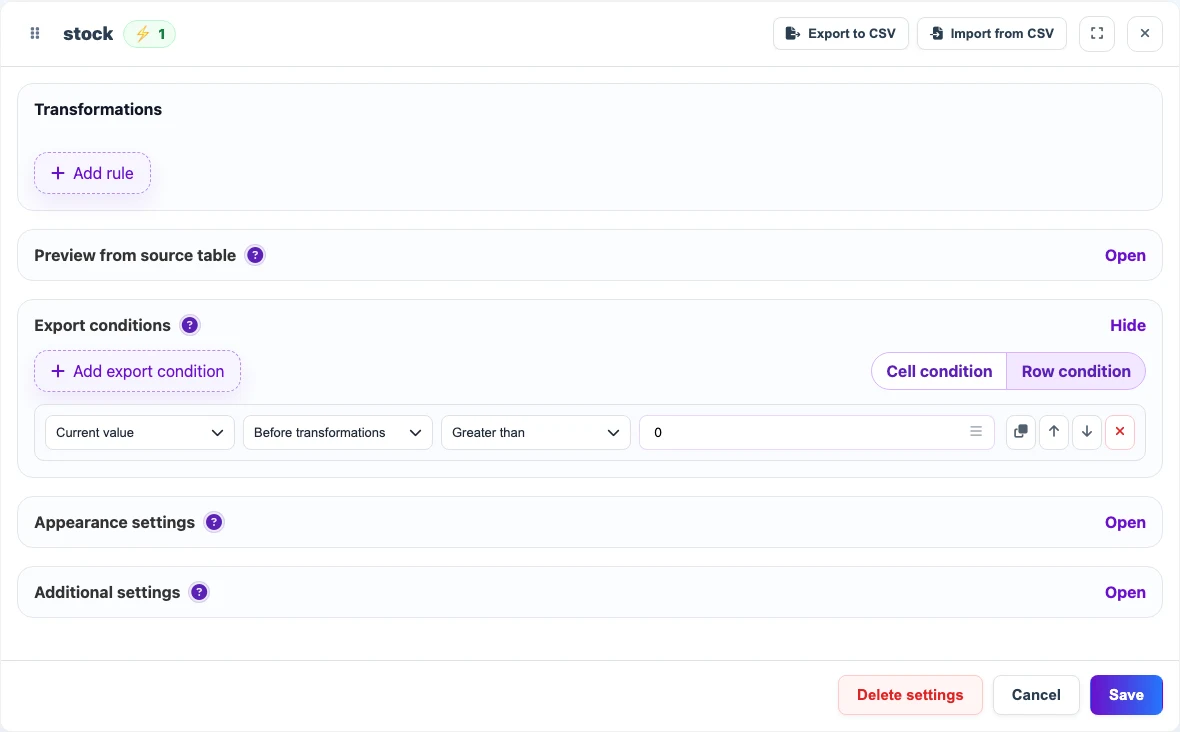
Add an export condition for the stock column: a row is included in the result only when stock is greater than zero. This keeps currently unavailable supplier items out of the final file.
Before
| sku | name | stock |
|---|---|---|
| DESK-01 | Nordic writing desk | 14 |
| CHAIR-02 | Graphite Loft armchair | 0 |
After
| sku | name | stock |
|---|---|---|
| DESK-01 | Nordic writing desk | 14 |
New column example: calculate a sales price
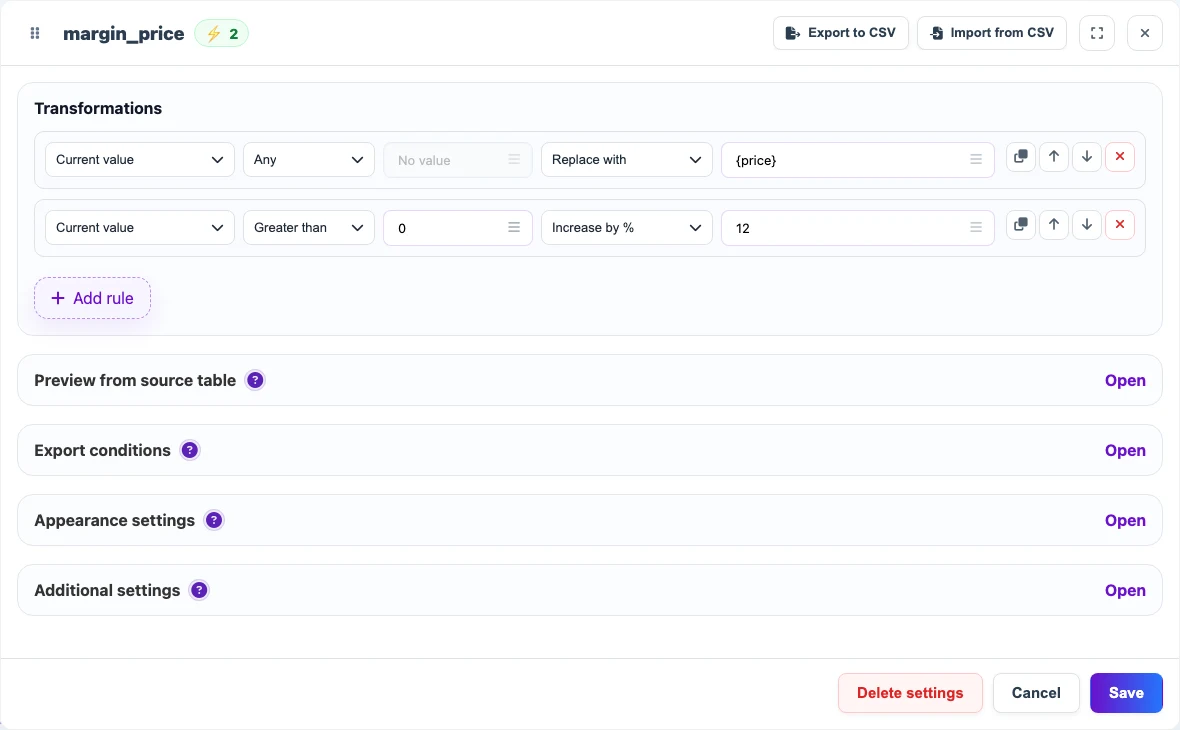
Add a new margin_price column when the source file has a purchase price but the result needs a sales price. In the column rules, replace the current empty value with {price} and then increase it by a percentage. After the setting is saved, the new column values are recalculated in the table snapshot.
Before
| sku | price | currency |
|---|---|---|
| DESK-01 | 129.00 | USD |
After
| sku | price | margin_price | currency |
|---|---|---|---|
| DESK-01 | 129.00 | 144.48 | USD |
Sequential example: prepare a price
Example of sequential transformations for the Price field. Transformations can use not only the current value, but also other columns of the document for calculations.
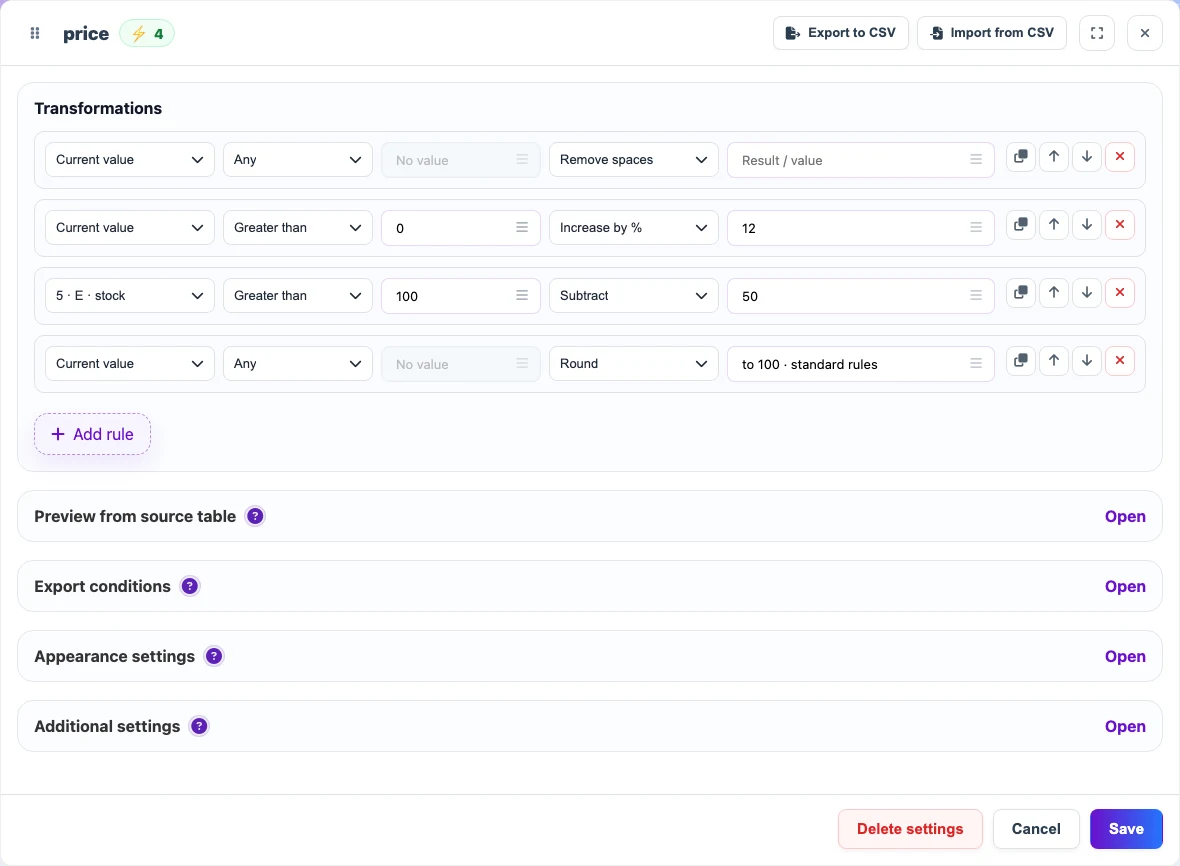
Before
| price | stock |
|---|---|
| 129.00 | 140 |
After
| price | stock |
|---|---|
| 144 | 140 |
New columns
A new column is needed when the result must contain a field that is missing from the source table, or when the source data should be arranged differently.
A column can be filled with:
- a value from another place in the source table;
- a system value, such as the run date or source name;
- an expression, such as assembling a category path or calculating a discount percentage;
- a variable.
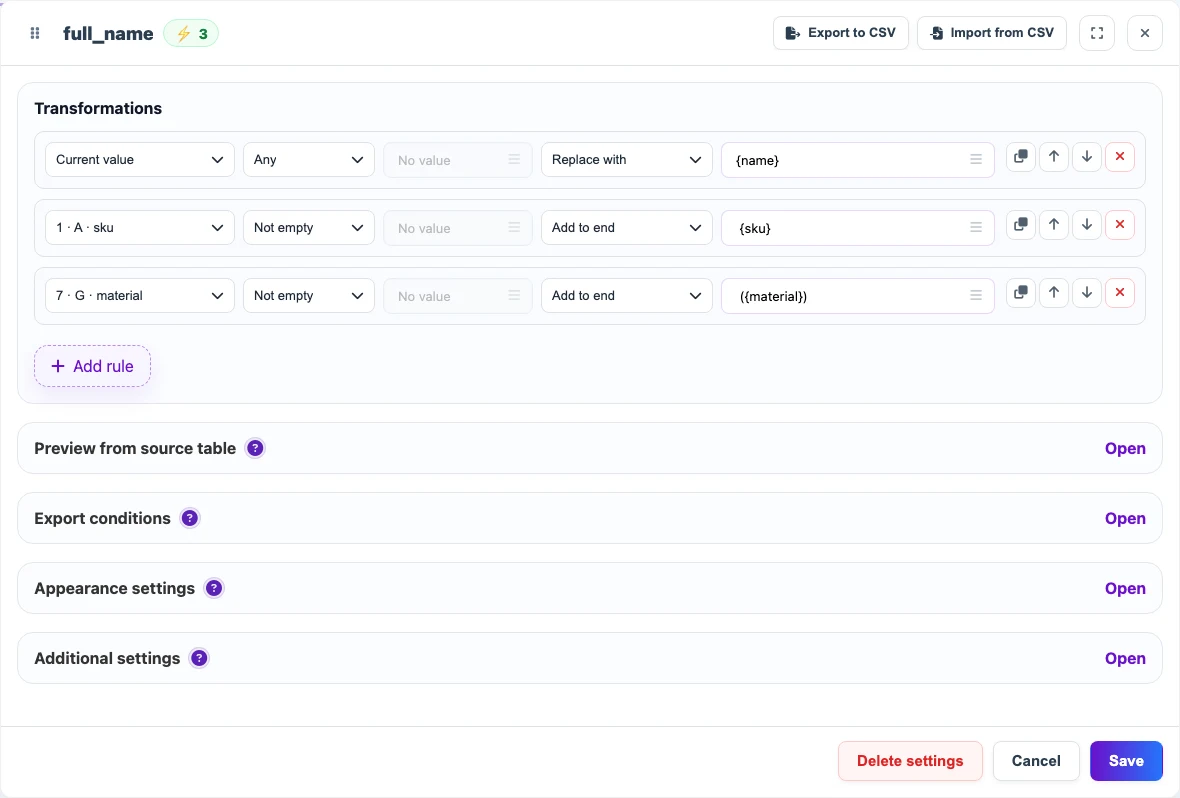
For example, create a full_name column: first take the product name, then append the SKU if it is not empty, and then append the material in parentheses if the row contains a material.
Before
| name | sku | material |
|---|---|---|
| Nordic writing desk | DESK-01 | oak |
After
| name | sku | material | full_name |
|---|---|---|---|
| Nordic writing desk | DESK-01 | oak | Nordic writing desk DESK-01 (oak) |
Variables
A variable stores an intermediate result and helps reuse one calculated value in several rules. Important: variables do not appear in the final export; they only help other transformations.
For example, you can calculate the base price with a supplier coefficient once, save it into a variable, and then use it for the sales price, discount, and export condition.
Sequential transformations
Example of sequential transformations for the Price field. Transformations can use not only the current value, but also other columns of the document for calculations.
- first clean the value by removing spaces;
- then check conditions, for example price greater than zero;
- then use another document column, such as stock;
- then change the value, for example increase the price by a percentage or subtract a fixed discount for high stock;
- then round the result or convert it to the required format.