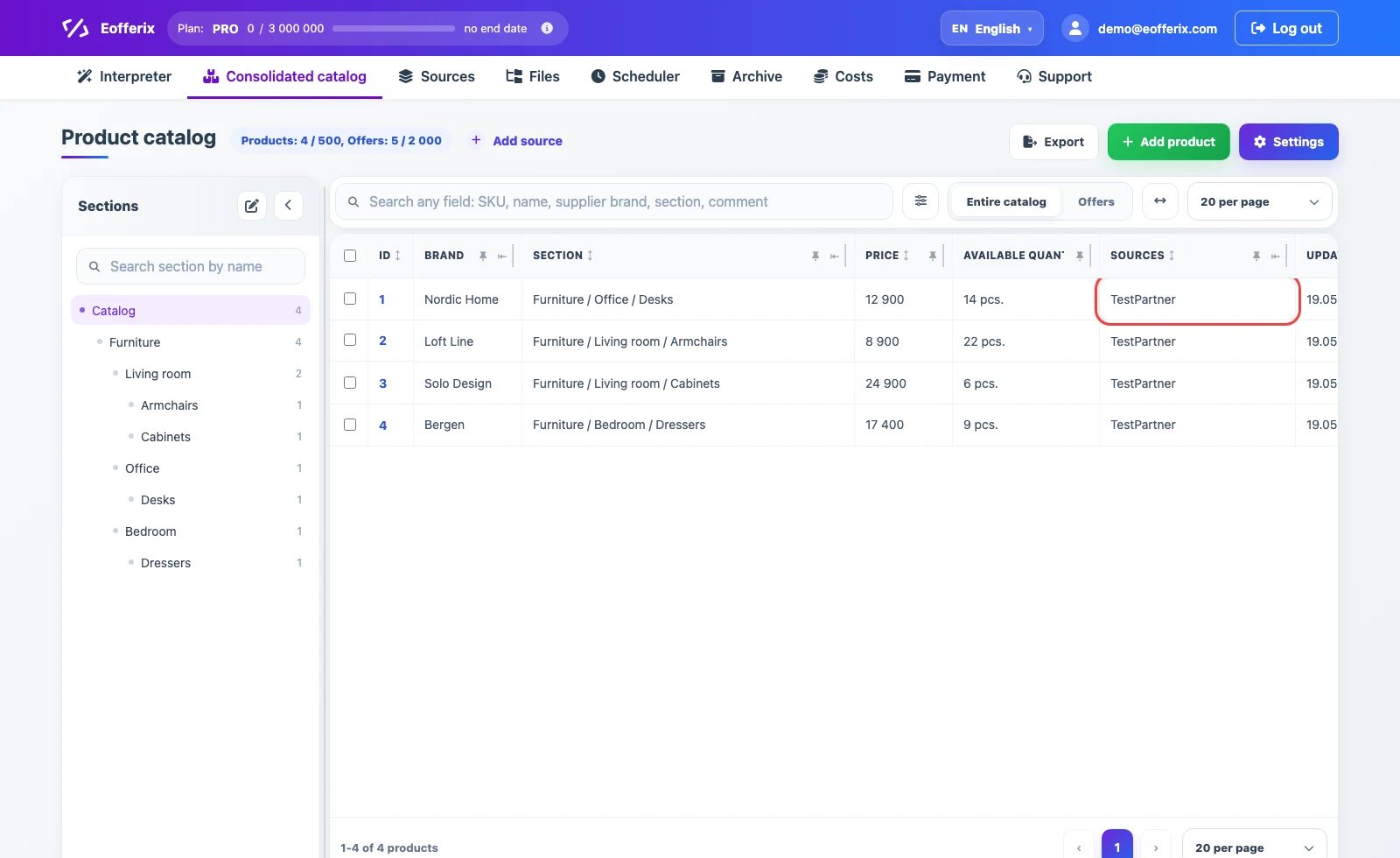
Use a JSON source when a supplier catalog is delivered as a .json file, a JSON API response, a file URL, an authorized URL, an email attachment, an FTP/FTPS/SFTP file, cloud storage, or a ZIP archive with JSON inside. One JSON document can contain products, offers, categories, prices, stock, images, attributes, and additional supplier fields.
After the file is loaded, Eofferix analyzes the JSON and prepares a short working snapshot. Imports into the consolidated catalog use one XML setup interface. This does not mean that the supplier must send XML: the service shows a compact XML structure with unique nodes, elements, attributes, and example values, not the entire large file.
1. Choose how Eofferix receives the JSON
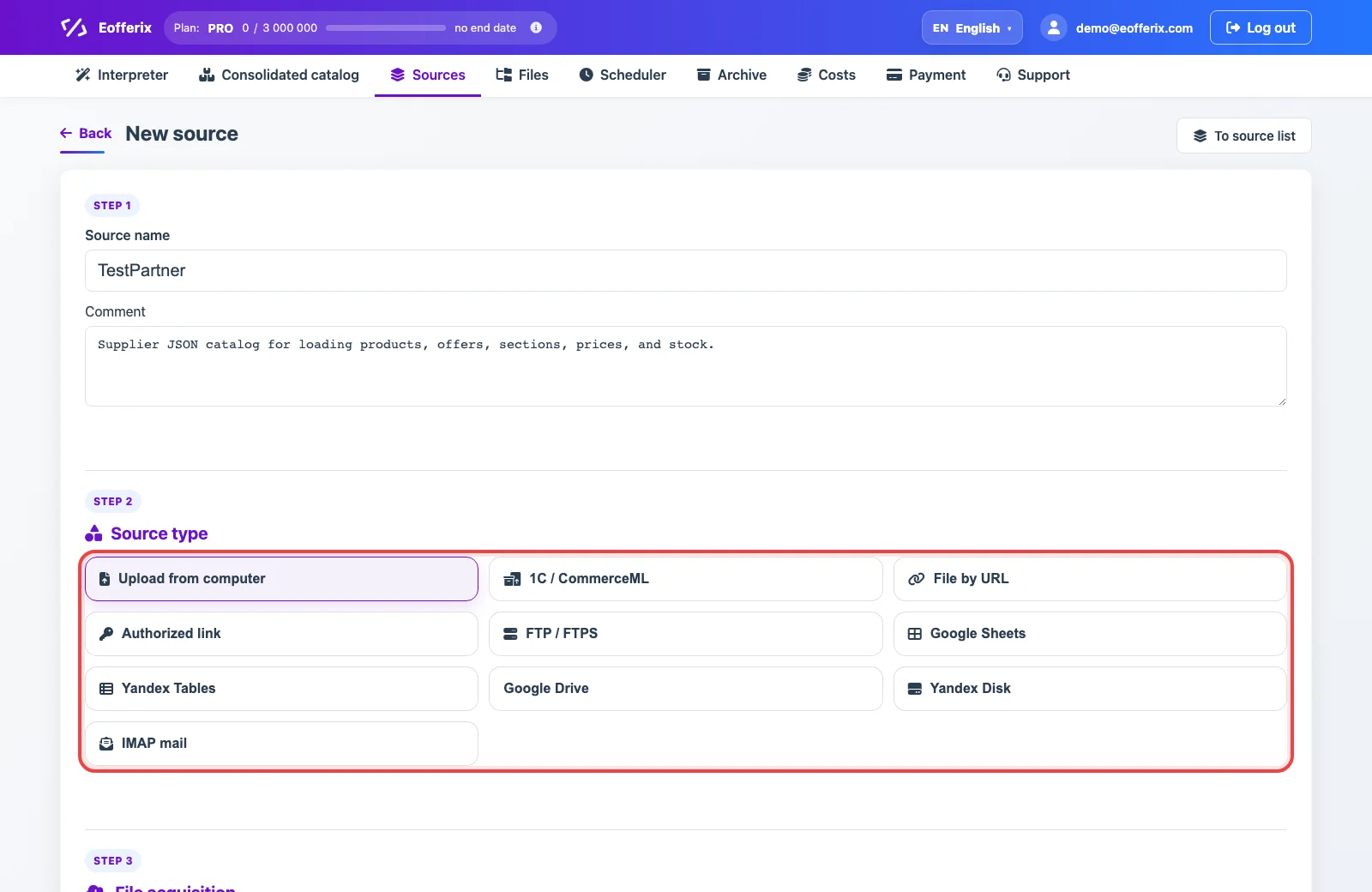
If the source should update regularly, create it in Sources. JSON can be received from an uploaded file, URL or API response, authorized URL, email, FTP/FTPS/SFTP, cloud storage, or another supported channel. For a one-time setup, upload the file directly inside the import profile.
2. Connect the JSON source to a profile
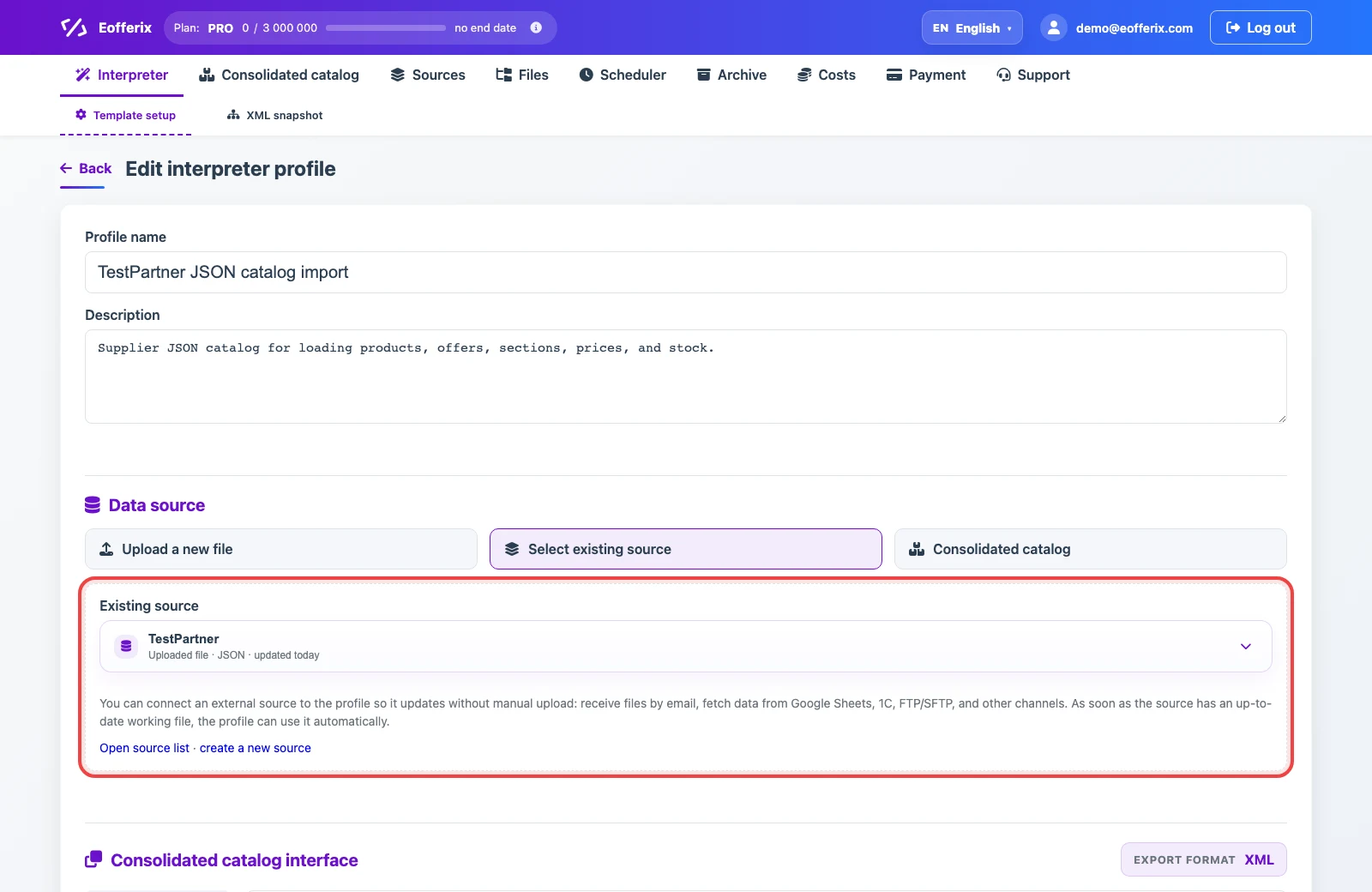
Open or create an import profile, select the JSON source, and choose import into the consolidated catalog. The consolidated catalog interface is not selected separately: the profile uses XML. After saving, structure setup opens in the XML snapshot.
3. Configure identification and import rules
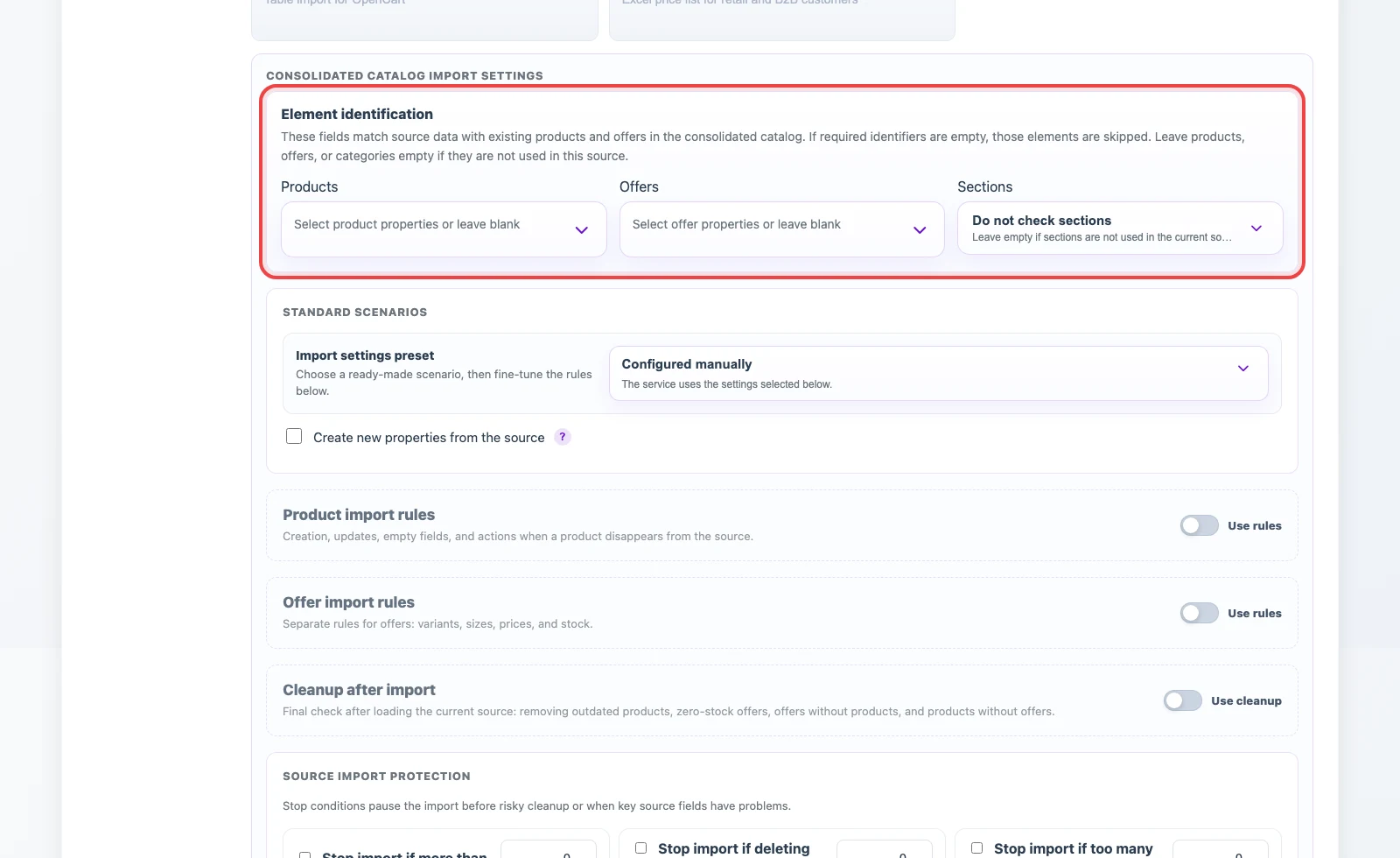
In Element identification, select source fields used to match incoming data with existing products, offers, and categories. Products usually use id, sku, external_id, or an article number. Offers can use a variant external ID, a product-plus-variant combination, a barcode, or SKU. Categories can use a code, external ID, or full category path.
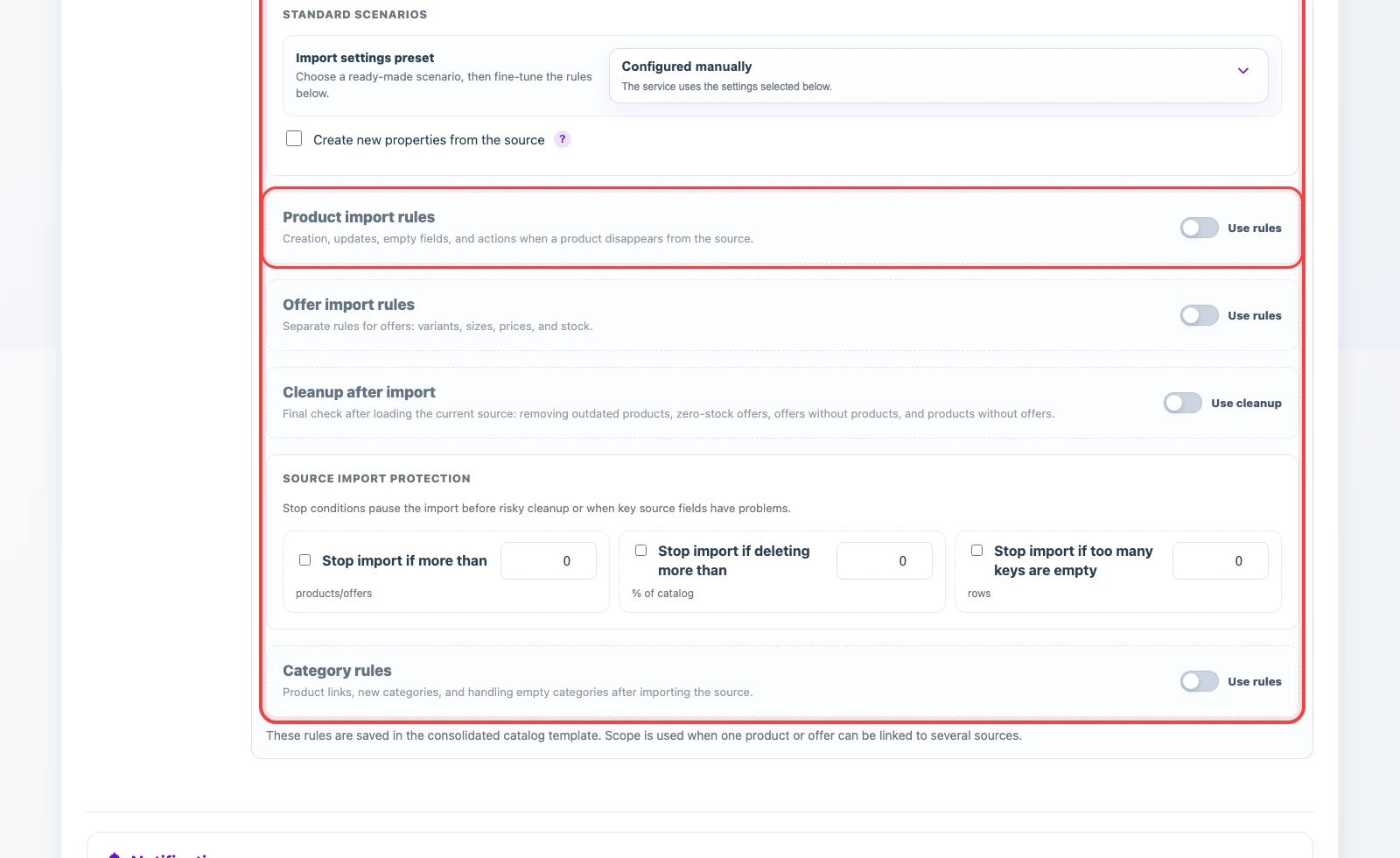
Below that, configure import rules: whether to create new products and offers, update found records, handle empty values, zero prices and zero stock, process elements missing from the current JSON, and stop the import when catalog guard conditions are reached.
4. How the snapshot works

After saving the profile, the XML snapshot opens in the next step. It shows the prepared data structure: repeated elements, nested nodes, attributes, and example values. This is where you choose which node is a product, where offers and categories are located, and then assign values to consolidated catalog fields.
First mark the repeated product node with the Product role. If the source has separate variants, assign the Offer role to the variant node. Then click values inside the node and choose the catalog field: name, SKU, price, stock, category, description, image, or attribute.
5. What can be transformed
Transformations adapt supplier data to the consolidated catalog structure. In the interface, you can:
- rename fields before loading;
- change nesting or order;
- remove unnecessary data;
- filter products, offers, or categories;
- clean text and remove extra spaces;
- replace values;
- convert numbers and dates;
- round prices;
- calculate markup or discount;
- use neighboring nodes in calculations;
- create new fields or helper values;
- process images: save, convert to JPG, PNG, or WebP, resize, and apply a watermark;
- load the result into the consolidated catalog or a supported application.
6. Transformation examples
The transformation tool can significantly change the final import: clean source data, build a new structure, create additional fields, filter products, calculate values, and prepare the result for the required format or application.
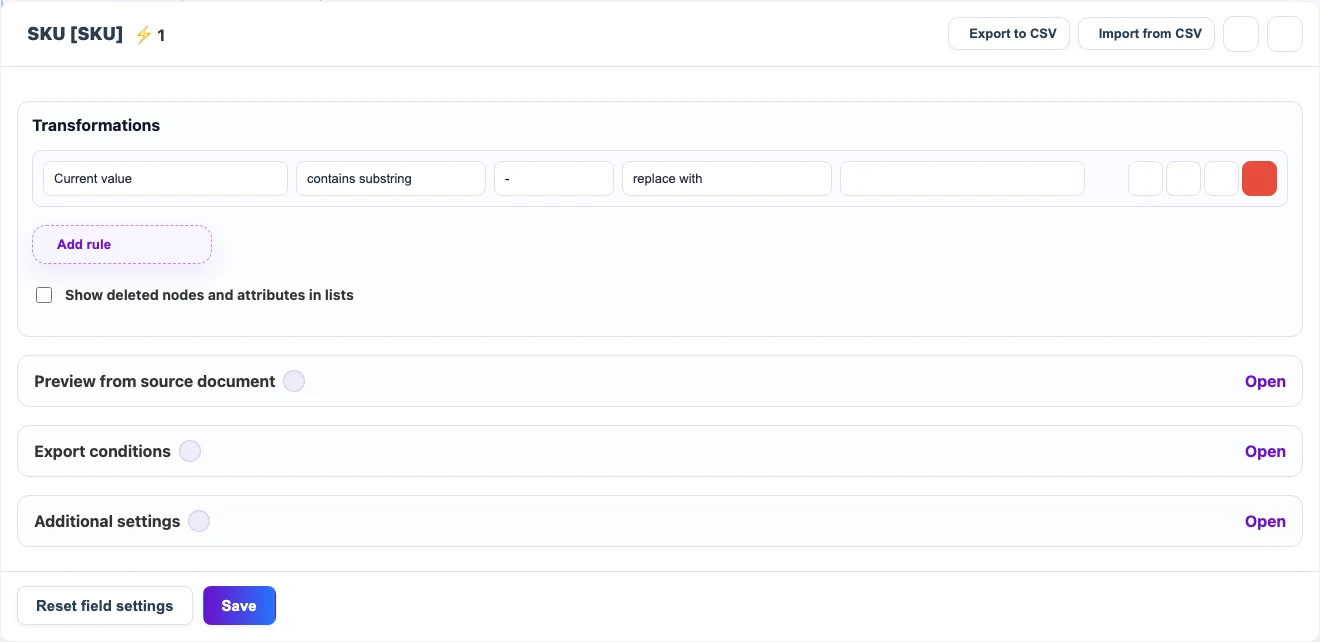
Simple example: remove hyphens from SKU
If the supplier sends SKU values with hyphens but the catalog needs a compact code, configure a transformation for the sku node: replace - with an empty value.
Before
{
  "sku": "DESK-NORD-01"
}
After
DESKNORD01Conditional example: increase desk prices
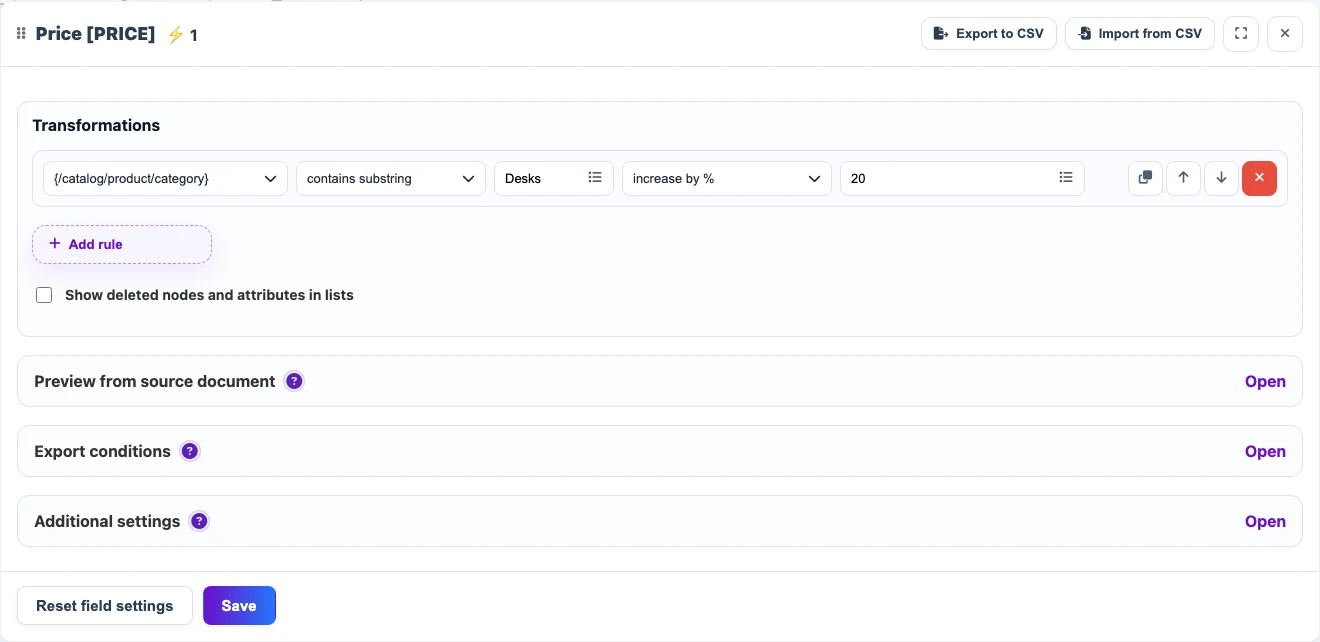
The Price field can check a neighboring category node. If category contains Desks, the rule increases the price by 20%.
Before
{
  "category": "Furniture / Office / Desks",
  "price": 129.90
}
After
price: 155.88New value example: build a product name
If name, SKU, material, and country are separate, the Name field can be assembled from several values. Rules run from top to bottom and add only non-empty parts.
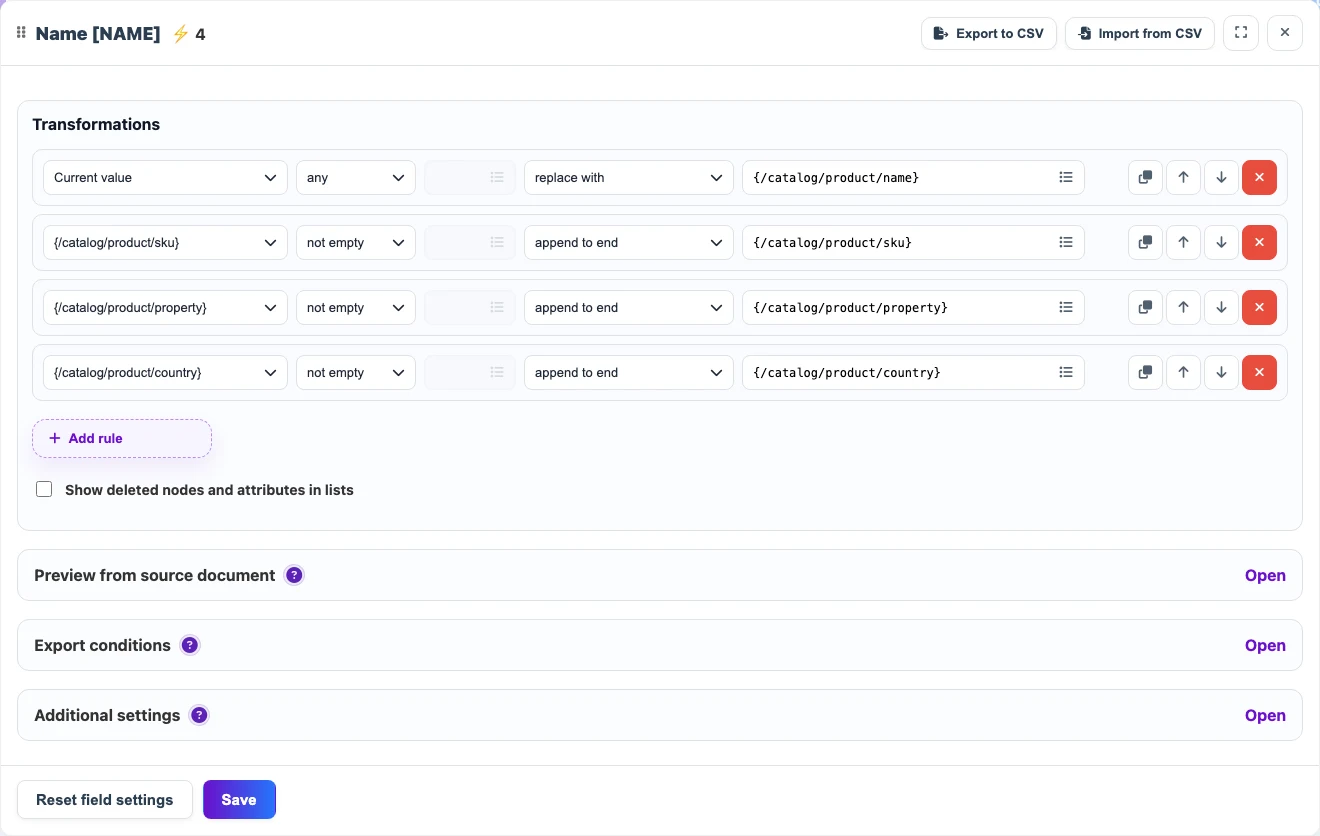
In the source
{
  "name": "Nordic desk",
  "sku": "DESK-NORD-01",
  "material": "solid oak",
  "country": "Italy"
}
After transformation
Nordic desk DESK-NORD-01 (solid oak), ItalySequential example: prepare a price
Example of sequential transformations for the Price field. Transformations can use not only the current value, but also other nodes of the document for calculations.
- first clean the value;
- then check conditions;
- then use another document node, such as stock, currency, or multiplier;
- then change the value;
- then round it or format it as needed.
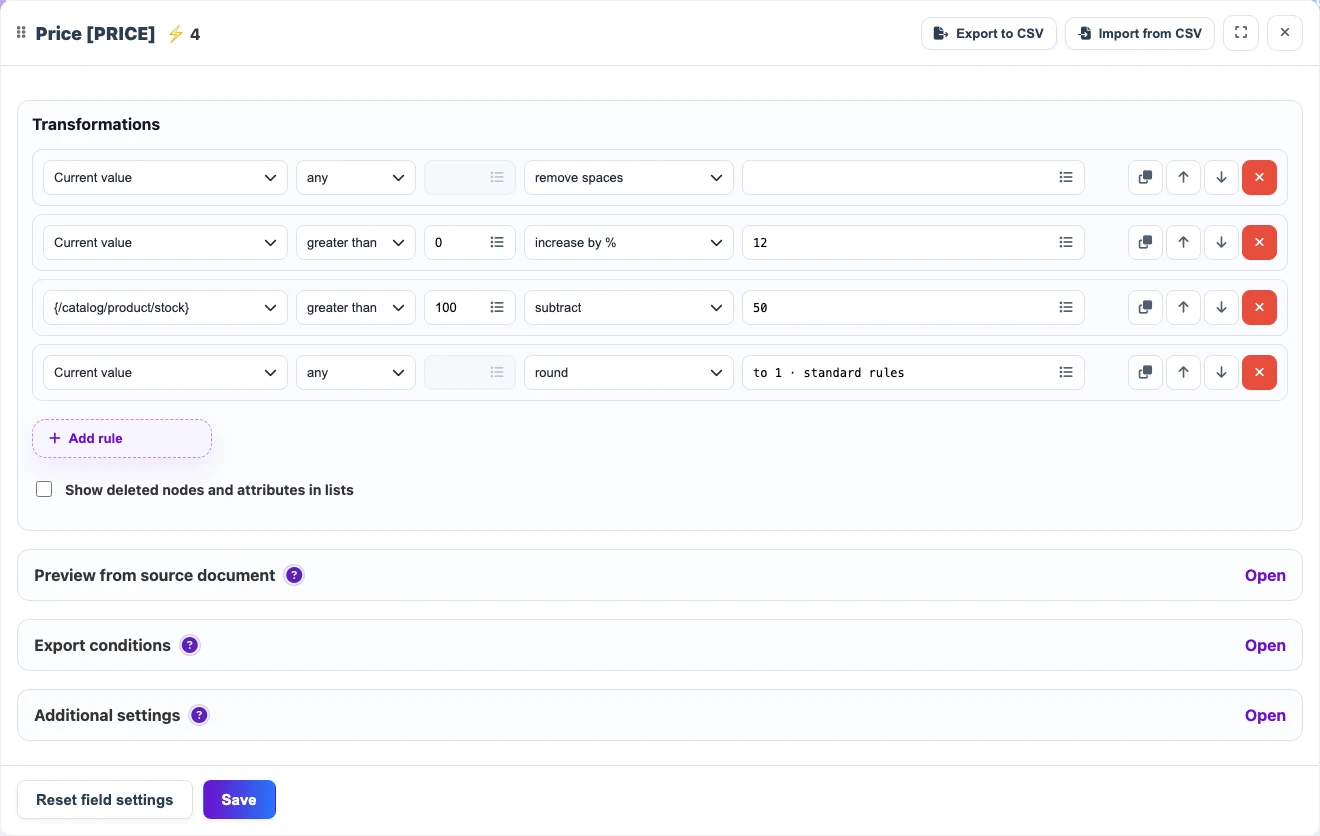
In the source
{
  "price": "129.90",
  "stock": 14,
  "markup": 1.12
}
After transformation
1467. New fields

A new field is needed when the result must contain a value that does not exist in the source JSON, or when the source data needs to be arranged differently. It can be filled with a value from another place in the source, a system value, an expression, or an intermediate calculation.
For example, create a Product class field. First set the default value to Mid-range, then check the price: if it is below 3000, replace the value with Budget; if it is above 10000, replace it with Premium.
8. Variables
A variable stores an intermediate result and helps reuse one calculated value in several rules. Variables are not included in the final import; they only help other transformations.
For example, a variable can store a base price with a supplier multiplier: calculate it once, then reuse it for the sale price, discount, and export conditions.
9. What happens after import
After the run, the profile creates or updates products, offers, categories, attributes, prices, stock, and images in the consolidated catalog. The link to the source is preserved, so later runs update matched records by the selected keys instead of creating duplicates.
If a product, offer, or section is missing from the source, the import rules define the action: keep it unchanged, unpublish it, reset stock, or delete it within the selected scope.
Automatic missing-data cleanup does not delete or unlink properties or dictionary values used by the profile. If they are temporarily absent from a later source, they remain in the catalog; when they appear again, Eofferix reuses the retained mapping when one compatible object can be identified unambiguously. Rules for missing products, offers, sections, and images work separately.