
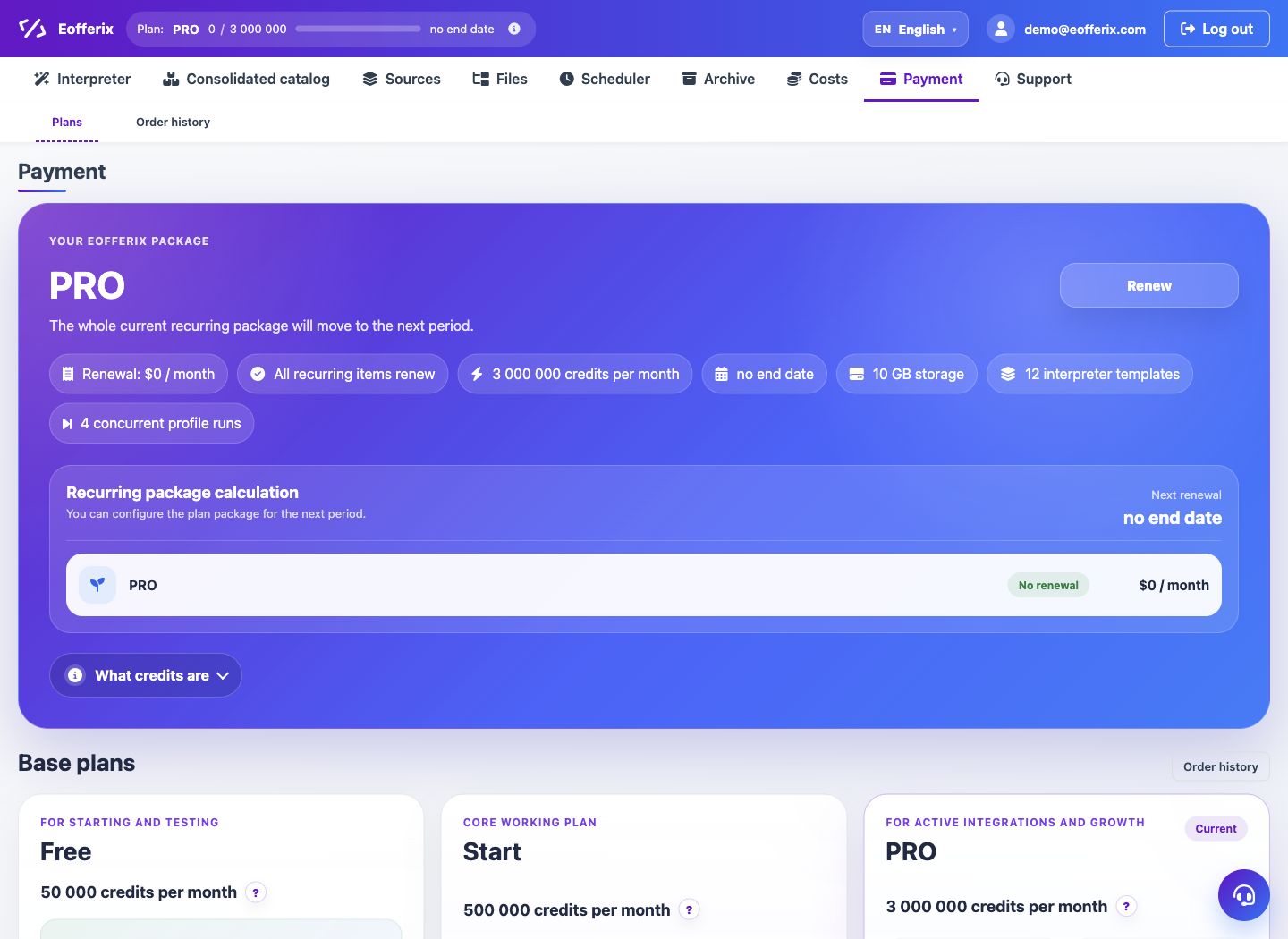
In the Payment section there is a view of the order history: number, composition, status, amount, provider, dates and available action.
When to use
Use your order history to understand which rates and options have already been purchased or are awaiting payment.
Setting procedure
- Open Payment and go to Order History.
- Find your order by number or content.
- Check the status: awaiting payment, completed or other.
- If the order is awaiting payment and the link is available, click Pay.
- After payment, return to the package and check the active options.
What to check
- The amount and contents of the order correspond to the selected tariff or option.
- The order has not expired before payment.
- After successful payment, the package was updated.
Notes
- The payment provider is displayed in the order history.
- Do not create a repeat order if the old one is still awaiting payment and fits the contents.