
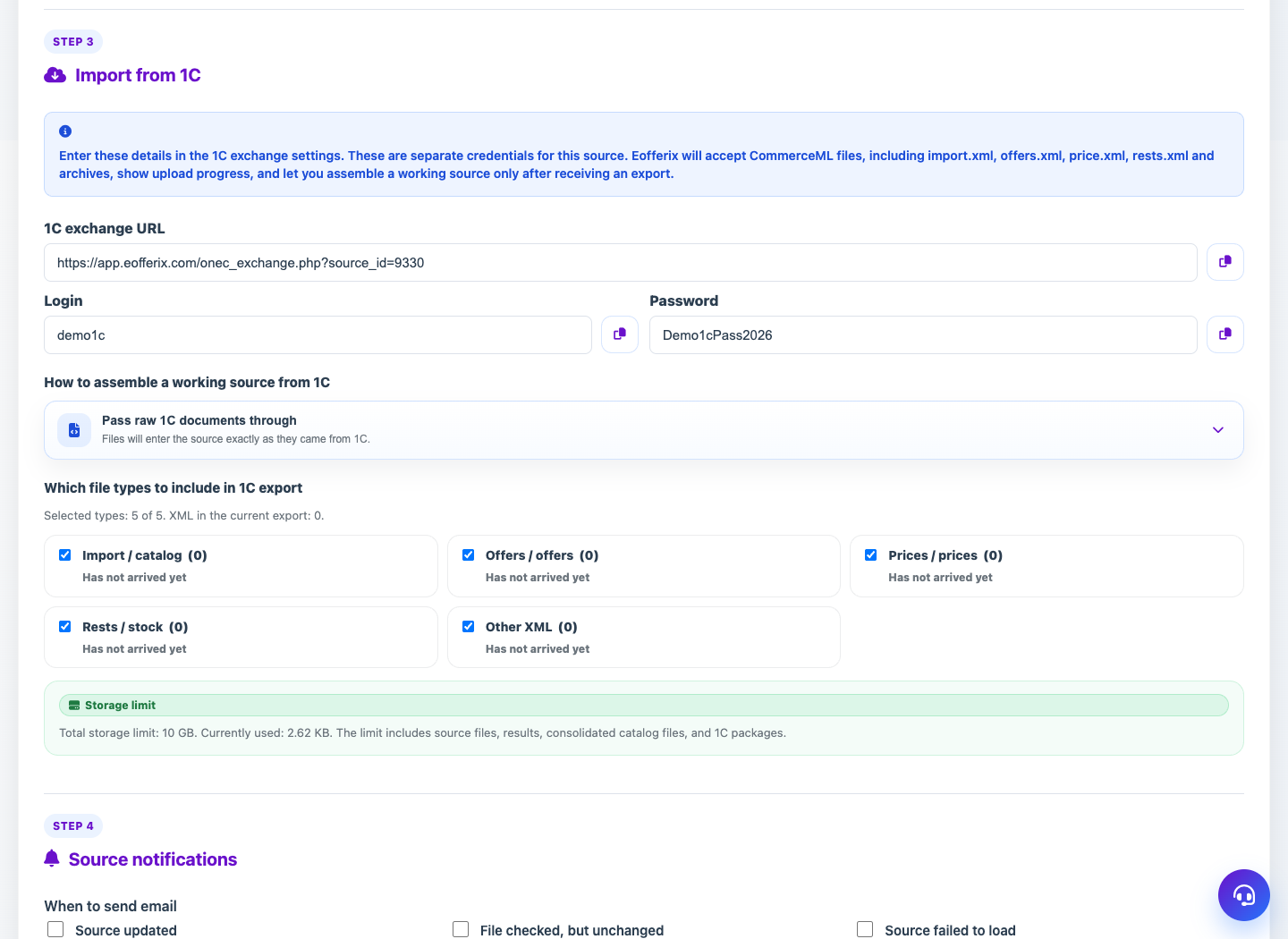
After saving the source, the service provides the exchange URL, login and password for a specific CommerceML exchange.
When to use
Use the 1C source when the accounting system itself must send XML, archives and related files to Eofferix.
Setting procedure
- Create a 1C / CommerceML source and save the card.
- Copy the exchange URL, login and password from the Receiving file block.
- Enter this data into the 1C exchange settings.
- Start uploading from 1C and wait for the files to arrive.
- Select the assembly mode: raw documents or a working catalog of products, offers, prices and balances.
- After the upload is complete, apply the settings or enable auto-finalization.
What to check
- 1C sends files to the URL of this particular source.
- The login and password are quite complex and do not match the account password.
- The list of received files shows import.xml, offers.xml, price.xml, rests.xml or archives, if they are transferred.
Notes
- For CommerceML, you can configure the processing of trade offers and decoding of the classifier.
- Source 1C does not use structure checking in the same way as regular files: it has a separate acceptance process.