
Eofferix accepts JSON files and JSON responses. You can upload a one-time file, receive it automatically from an email attachment, fetch it by a direct URL, fetch it by an authorized URL, take it through FTP/FTPS/SFTP, or request it from a supplier API.
After Eofferix receives the data, JSON can be converted into XML, CSV/XLSX tables, another JSON with edited parameters and values, or imported into applications supported by the service.
How the snapshot works
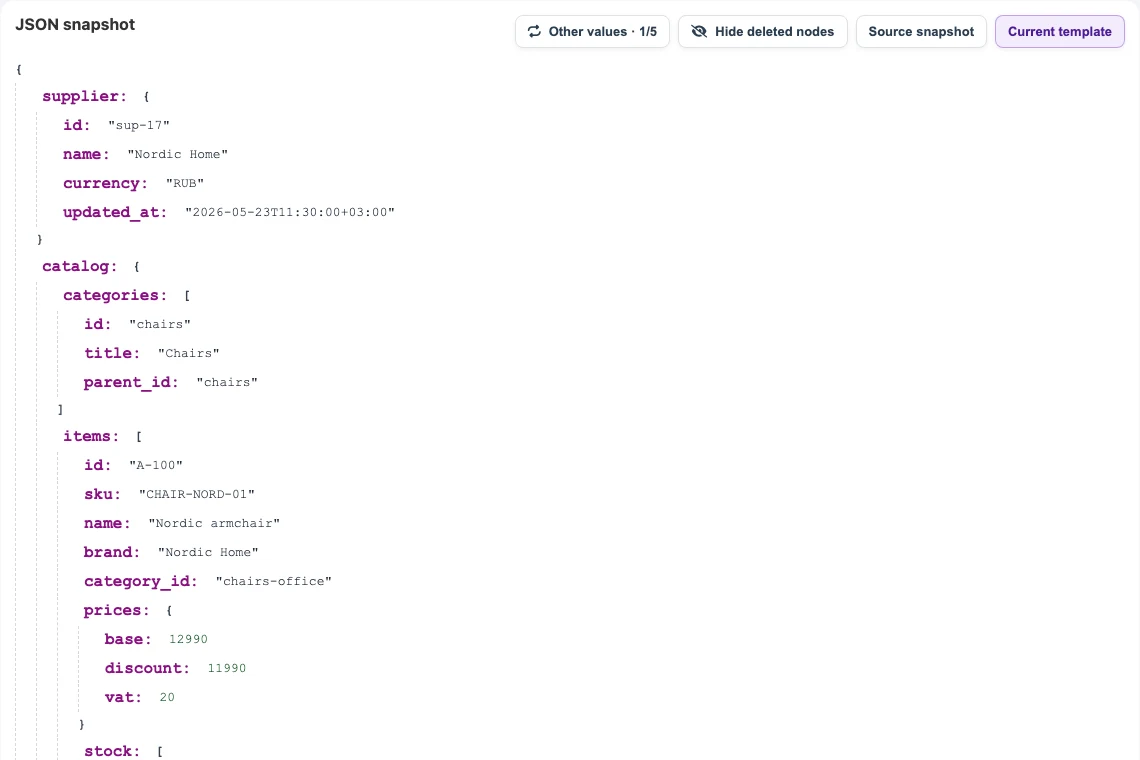
The service analyzes the file and turns it into a short snapshot with unique nodes. If an array contains a thousand products, the snapshot shows the structure of one typical item and the set of fields found in the data, not a thousand repeated rows.
In the snapshot you can rename nodes, change the structure, remove unnecessary fields, create new nodes, and configure transformation rules. On the next run, those rules are applied to the whole JSON received from the source.
What can be transformed
- Field renaming. For example, turn
idintoexternal_id,nameintotitle, andprices.baseintoprice. - Record filtering. Keep only products where
flags.active = true, or export only products with stock above zero. - Nesting changes. Expand nested
stock[]into a warehouse list, collectattributes[]into properties, and move images into a separatemedianode. - Value calculation. Build a category path, calculate a discounted price, normalize currency, or fill the import date.
- Image transformation. Convert images to
jpg,png, orwebp, resize them, and apply a watermark. - Application import. Bind JSON nodes to catalog, CRM, CMS, or another supported destination.
Transformation examples
Transformation rules can reshape the final export quite deeply: filter out unwanted items, rename nodes, assemble a new structure, calculate values, fill new fields from other parts of the document, and prepare the result for a marketplace, website, PIM, or internal system.
What the price example does
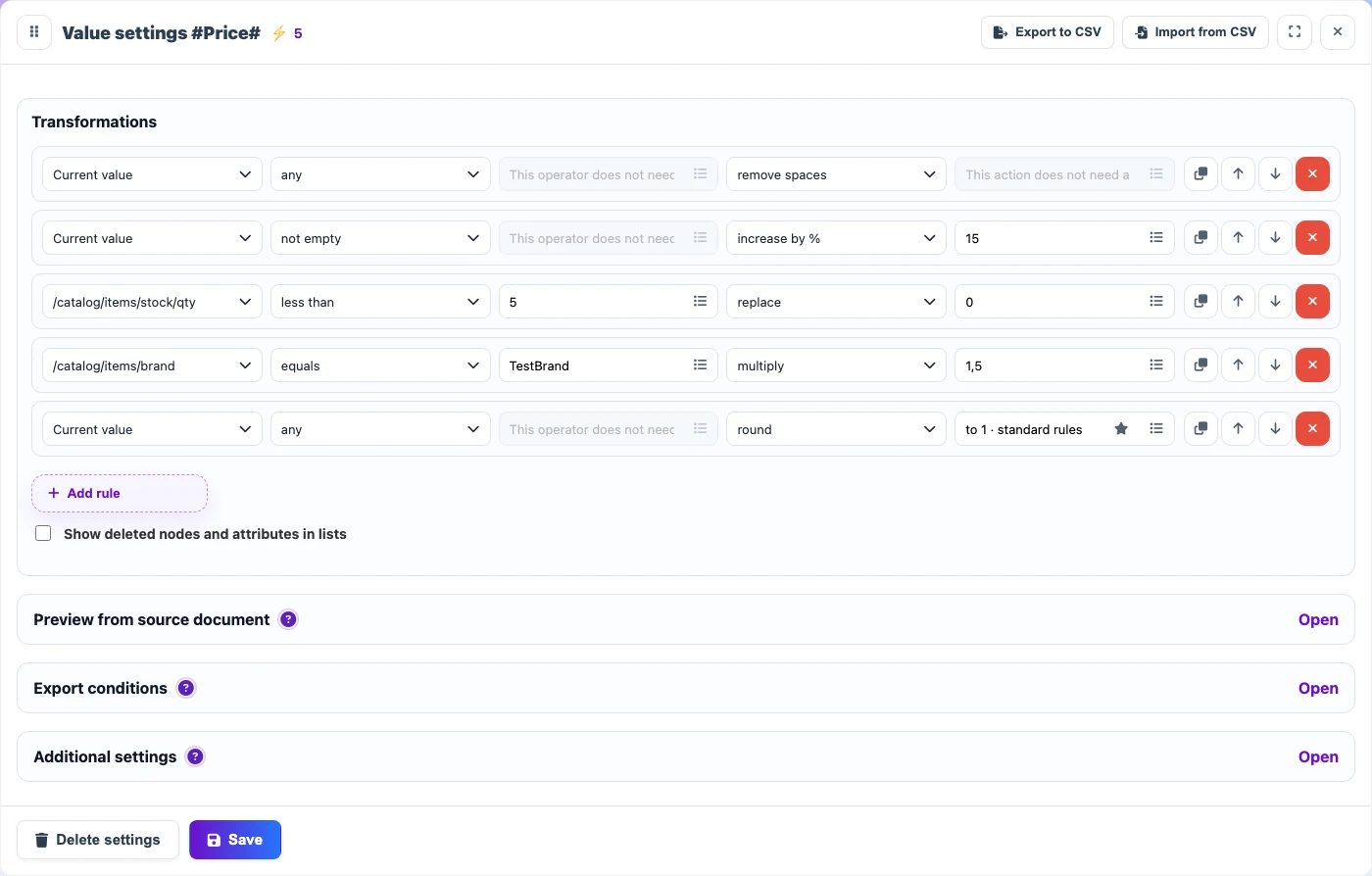
The same rules are broken down below. Each screenshot shows only the rule row responsible for the current step.
1. First, spaces are removed from the price value. This helps when the supplier sends the price as a string such as 12 990.

2. If the price is not empty, the service increases it by 15%. This adds markup without changing the source JSON.

3. Next, the rule checks another document node: /catalog/items/stock/qty. If stock is below 5, the price is replaced with 0.

4. Another rule uses /catalog/items/brand: for TestBrand, the price is additionally multiplied by 1.5.

5. Finally, the result is rounded to one decimal place using standard rules.

Simple example: rename fields and keep active products
This example takes items from catalog.items[], keeps only active products, and renames fields to match the target export.
{
  "id": "A-100",
  "sku": "ITEM-100",
  "name": "Nordic armchair",
  "prices": {
    "base": 129.90,
    "discount": 119.90
  },
  "flags": {
    "active": true
  }
}{
"external_id": "A-100",
"sku": "ITEM-100",
"title": "Nordic armchair",
"price": 119.90,
"old_price": 129.90
}Rules:
- The source JSON has a product with
id = A-100. Other products have the same structure, while the snapshot shows one representative item from the repeatingcatalog.items[]array. Click thetruevalue inside theflagsobject, in theactivefield, and in Export conditions choose Condition for whole element. This can export only items withtrue, or exclude items withfalse.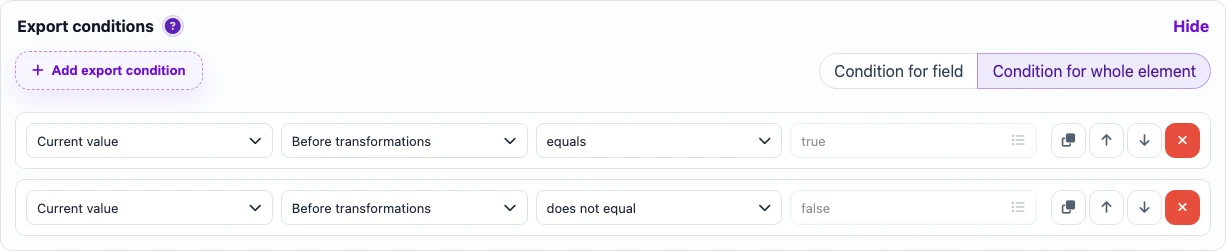
The condition is applied to the whole item: the product is exported when flags.active equals true; the second rule can be used as the inverse false check. - Rename the
idnode toexternal_id: click the node name and enter the new name.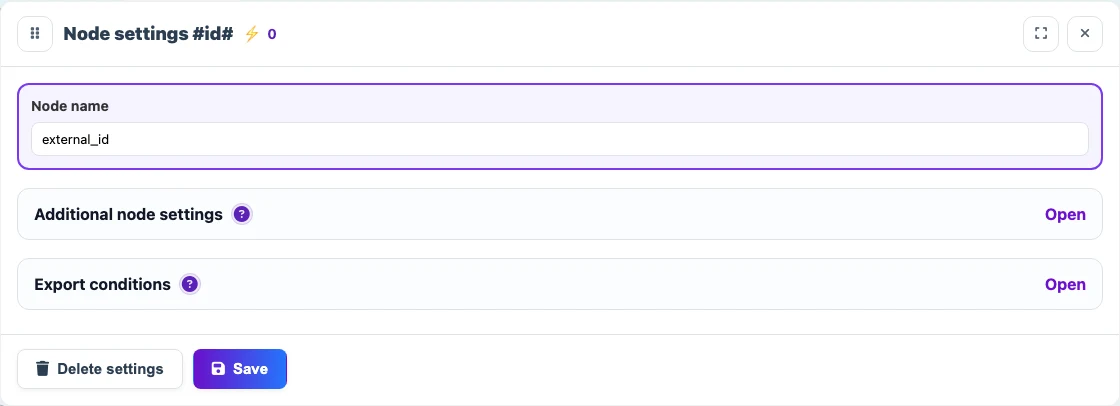
Node settings: external_id is entered in the Node name field. - Rename
nametotitlein the same way. No separate screenshot is needed: the action is the same as forid. - There are two working price scenarios. If the
pricescontainer is fine, renameprices.discounttopriceandprices.basetoold_price. Ifpriceandold_pricemust be placed at product level, create new nodes next toidandname, fill them from/catalog/items/prices/discountand/catalog/items/prices/base, then do not export the oldpricescontainer.
For the new price field, use replace: the value is taken from another node in the document.
New nodes
A new node is needed when the result must contain a field that is not present in the source JSON, or when the source data needs to be rearranged.
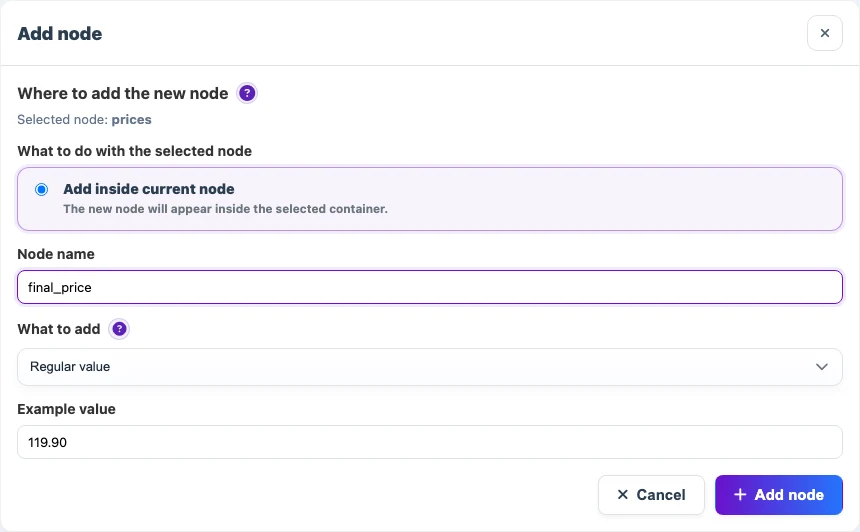
A node can be filled with:
- a value from another part of the source file, for example a name, SKU, brand, or several values combined into a single field such as
Name SKU Brand; - a system value, such as the run date or source name;
- an expression, such as joining the category path or calculating the discount percentage;
- it can also be made a variable.
Variables: why they matter
A variable stores an intermediate result. It is useful when one value must be used in several fields or conditions.
Important: variables do not appear in the final export. They only help other transformations: you can store an intermediate result and use it later in rules, conditions, or calculations.
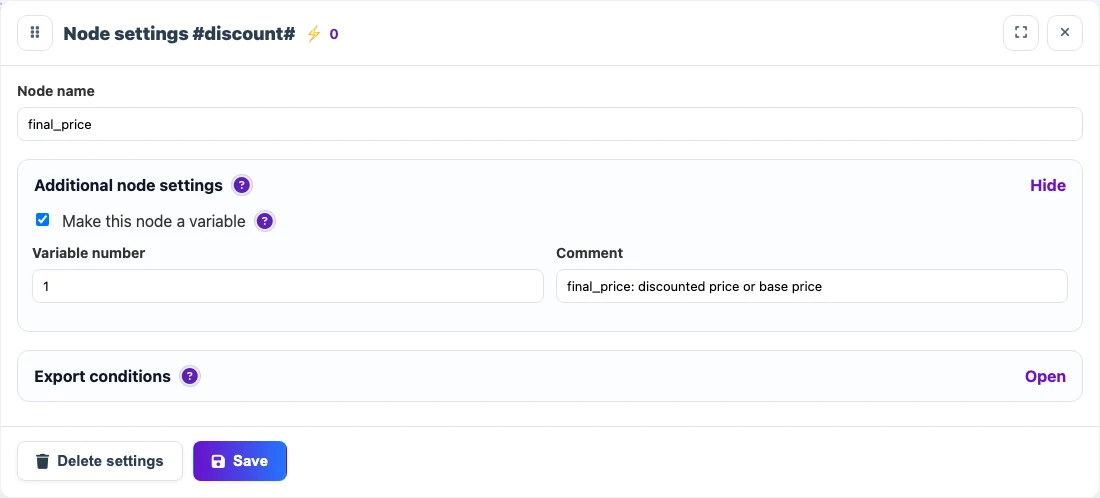
For example, final_price is calculated once:
final_price = prices.discount when prices.discount is filled, otherwise prices.baseThen it can be used in several rules:
product.prices.price = final_price;product.prices.old_price = prices.base, iffinal_priceis lower than the base price;product.prices.discount_percentis calculated fromprices.baseandfinal_price;- the export condition checks that
final_priceis greater than zero.
This keeps rules shorter and prevents prices in different parts of the result from drifting because of repeated manual calculations.