
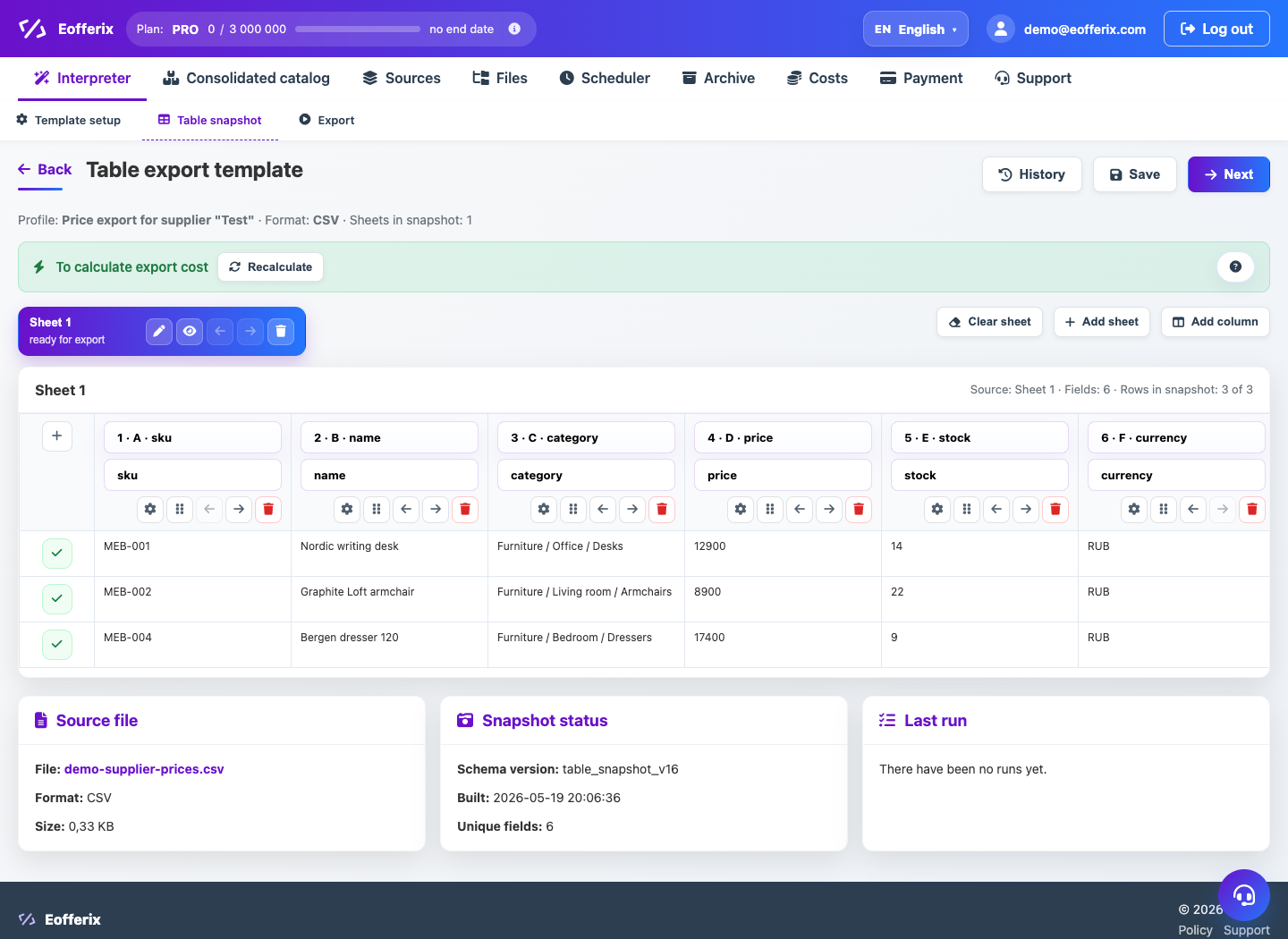
The table editor works with sheets, columns, value sources, required fields and result preview.
When to use
Use a spreadsheet editor for CSV, XLS and XLSX results, price lists and Excel templates.
Setting procedure
- Open a profile with a CSV, XLS or XLSX result.
- Check the sheets and columns of the result.
- Associate each column with a source field or rule.
- Set required fields and column order.
- If there is a template file, check that the template structure is preserved.
- Build a preview and download the test file.
What to check
- The column titles correspond to the recipient's requirements.
- Blank values in required columns have been processed.
- The file opens in Excel or the target loader.
Notes
- For nested XML/JSON, a repeating group pre-scheduler may be needed.
- CSV is convenient for flat tables, XLSX for multi-sheet files.