
UMI.CMS import sends sections, products, offers, prices, stock, images, files, and properties from Eofferix to the Eofferix module installed on the UMI.CMS site.
Overall flow
- Create or open a profile.
- Select the “UMI.CMS” template.
- Check the connection to the UMI.CMS site.
- Select data types and identification fields.
- Assign node roles and field bindings in the XML snapshot.
- Review import rules and run the import.
Connection
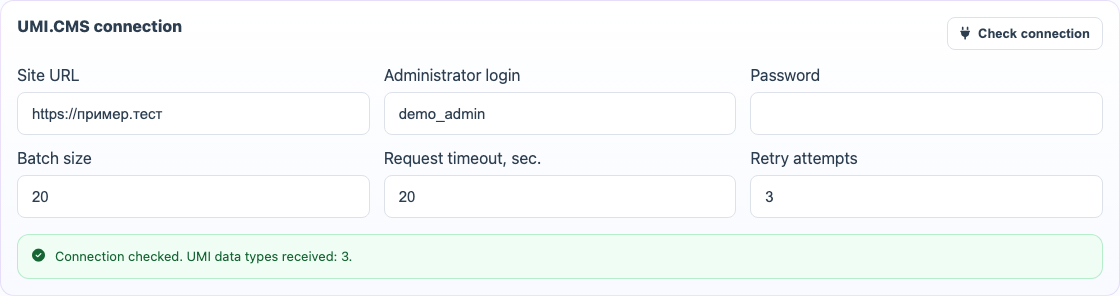
In the “UMI.CMS connection” block, enter the site URL, administrator or service-user login, and password. Then click “Check connection”. After a successful check, Eofferix shows that the UMI.CMS structure was received and opens the identification settings.
Object identification
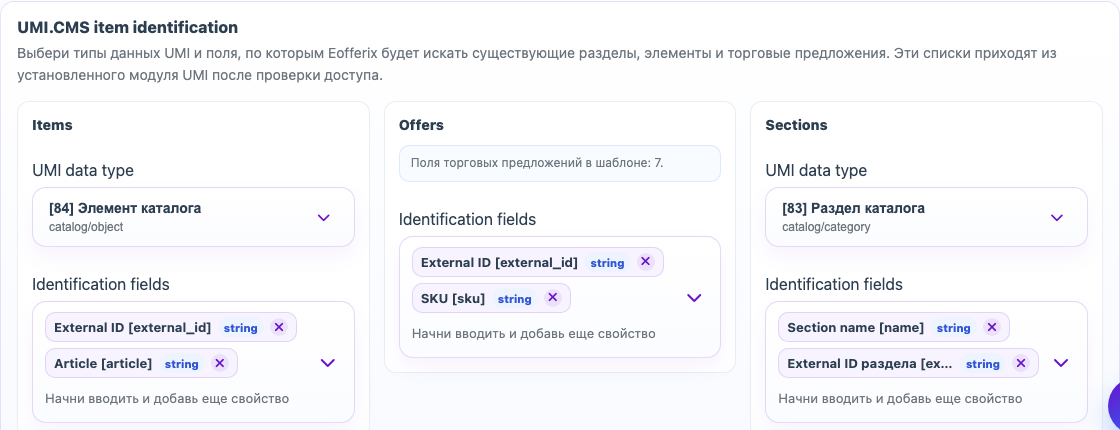
Identification tells Eofferix how to understand that an object already exists on the site. For products, offers, and sections, select the UMI.CMS data type and stable fields such as external ID, article, SKU, section name, or another reliable key.
Import rules
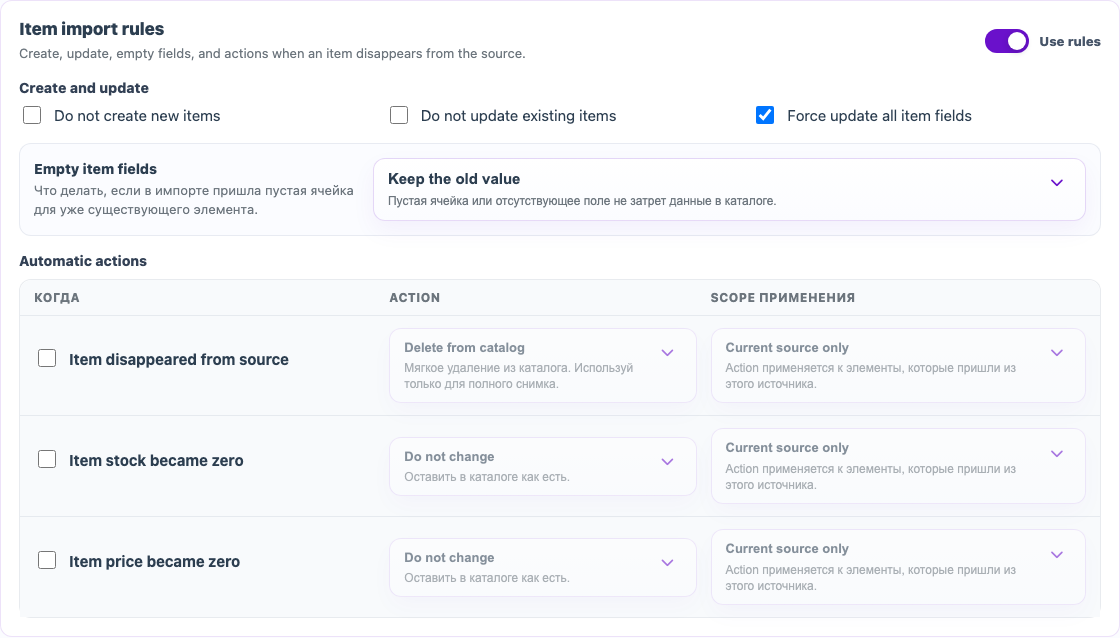
Import rules define what to do with new and existing objects, empty values, and objects that disappeared from the source. For a complete catalog, deleting missing products may be appropriate. For partial price lists, it is safer to limit actions to the current source.
Check zero-price and zero-stock rules separately. A product with a zero price can be left unchanged, skipped, or deleted depending on what zero means in your source.
XML snapshot
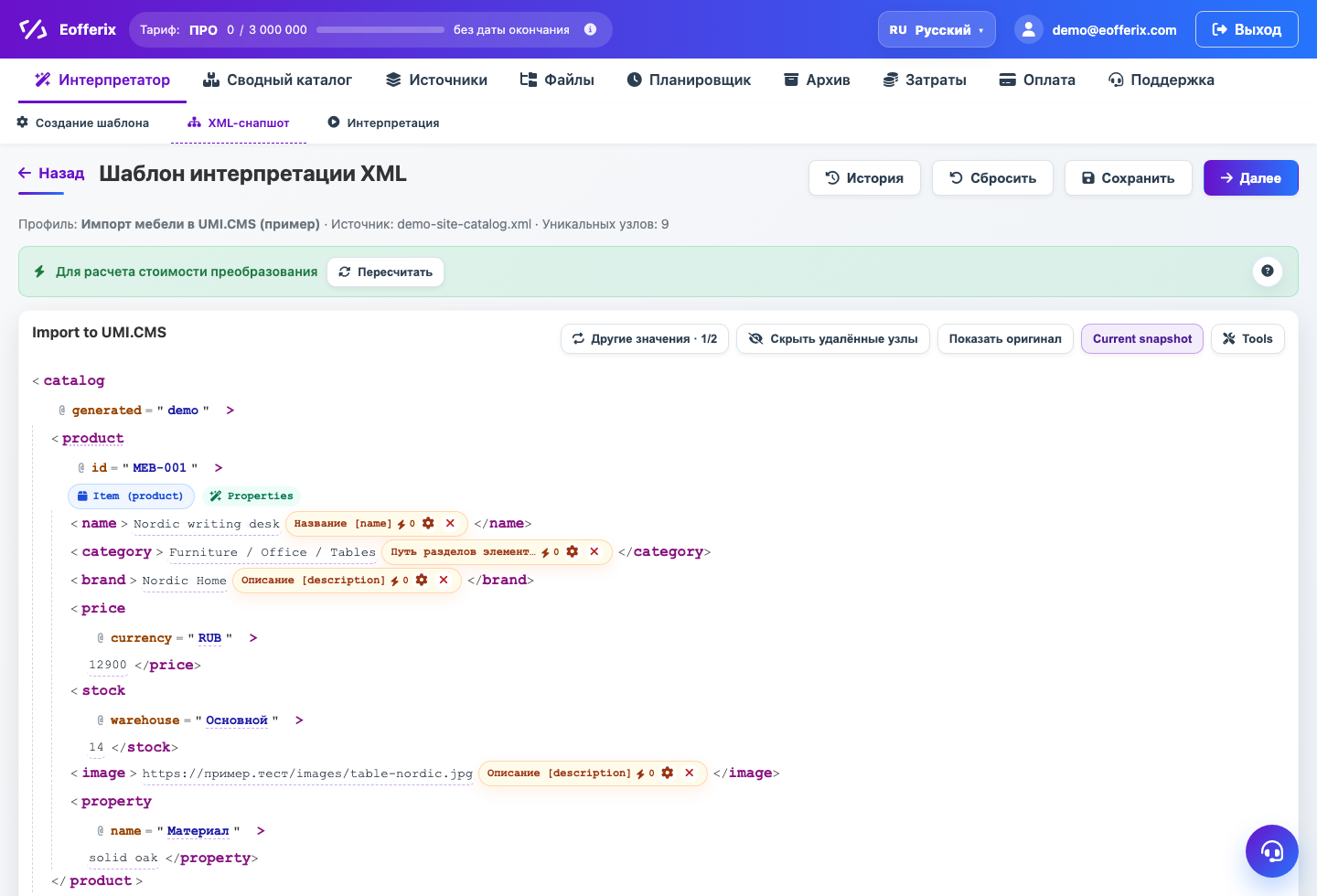
In the XML snapshot, select the product, offer, or section node and assign its UMI.CMS role. After that, XML values and attributes can be bound to fields of the selected data type: name, article, section path, price, stock, image, or property.
Properties, images, and files
If the source sends properties as repeated rows or blocks, configure them in the XML snapshot as product or offer properties. Images and files can be sent together with the object; when needed, Eofferix prepares the file first: saves it, resizes it, converts its format, or applies a watermark.
Check before full import
- Run a demo import on a small data set.
- Check created or updated products, offers, and sections in UMI.CMS.
- Make sure zero price, zero stock, and missing source products were handled as expected.
- After checking, run the full import.