
The run screen is more than a progress bar. It shows whether the service prepares the file, calculates cost, sends batches to UMI.CMS, waits for the site, or stops by protection.
- the user understands calculation, queue, transformation, and import states;
- run buttons are not clicked repeatedly during active work;
- stop request is visible immediately;
- protection errors explain cause and setting location.
Where To Find It
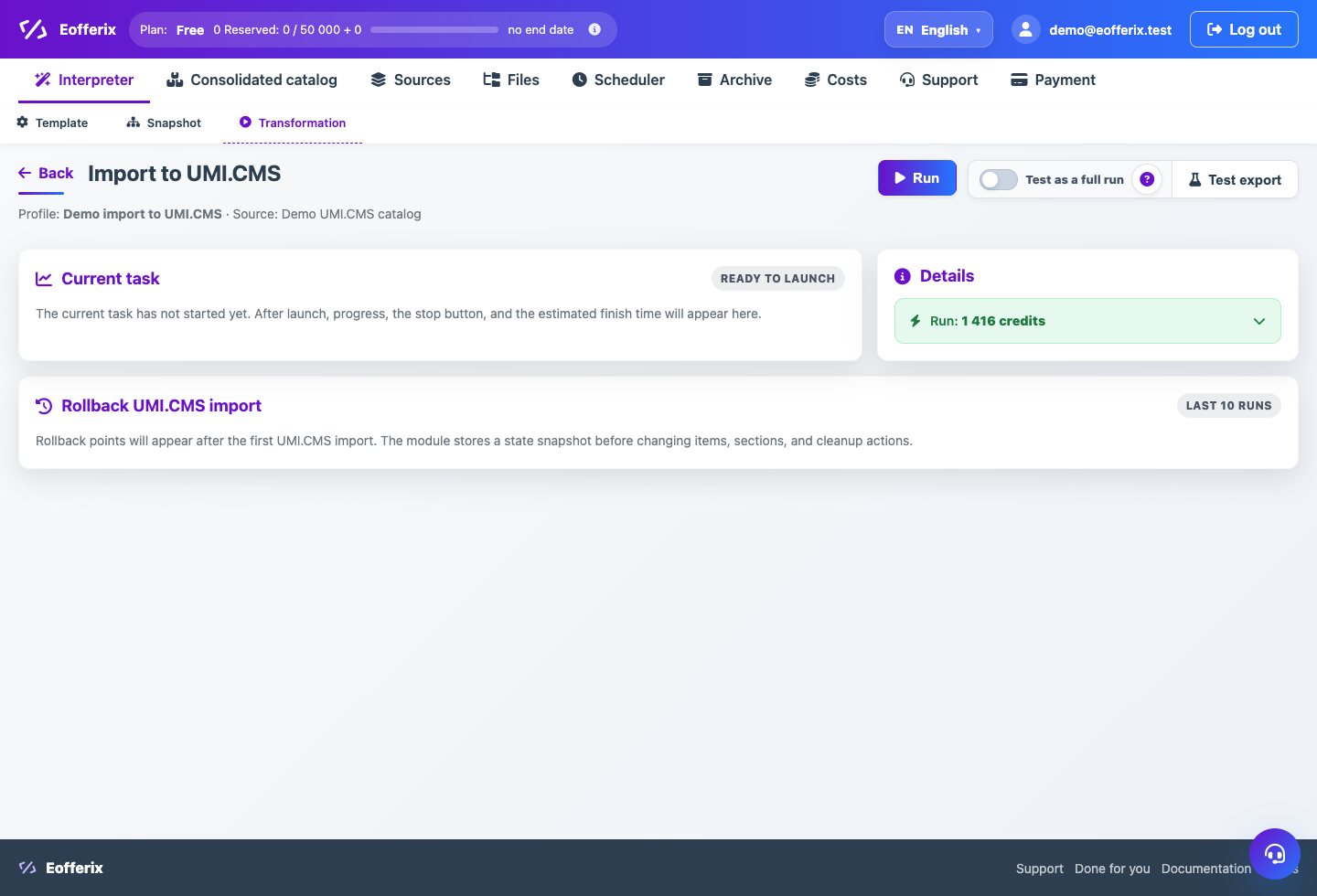
Profile → Transform. This screen contains test export, full run, progress, costs, stop, continue, and rollback.
The transform screen shows the current task: file transformation, UMI.CMS import, progress, credit calculation, warnings, and final result.
Before Running
Start with a test export. It should be small and safe, so you can check snapshot roles, fields, images, and trade offers without full catalog cleanup.
Full Run
After clicking Run, buttons should become disabled and the screen should immediately show that the task is queued or running. If you click Stop, the interface should show that stopping was requested.
Rollback Points
A rollback point appears after import when the UMI.CMS module has saved the state. During active import, the list should not be refreshed repeatedly because that can load the site.
Reading Errors
If import is stopped by protection, the message should explain the reason, why the protection exists, and where to change settings. Do not increase limits blindly; check the source, scenario, and deleting rules first.
Step-by-step Setup
- Before a full run, perform a small test export.
- After clicking a button, wait for the state: calculation, queue, transformation, or import.
- During import, watch both total task progress and current UMI.CMS send batch.
- To stop, click Stop once and wait for the stopping state.
- If protection stops the task, read the error and adjust scenario, cleanup, or limit instead of blindly continuing.
- After success, check rollback point and final costs.
How To Check The Result
- The interface immediately shows a state during active work.
- The final status is success or a clear error.
- Final costs are charged by result and reserve is closed.
- Rollback appears after import and is not repeatedly polled during active import.
Common Mistakes
- Treating 99-100% transformation as completed import.
- Clicking run again during cost calculation.
- Continuing after protection without understanding what would be deleted.
- Judging speed only by product count while ignoring offers and images.
What To Do Next
To start setup on another site, return to module installation and connection.