
The action answers the question: what to do with the value if the condition is triggered. The actions are described below as the user sees them in the "Transformations" block.
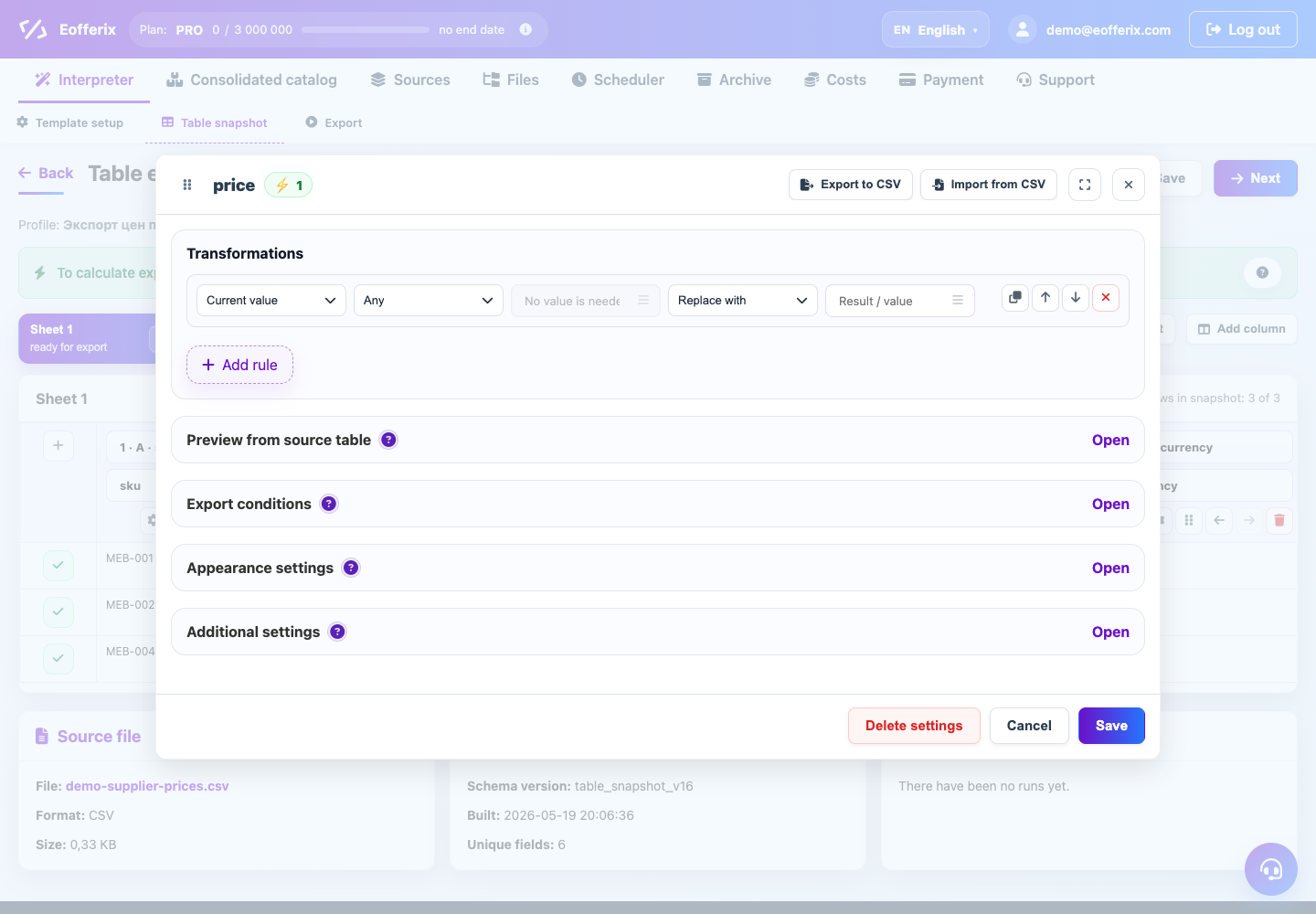
Action chain example
Text Actions
| Action | When to use | Behavior | Example result |
|---|---|---|---|
| replace with | You need to completely substitute the new value. | The old value is replaced entirely. You can substitute plain text, a number, or a template with another field. | new becomes New. |
| remove substring | You need to remove a repeating fragment within the text. | Deletes the found fragment. If a fragment occurs several times, all found occurrences are removed. | Product test test becomes Product after removal test and clearing spaces. |
| replace substring | You only need to replace part of the text, not the entire value. | Searches for the specified fragment and changes it to a new value. | 10 pcs. becomes 10 pcs. |
| delete after | You need to leave the beginning of the value before the found marker. | Removes everything that comes after the found fragment. The found fragment itself remains. | SKU-1 / red / L at marker / red becomes SKU-1 / red. |
| delete before | You need to leave the end of the value starting from the found marker. | Removes everything that comes before the found fragment. The found fragment itself remains. | Catalog / Product 1 at marker Product becomes Product 1. |
| remove everything except | You only need to pull out the found fragment. | Leaves the match and removes the rest of the text. | From SKU: SKU-100 you can only leave SKU-100. |
| add to the beginning | You need to prefix the value. | New text is added to the left. | 100 becomes SKU-100. |
| add to the end | You need to put a suffix after the value. | New text is added to the right. | 1200 becomes 1200 RUB. |
| lower case | It is necessary to bring codes, emails, and statuses to a uniform form. | All letters become lowercase. | ACTIVE becomes active. |
| upper case | Articles or codes must be capitalized. | All letters become capitalized. | sku-100 becomes SKU-100. |
| first letter capitalized | You need to carefully format one short value. | Changes only the first letter of the entire value. | red becomes Red. |
| every word is capitalized | You need to provide a name or category. | Each word begins with a capital letter. | desk lamp becomes Desk Lamp. |
| remove spaces around the edges | The values have extra spaces at the beginning or end. | Removes spaces only at the edges, leaving spaces inside the text. | SKU-1 becomes SKU-1. |
| collapse repeated spaces | There are double spaces, line breaks, or tabs inside the text. | Several whitespace characters in a row are converted into one regular space. | Product white becomes Product white. |
| transliteration | You need a Latin, URL-friendly value for a slug, code, or external key. | The value is lowercased; Russian letters are replaced with Latin equivalents; spaces and other separators become hyphens. | Кружка белая becomes kruzhka-belaya. |
| remove html tags | The description came with markup, but the recipient needs simple text. | Removes HTML tags but leaves the text inside them. | <b>Product</b> becomes Product. |
Dates and numbers
| Action | When to use | Behavior | Example result |
|---|---|---|---|
| convert date | The supplier gives the date in one format, but the recipient needs another. | The service tries to read the date and display it in the selected format and time zone. If the date cannot be read, the value remains as it was. | 21.03.2026 can be deduced as 2026-03-21. |
| round up | You need to remove the pennies, round to tenths or to the price increment. | Rounds a number according to the selected setting. If the setting is not specified, rounding to the nearest integer is used. | 1200.49 becomes 1200, 1200.50 becomes 1201. |
| multiply | Markup through coefficient, conversion of units, recalculation of packaging. | The current number is multiplied by the specified number. | 100 with a multiplier 1.2 becomes 120. |
| divide | You need to convert grams to kilograms, millimeters to meters and similar tasks. | The current number is divided by the specified number. If the divisor is zero, the value remains the same. | 1500 divide by 1000 gives 1.5. |
| add | You need to add a fixed amount or quantity. | The specified number is added to the current number. | 100 plus 15 gives 115. |
| subtract | You need to deduct a fixed discount or reserve. | The specified number is subtracted from the current number. | 100 minus 15 gives 85. |
| increase by % | You need to make a percentage markup. | The number is multiplied by 1 + percent / 100. | 100 increase by 20% gives 120. |
| decrease by % | You need to make a percentage discount. | The number is multiplied by 1 - percent / 100. | 100 reduce by 20% gives 80. |
XML: collect and sum values by path
collect values by path and sum values by path are used in XML snapshots when one product, offer, or category contains repeated nested nodes. For these actions, put one path template in the result field, for example {/items/item/photo} or {/items/item/stock}.
| Action | When to use it | Behavior | Example result |
|---|---|---|---|
| collect values by path | You need to move several repeated values into one field: images, tags, barcodes, sizes. | Takes all non-empty values from the XML path and joins them with a separator. If no separator is configured, ; is used. | For <photo>1.jpg</photo><photo>2.jpg</photo> the result is 1.jpg; 2.jpg. |
| sum values by path | You need one total stock, weight, or quantity from several nested values. | Takes all values from the XML path, extracts numbers, supports comma decimals, and adds the found numbers. Non-numeric values are skipped. | For <stock>2</stock><stock>3,5</stock><stock>4 pcs</stock> the result is 9.5. |
If the result setting contains normal text together with a template, for example Images: {/items/item/photo}, the service substitutes one value as a normal template. To collect all repeated nodes, leave only one path template in the result field.
Official actions
| Action | When to use | Behavior | What to check |
|---|---|---|---|
| don't load | The value should not be included in the result. | Stops the chain for this value. Depending on the location, the setting may remove a field or value. To delete an entire line or product, it is better to use the unload condition for the entire element. | Check to see if only the required field has disappeared, or the entire record if you were expecting it. |
| skip | You need to leave the value unchanged under a certain condition. | The current rule doesn't change anything. The chain of rules continues further. | Check the order of the rules: the following rules may still change the value. |
| text color | In the table result, you need to visually select a cell. | Changes the text color in a cell. Data as text does not change. | Check the resulting XLS/XLSX, not just the CSV. |
| cell color | In the table you need to highlight the value with the background. | Changes the cell background. The value inside the cell remains the same. | Check the format that the design supports. |
Regular Expressions
A regular expression is a pattern for searching a complex piece of text. It is used when the usual conditions "contains", "begins with" or "ends with" are not sufficient.
In transformations, a regular expression is most often needed not as a separate action, but as a way to more accurately indicate what to look for. For example, you can find all the characters that are not numbers and replace them with blank.
| What to do | Which template is suitable? | Which action to choose | Example |
|---|---|---|---|
| Remove everything except numbers | \D+ | replace substring | +7 (999) 123-45-67 turns into 79991234567. |
| Find multiple spaces in a row | \s+ | replace substring | Multiple spaces, tabs or hyphens can be replaced by a single space. For simple cleanup, it's better to use the "collapse spaces" action. |
| Leave part according to the template | For example, article template | remove everything except | From line Product code: SKU-100 You can only leave the article number. |
| Do not upload a value of the wrong type | Expected value pattern | unloading condition | For example, do not upload a phone number if it does not match the number. |
How to read simple patterns
\dmeans one digit.\Dmeans any character that is not a number.\smeans space, tab or line break.+after the symbol means "one or more times in a row."^means the beginning of the meaning, and$- end of meaning.
If you are unsure about a pattern, test it on one training value first. An error in a regular expression usually doesn't break the profile, but the rule simply won't find a match and won't change anything.
Before doing math, clear the value
Mathematical operations expect a number. If the field comes 1 200 RUB., first remove the currency and extra spaces, and then count. If the text does not start with a number, the result may be unexpected.
How to choose an action
- If you need to replace the entire value, use "replace with".
- If you only need to change a piece of text, use "remove substring" or "replace substring".
- If you need to work with the beginning or end of text, use "starts with", "ends with", "delete after" or "delete before".
- If you need to remove an entire entry, start with the upload conditions rather than the text replacement.
- If there are more than five rules, check whether the task can be divided into several fields or profiles.