
A watermark helps protect images or add branding before publishing.
When to use
Use it if images are sent to partners, to a website, marketplace, or to an external directory.
How to set up
- Enable image processing.
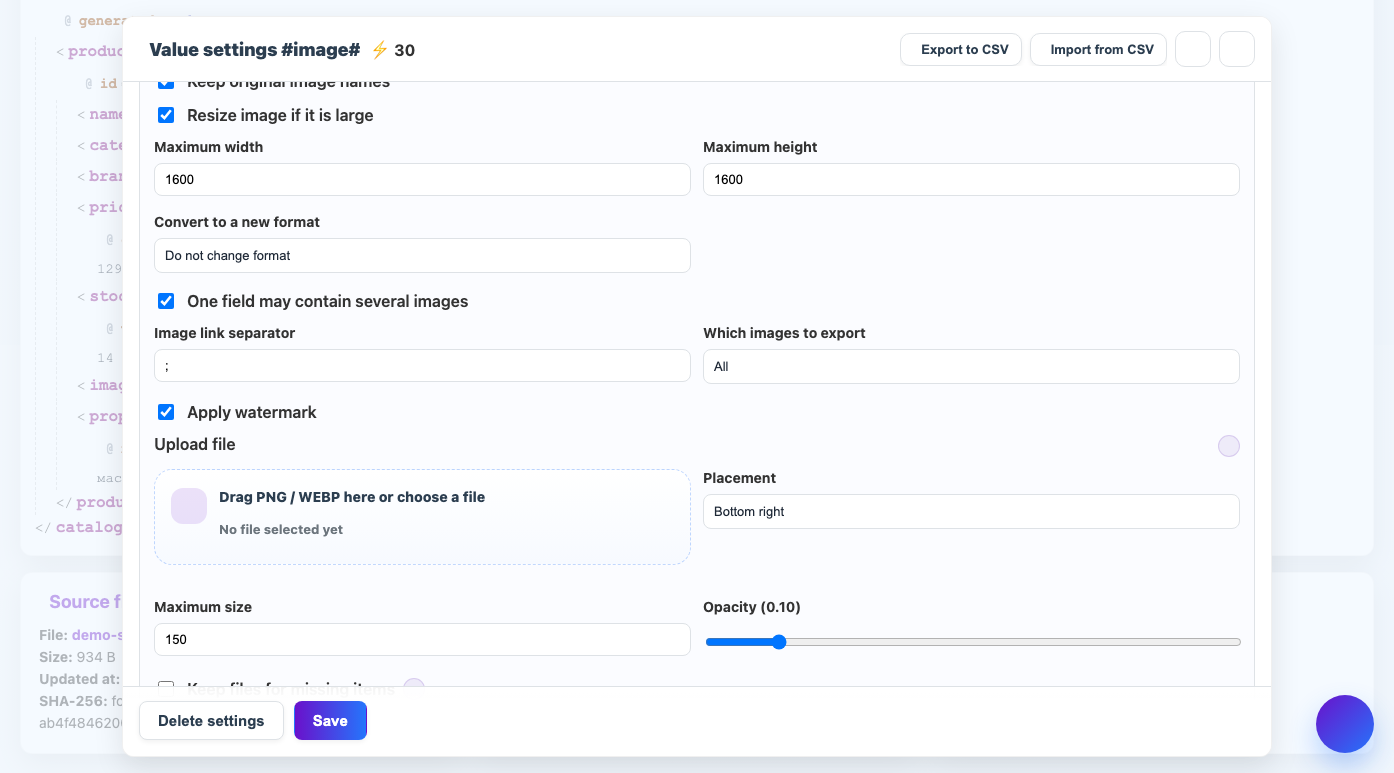
- Upload a PNG or WEBP watermark file.
- Select position: center, corner or repeat across image.
- Adjust the transparency and maximum size.
- Check the result on a light and dark image.
What will happen
A watermark will appear on the saved images at the selected location.
What is important to remember
- A sign that is too noticeable may interfere with the product card.
- For different photo sizes, it is better to limit the maximum sign size.