
A supplier sends one XLSX or CSV file where attributes are stored as column pairs: Property1, Value1, Property2, Value2. You need normal columns such as Color, Material, and Power for filtering, editing, or export.
Use a table profile and Field Builder. For a single file, the consolidated catalog is not needed: the builder converts the repeated pairs into normal columns before the table editor opens.
How to do it in Eofferix
Create a table profile for the supplier XLSX or CSV and wait for
Build table before editor. If the table is already open, clickField Builder.
The animation shows entering the builder, setting the column mask, confirming, and seeing the result table. Open the detected repeated column group. In this example, the future column title comes from
Property{i}and the cell value comes fromValue{i}.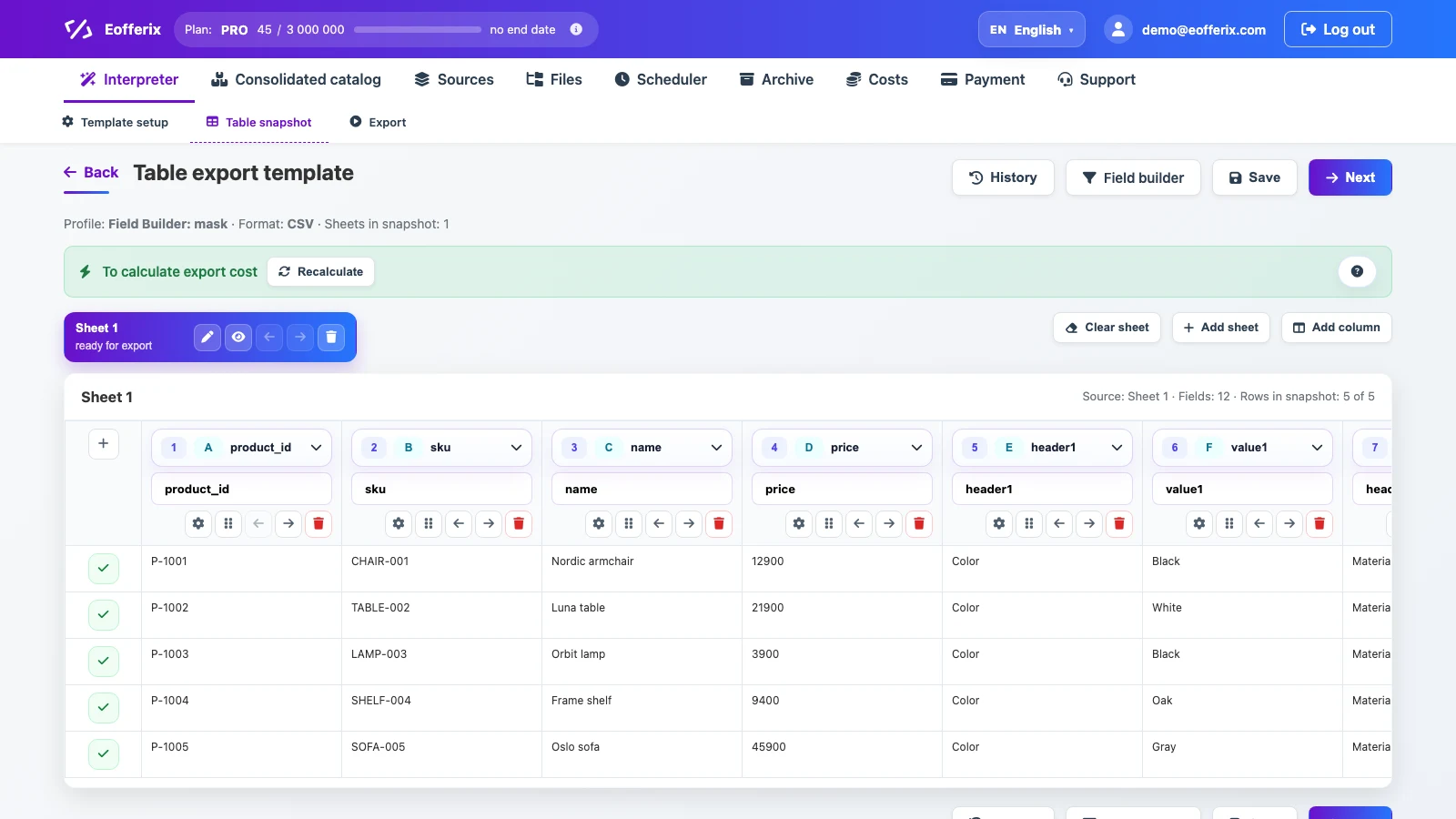
The builder appears before the table editor when repeated column pairs are detected. In mask mode, set the property title column as
Property{i}and the value column asValue{i}. The{i}index connects the first pair with the first value, the second pair with the second value, and so on.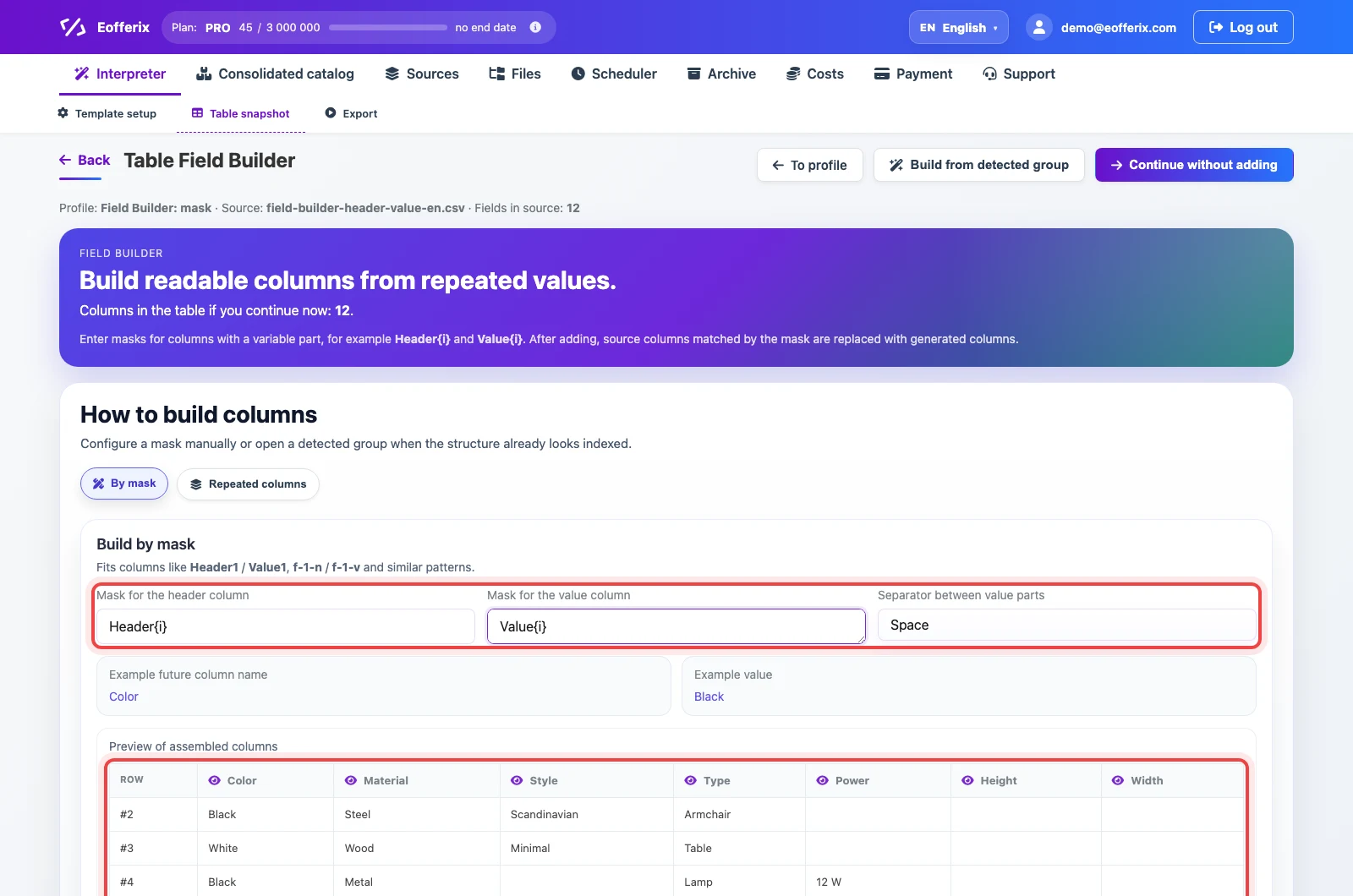
Use a mask when the table stores attributes in numbered repeated columns instead of an array. Check the preview of generated columns. If an attribute is not needed, hide it in the preview.
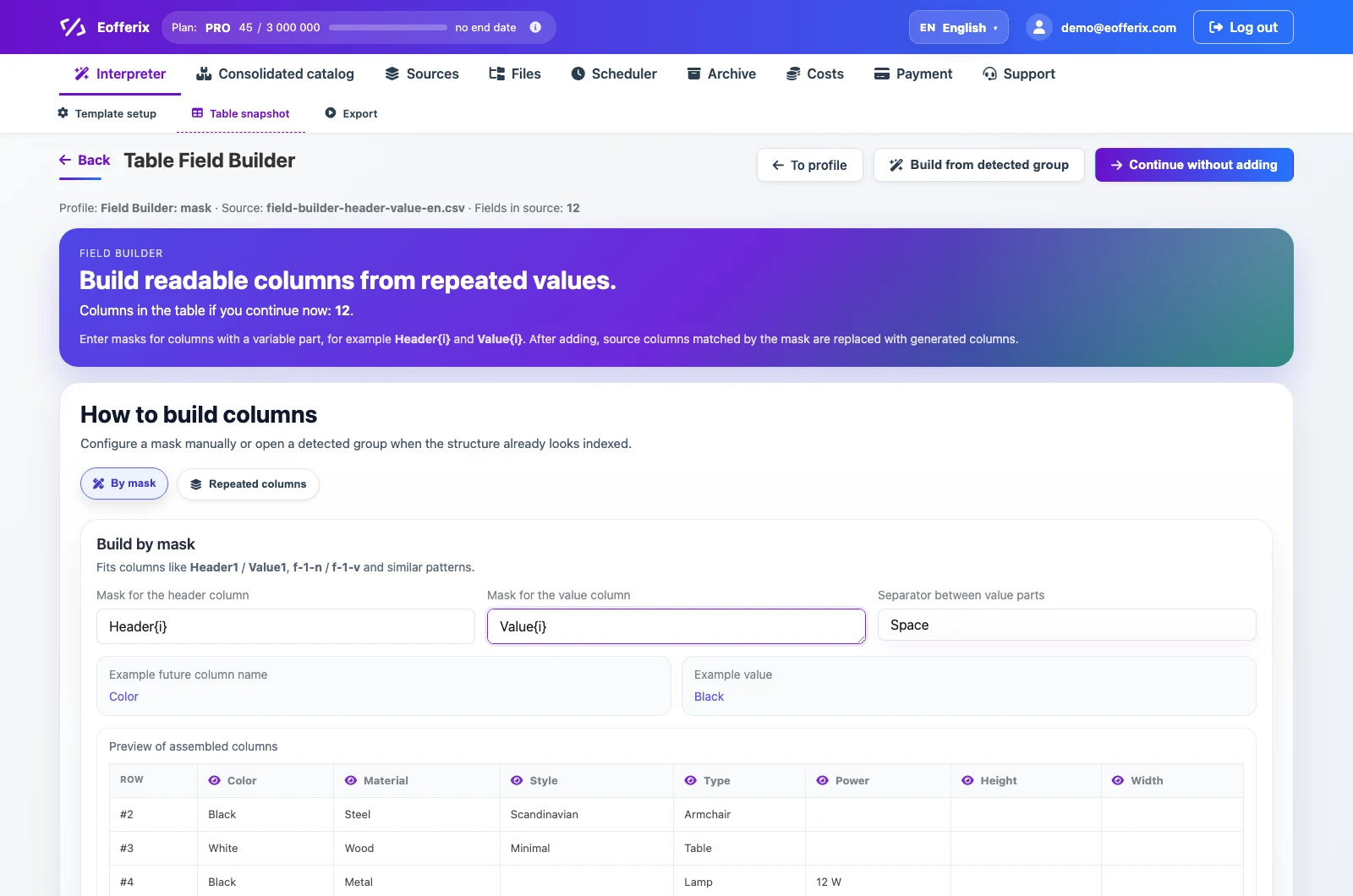
After confirmation, the original technical pairs do not have to be added to the final table. Click
Add and continue, then work with a normal table: filter rows, clean values, and export CSV, XLSX, JSON, or another required result.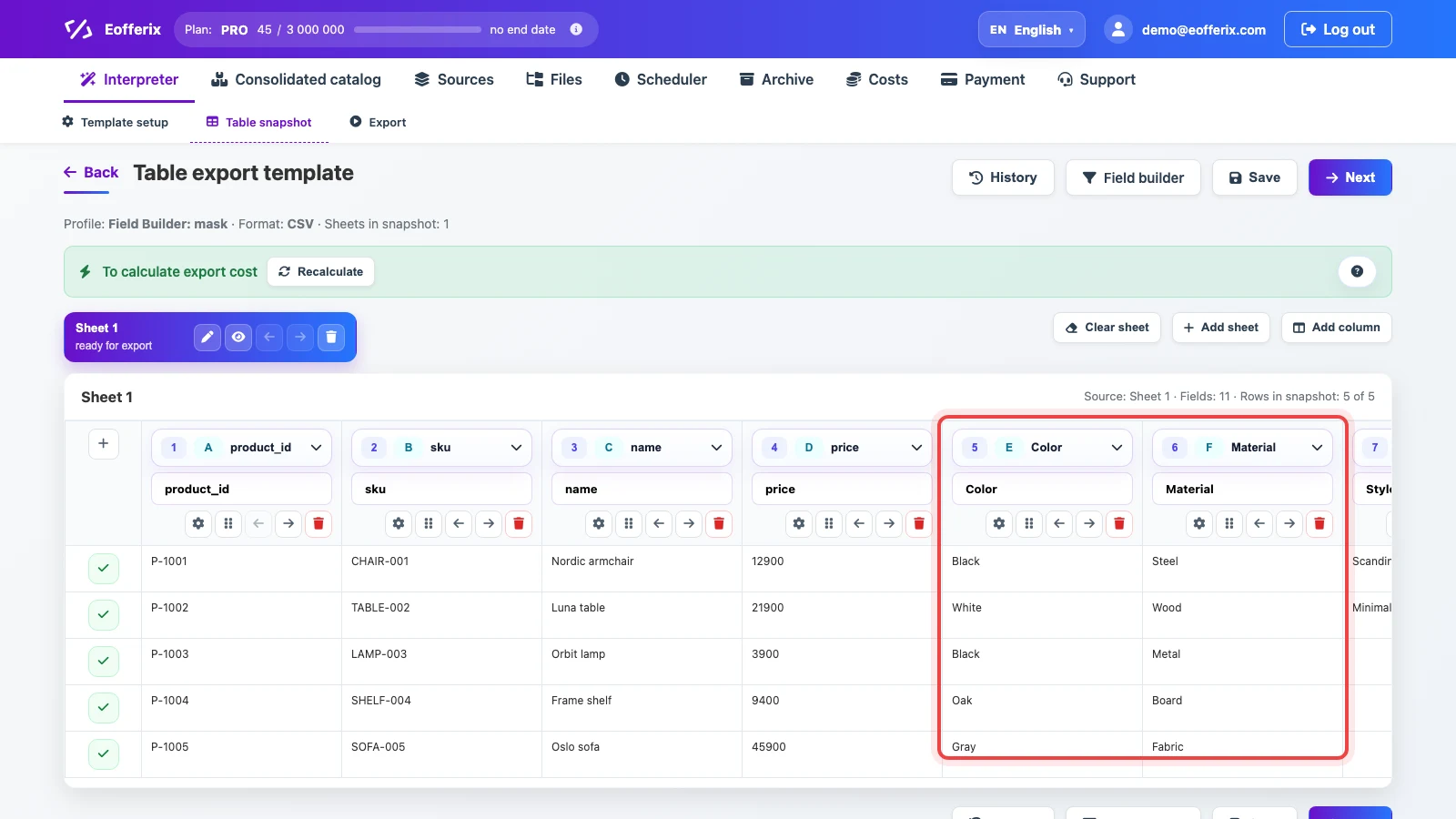
The final table contains direct product fields and readable attribute columns.
Before / after
Before
source data| sku | name | Property1 | Value1 | Property2 | Value2 | Property3 | Value3 |
|---|---|---|---|---|---|---|---|
| LMP-2201 | Onyx desk lamp | Color | white | Material | steel | Power | 12 W |
After
result| sku | name | Color | Material | Power |
|---|---|---|---|---|
| LMP-2201 | Onyx desk lamp | white | steel | 12 W |
How to check the result
- The table should contain attribute columns, not technical pairs such as
Property1andValue1. - Check several rows: each value should appear in the column named by the matching pair.
- If there is one source file and you only need a transformed output, do not move the scenario into the consolidated catalog.