
Where the import mode is selected
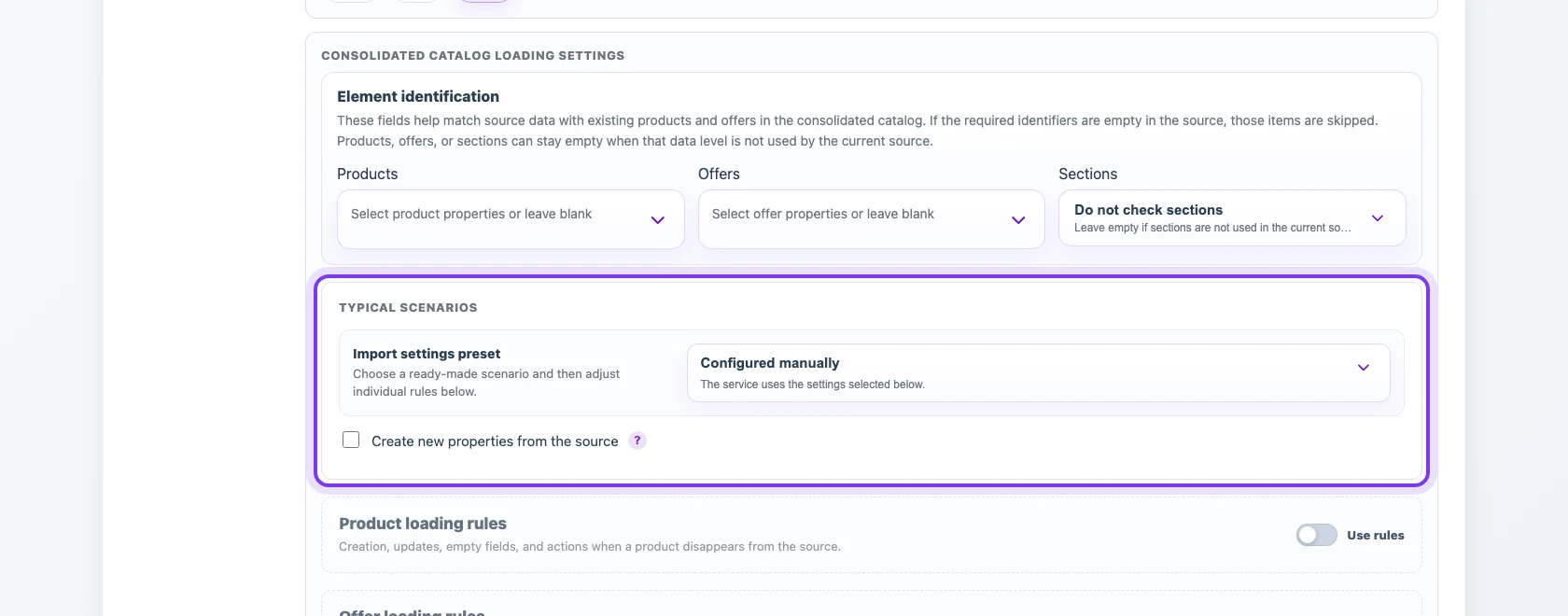
The import mode is selected while creating or editing a profile that loads data into the consolidated catalog. It is located in Consolidated catalog loading settings, under Typical scenarios.
A preset does not start the import and does not change the source file. It fills a group of rules below: how existing products and offers are matched, whether new records are created, whether matched records are updated, how empty values are handled, whether missing items are deleted, and how sections are processed. After selecting a preset, you can still adjust individual rules manually.
What to configure before choosing a mode
The Element identification block appears before the typical scenarios. In this block, you choose source fields that Eofferix uses to match incoming data with existing products, offers, and sections in the consolidated catalog.
How AND and OR work. Separate identification chips are joined with AND. Inside one chip, the “or …” button adds alternative fields that are tried from left to right. For example: (SKU OR External code OR Barcode) AND Supplier AND (Brand OR Manufacturer).
Eofferix stops at the first complete combination that finds existing objects. If that combination finds several objects, the complete result set is passed to the selected duplicate policy; matching does not fall through to the next alternative. Every required group must have a value. Users may choose any available fields, and extra alternatives do not consume extra credits.

If a required identifier is empty in a source row, node, or element, that element is skipped. You can leave products, offers, or sections without identifiers when that data level is not used by the current source.
What a preset changes
A standard mode changes several related rules at once:
- whether new products and offers are created;
- whether already matched records are updated;
- whether existing values are overwritten forcefully;
- whether an old value is kept when the source field is empty;
- whether products and offers missing from the current source are deleted;
- whether cleanup runs after import;
- whether sections are created, updated, merged, or replaced;
- which safety limits stop the import before unsafe deletion.
Standard modes
Configured manually
This option means the service uses the values selected in the rules below. It appears when the settings no longer match a ready-made preset or when you choose to configure the behavior directly.
Use manual mode for mixed scenarios, for example when new products should be created but matched offers should stay unchanged, or when prices should update while sections stay fixed.
Safe sync
Safe sync is suitable for recurring sources that may be incomplete. It creates new products and offers from the current source, updates matched records, and does not delete items that did not arrive in the latest file.
Empty source values usually keep the already filled catalog fields. Sections can be added and updated without replacing the entire structure. Cleanup after import is not enabled automatically.
Full source synchronization
Full source synchronization treats the source as a complete current snapshot. If a product or offer was previously linked to this source but is missing in the new run, Eofferix can delete it from the consolidated catalog within the selected scope.
This mode can also force field updates, clear old values when the source value becomes empty, delete empty sections, and enable cleanup after import. Use it only for sources that really contain the full current data set on every run.
Update matched
This mode updates only the products and offers that can be matched by identifiers. New products and offers are not created.
It is useful for correction files that apply to an already loaded assortment, for example when the source contains only updated prices, stock, or selected properties. Empty values should not accidentally clear filled catalog fields.
Add only new
This mode creates new products and offers but does not change records that are already found in the catalog. If an incoming element matches an existing product or offer, its catalog data stays as it is.
Use this scenario when adding new assortment while preserving already checked product cards, prices, stock, and section assignments.
What the main settings mean
Create new properties from the source

When this setting is enabled, Eofferix can create catalog properties found in the source if matching fields do not exist yet. This is useful when suppliers send additional product attributes.
For profiles that export data to an external application, a nearby setting can allow creation of new application dictionary values. It controls whether missing dictionary options may be added when they arrive from the source.
When a property or dictionary value disappears from the source
Automatic missing-data cleanup does not delete or unlink properties or dictionary values used by the profile. If they are temporarily absent from a later source, they remain in the catalog; when they appear again, Eofferix reuses the retained mapping when one compatible object can be identified unambiguously.
Rules for missing products, offers, sections, and images work separately.
Product loading rules
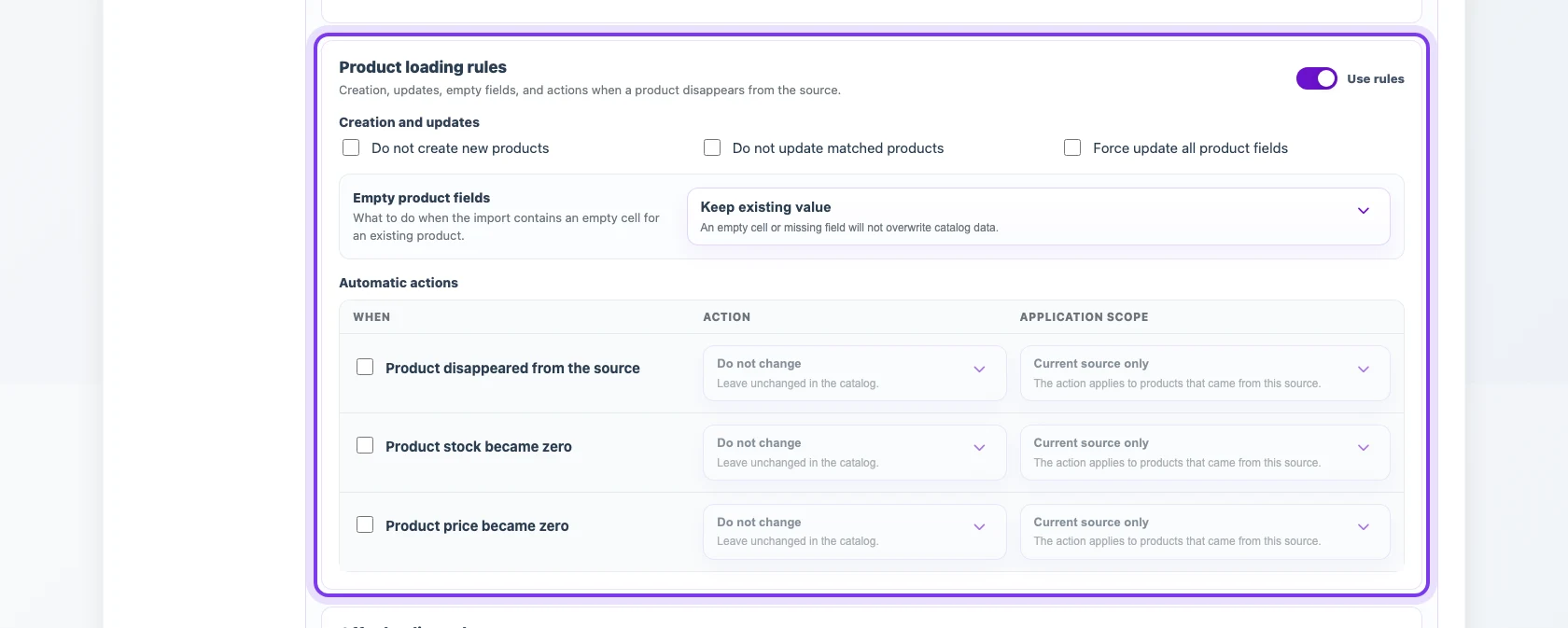
Product rules define whether new products are created, existing products are updated, matched products are skipped, fields are overwritten forcefully, and empty values keep or clear existing data. This area also controls actions for products that disappeared from the source, arrived with zero stock, or arrived with zero price.
Offer loading rules
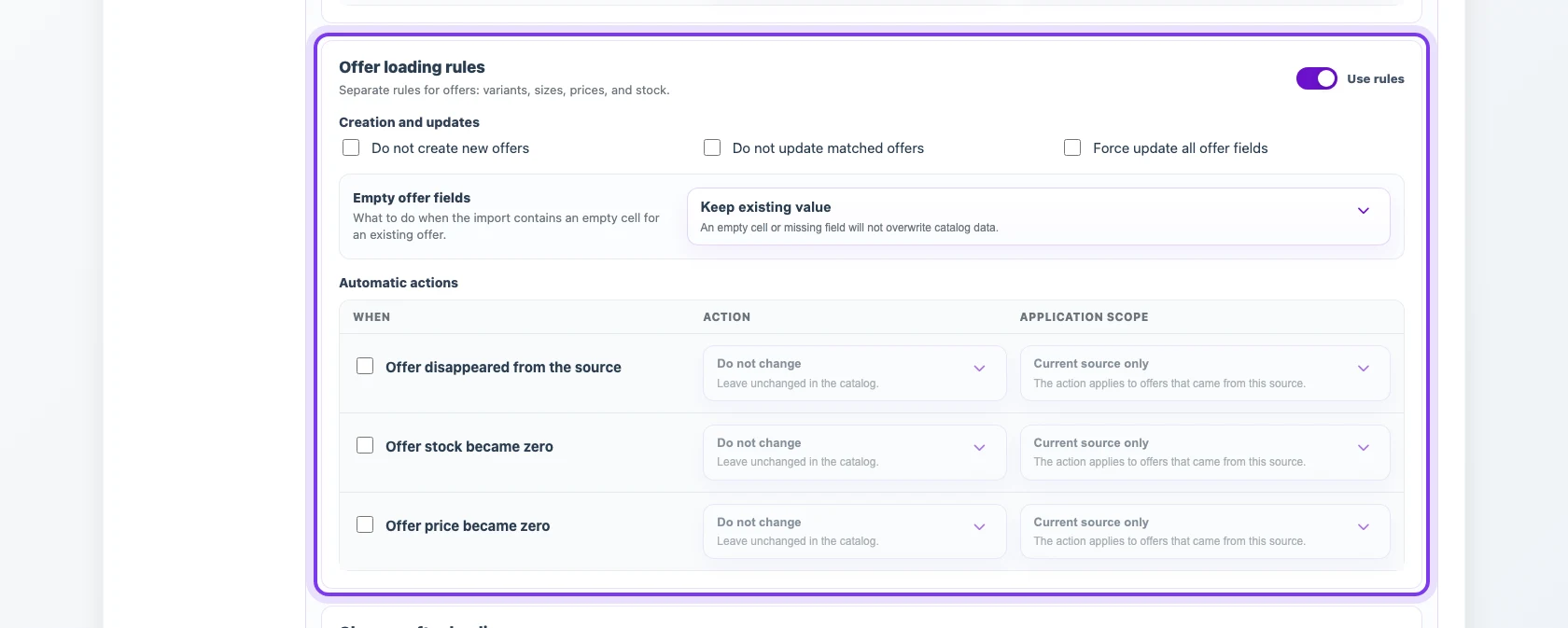
Offer rules work the same way but apply to the SKU, price, stock, warehouse, and other offer-level data. Check the offer identifier separately: if it is unstable, new source rows may create duplicates instead of updating existing offers.
Cleanup after import
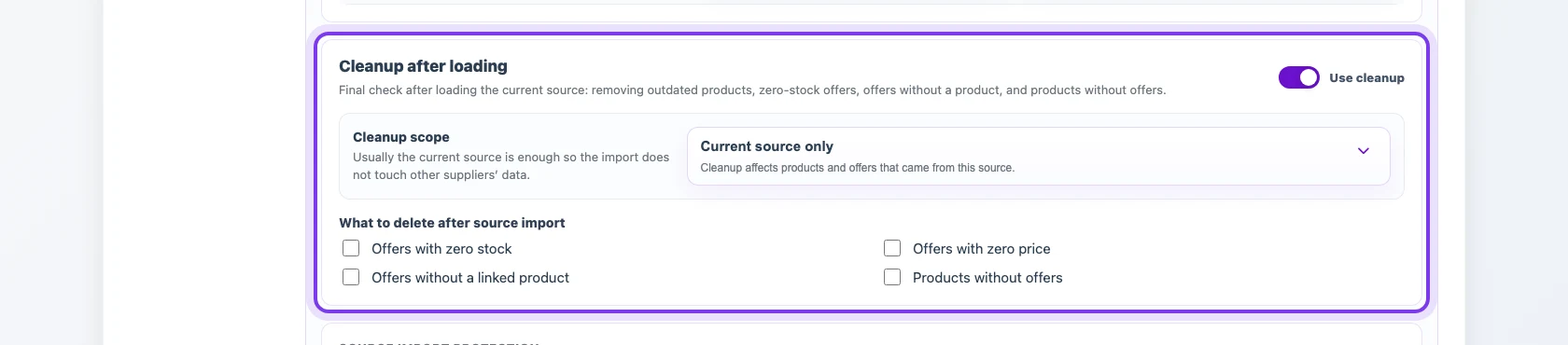
Cleanup runs after loading and removes items that became invalid because of source changes, such as offers without products, products without offers, zero-stock offers, or zero-price offers. The scope can be limited to the current source so data from other suppliers is not affected.
Source import protection
Stop conditions halt the import before deletion when the changes look unsafe: too many products or offers would be deleted, the deletion share exceeds a limit, or the source contains too many empty keys. These limits are especially important for full synchronization.

Section rules
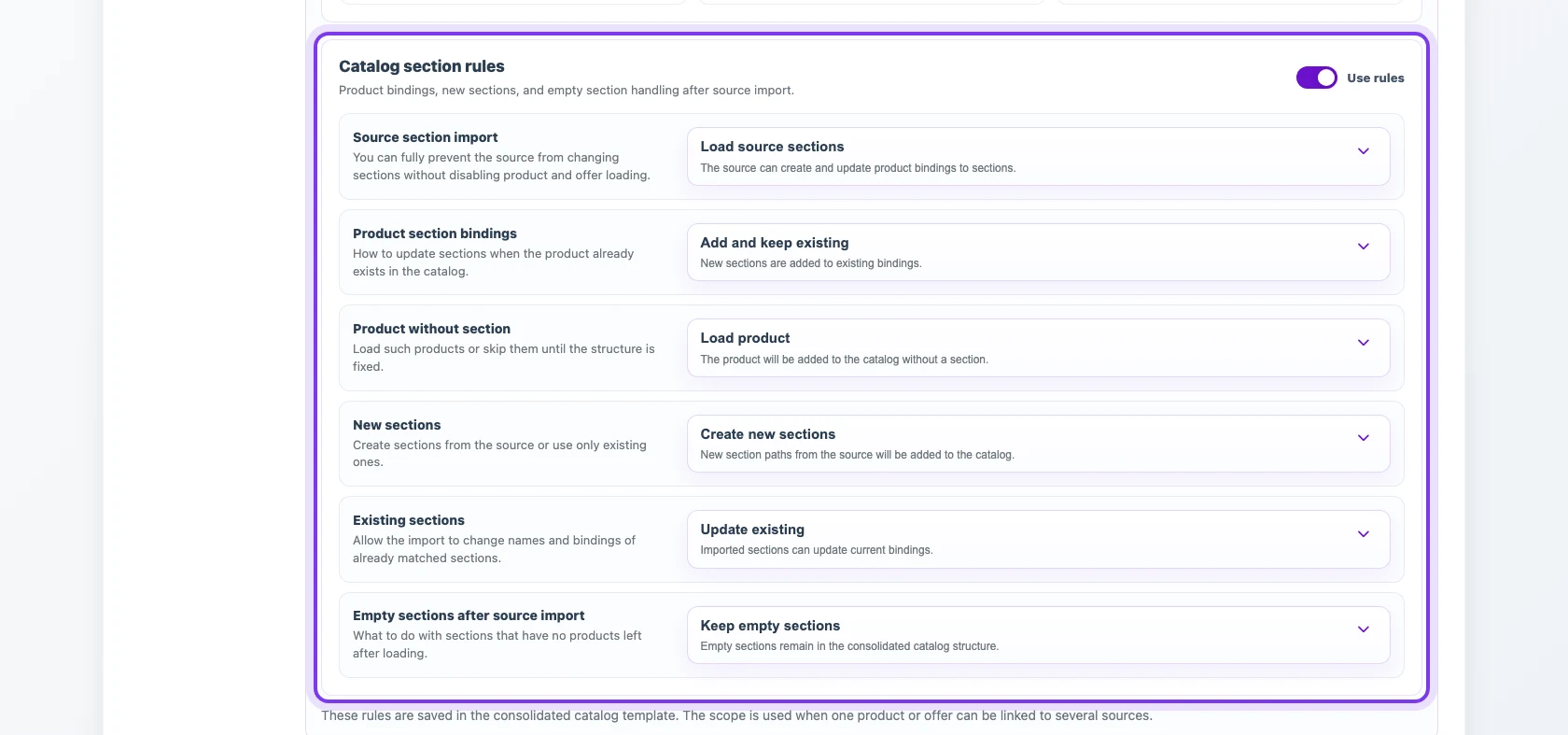
Section settings define whether the category tree is imported from the source, whether new sections are created, existing sections are updated, empty sections are deleted, and how products are linked to sections. The binding mode can replace old links, merge new links with existing ones, or apply sections only to new products.
How to choose a mode for a source
- If the source is recurring but does not always contain the full assortment, start with Safe sync.
- If the file is a complete current snapshot of this source on every run, use Full source synchronization and enable safety limits.
- If the file contains corrections only for already matched products or offers, choose Update matched.
- If the file should only add new assortment, choose Add only new.
- For mixed behavior, choose the closest preset and adjust the separate rules below.