
Properties extend the consolidated catalog. They store material, color, size, composition, brand, delivery time, warranty, files, images, links, and any other data needed for product cards, filters, exports, and integrations.
You can create properties in the consolidated catalog settings in advance, or add them directly from the snapshot while configuring a source. The first option is useful when the catalog model is already clear. The second is useful when you see a supplier value and immediately decide where it should be imported.
Where to Find the Settings
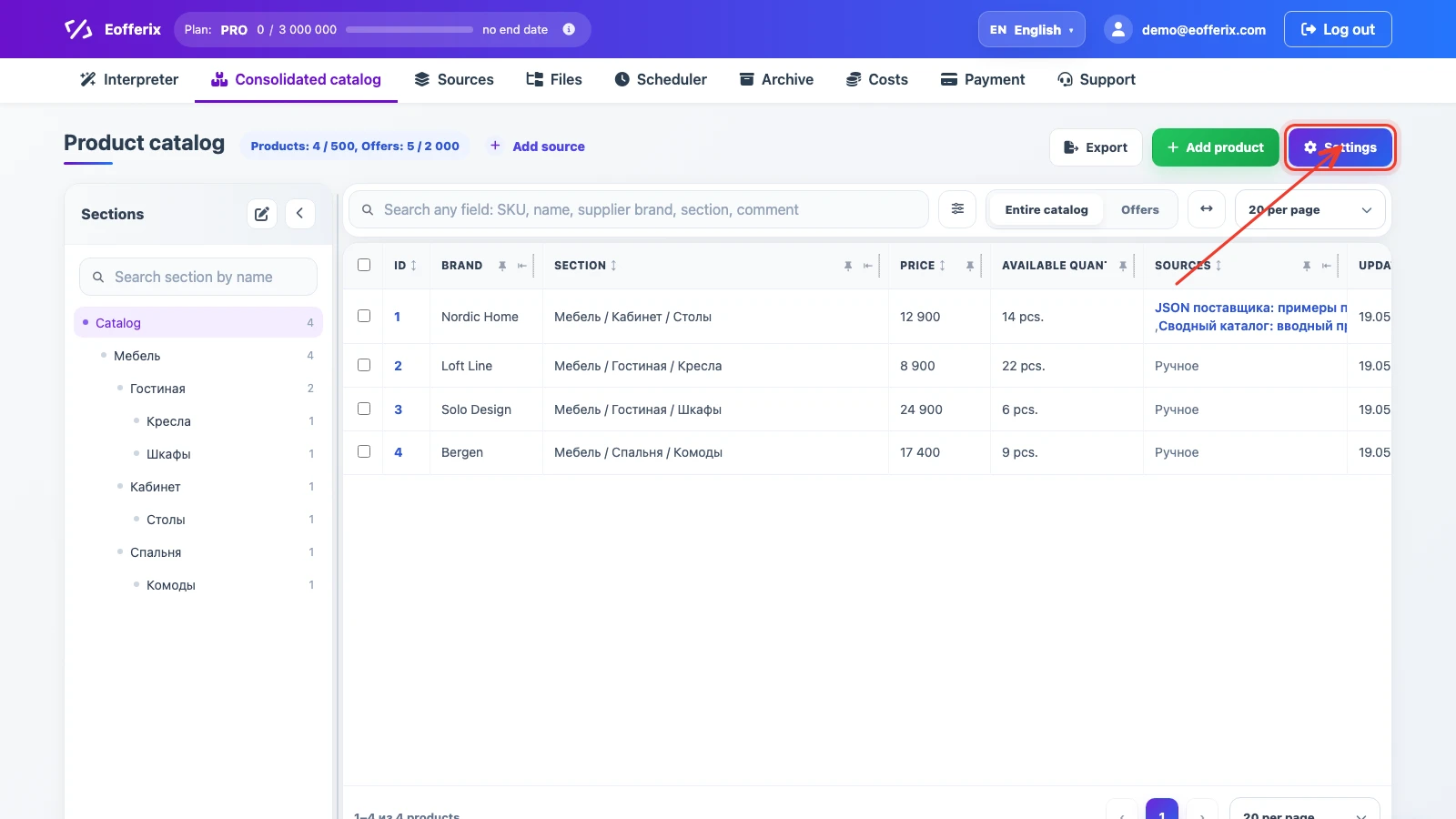
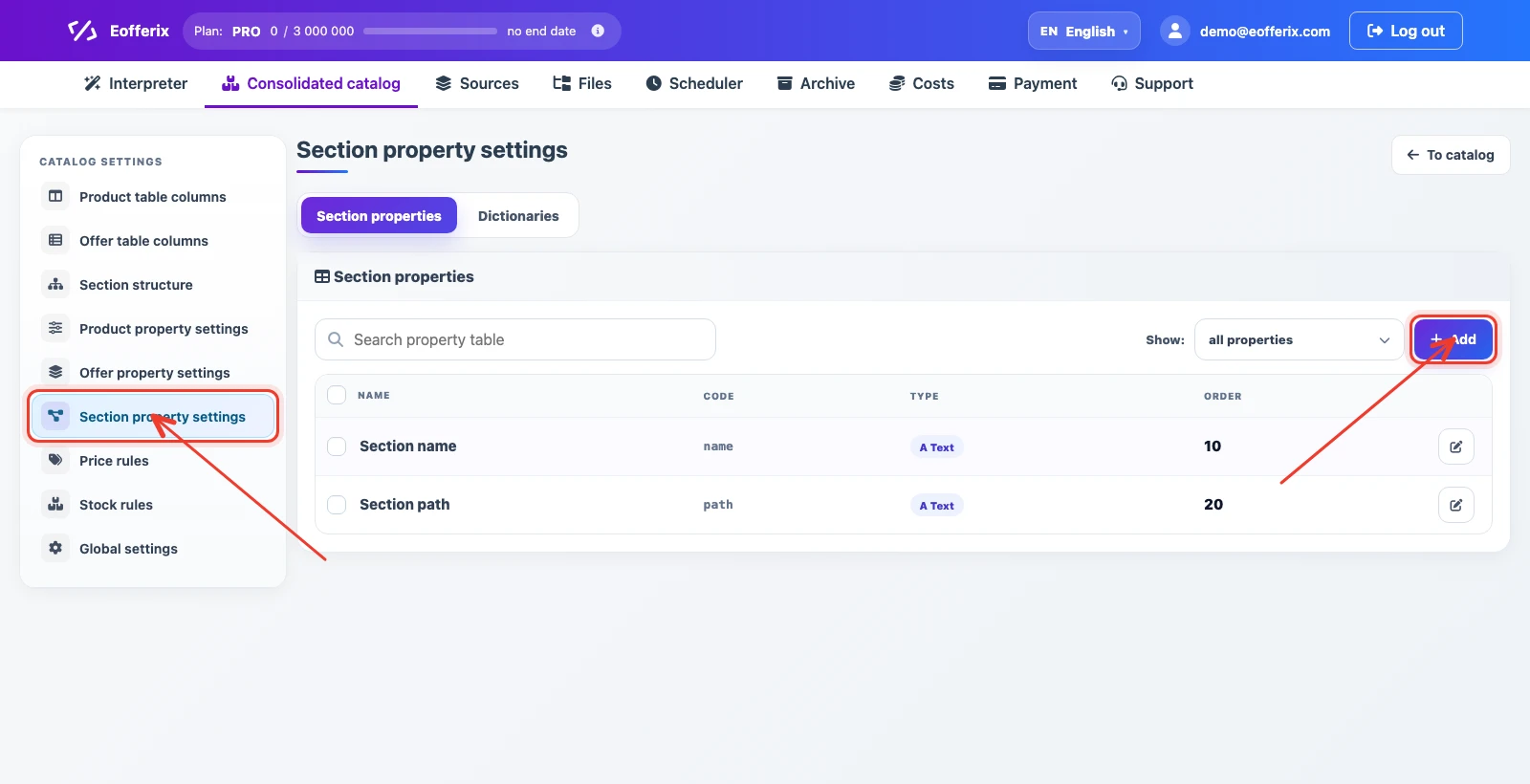
Open the Consolidated catalog and click Settings. The left menu contains separate sections for product, offer, and section properties.
Product Properties
Product properties describe the product card itself: material, composition, brand, description, images, country of origin, or collection. These values belong to the product as a whole and usually do not change from one offer to another.
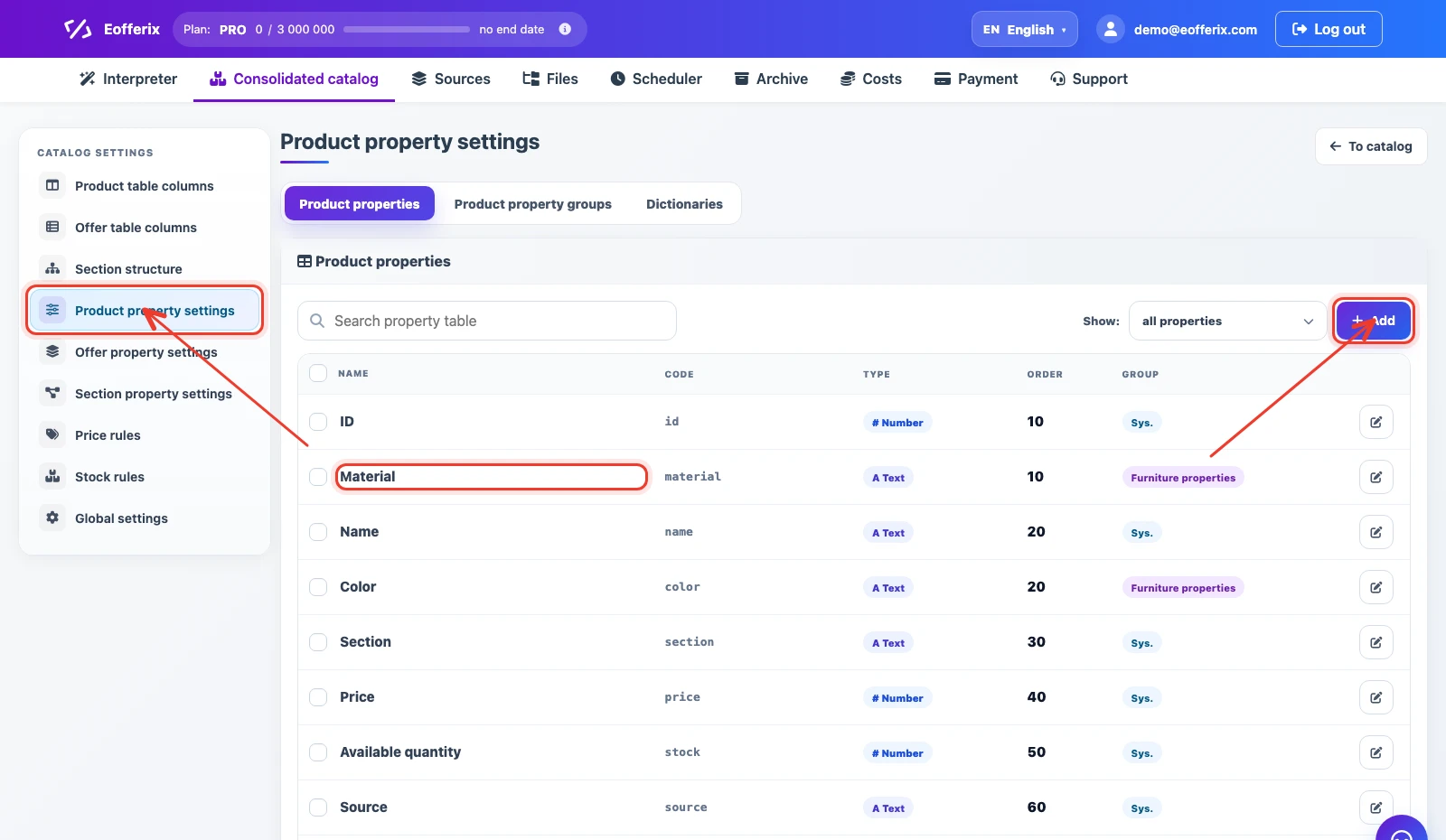
Creating a Product Property
When creating a property, set its name, code, sort order, group, and data type. In the example, the Composition property is created with the composition code.
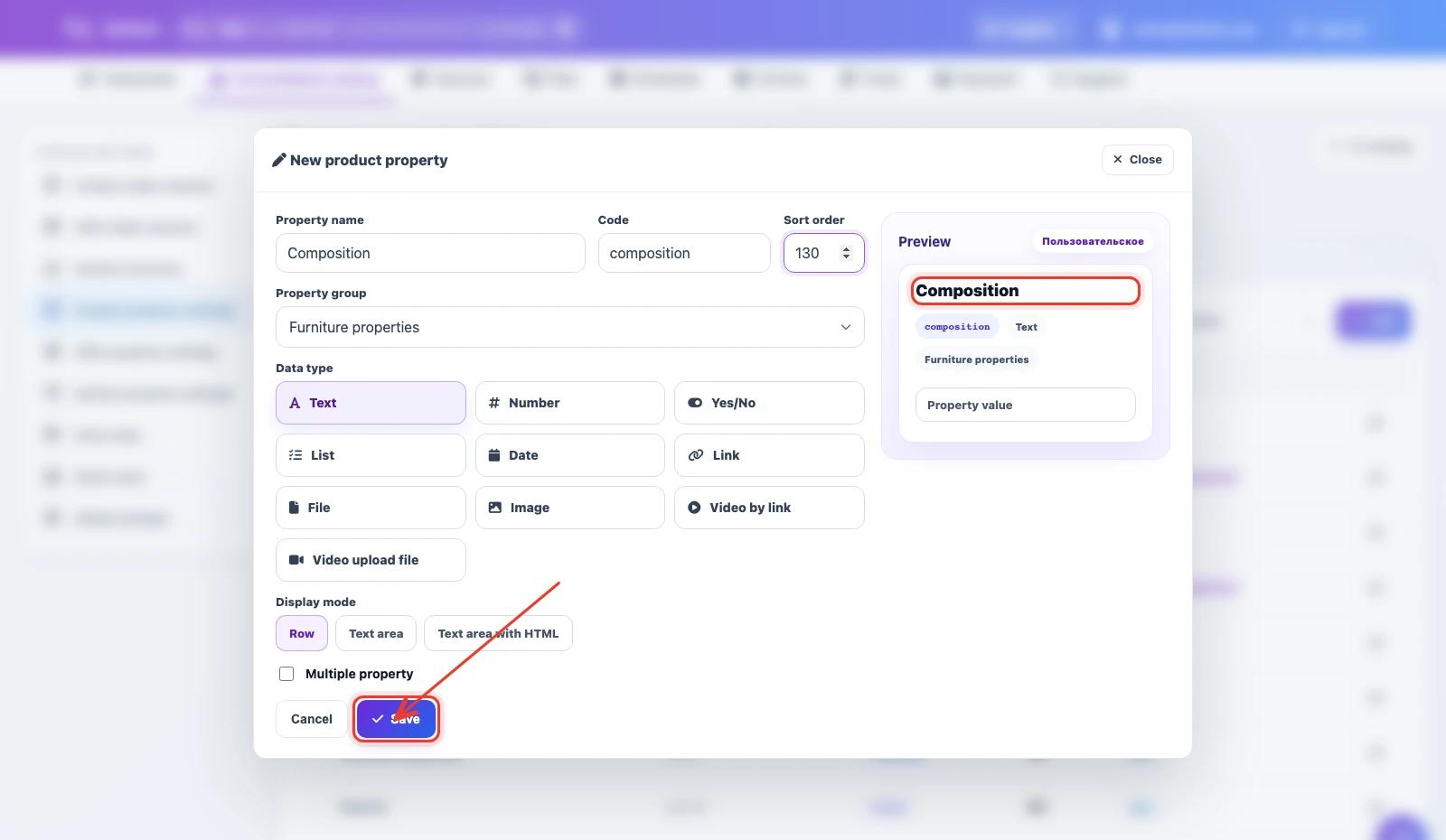
- Name is shown to users in the interface and settings.
- Code is used in imports, API, templates, and exports. Keep it short and stable.
- Data type defines how the value is stored and validated: text, number, list, date, file, image, and other options.
Editing a Product Property
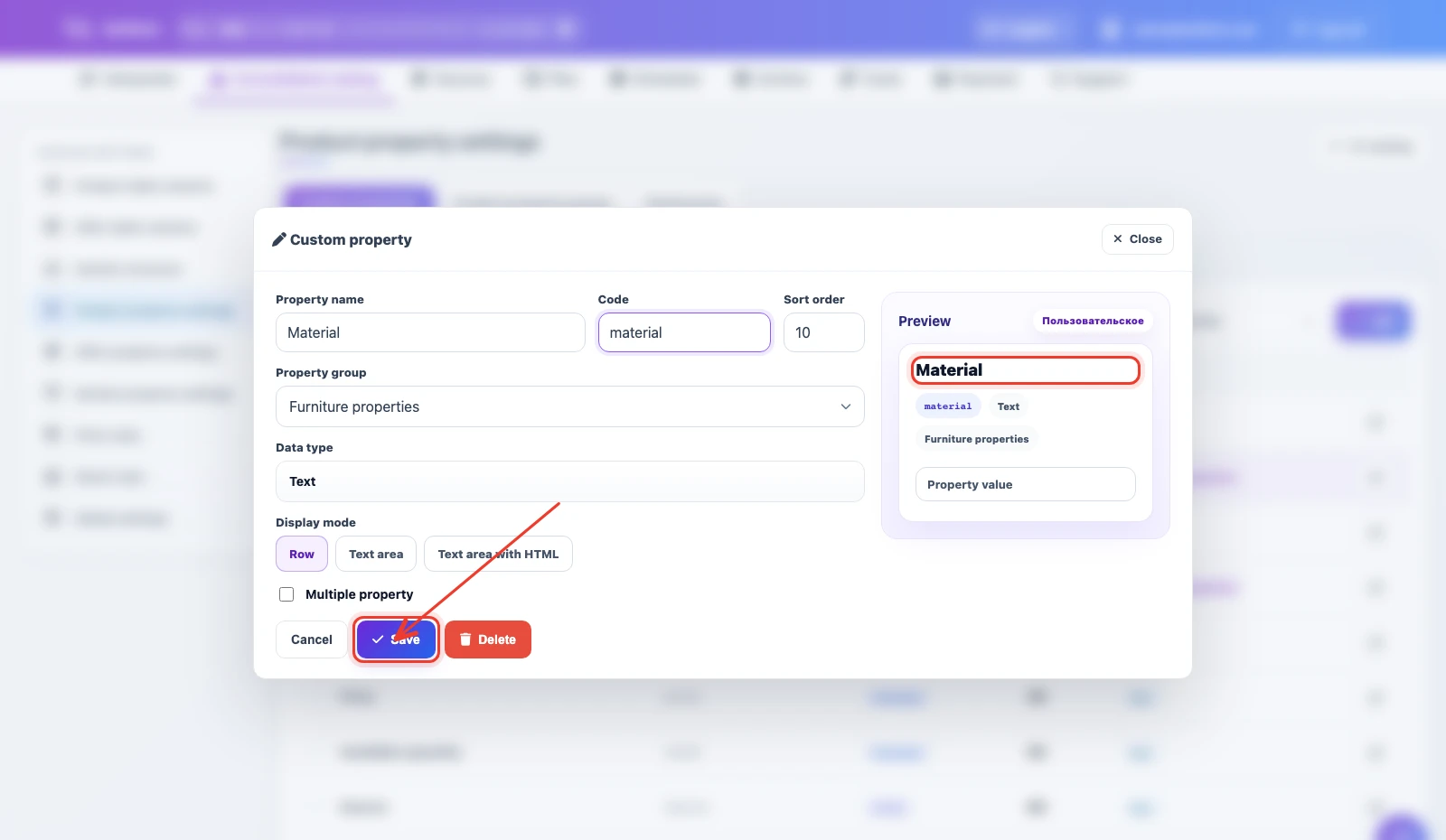
For a custom property, you can change the name, code, group, display mode, and multiple-value flag. After making changes, click Save.
Property Groups and Dictionaries
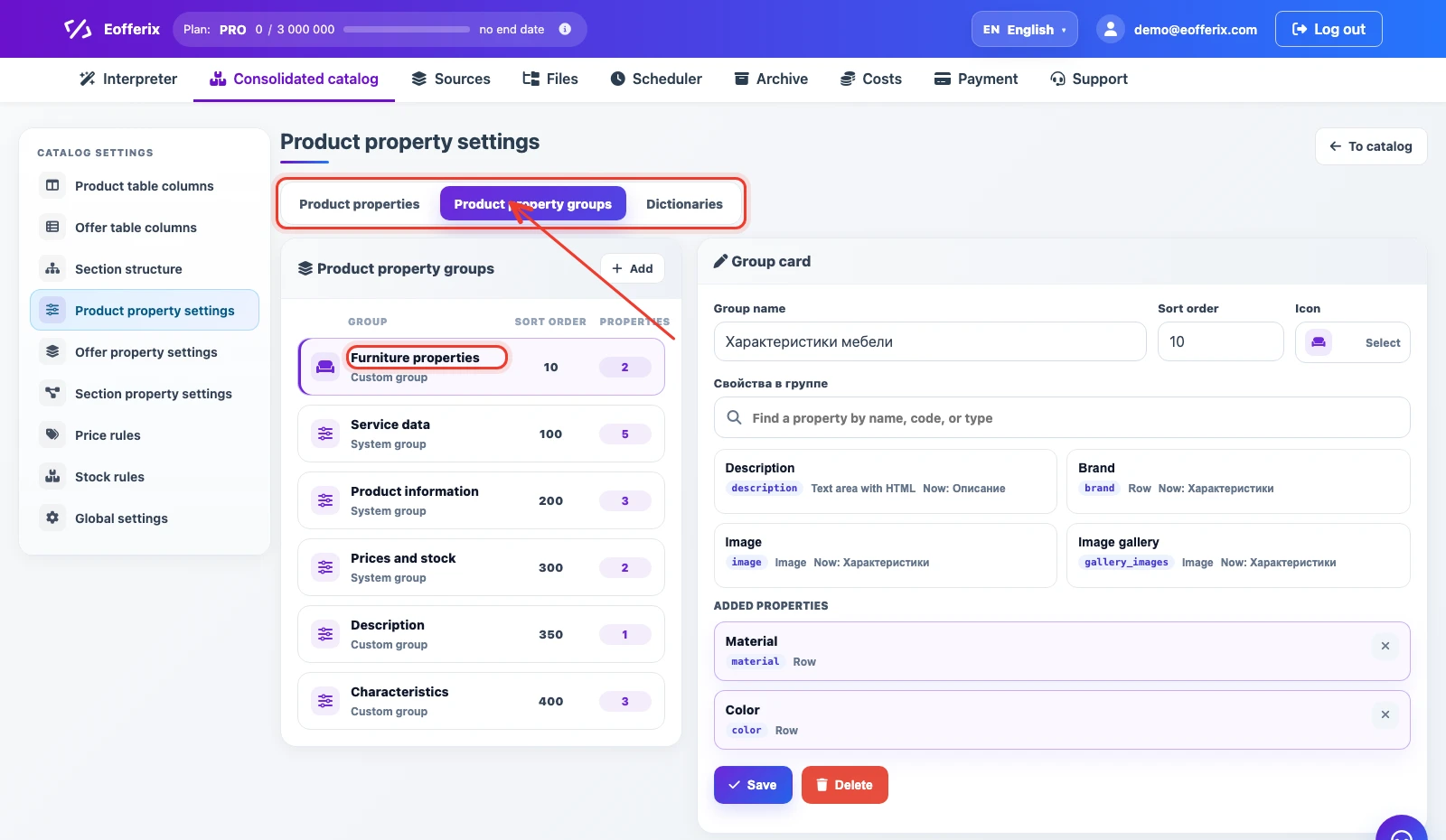
Groups organize properties by meaning: characteristics, service data, description, prices, and stock. If a property should select a value from a fixed list, use a dictionary.
Offer Properties
Offer properties belong to a specific sellable variant. For example, one T-shirt can have separate offers with different color, size, supplier SKU, price, stock, warehouse, delivery time, or warranty.
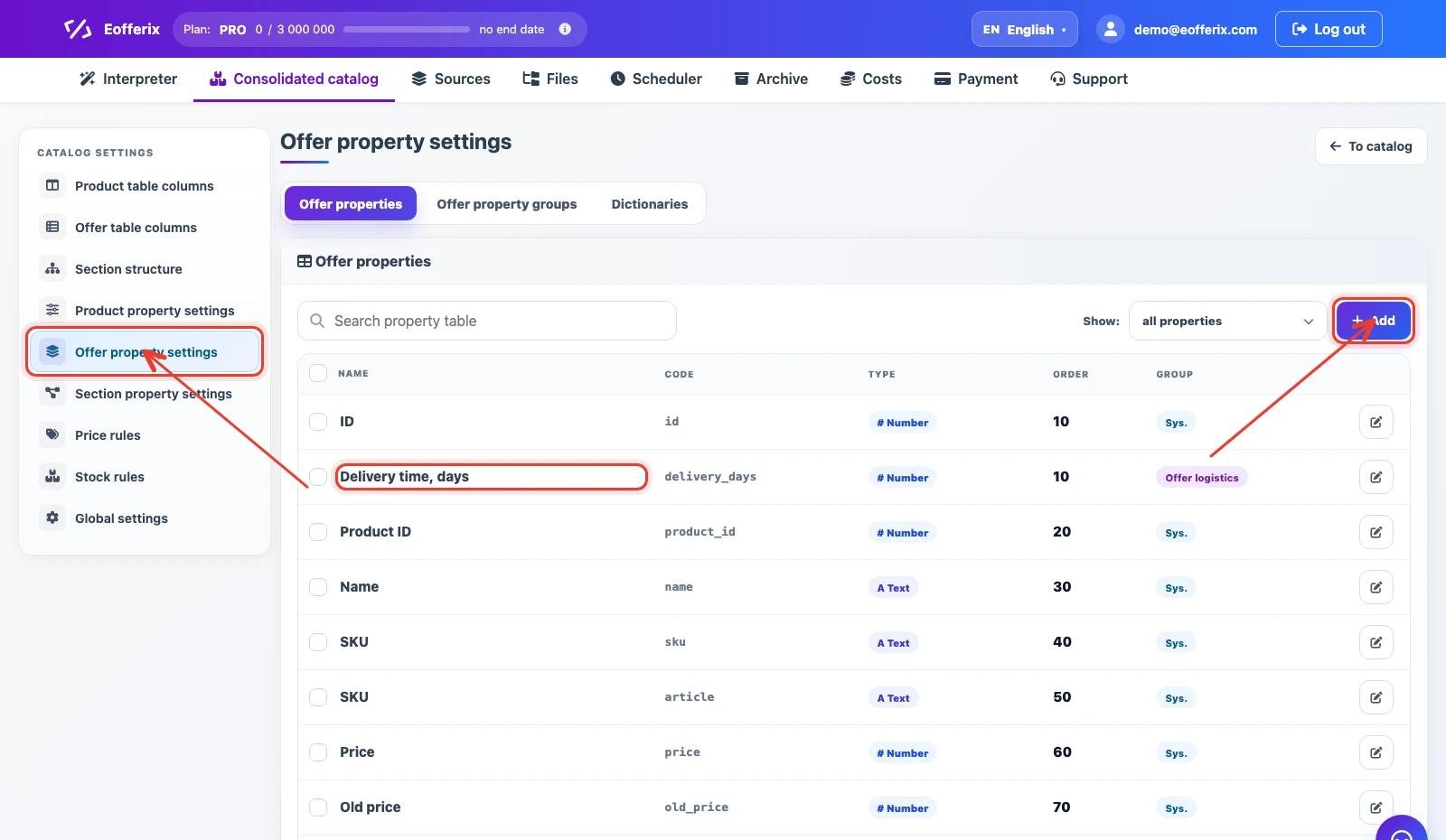
Creating an Offer Property
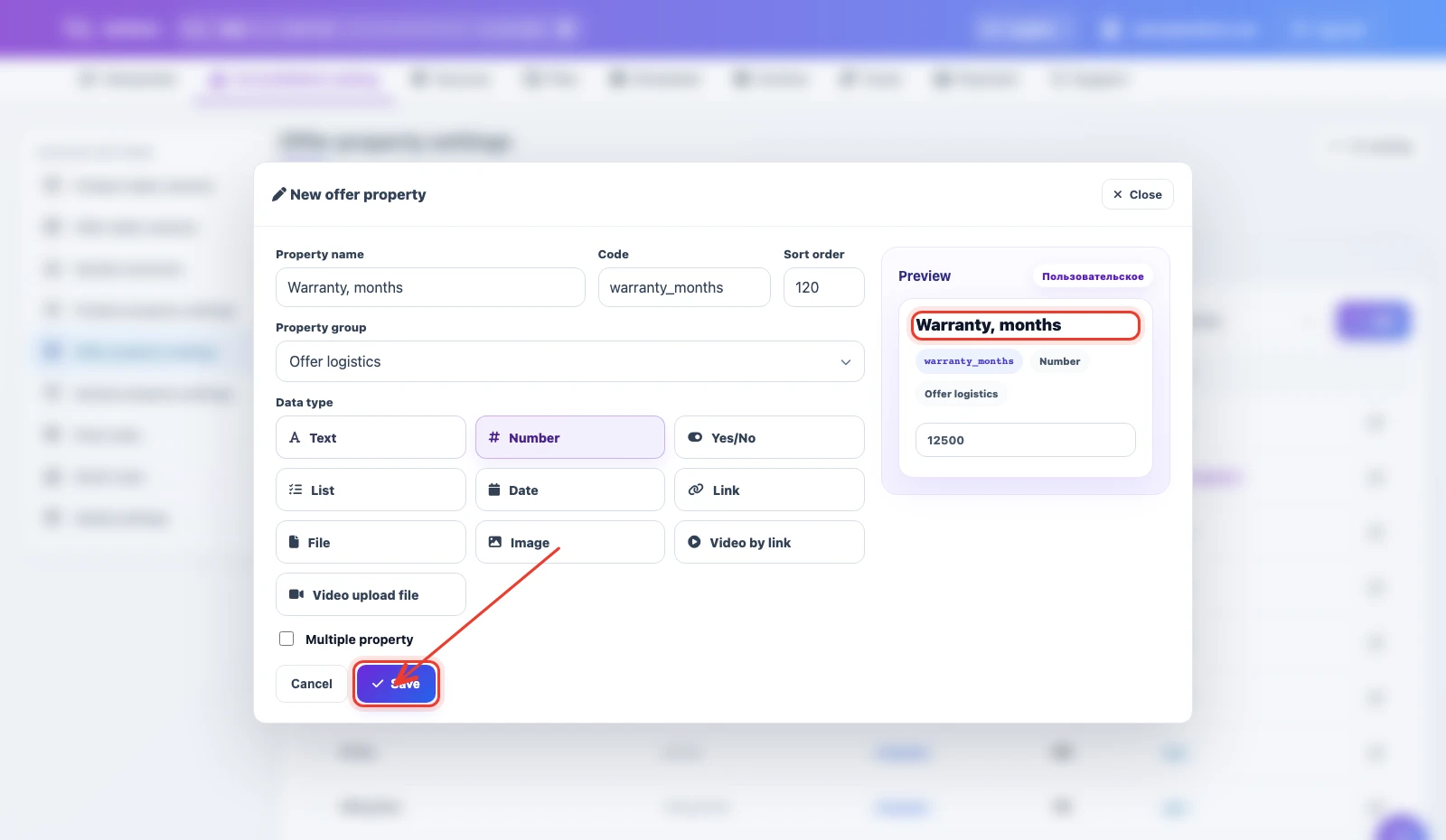
An offer property is created the same way as a product property, but it is stored on the offer level. The example adds the numeric Warranty, months property.
Editing an Offer Property
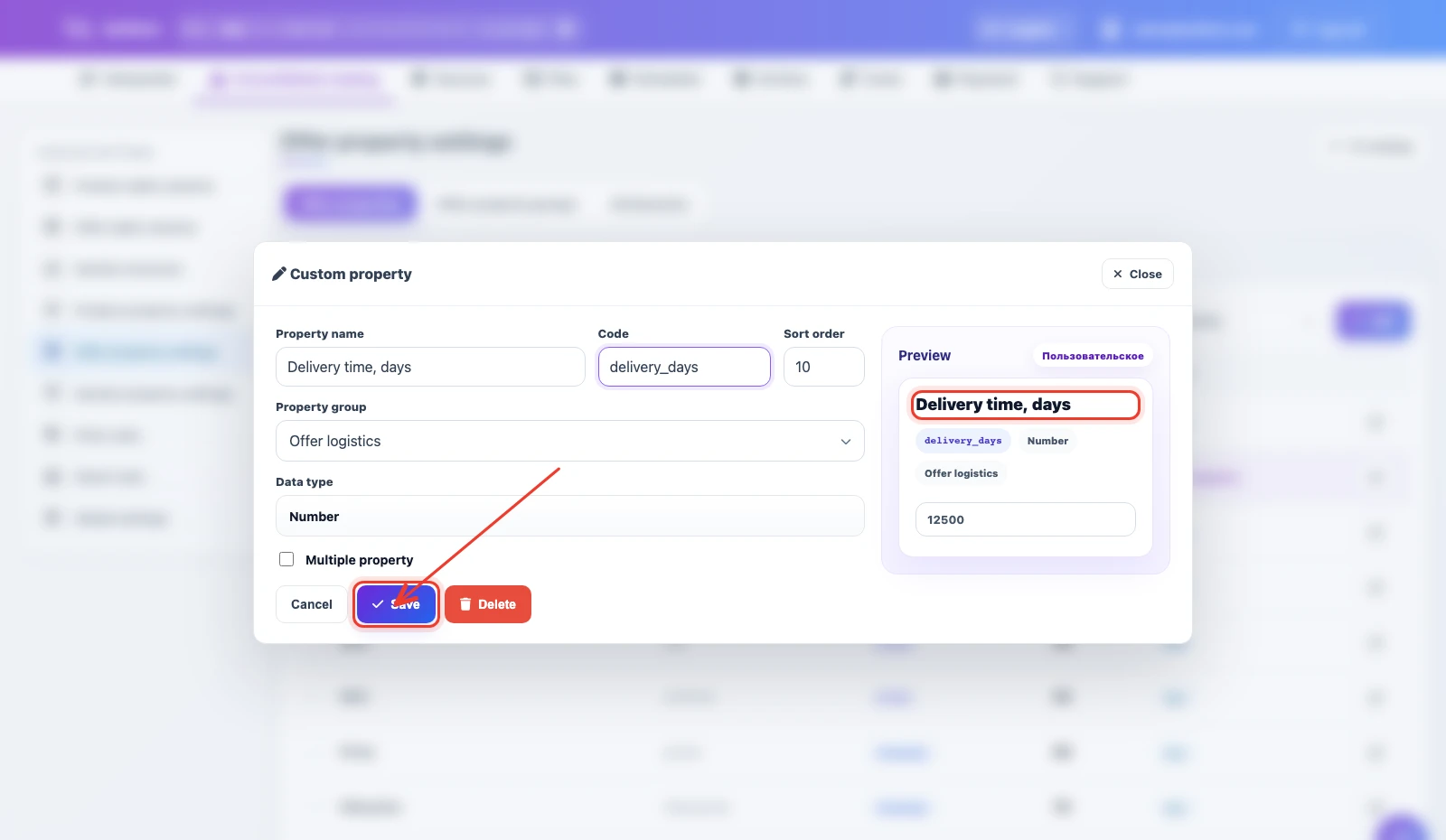
If the property already exists, open it from the list and change its parameters. For Delivery time, days, keep the numeric type so the value can be compared and used in rules.
Section Properties
Section properties describe the catalog tree: name, path, external code, SEO data, images, or other category parameters. They are useful when sections are imported separately or take part in exports.
Adding Properties from the Snapshot

While configuring a source, click a value in the snapshot and choose the consolidated catalog property where it should be imported. If the mapping is wrong, remove it and assign the value again.
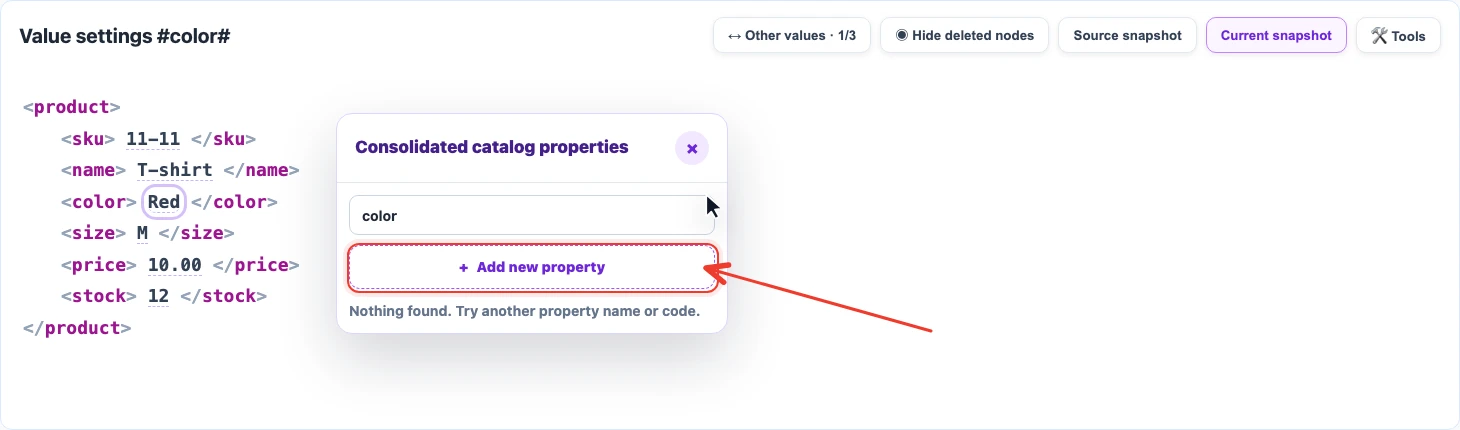
If the required property does not exist yet, create it from the picker. For example, click the Red value in the color node, search for color, and click Add new property.

If a supplier sends attributes as repeated pairs, such as attributes[].name and attributes[].value, enable property creation from the source. The service can then create properties using names from the file.
Choosing the Property Type
Choose the type based on how the value will be used after import.
- Text is for names, materials, SKUs, codes, countries, and short strings.
- Number is for delivery times, weight, volume, ratings, coefficients, and values that need comparison or calculation.
- List is for a limited set of values: color, season, product type, collection.
- File, image, video are for media and attachments that should appear in a card or export.
- Enable multiple values when one product or offer can have several values of the same property.
Recommended Order
- Decide where the value should be stored: product, offer, or section.
- Create a property group if similar fields should stay together.
- Create the property in settings or directly from the snapshot.
- Choose a clear code and the correct data type.
- In the snapshot, map the source value to the created property.
- Run the import and check how the property was filled in the consolidated catalog.