
The section tree defines the structure of the consolidated catalog: top-level categories, nested sections, display order, and section metadata. On this screen, you can manage sections imported from sources and add manual sections when the structure is needed for storefronts, exports, or delivery to another application.
How to open structure settings
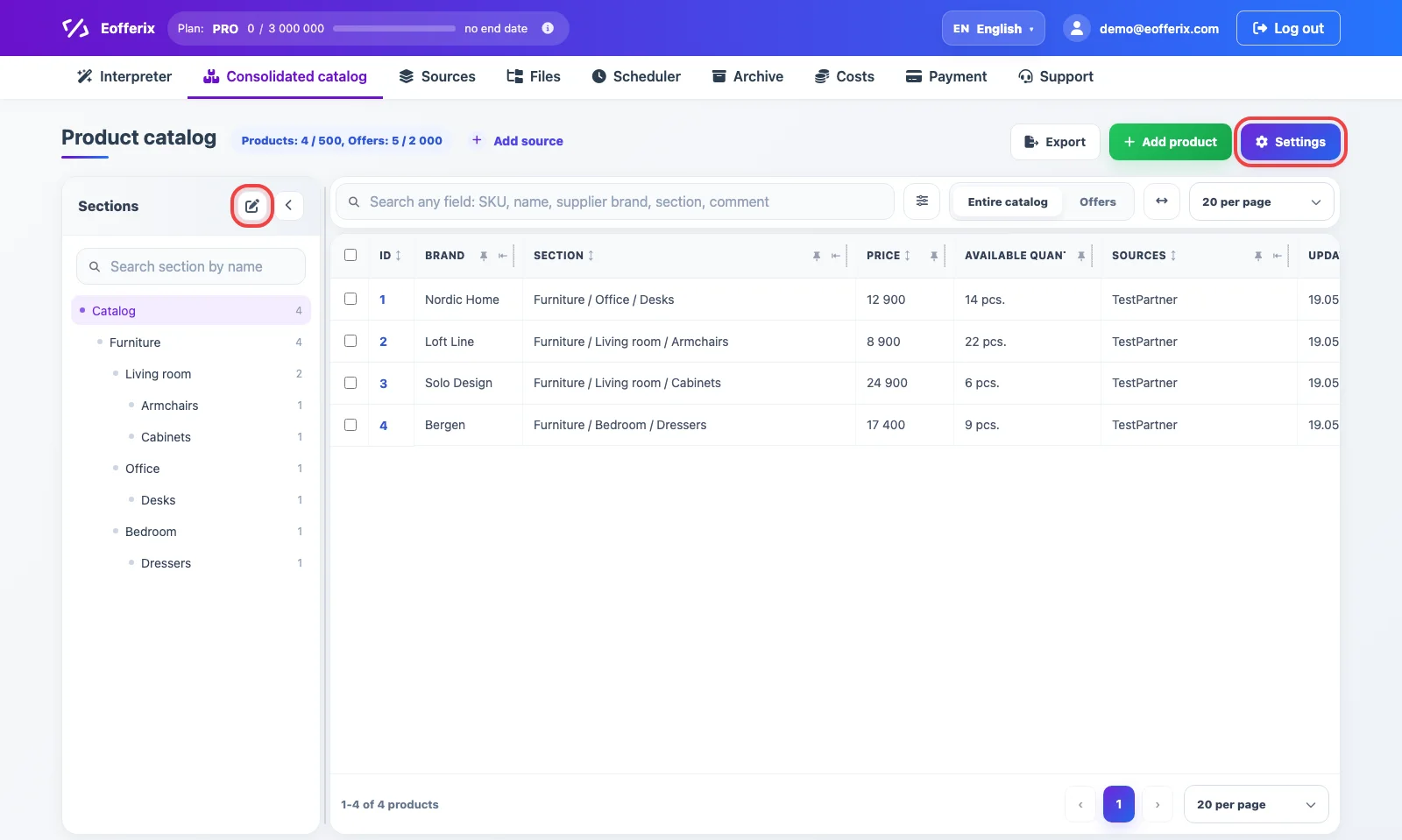
Open the Consolidated catalog. There are two ways to reach structure settings: click Settings in the upper-right area of the catalog page, or click the settings button in the Sections panel header. The second button opens section structure management directly.
In the settings sidebar, choose Section structure.
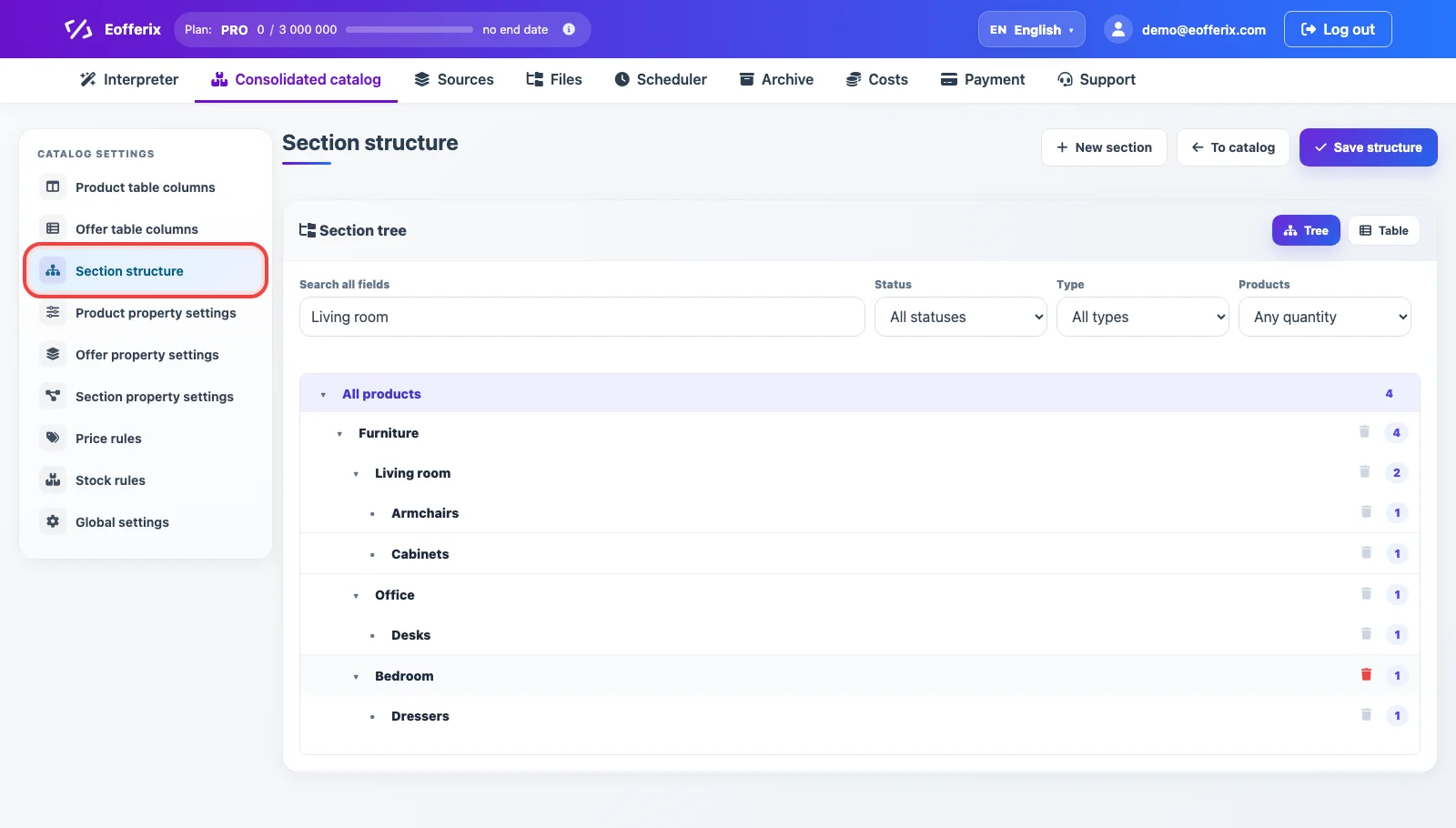
Section Structure Screen
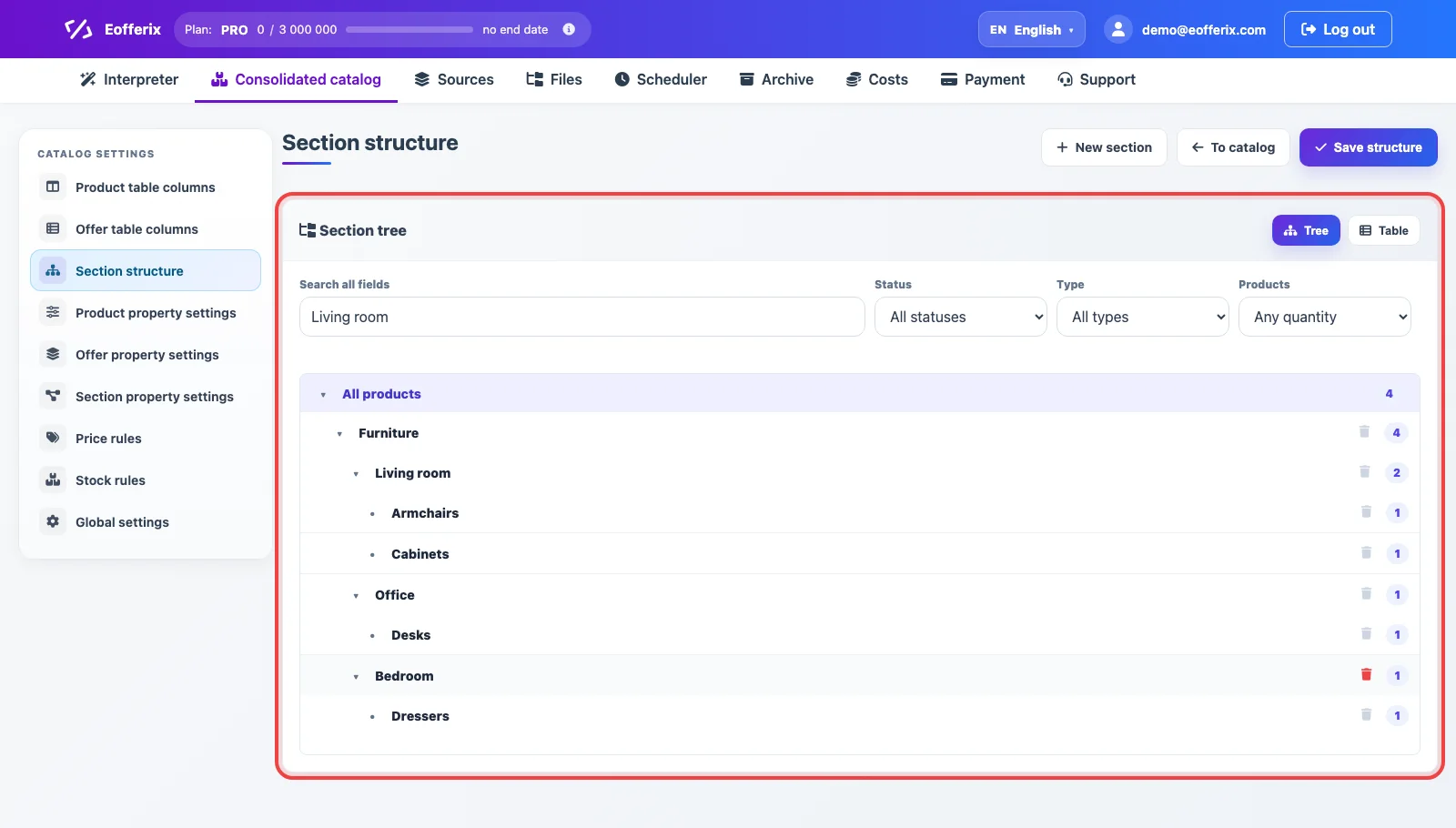
The main view shows a tree: the root All products item, first-level sections, and nested subsections. The number on the right shows how many products are currently linked to the section. You can expand, select, hide, and remove sections from the structure when they are no longer needed.
Manual removal should be checked against the import rules. If the source keeps sending the same section path and the profile is allowed to create or update sections, the removed section will appear again after the next import. For stable cleanup, configure the source behavior: for example, remove empty sections after import or prevent that source from changing the section structure.
Search, Filters, and Table View
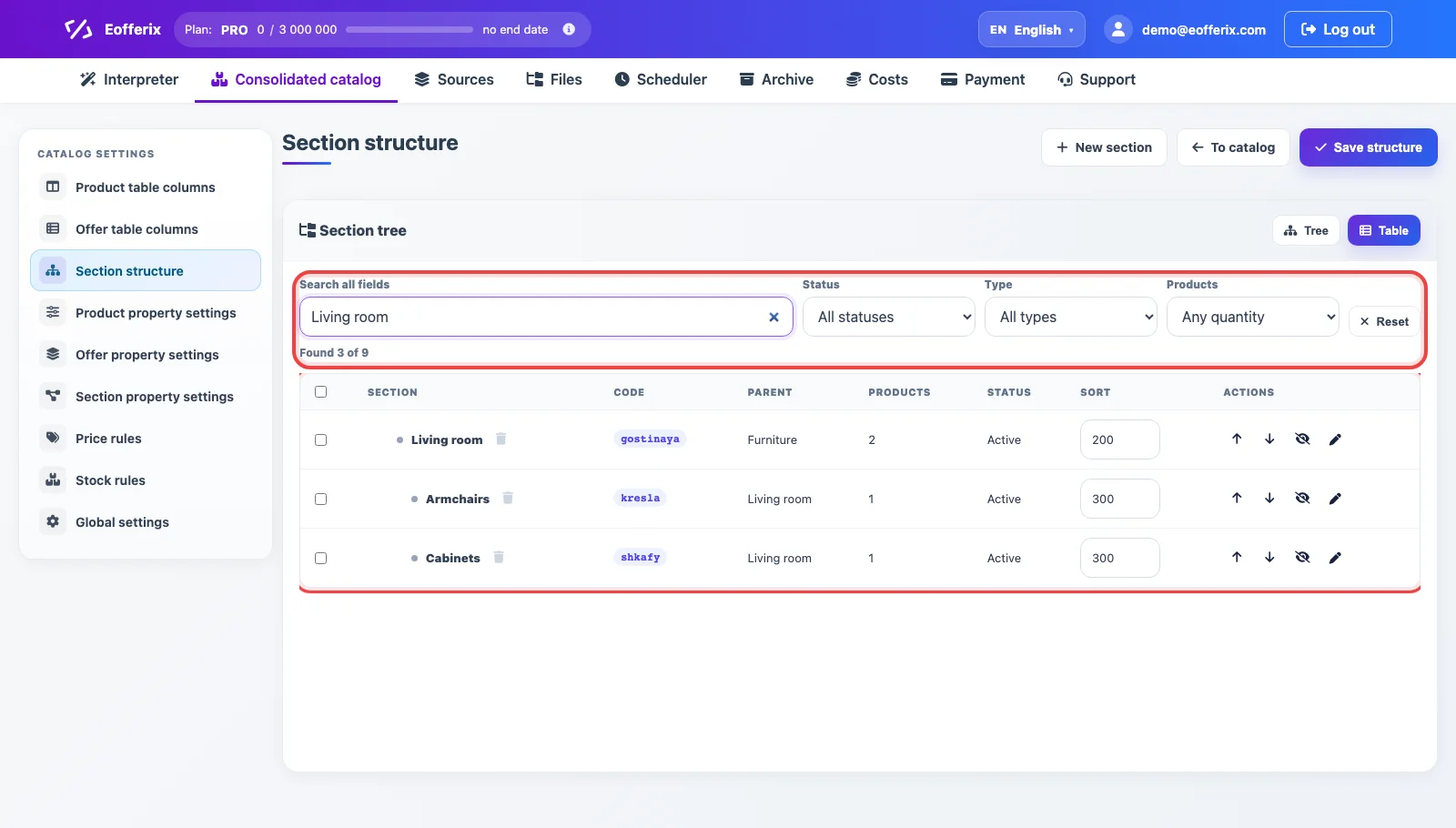
Search and filters work in both tree and table views. Search looks through section name, code, external code, path, description, and status; filters help show only active, hidden, system, imported, manual, empty, or populated sections.
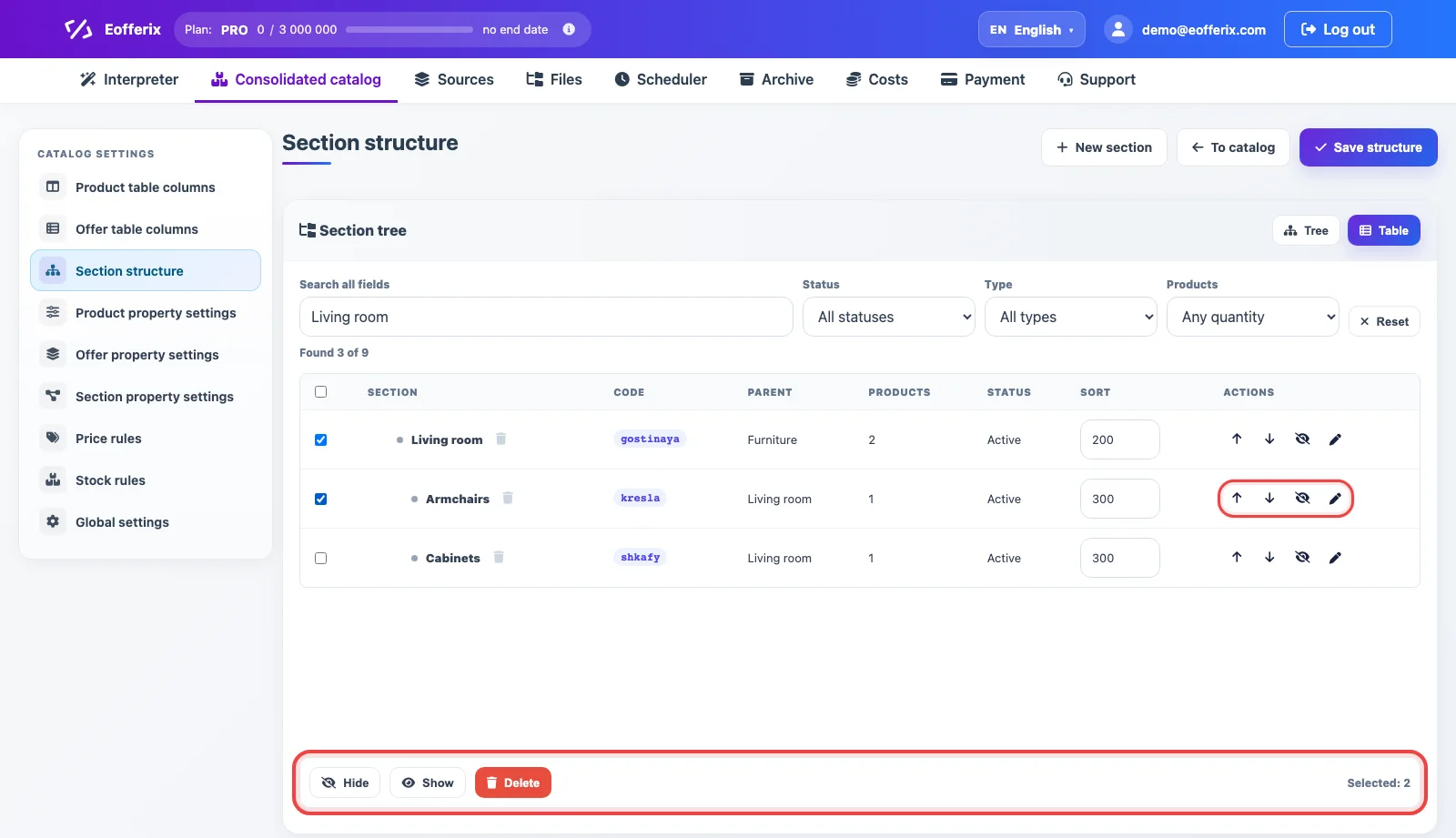
Table view is useful when you prefer to read sections as rows: code, parent, status, sort order, and actions. The table also supports bulk work with selected rows: hide, show, or delete several sections at once.
Creating a Manual Section
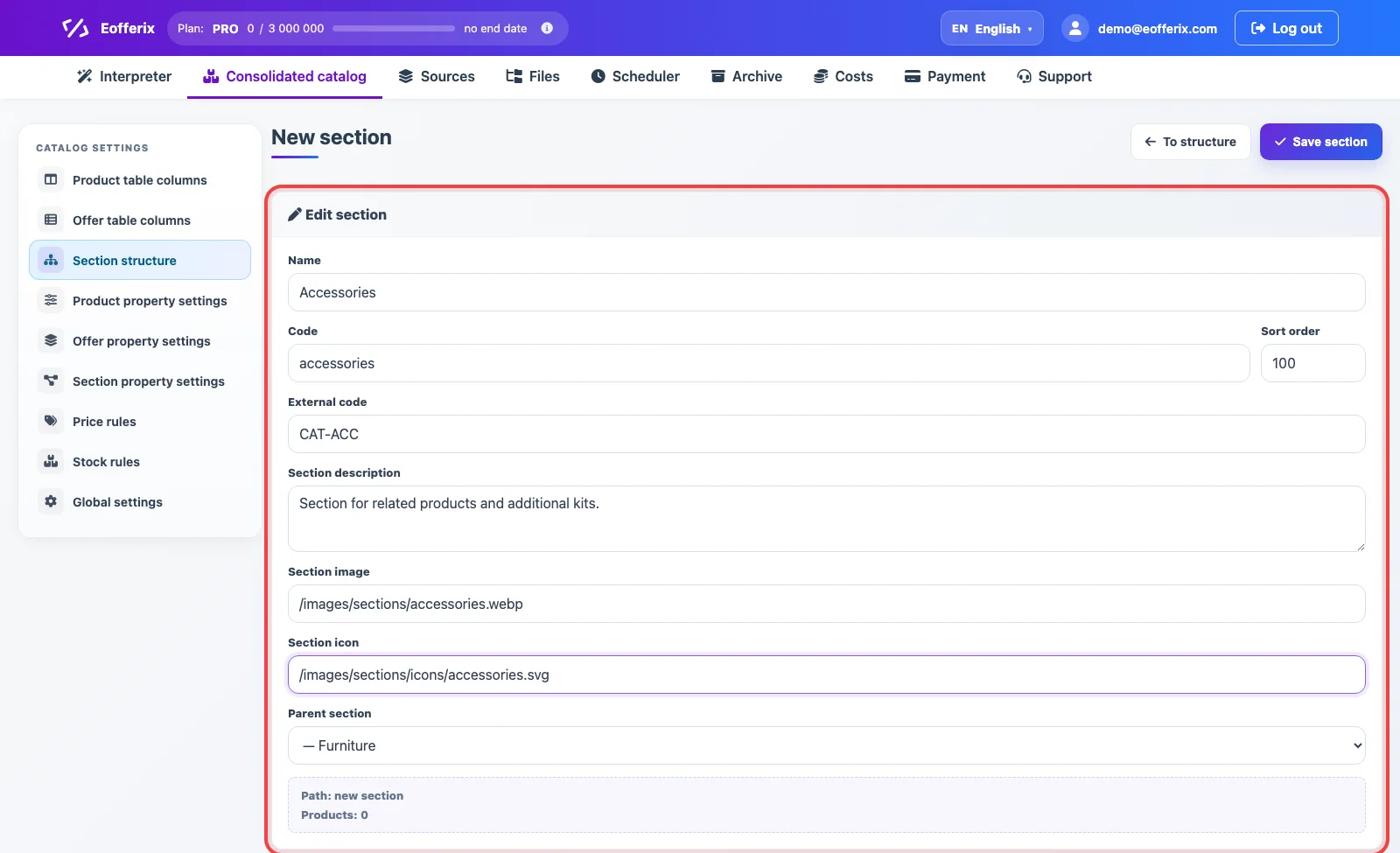
Click New section when the structure needs a section that is not present in the source, or when products should be grouped additionally for a future export. Fill in name, code, external code, description, image and icon links, then choose a parent section and save.
Editing a Section
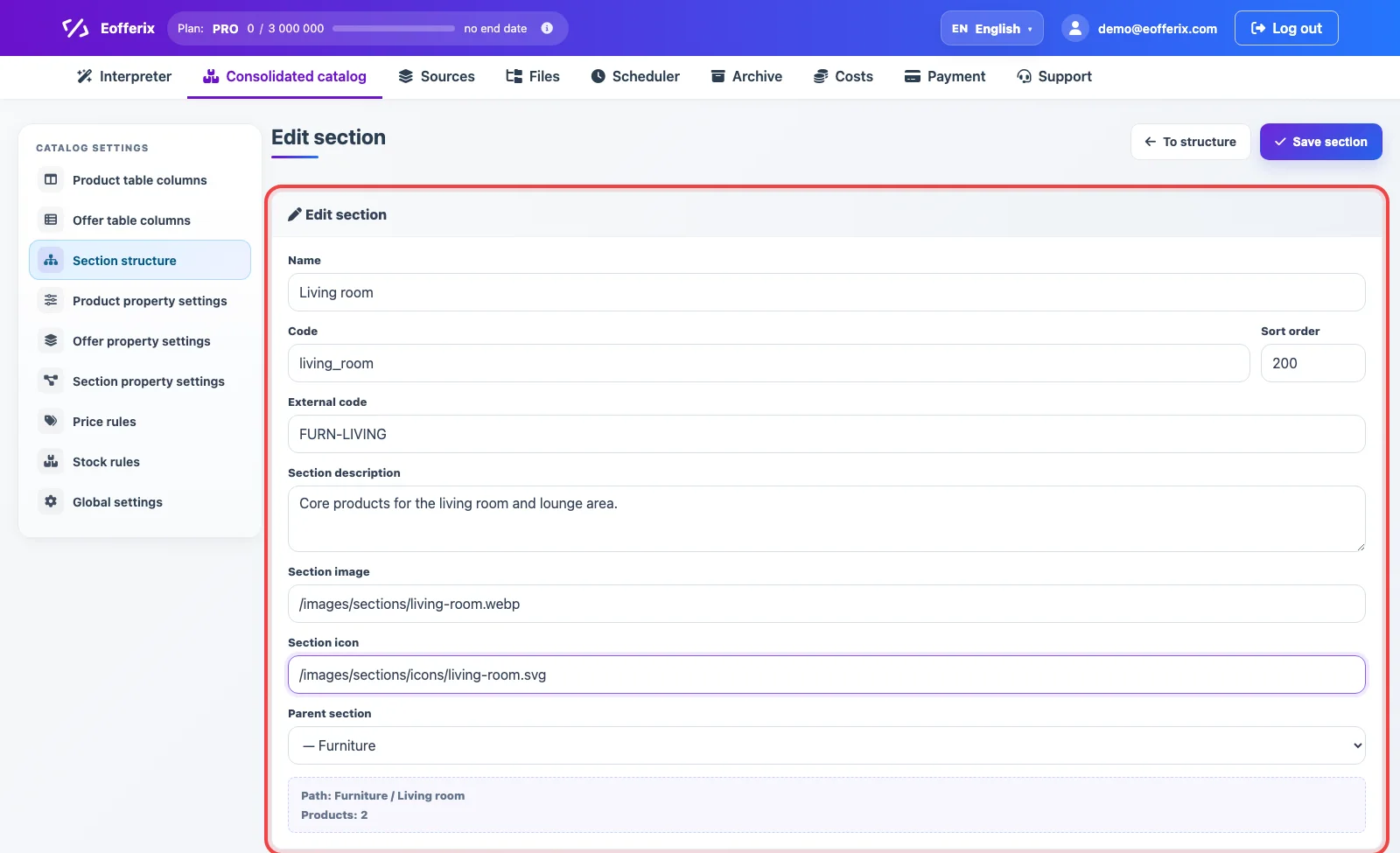
To change an existing section, open it from the table using the edit action. The form can change:
- Name - the visible section name.
- Code - a short technical identifier inside the catalog.
- Sort order - the section position among sibling sections.
- External code - an identifier for an external system or export.
- Description, image, and icon - additional data that can be used in exports or applications.
- Parent section - the section position in the tree.
Section Properties
The basic edit form changes the tree node itself: name, code, parent, sort order, description, and images. If sections need additional data, open Section property settings in the sidebar. This is where you define fields stored on sections: for example an SEO title, banner, menu visibility flag, landing page link, or an external identifier for an application.
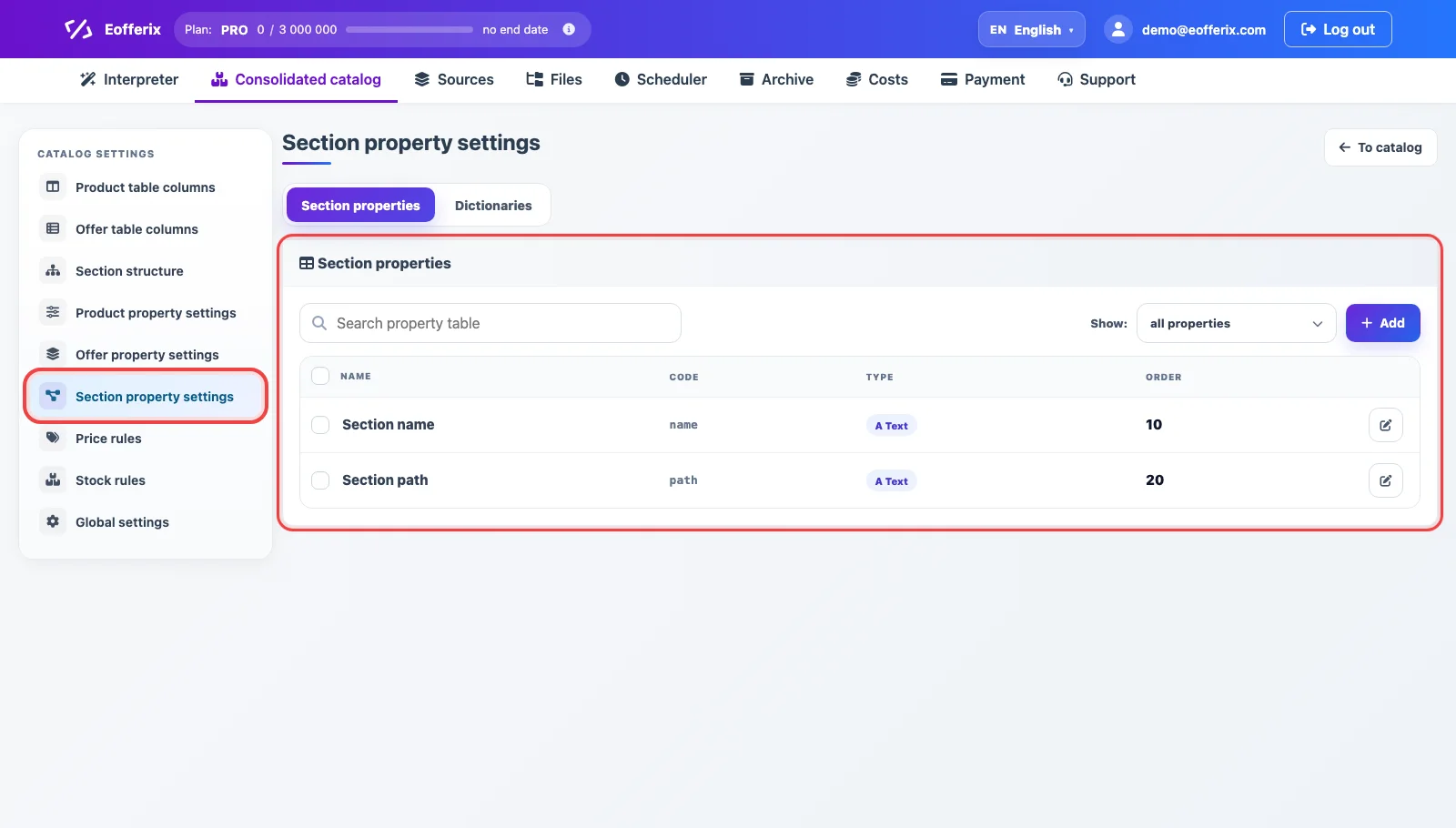
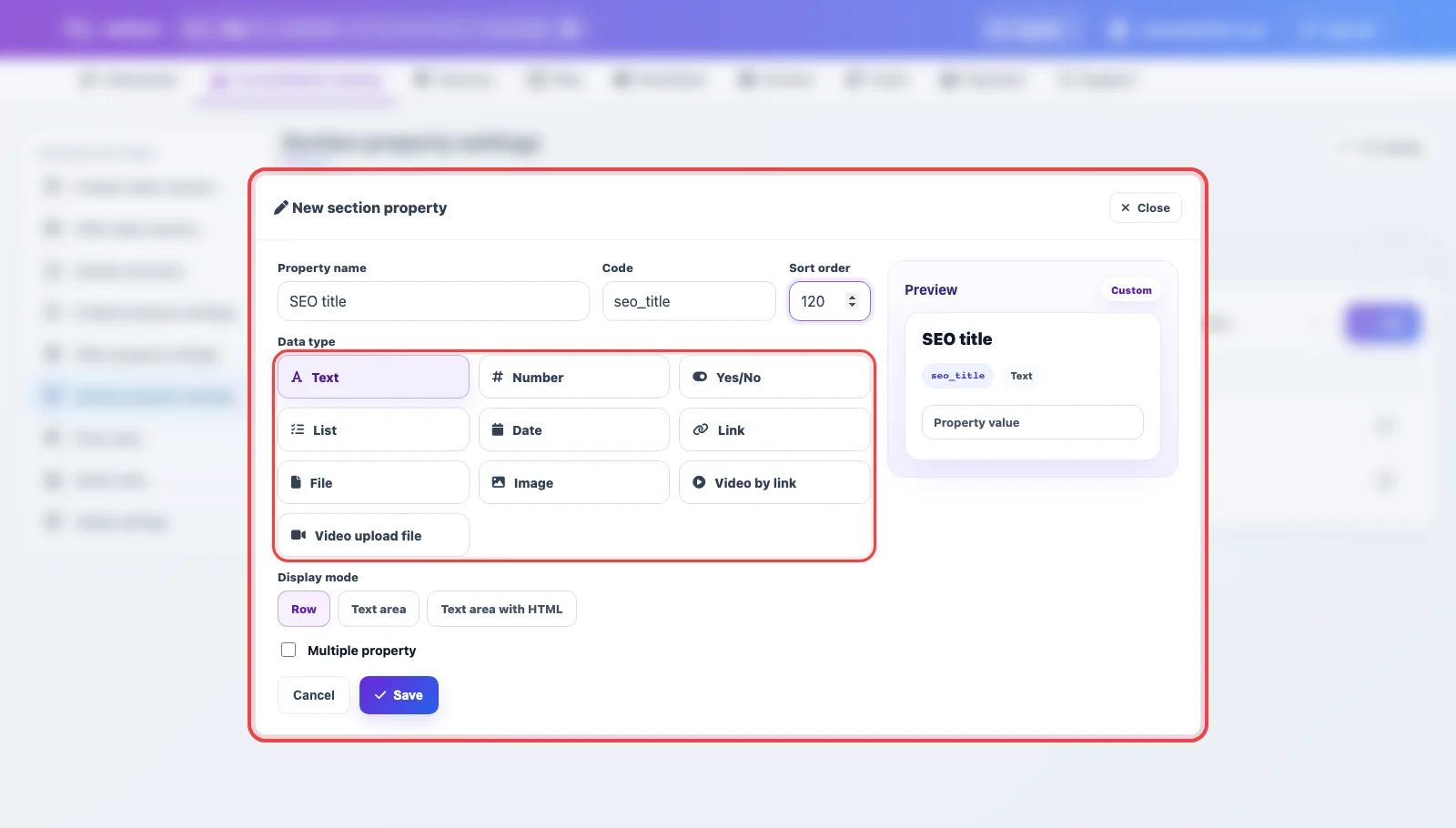
Click Add to create a new section property. Choose the property data type: text, number, yes/no, list with a dictionary, date, link, file, image, or video. After saving, this field can be used as part of section data in the catalog and exports.
Sorting, Visibility, and Bulk Actions
In table view, use arrows to move a section up or down among its siblings. The sort field sets numeric order. The eye button hides or shows a section, the pencil opens editing, and the trash button removes the section from the structure. When several rows are selected, a bulk action bar appears: hide, show, or delete selected sections.
How Sections Relate to Import
When an import profile loads sections from a source, Eofferix adds them to the consolidated catalog structure and links products by section paths. Import mode settings define whether new sections can be created, existing sections updated, product-to-section links replaced or merged, and empty sections removed after loading.
Manual structure changes are saved in the catalog after clicking Save structure. If a section came from a source, its future behavior depends on that source profile rules: the source can add new sections, update current ones, or leave the structure untouched.