
Eofferix provides an exchange URL, a separate login and password for 1C, and accepts import.xml, offers.xml, prices.xml, rests.xml, archives, and images.
After files are received, the service can keep the original 1C documents or assemble them into one consolidated file for further processing.
1. Select the 1C / CommerceML Source
Create a source and select 1C / CommerceML. This is not a regular file upload or URL import: Eofferix becomes the receiver, and 1C sends data to the issued exchange URL.
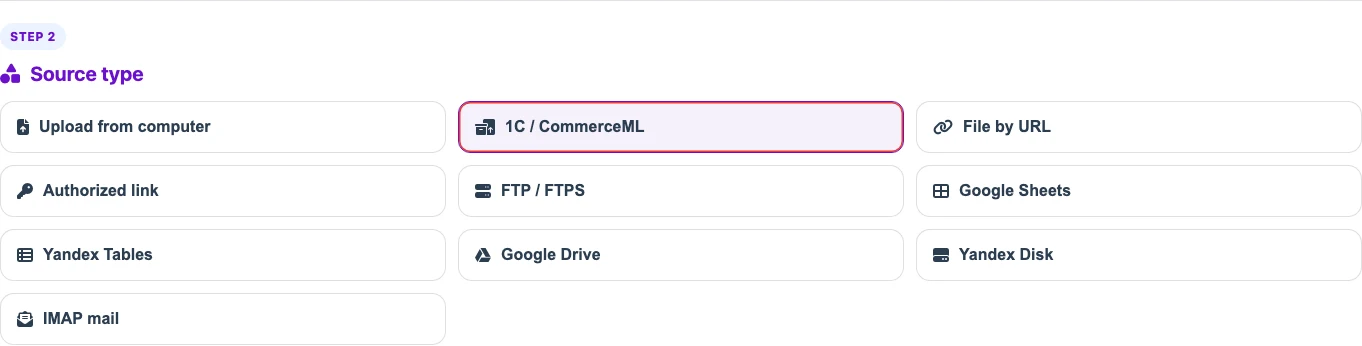
- Use a clear source name, for example
1C / CommerceML: main catalog. - You can choose a processing profile now or add it later after the first files arrive.
- After saving, the source card will show the connection details for 1C.
2. Copy the Exchange URL, Login, and Password
Paste these values into the CommerceML exchange settings in 1C. The login and password belong only to this source and are not your Eofferix account password.
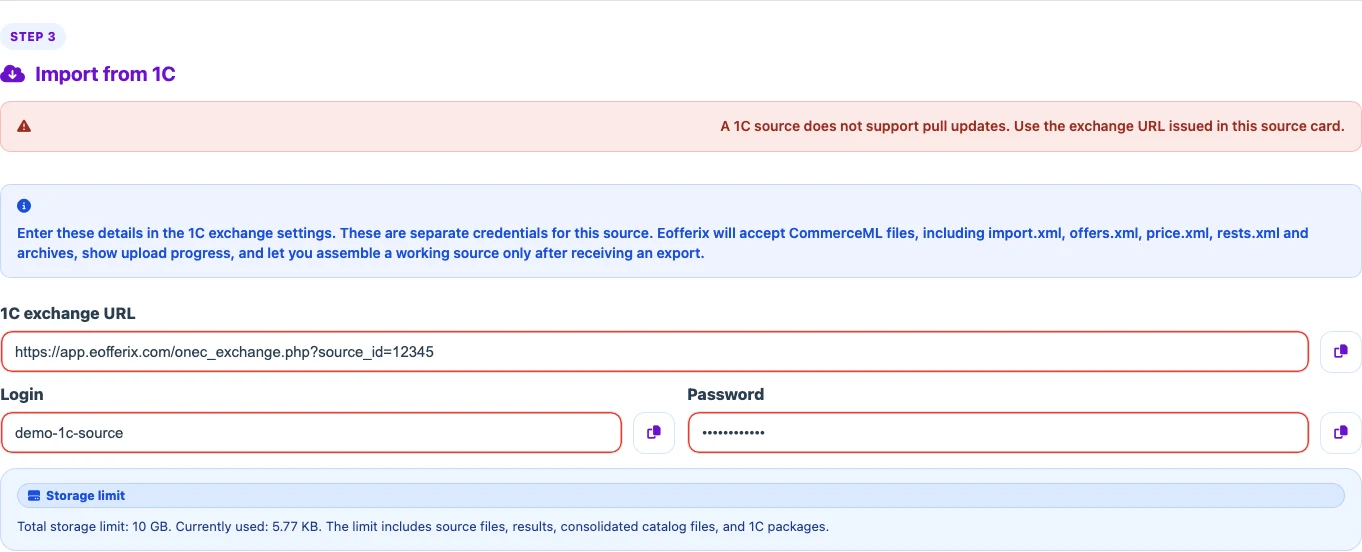
- Exchange URL is the address to enter in 1C. Eofferix receives data from 1C through the standard 1C website export mechanism, including the integration module for 1C-Bitrix.
- Login and password authorize this source to receive files.
- Copy buttons help transfer values without URL or password typos.
3. Check Received Files
After starting the exchange in 1C, open the received files block. It shows which documents have arrived, their type, and when they were updated.
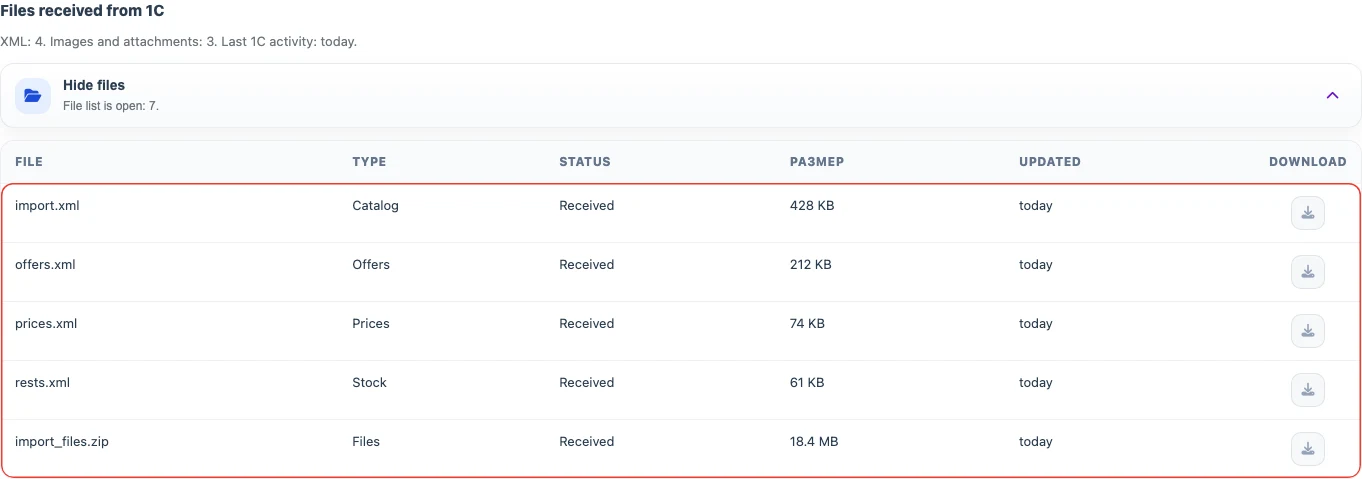
import.xmlusually contains the catalog, properties, and categories.offers.xmlcontains offers, prices, and stock if 1C exports them as a separate document.prices.xmlandrests.xmlare used when prices and stock are exported separately.- If the list is empty, first check the exchange URL, login, password, and successful completion of the export in 1C.
4. Choose an Assembly Mode
The assembly mode defines what Eofferix does with the received package. For importing into the consolidated catalog, automatic assembly into one working file is usually more convenient.

- Return raw 1C documents is useful when the next step needs the original CommerceML package.
- Automatically assemble one catalog file combines products, offers, prices, and stock into one source for further setup.
5. Configure Offers, Classifier, and Auto Assembly
Additional settings appear after assembly is enabled. They affect the output structure and when Eofferix applies the received package.

- Offer mode controls whether product variants are nested inside the product or kept as separate rows with a product reference.
- Automatically apply after export finishes automatically applies all settings after each 1C export finishes. Use this setting for regular data exchange between 1C and Eofferix.
- Decode classifier replaces property and value identifiers with readable names from the classifier. For example, instead of property
prop_7f3aand valuevalue_12, the result can showColorandRed.
6. Keep the Needed CommerceML Document Types
Document filters prevent unrelated XML from entering the working source. Leave only the documents that actually participate in the catalog.

- Import / catalog is for products, categories, properties, and the classifier.
- Offers is for offers, variants, prices, and stock in standard CommerceML.
- Prices and Rests are separate documents when 1C exports prices and stock independently.
- Other XML should be enabled only when additional documents are really used in processing.
What You Get After Setup
After 1C sends files and assembly is complete, the source can be used for further processing in Eofferix.
- Eofferix builds a snapshot from the assembled file with products, offers, prices, stock, categories, and properties.
- In the snapshot you can rename nodes, change the structure, and configure transformations before export.
- The result can be exported to
JSON,XML,YML, spreadsheets, or sent to available applications. - Before export you can configure transformations: value cleanup, price rounding, export conditions, image processing, and watermarks.
- The next 1C exchange updates the same source; if auto assembly is enabled, Eofferix applies the new package automatically.
