
A value transformation is a rule that changes the selected field before uploading the result. In this case, the source is not rewritten: only the resulting XML, JSON, table or data that goes into the summary catalog changes.
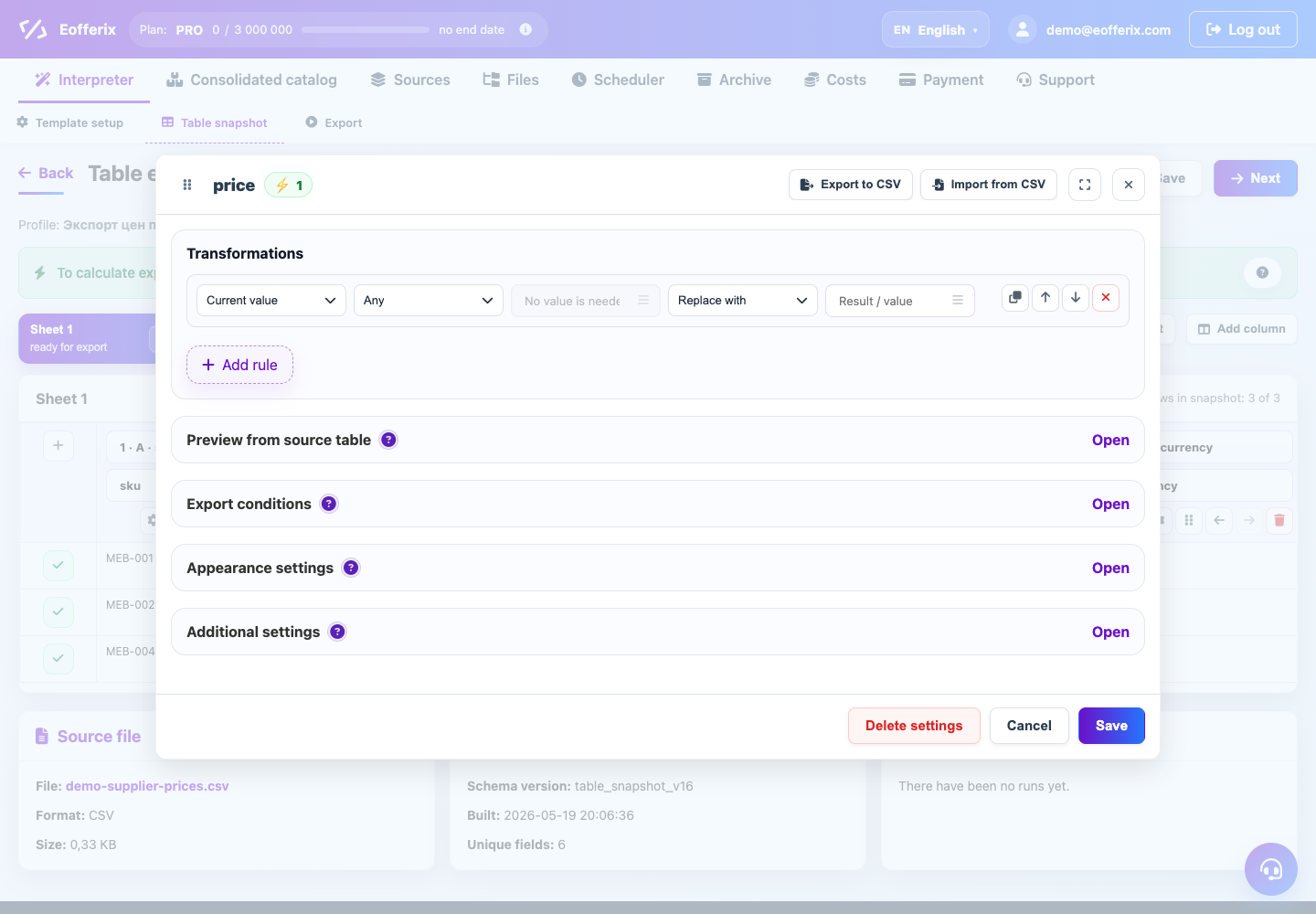
The rule reads like a short phrase: if the selected value matches the condition, perform the action and get a new result. If the condition does not match, the rule is skipped and the value moves on without changes.
What does a rule look like?
In the field settings window there is a "Transformations" block. You can add one rule or a chain of several rules.
What does a line consist of?
What we check
The first choice determines which value to check. Most often this is the “Current Value”, that is, the field that you are currently configuring. In complex profiles, you can check another field of the same line, product or item.
When to use
The condition determines when it is triggered: always, only if the value is empty, only if it contains the desired text, only if the number is greater than the specified value, and so on. A detailed list of conditions is included in the article "Conditions in transformations".
What to look for or what to compare with
The "Value" field next to the condition is used for comparison. For example, for the “contains” condition, a fragment of text that needs to be found is written here. For the conditions "any", "empty" and "not empty" this field is not needed.
What to do
The action changes the value: replace, delete fragment, add text, change case, clear HTML, convert date, calculate price, or not load value. Detailed behavior of actions is described in the article "Transform Actions".
What will happen
The last field specifies the new text, number, or action setting. For example, for “replace with” this is the new text, for “multiply” this is a multiplier, for “increase by %” this is a percentage.
How the chain of rules works
Rules are implemented from top to bottom. The result of the first rule becomes the input for the second. Therefore the order is important.
| Problem | Good order | Why so |
|---|---|---|
| Remove extra spaces and add prefix | First “collapse spaces”, then “remove spaces around the edges”, then “add to the beginning” | The prefix will be added to the pure value. |
| Calculate price with markup | First clear the number, then “increase by %”, then “round” | Mathematics should produce a number, and rounding is best done at the end. |
| Don't dump empty values | First check for emptiness, then use "do not load" | Otherwise, you can first change the value, and then check the already changed result. |
Where transformations are applied
- XML editor: to an element's text, attribute, or collected value.
- JSON editor: to the value of a field, object, or array element.
- Table editor: to a cell or column value in CSV, XLS and XLSX.
- Union catalogue: to data before recording in the fields of products, offers, sections, prices and balances.
When to use an unloading condition rather than a transformation
Conversion changes the meaning. The unloading condition decides whether a field, row, product or element will be included in the result. If you need to remove all products with a zero price, it is better to configure the unloading condition for the entire item. If you only need to clear the price field, use a value conversion.
How to check the result
- Save the field settings.
- Open a preview or test run of the profile.
- Find 2-3 lines: normal, empty and a line with an unusual value.
- Check not only the changed field, but also whether the entire row or element has disappeared.
- If the result is unexpected, leave one rule temporarily and check it separately.