
A WooCommerce profile tells Eofferix which source data to use and how to send it to the store. The user chooses what in the snapshot is a category, product, offer / variation, attribute, image and WooCommerce field.
Where setup is located
- Open Interpreter.
- Create a new profile or open an existing one.
- On Template choose the data source and WooCommerce application.
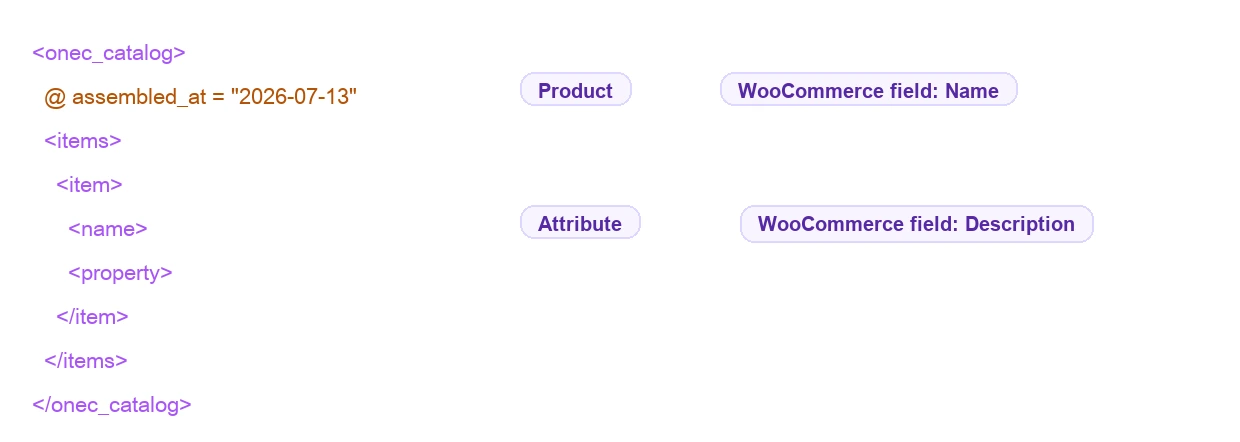
- On Snapshot mark node and field roles.
- On Transformation check the calculation and start export.
Data source
At the beginning of the profile choose where to take the catalog from: upload a new file, connect an existing source or use the unified catalog. A regularly updated supplier file can be refreshed on schedule.

What to prepare before setup
- A file, link, table or other catalog source.
- WordPress administrator access for the first connection check.
- A stable product key for repeat imports: external ID, SKU, vendor code or another stable field.
- A decision on missing supplier items: keep, disable or delete within this profile scope.
Site connection
- Create or open a WooCommerce profile.
- Enter the WordPress/WooCommerce site address.
- Enter WordPress administrator login and password for the first check.
- Run the connection check.
- Save the profile after a successful check.

Snapshot roles
A role answers the question "what is this node or field for WooCommerce". If the source comes from 1C, a spreadsheet or a supplier XML, its structure can be different. Eofferix lets the user mark the roles explicitly.
- Category - creates a WooCommerce catalog category.
- Product - parent product card.
- Offer / variation - a concrete sellable option that becomes a WooCommerce variation.
- Attribute - repeated property name and value.
- Image - link or file to upload to WooCommerce.
Identification fields
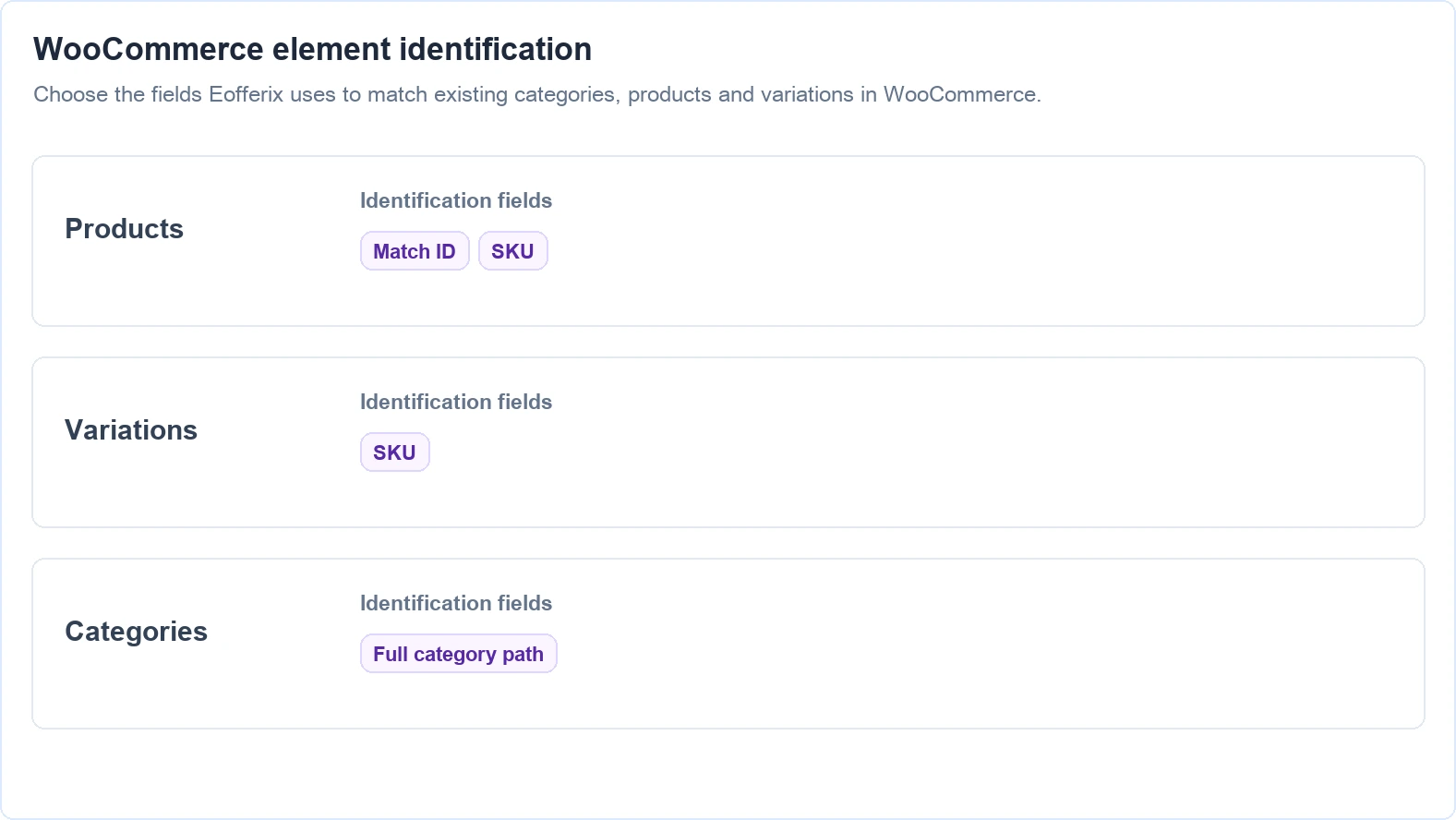
Identification fields make repeat imports update existing objects instead of creating duplicates. For 1C sources the external 1C identifier is the default for products and offers unless the user chooses another field.
How AND and OR work. Separate identification chips are joined with AND. Inside one chip, the “or …” button adds alternative fields that are tried from left to right. For example: (SKU OR External code OR Barcode) AND Supplier AND (Brand OR Manufacturer).
Eofferix stops at the first complete combination that finds existing objects. If that combination finds several objects, the complete result set is passed to the selected duplicate policy; matching does not fall through to the next alternative. Every required group must have a value. Users may choose any available fields, and extra alternatives do not consume extra credits.
| Object | What to choose |
|---|---|
| Product | External ID, SKU or another stable value that does not change between runs. |
| Variation | The offer external ID and its parent product relation. |
| Category | Category ID or full category path. If no field is chosen, the full path is used. |
Field mapping
Bind source values to WooCommerce fields: product name, SKU, price, stock, description, category, variation parameters, attributes and images. Product fields go to the product, variation fields go to the variation, category fields go to the category.
| Source data | WooCommerce target | What to check after the test |
|---|---|---|
| Product name | Product title | The product card has the expected title after transformations. |
| SKU or external ID | SKU or identification field | Repeat import updates the same card. |
| Variation price and stock | Variation price and stock fields | Each variation has its own price and stock. |
| Size, color, material | Variation attributes | The variation has concrete values, not "any". |
| Variation image | Variation image | The selected variation has its own image. |
If the Next button is disabled
Usually this means a required field for the selected role is missing. Go back to the beginning of the snapshot, read the red message, fill the required field and save the template.
Loading conditions
A template can limit what is imported. For example, import only variations where stock is greater than 0 and price is greater than 100000. Conditions are applied in Eofferix before data is sent to WooCommerce.