
Task
A supplier sends a full path or description in one value, while the useful code is inside brackets. For example, from Furniture > Chairs [chairs] you need to keep only chairs.
Quick answer
Open the value settings and add transformation rules: first keep only the fragment matched by a regular expression, then remove the brackets themselves.
The example uses XML. The same setup also works for other formats when the value is opened in the transformation editor: JSON, CSV, XLS, XLSX, and other files.
What matters for the result
- First keep the fragment together with brackets, then remove the opening and closing bracket with separate rules.
- Square and round brackets need different patterns:
\[[^\]]+\]and\([^\)]+\). - If a value contains several bracketed fragments, check which one is matched first.
Before / after
Before
ValueFurniture > Chairs [chairs]After
ValuechairsHow to do it in Eofferix
- Open the template editor and find the field, cell, or node with the source value. In this example the needed code is in
section_path.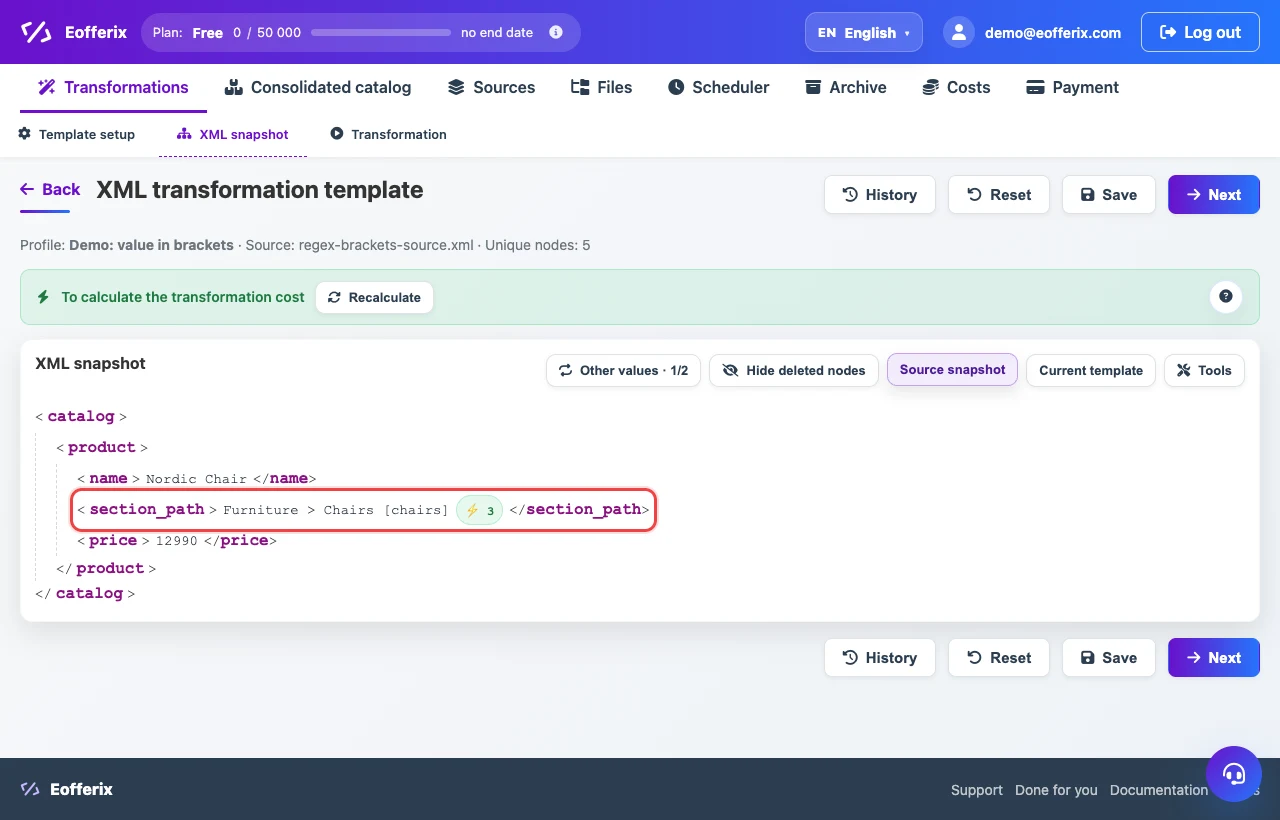
The red frame highlights the source value: the needed code is inside square brackets. - Click the value and add three rules in Transformations.
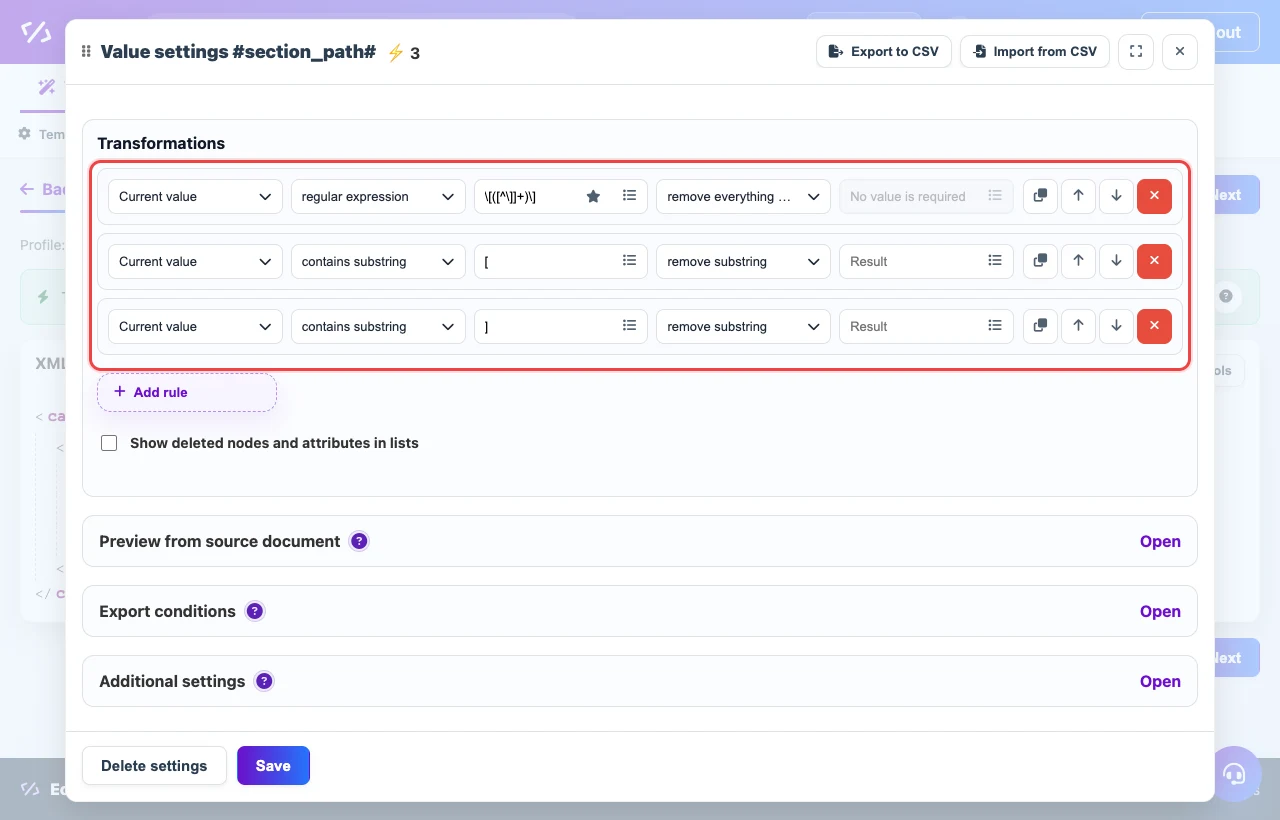
The first rule keeps the fragment matched by the regular expression; the second and third rules remove the opening and closing brackets. - For square brackets, use the regular expression
\[([^\]]+)\]and the action remove everything except. - Add a rule contains substring
[-> remove substring. Then add the same rule for]. - Save the settings. The current template will keep only the value from inside the brackets.
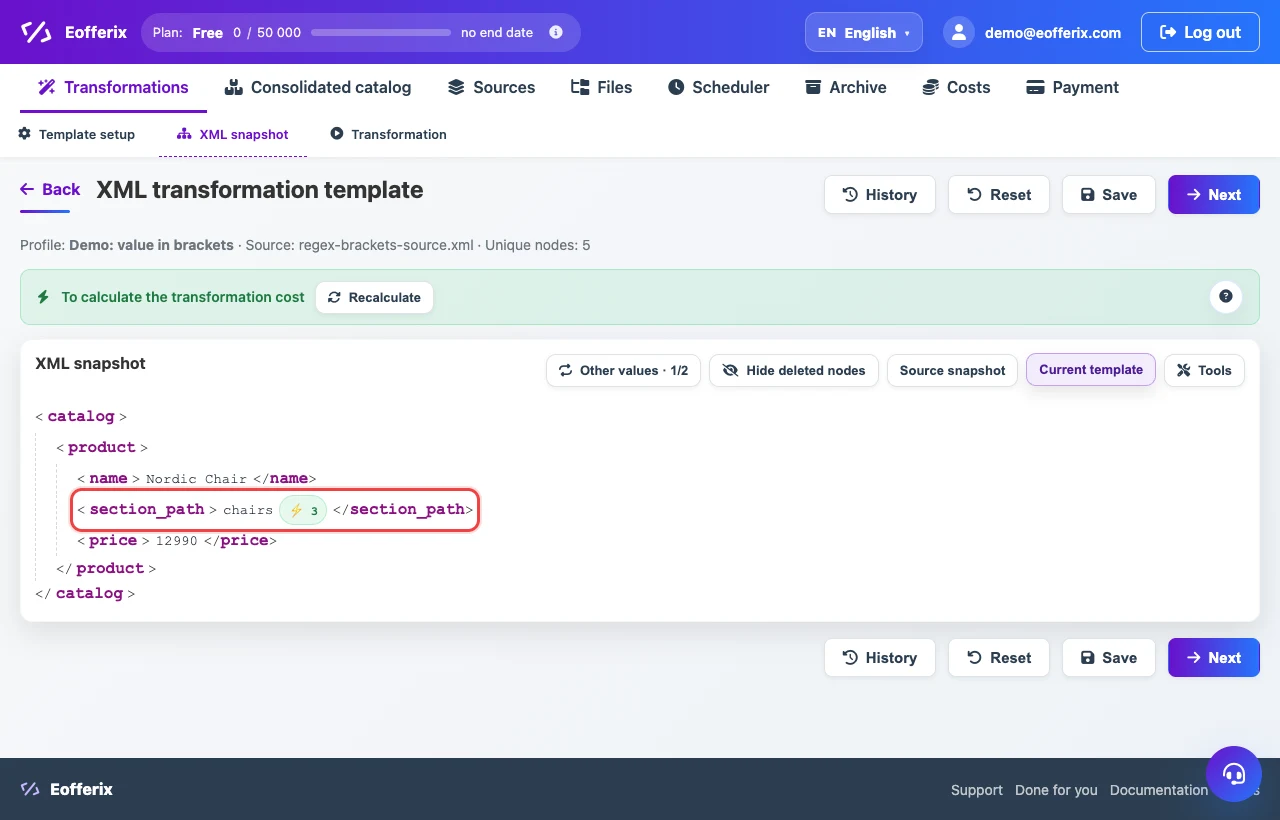
After saving, Eofferix shows the final value chairs. This value will go into the transformation result.
If the brackets are round
For a value like Furniture > Chairs (chairs), use \(([^)]+)\) instead, and configure the two substring removal rules for ( and ).