After a successful full run, the profile shows the completed result. For normal exports this is a downloadable file. For imports into the consolidated catalog or some integrations, the result may be updated data rather than a separate file.
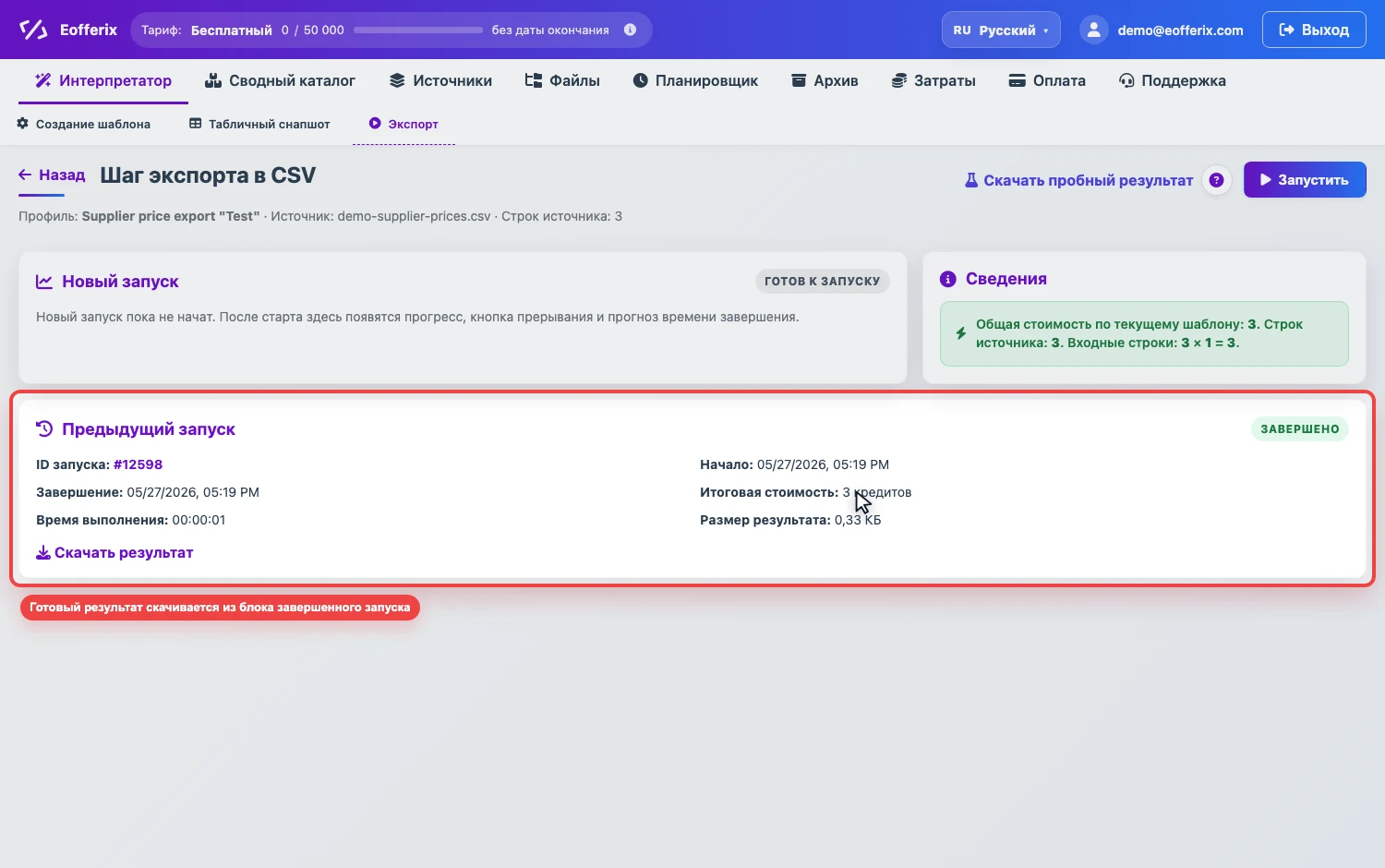
Where to download the file
- Open the profile and go to the interpretation or export page.
- In the current or previous run block, find Download result.
- If the profile outputs data into the consolidated catalog, the button may open the catalog instead of downloading a file.
- If the file was deleted by storage settings, the download link is no longer available.
Saved result versions
Profile settings include result storage. It defines how many result versions to keep and whether to delete results automatically. Saved versions show the file name, creation date, size, and linked run.
If one profile runs regularly, new versions can replace old versions according to the configured limit.
Result delivery by email
If the result file is large, it cannot be sent as an email attachment. In that case, Eofferix creates a download link and includes it in the email. If external delivery is configured, you can choose link delivery in advance.
Readiness notification
On the run page, you can enable a readiness notification if processing takes time. Eofferix sends an email when the run finishes and the result is ready to download or view.
What to do if there is no result
- Check the run status: the task may still be running or queued.
- If the run ended with an error, open the error message on the run page.
- If the result was created long ago, check result storage settings and the Files section.
- If the profile imports data into a catalog or sends it to an external system, the result may be updated data in the target system rather than a file.