
The Remove Links operator cleans URLs from a value before it is written to the result. Use it when supplier descriptions contain external links, images, manuals, advertising links, or plain website addresses that should not get into the final result.
Where to enable it
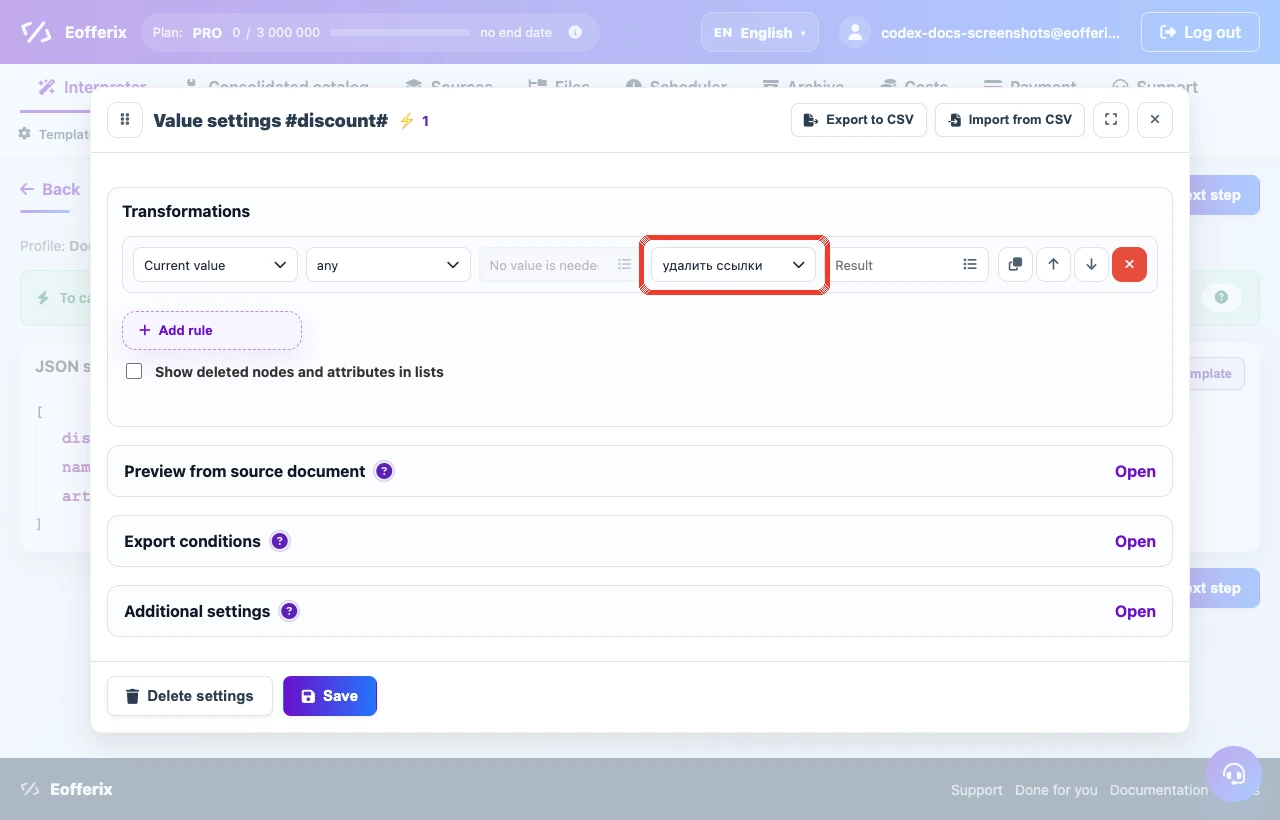
The operator is available in value transformations. Configure it in the field where link addresses must be removed.
- Open the settings of the required value, field, node, or column.
- Add a rule in the Transformations block.
- Use Any as the condition, or another condition if links should be removed only sometimes.
- Choose Text cleanup → Remove Links as the action.
- Check several rows or products in preview.
HTML text example
The example removes URLs from href and src attributes and also removes a plain text URL.
Before
<p>Package contents: <a href="https://supplier.example/manual.pdf">manual</a>.</p>
<p>Photo: <img src="https://supplier.example/img/kit-1.jpg" alt="Kit"></p>
<p>Video: https://supplier.example/video/123</p>
After the operator
<p>Package contents: <a>manual</a>.</p> <p>Photo: <img alt="Kit"></p> <p>Video: </p>How removal works
The operator removes the link address itself. Text inside the tag, captions, and other attributes remain when they are not URLs.
| Before | After |
|---|---|
<p>Package contents: <a href="https://supplier.example/manual.pdf">manual</a>.</p> | <p>Package contents: <a>manual</a>.</p> |
<p>Photo: <img src="https://supplier.example/img/kit-1.jpg" alt="Kit"></p> | <p>Photo: <img alt="Kit"></p> |
<p>Video: https://supplier.example/video/123</p> | <p>Video: </p> |