
The Google Sheets source reads data from Google Sheets and prepares it as a table file for a profile. It is convenient when a supplier or team updates the price list directly in a spreadsheet.
Both public and private spreadsheets are supported. A public spreadsheet only needs a view link. A private spreadsheet requires a Google service account, a JSON key, and Viewer access for the email from that key.
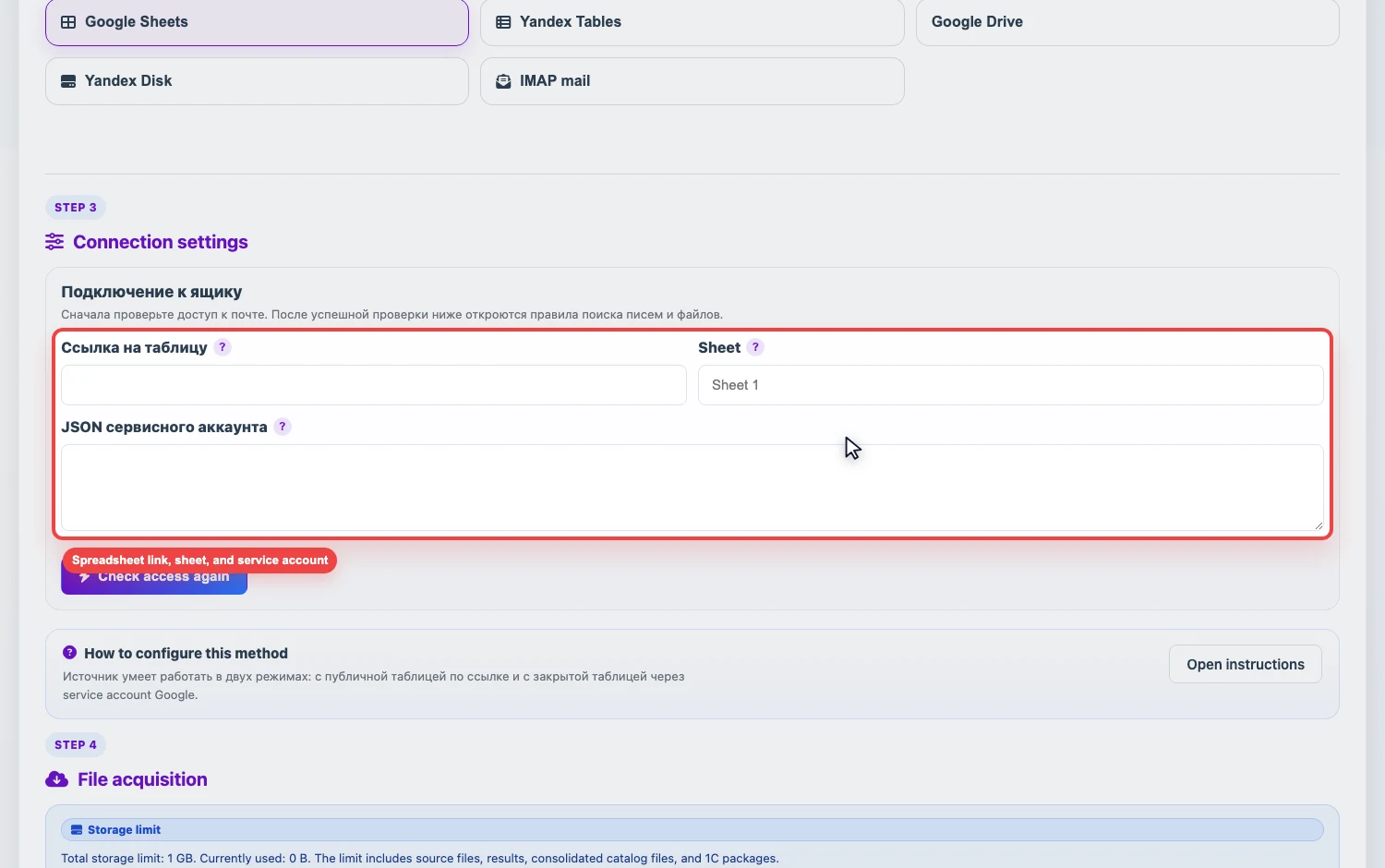
Public spreadsheet
- Open the Google Sheet and copy the normal URL from the address bar.
- Make sure the spreadsheet is viewable by link.
- In Eofferix, create a Google Sheets source and paste the link.
- If a specific sheet is needed, enter its name. If the field is empty, the service tries to use the
gidfrom the link or the first sheet in the document. - Click Check access, then Get file.
Private spreadsheet through a service account
If the spreadsheet cannot be public, use a Google service account JSON.
- Create a service account in Google Cloud and enable the Google Sheets API.
- Download the service account JSON key.
- Paste the JSON into Service account JSON in the source card.
- Find the
client_emailfield in the JSON. - Share the Google Sheet with this email and grant Viewer rights.
- Check access and retrieve the file.
How to choose a sheet
- If the link contains
gid, Eofferix can use the sheet from the link. - If the Sheet field is filled, it has priority. The name must match the sheet name in Google Sheets.
- If neither
gidnor a sheet name is specified, the service uses the first sheet.