
Task
The supplier file has name_raw, but the product name already contains the brand, SKU, and size. The output needs a clean clean_name column.
Short answer
Create clean_name from name_raw: remove {brand}, remove the SKU with a regular expression, remove {size}, then collapse spaces and trim the result.
How to do it in Eofferix
Open the settings of the output
clean_namecolumn and usename_rawas its source.
The red outline marks the settings button for the clean_namecolumn used in this case.In
Transformations, add these rules:Contains substring→{brand}→Remove substring;Regular expression→SKU[- ]?[0-9]+→Remove substring;Contains substring→{size}→Remove substring; then collapse spaces and trim edges.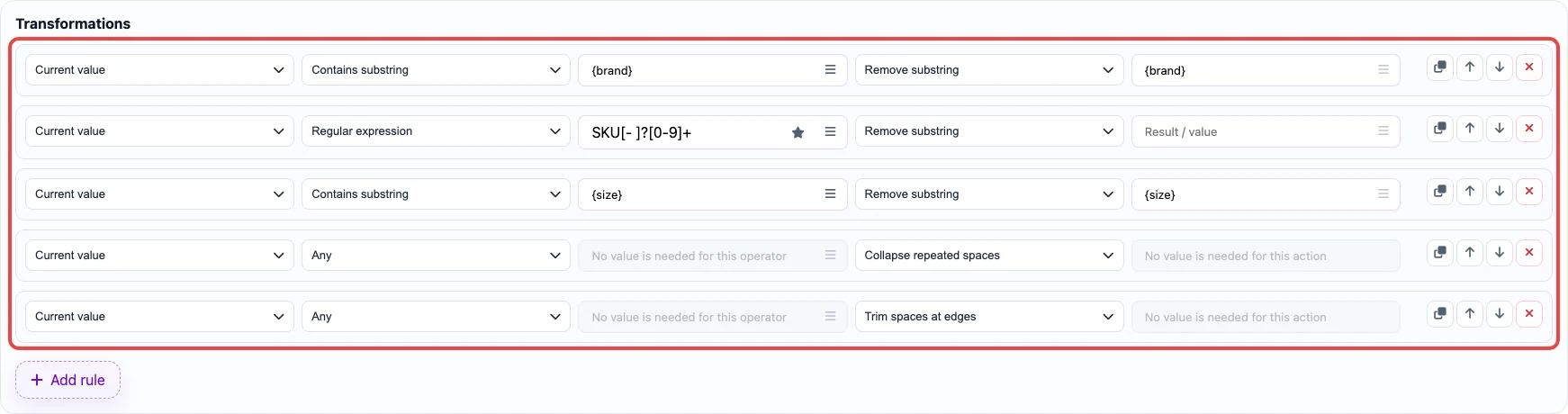
This block shows the full transformation chain for clean_name.Save the template and run the transformation on the final step.
Before / after
Before
source data| sku | brand | name_raw | size |
|---|---|---|---|
| SKU-100 | Luma | Luma black desk lamp SKU-100 40 cm | 40 cm |
| SKU-200 | SeatPro | SeatPro gray office chair SKU-200 L | L |
After
result| sku | clean_name |
|---|---|
| SKU-100 | black desk lamp |
| SKU-200 | gray office chair |