
WooCommerce import is controlled through regular Eofferix profile actions: test export, full run, stop, resume when a confirmed point exists, and a regular new run to correct the result.
Where to start import
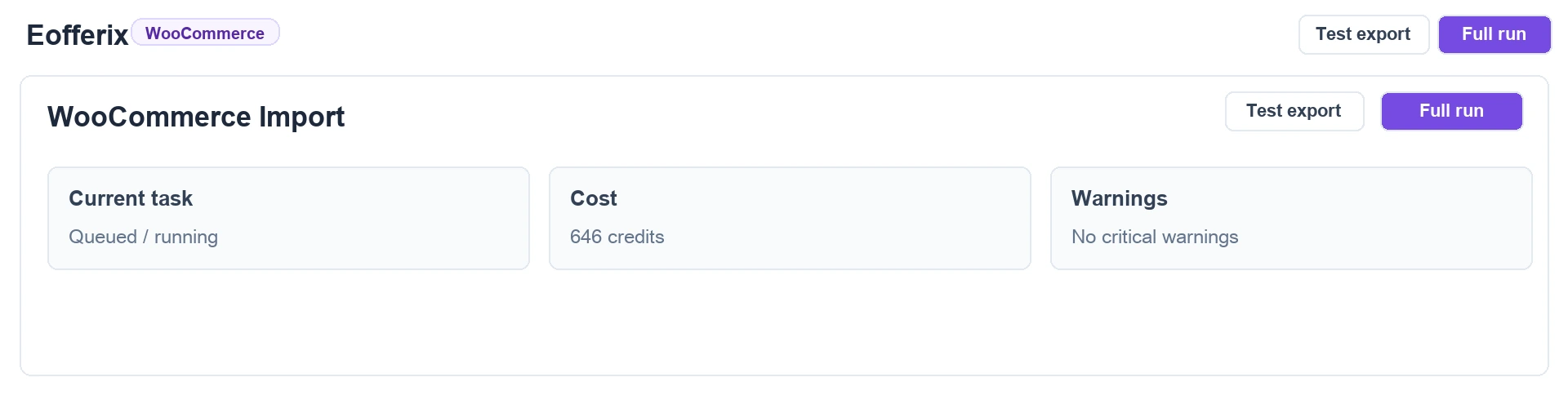
Open the WooCommerce profile and go to Transformation. This screen contains the full run, test export, current task, warnings and the previous run report.
How to choose a mode
| Goal | Mode | What to check |
|---|---|---|
| Check settings on a few products. | Test export. | Products, variations, categories, prices, stock and images in WooCommerce. |
| Import the complete catalog after checking. | Full run. | That test export did not create duplicates and fields went to the correct level. |
| Repeat import without source changes. | Regular repeat run. | Most objects are reported as skipped unchanged. |
| Remove products that disappeared at the supplier. | Synchronization with missing object cleanup. | Current profile scope and deletion safety limit. |
Test export
A test export sends a small set of data. It is used to check connection, snapshot roles, fields, categories, variations, attributes and images. By default it does not clean the site catalog.
Full run
A full run sends every object that passes the template rules. If an object already exists, Eofferix updates it by selected identification fields. Large catalogs are sent in batches.
Repeat run without changes
On repeat runs Eofferix and the plugin compare the final data that would be written to WooCommerce. If product, variation or category data did not change, the write is skipped and shown separately in the report.
Synchronization with missing object cleanup
When cleanup is enabled, Eofferix deletes or disables only objects previously linked to the same profile and source. Manual store products and data from other sources are outside this scope. Safety limits stop suspicious mass deletion and explain what limit was triggered.
Automatic WooCommerce cleanup can separately process products, variations, categories, and images. Global WooCommerce attributes and their values are not deleted or unlinked when they disappear from a later source: Eofferix retains the mapping and reuses it when one compatible attribute or value can be identified unambiguously.
Catalog overwrite
Overwrite does not mean "delete everything and create again". If a reliable match is found, the object is updated in place. Deletion is applied only to scoped objects missing from the new run.
Stop, resume, and correct the result
The WooCommerce integration does not support import rollback: the plugin does not save the previous store state for restoration, and Eofferix does not show a Roll back action for WooCommerce.
To correct a completed import, fix the source or profile settings and run a regular import again. A stopped run can be continued only when a confirmed resume point exists. Back up the WordPress database and uploads directory before full synchronization or overwrite.
Report after import
After completion the previous run block shows status, time, final cost and result link. Billing uses actual actions, not the preliminary estimate.

- Created products, variations and categories.
- Updated products, variations and categories.
- Objects skipped unchanged.
- Deleted or disabled objects.
- Errors and warnings.
- Credits charged for actual actions.