
The Eofferix integration with WooCommerce moves a product catalog from external sources into a WordPress store. A source can be a file, a supplier link, FTP/SFTP, Google Sheets, a 1C / CommerceML exchange, XML, JSON, CSV, XLSX, YML or a file downloaded from a supplier portal. The source can run manually or on a schedule.
Eofferix is not just a file uploader. The service reads the source, shows the structure in a snapshot, applies transformations, loading conditions and the user’s mapping. The WooCommerce plugin stays a thin adapter: it receives already prepared products, variations, categories, properties, prices, stock and images.
Details are described separately: plugin installation, profile setup, products, variations and categories, import modes and safety, prices, currencies and images.
Terms used in setup
| Term | Meaning |
|---|---|
| Source | The file, link, table or exchange from which Eofferix reads the supplier catalog. |
| Profile | The setup that tells the service where and how to send the catalog. |
| Snapshot | A tree or table of loaded data where the user marks products, categories, variations, prices, stock and images. |
| Role | The meaning of a node or row: product, variation, category, attribute, image or a regular field. |
| Identification | Fields used to find an existing object. When one compatible match is identified unambiguously, it is updated in place. |
| Offer | A supplier’s trade offer. In WooCommerce it normally becomes a product variation. |
First import route
| Step | Action | Expected result |
|---|---|---|
| 1 | Add or choose a catalog source. | The data structure is visible in the snapshot. |
| 2 | Install the Eofferix plugin on WordPress/WooCommerce. | WordPress has an active Eofferix plugin. |
| 3 | Select WooCommerce and check the connection. | Eofferix receives the WooCommerce schema. |
| 4 | Mark data roles in the snapshot. | The service understands categories, products, variations, attributes and images. |
| 5 | Bind required fields and choose identification fields. | Repeat runs reuse the retained mapping when one compatible object is identified unambiguously. |
| 6 | Add loading conditions if needed. | For example: stock is greater than 0 and price is greater than 100000. |
| 7 | Run a test export. | A small set of products appears in WooCommerce. |
| 8 | Check WordPress and then run the full import. | The full run uses already verified rules. |
What can be synchronized
| Data | What the integration does |
|---|---|
| Categories | Creates and updates WooCommerce categories, including nesting and descriptions. |
| Products | Creates and updates product cards, fields, attributes, stock, prices and images. |
| Offers / variations | Sends supplier offers as WooCommerce variations with their own parameters, SKU, price, stock and image. |
| Attributes | Creates missing attributes and values; compatible existing entities are reused only when the match is unambiguous. |
| Files and images | Transfers source images, including images stored in 1C archives when they are present in the upload. |
Step 1. Prepare the source
Add the source from which the catalog will be collected. This can be a manual file upload, a supplier URL, a spreadsheet, a system export or a source updated by schedule.

Step 2. Install the WordPress plugin
Install the Eofferix plugin once on the WordPress site. It lets WooCommerce receive batch imports and return the available field schema to Eofferix.
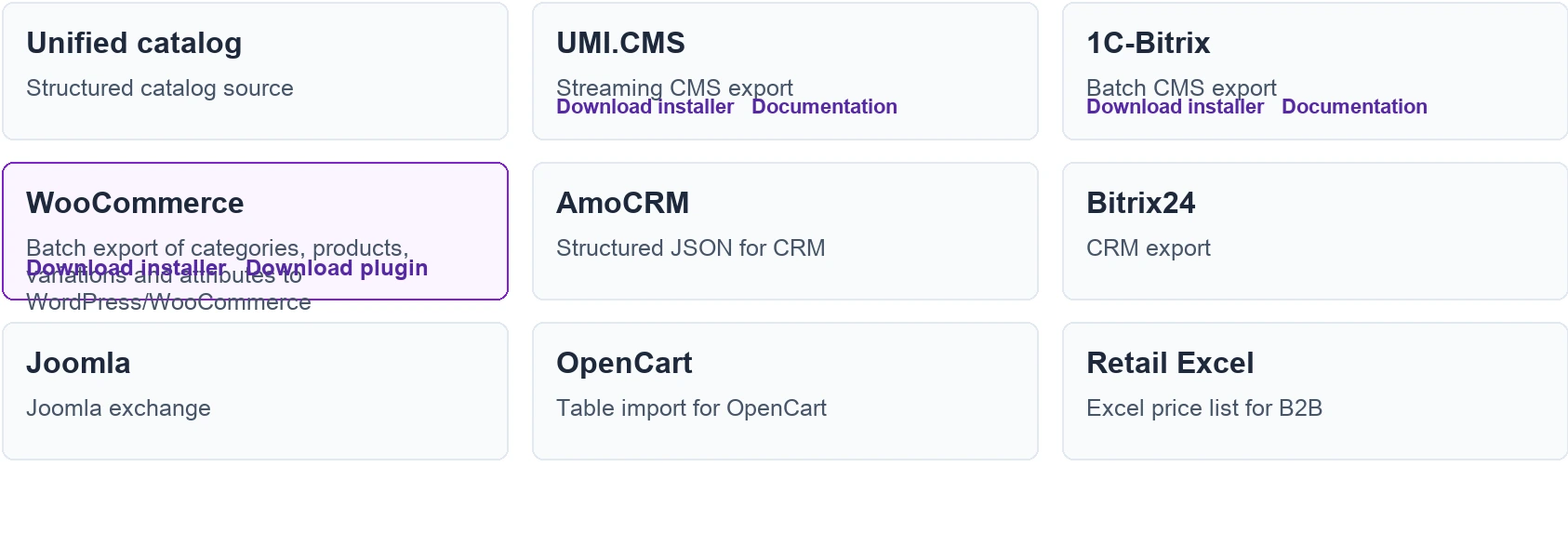
Step 3. Create a WooCommerce profile
Choose WooCommerce in the profile, enter the site address and run the connection check. After that Eofferix can show settings for products, variations and categories.
Step 4. Select roles in the snapshot
In the snapshot the user marks what is a category, product, variation, attribute, image and regular WooCommerce field. This makes the module universal for different supplier structures.
Step 5. Bind fields to WooCommerce
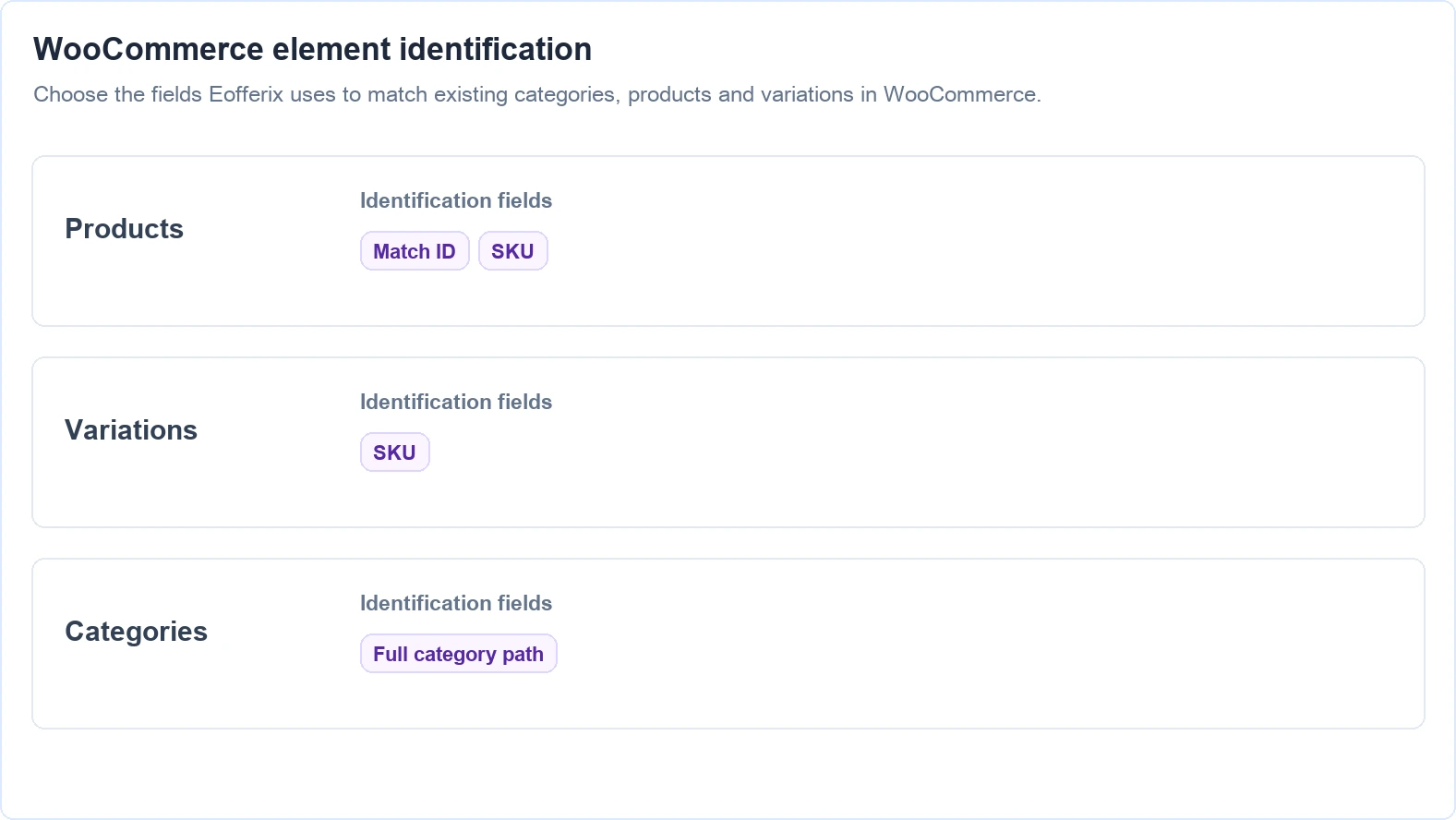
Bind name, SKU, price, stock, description, category, images, product attributes and variation parameters. If an object was imported earlier, Eofferix finds it by the selected identification fields and updates it in place.
Automatic WooCommerce cleanup can separately process products, variations, categories, and images. Global WooCommerce attributes and their values are not deleted or unlinked when they disappear from a later source: Eofferix retains the mapping and reuses it when one compatible attribute or value can be identified unambiguously.
Step 6. Configure loading conditions
Loading conditions let you import only the required items. For example: variation stock is greater than 0, price is greater than 100000, brand is allowed, or category is selected.
Step 7. Check a test export
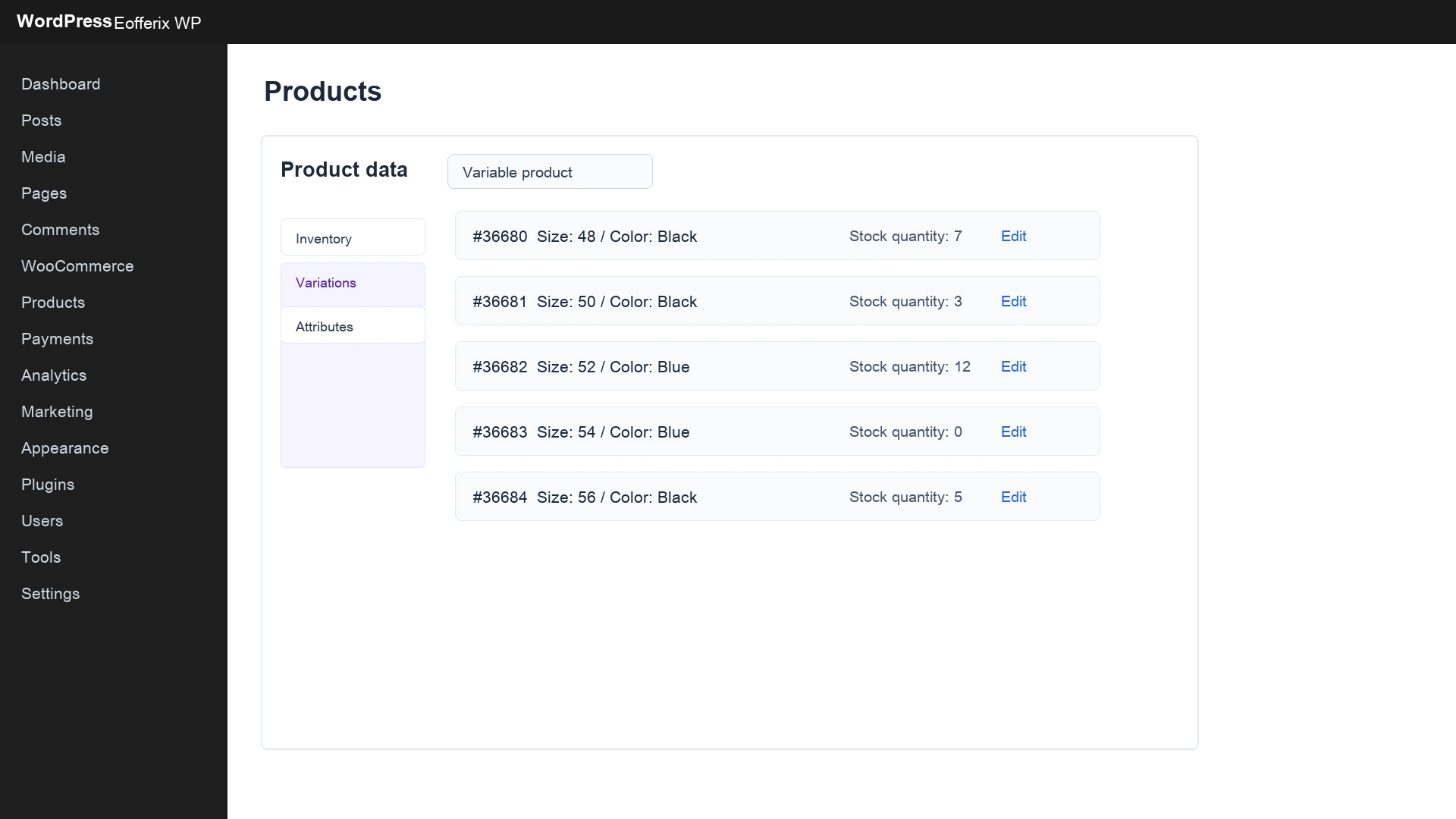
Start with a test export and check categories, product cards, variations, prices, stock, attributes and images in WooCommerce.
Step 8. Run the full import
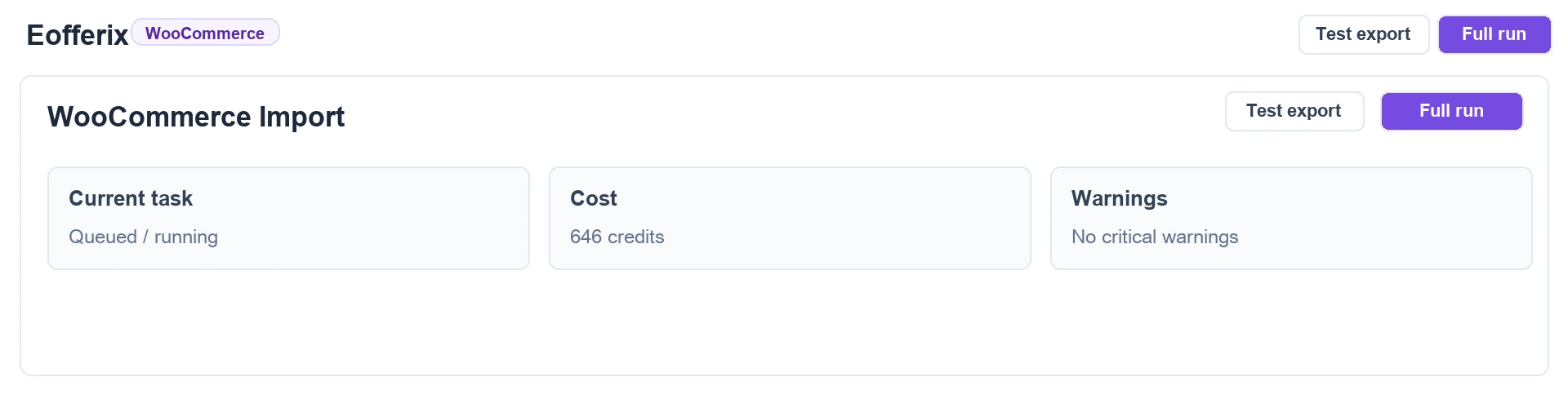
A full import sends the complete catalog that passes the template rules. Large catalogs are sent in batches. Objects whose final data did not change are skipped without a heavy WooCommerce write.
Step 9. Configure actions for missing products
If a supplier removes an item, Eofferix can leave it, disable it or delete it depending on the import mode. Cleanup only works inside the scope of objects previously linked to the same profile and source.
What is configured in Eofferix
| Setting | Meaning |
|---|---|
| Source and schedule | Where to take catalog data from and when to update it. |
| Data roles | Which nodes or rows are categories, products, variations, attributes and images. |
| Transformations | How to normalize titles, prices, stock, descriptions, brands and attributes before import. |
| Field mapping | Where each value goes in WooCommerce. |
| Identification | How existing products, variations and categories are matched. |
| Loading conditions | Which items are imported and which are skipped before sending to the site. |
| Report and billing | What was actually created, updated, skipped unchanged, deleted or failed. |
What remains a WooCommerce setting
| Store setting | Why it remains in WordPress |
|---|---|
| Store currency | Eofferix sends the numeric price. WooCommerce decides which currency symbol is displayed. |
| Taxes | Tax zones and rates depend on WooCommerce and tax plugins. |
| Delivery and payment | Shipping methods, payment gateways and orders are not part of catalog import. |
| Theme and product page | Eofferix fills product data; the WordPress theme controls how it looks. |
In short: Eofferix prepares, transforms and controls the import scenario. WooCommerce stores the catalog and shows it to customers.
