
Task
The url column contains a link with utm_source, utm_medium, and utm_campaign. The export needs a separate column for each tag.
Short Answer
You can extract the value by removing parts of the string step by step. For many links, the regex option is shorter.
How to do it in Eofferix with substring search and removal
- Create the final
utm_sourcecolumn fromurl. - Add a rule: Contains substring
utm_source=— Remove before. After it, the string starts with the needed parameter. - Add a rule: Contains substring
utm_source=— Remove substringutm_source=. - To remove following parameters, add rule pairs for
&and#: Remove after, then Remove substring.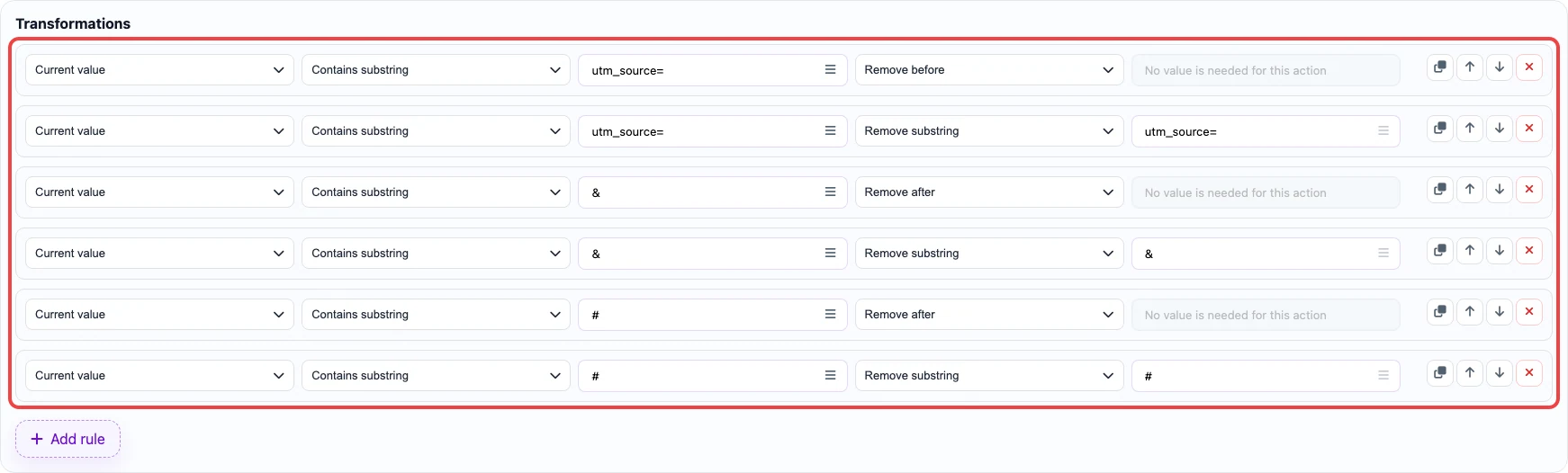
Without regex, the rules cut everything before utm_source, remove the parameter name, and cut the tail after the value. - Repeat the same pattern for
utm_mediumandutm_campaign, replacing the parameter name.
How to do it in Eofferix with regular expressions
- For
utm_source, add: Regular expression(?<=utm_source=)[^&#]+, action Remove everything except. (?<=utm_source=)means “start right afterutm_source=”.[^&#]+means “take one or more characters until&or#appears”.
The regex keeps only the utm_source parameter value. - Use
(?<=utm_medium=)[^&#]+forutm_mediumand(?<=utm_campaign=)[^&#]+forutm_campaign.
Before / After
Before
source data| row_id | url |
|---|---|
| 1 | https://shop.example.com/product?utm_source=google&utm_medium=cpc&utm_campaign=spring_sale |
After
result| row_id | utm_source | utm_medium | utm_campaign |
|---|---|---|---|
| 1 | cpc | spring_sale |