
Task
size contains a list such as S|M|L. The export needs one product variant row for each size.
Short answer
In the size column, enable row structure changes, choose split values into new rows, and use | as the separator.
How to do it in Eofferix
Open the settings of the
sizecolumn.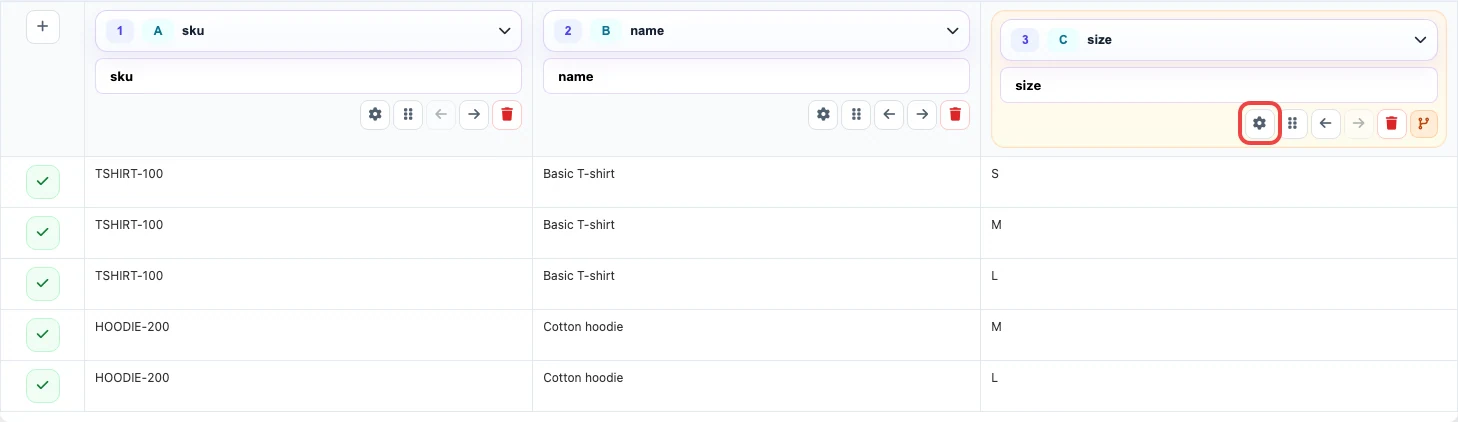
The outline marks the sizecolumn that contains the size list.In additional settings, enable row structure changes, choose split values into new rows, and set the separator to
|.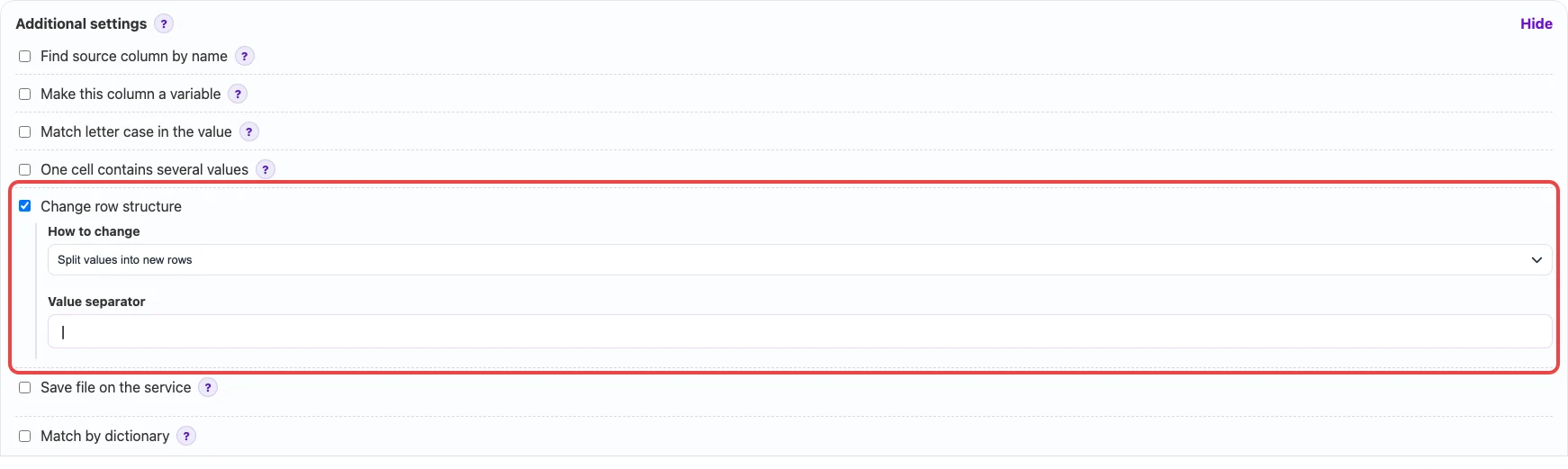
After this setting, each part of S|M|Lbecomes a separate row.Save the template and run the transformation on the final step.
Before / after
Before
source data| sku | name | size |
|---|---|---|
| TSHIRT-100 | Basic T-shirt | S|M|L |
| HOODIE-200 | Cotton hoodie | M|L |
After
result| sku | name | size |
|---|---|---|
| TSHIRT-100 | Basic T-shirt | S |
| TSHIRT-100 | Basic T-shirt | M |
| TSHIRT-100 | Basic T-shirt | L |
| HOODIE-200 | Cotton hoodie | M |
| HOODIE-200 | Cotton hoodie | L |