
Ozon export sends products from an Eofferix source to an Ozon seller account. The source can be a file, a spreadsheet, a 1C export, a supplier price list, or another connected channel.
Choose the source and Ozon
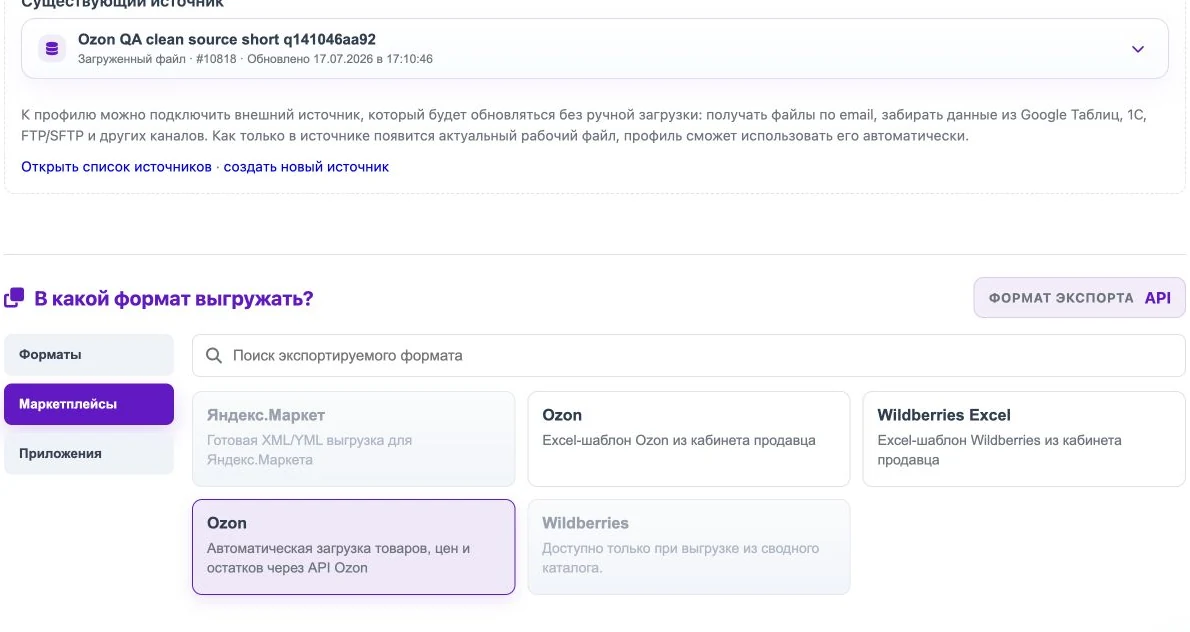
Open or create a profile. In Data source, choose a file or an existing source. Then open Marketplaces in the export format block and select the Ozon card for automatic product, price, and stock sending.
Connect the seller account
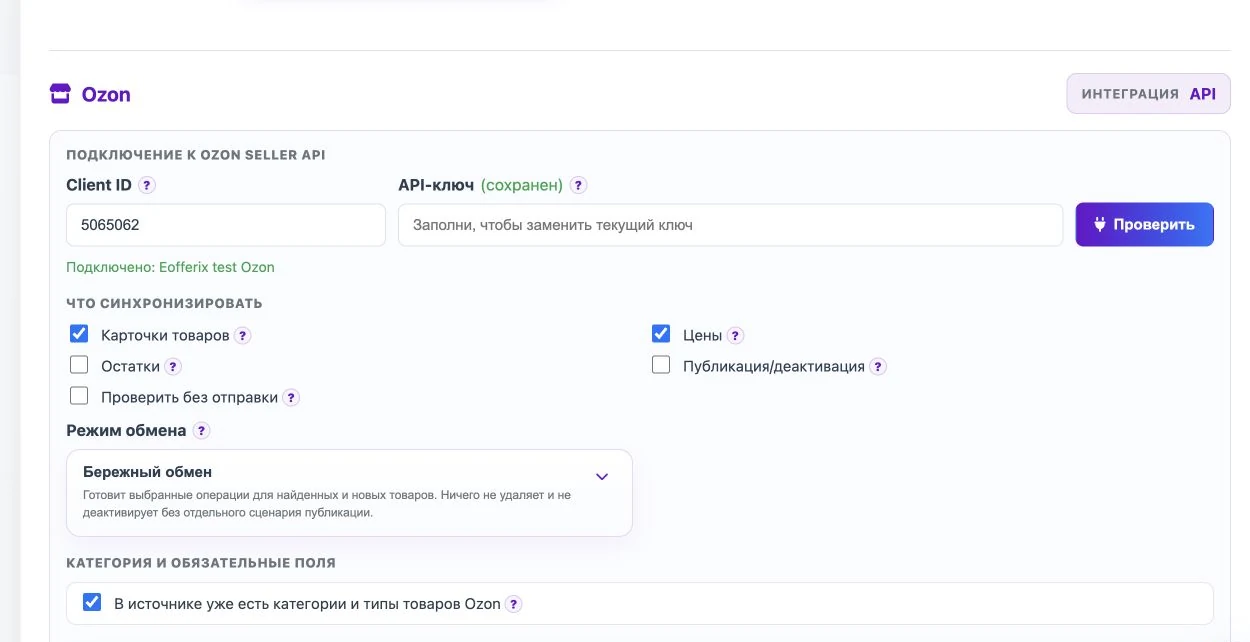
Fill in Client ID and API key from the Ozon seller account, then click Check. If access is correct, Eofferix shows the connected seller account name.
Choose what to send
- Product cards send names, descriptions, images, and characteristics.
- Prices update offer prices.
- Stock updates warehouse quantities when a warehouse is selected or provided by the source.
- Publishing/deactivation changes product availability only when enabled.
- Check without sending validates data without changing Ozon.
Next step
Save the profile and go to the field selection screen. There you choose where Eofferix should take the name, seller SKU, price, images, Ozon category number, product type, and other required data.