
A company keeps its own products and stock in 1C. Part of the assortment is maintained in a Google spreadsheet. A trusted partner supplier also sends an XML catalog, and the company wants to sell part of that supplier catalog on Ozon under its own seller account. The user needs one clean catalog and one Ozon sending rule set.
Add 1C, the Google spreadsheet, and the supplier XML as separate sources, load them into the unified catalog with cleanup rules, check the final products and offers, then create an Ozon export from the unified catalog. First run a check without sending, fix missing fields, and only then send data to Ozon.
How to Do It in Eofferix
Open Sources and add every place that sends product data: 1C, the Google spreadsheet, and the supplier XML.
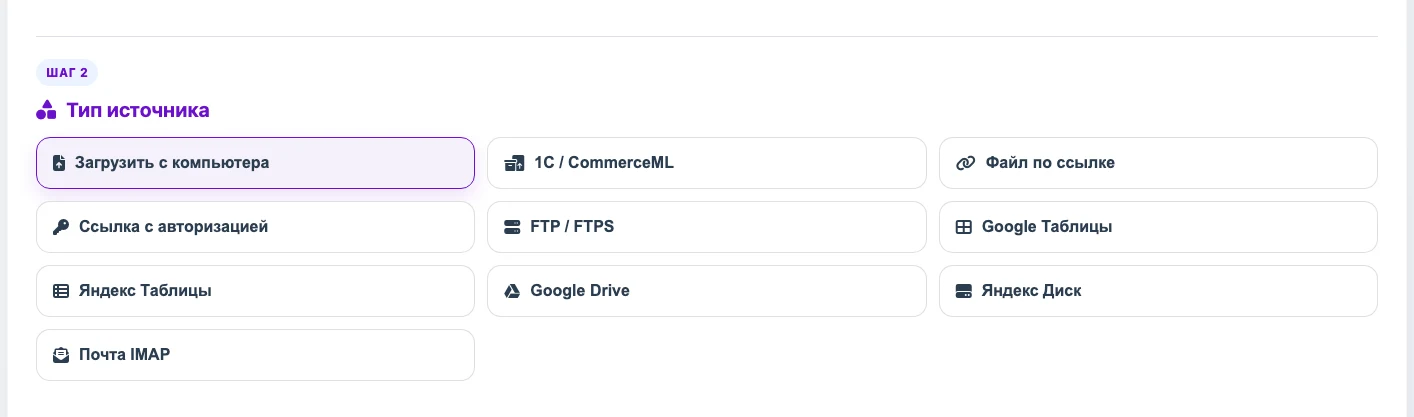
This case uses three sources: 1C for the company stock, a Google spreadsheet for part of the assortment, and the supplier XML added as a file or link. Create a profile for each source and choose Unified catalog as the result.
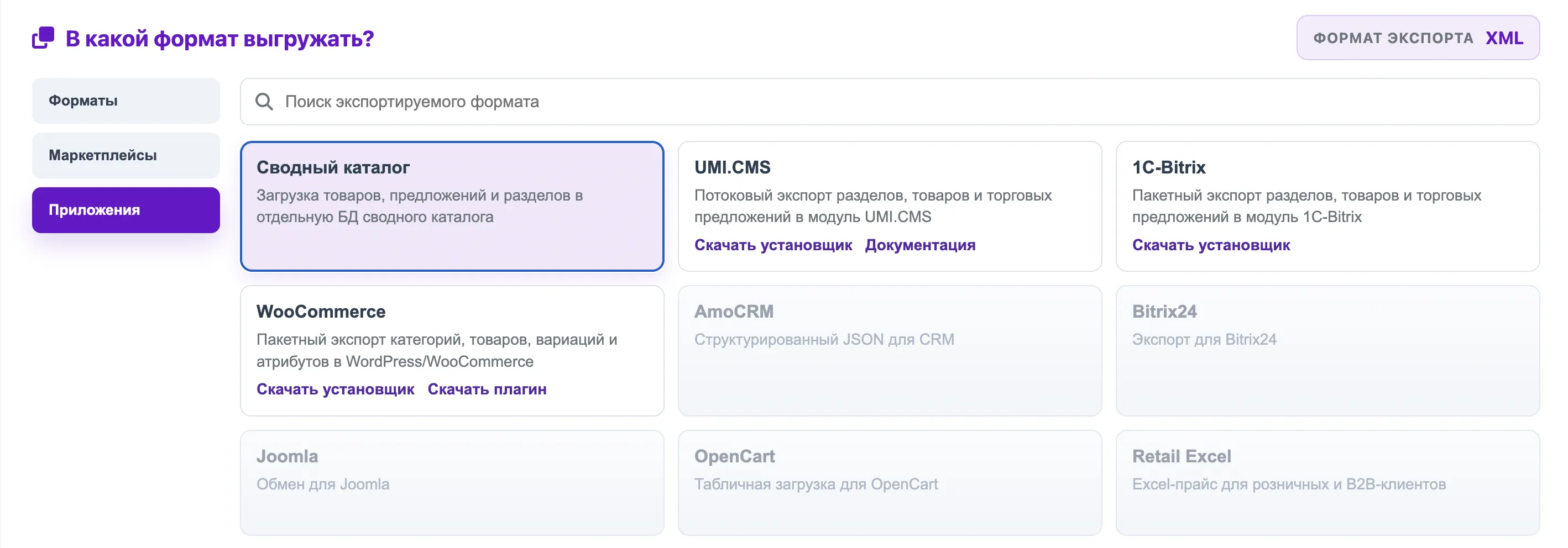
Open Applications and choose Unified catalog. This profile loads products, offers, and sections into the shared catalog. In the data preparation window, choose the product and offer rows, then connect source values with unified catalog fields.
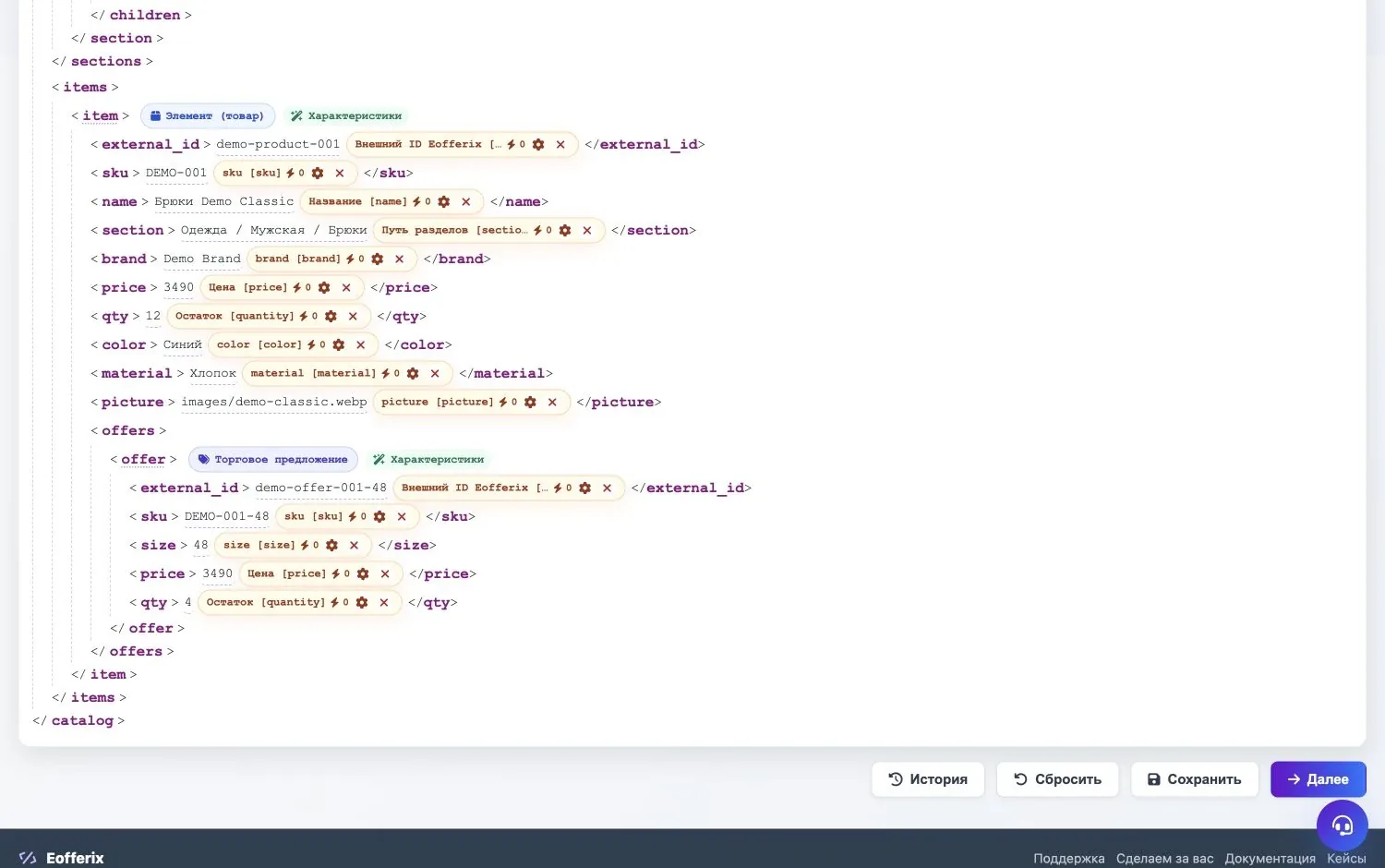
Mark where the product is, where its offer is, and choose unified catalog fields for the needed values. Add cleanup rules where needed: clean names, recalculate prices, normalize size and color, and fill Ozon category number and product type.
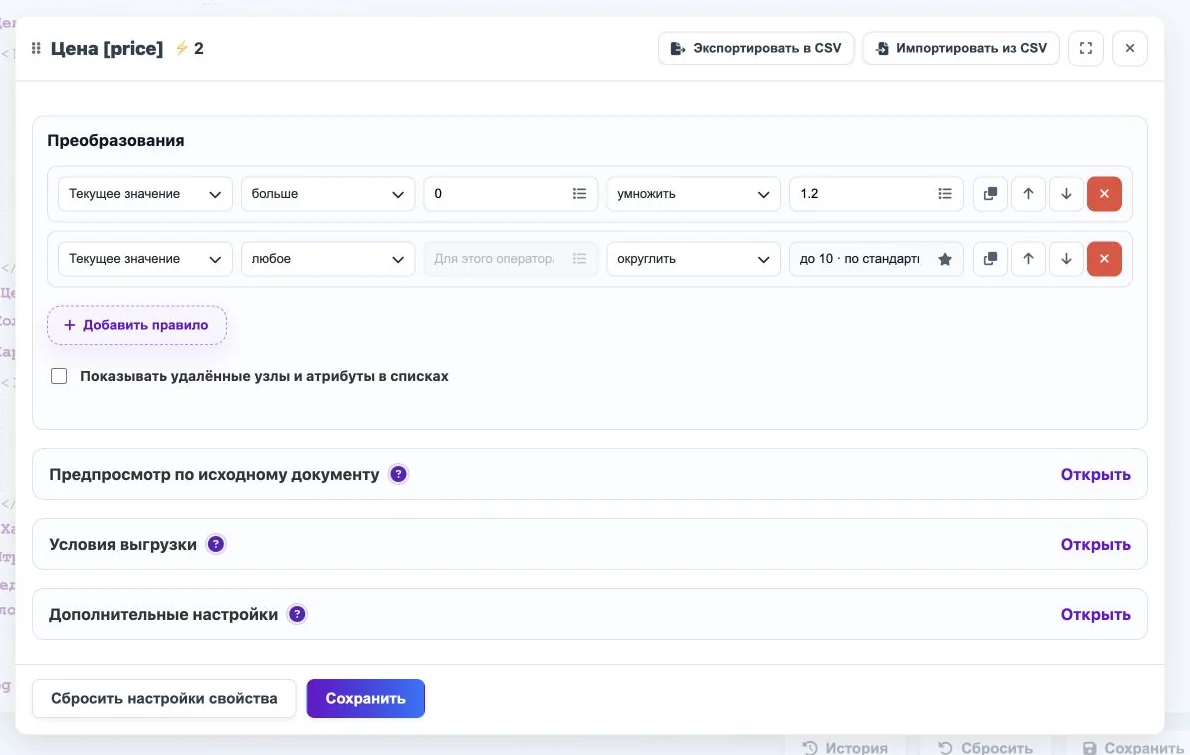
Example for the price: if the value is greater than zero, Eofferix adds 20% and rounds the result to 10. Run every source profile and open the Unified catalog. Check that products are not duplicated, offers belong to the right products, and price, stock, photos, and Ozon fields are filled.
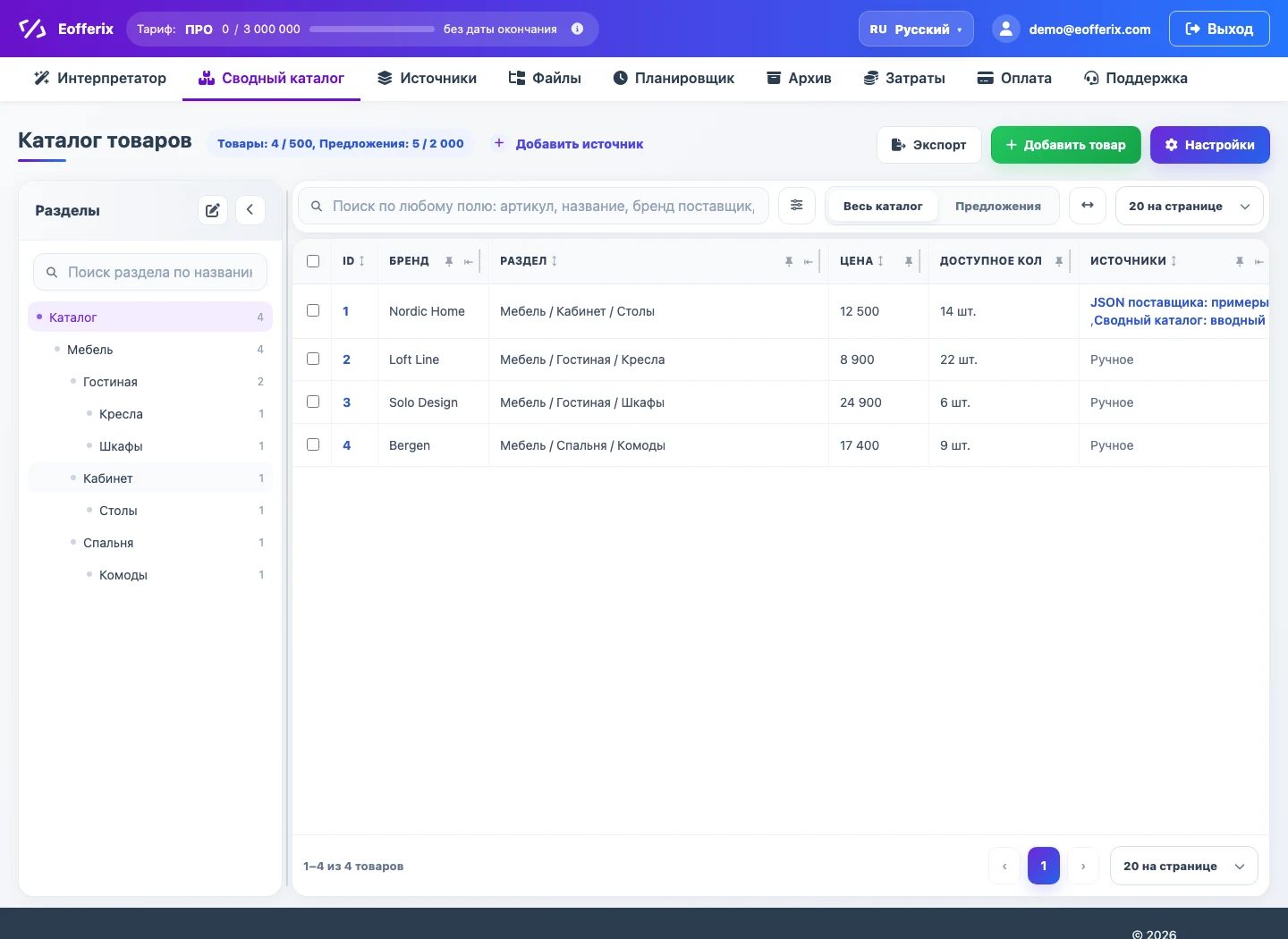
The unified catalog shows final sections, products, offers, prices, stock, and data sources. Create an export profile and choose Unified catalog as the data source.
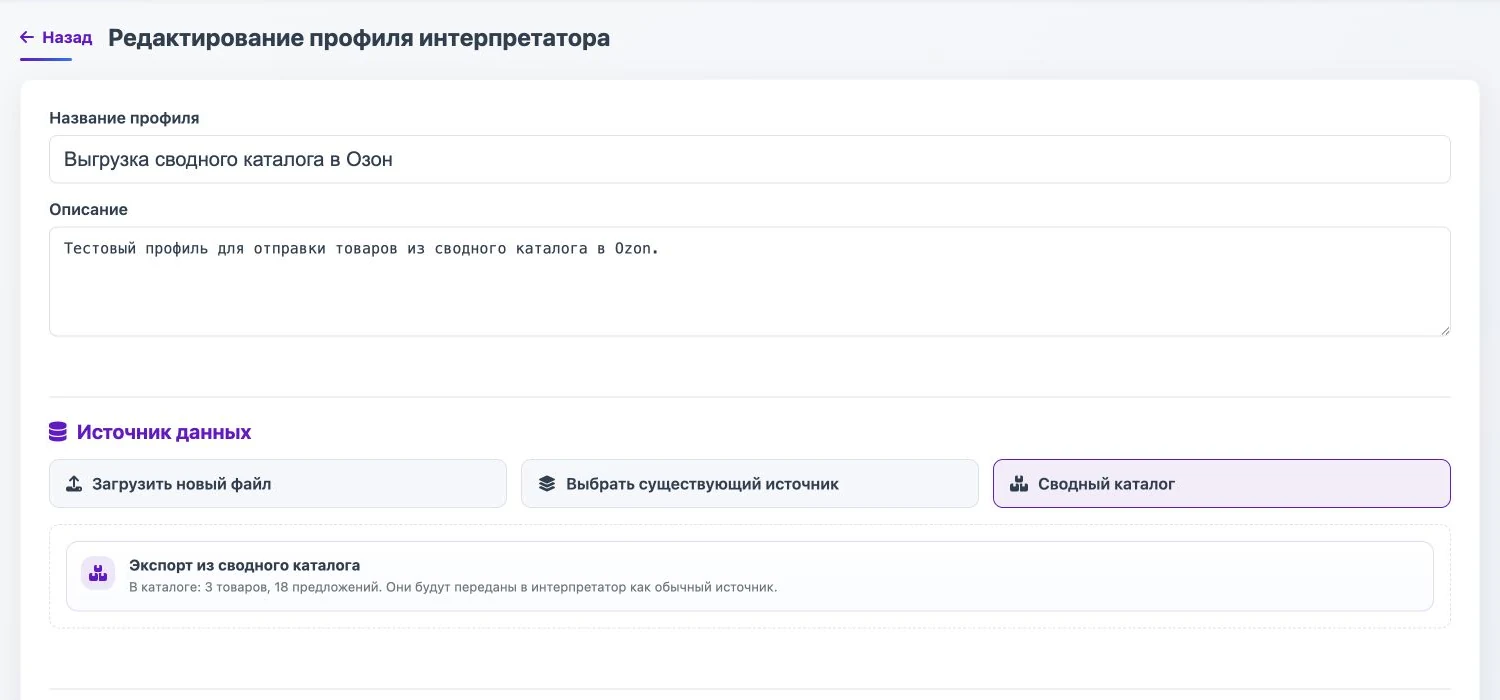
After the catalog is assembled, it can be used as the source for a new export profile. Select Ozon as the sending format: this sends data directly and automatically to the seller account through Ozon Seller API.
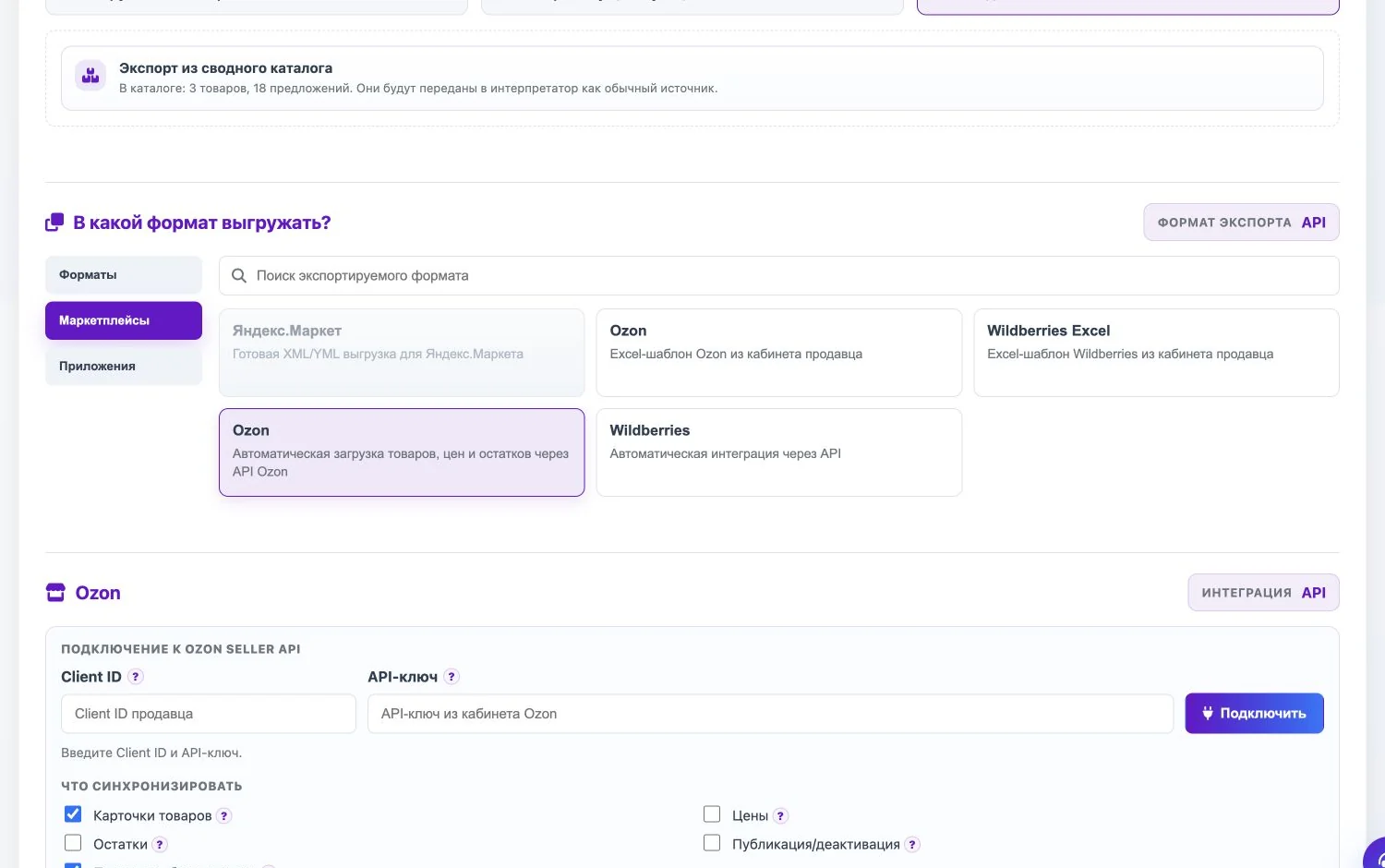
Choose the Ozon card for automatic product, price, and stock sending through Ozon Seller API. Connect the seller account and choose what to send: product cards, prices, stock, and publishing action. If the catalog contains different Ozon categories, enable the option that category and product type values are already in the source.
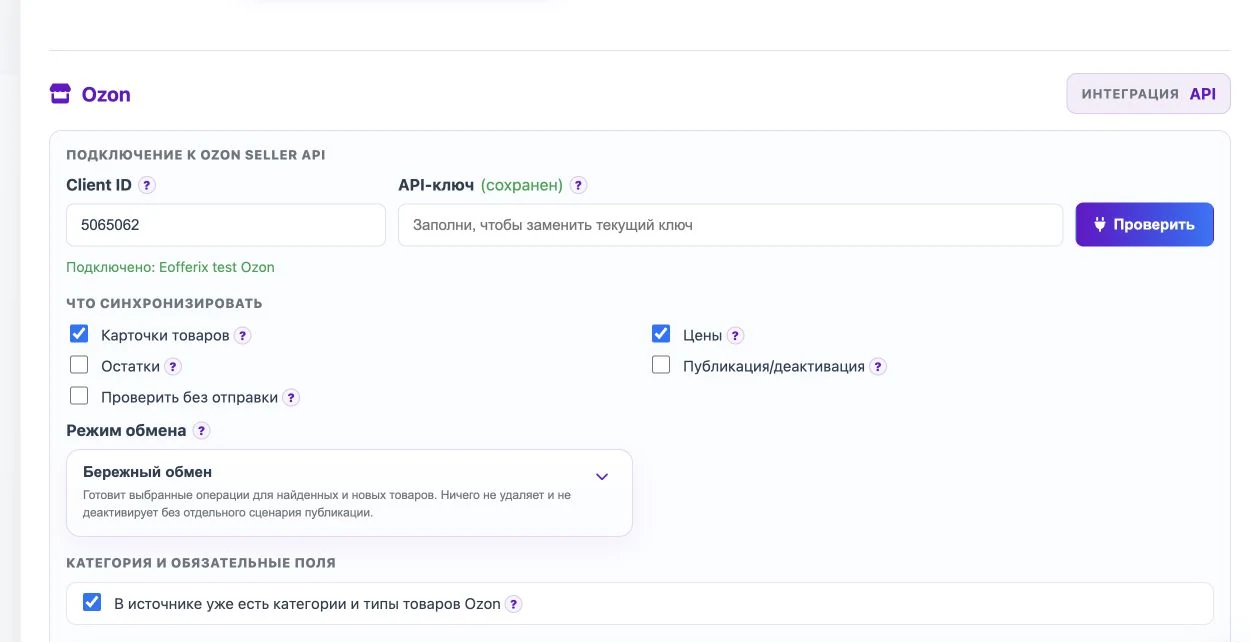
The Ozon profile controls connection, what to send, and the mode where category values come from the source. In the data preparation window, choose the product role and the trade offer role. Then choose Ozon fields: seller SKU, name, price, stock, photo, description, category number, product type, and required characteristics.
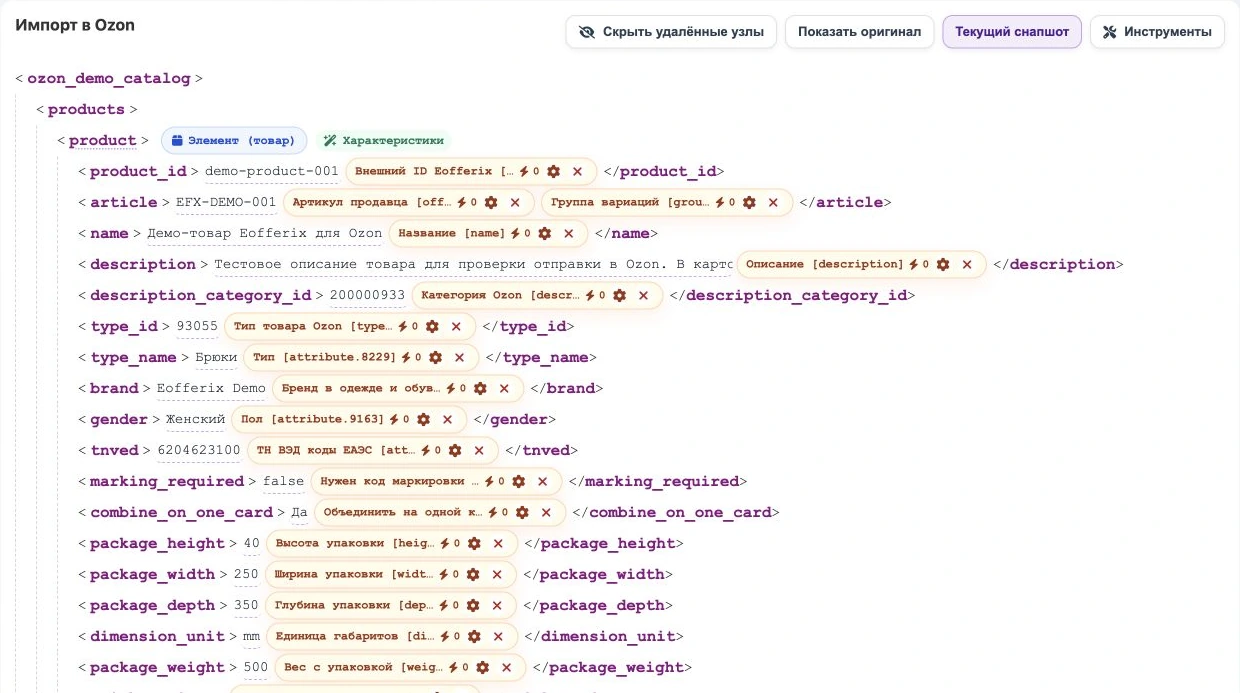
The product card has Ozon fields for seller SKU, name, description, category, product type, required characteristics, dimensions, and weight. 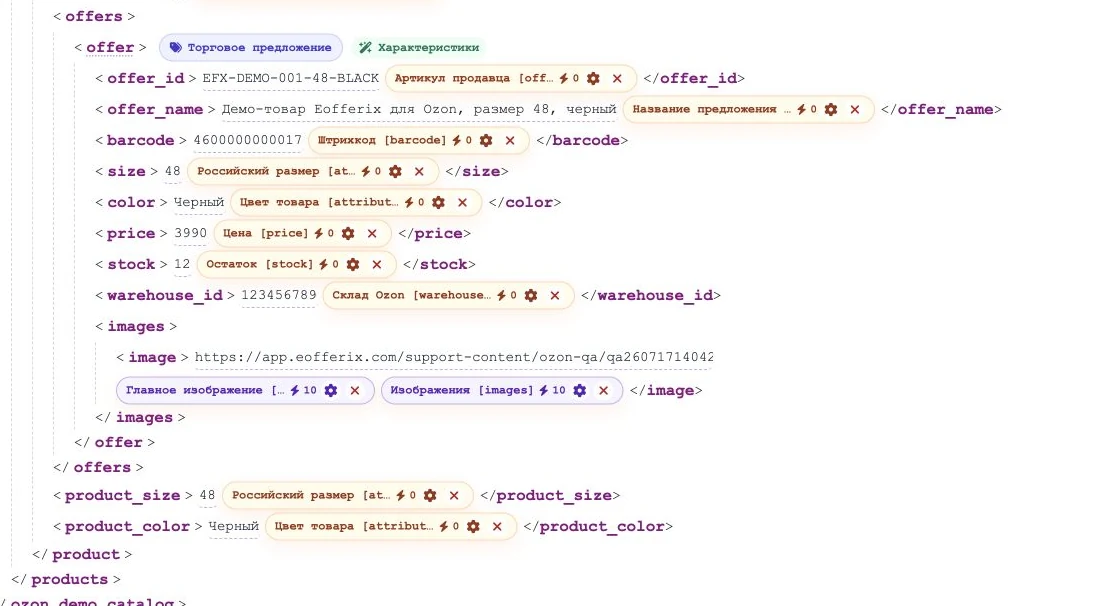
The trade offer has Ozon fields for seller SKU, name, barcode, size, color, price, stock, warehouse, and image. Save the setup and run a check without sending. Fix highlighted fields, then turn off the test check and send data to Ozon.
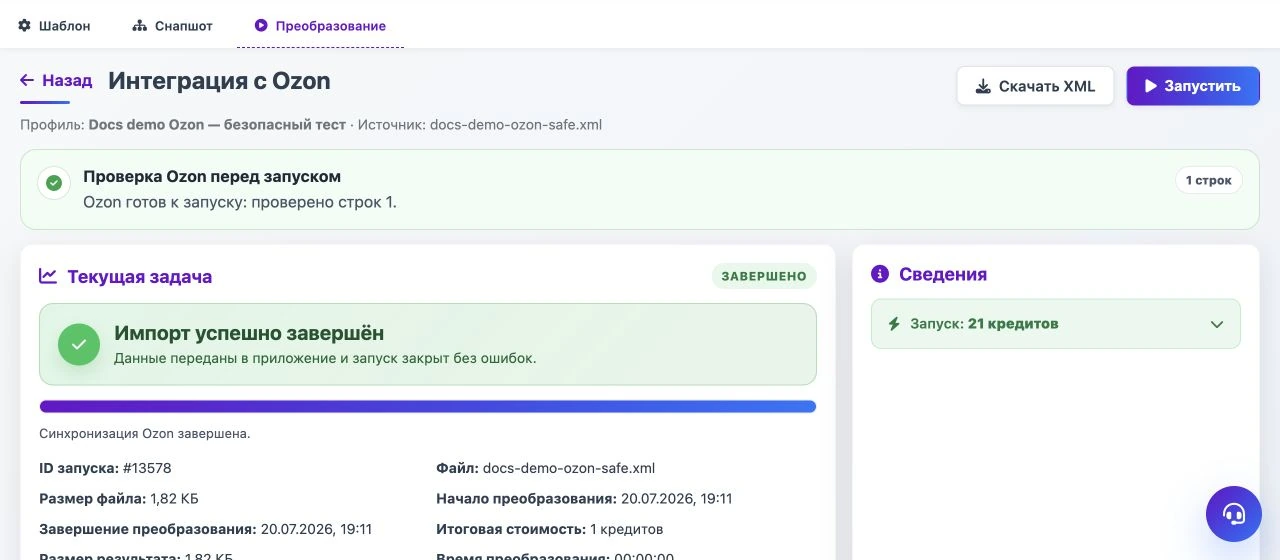
After saving, Eofferix shows the Ozon check, the run button, the current task, and the result.
What to Check Before Sending
- The seller SKU is stable, so existing Ozon products can be updated correctly.
- For mixed Ozon categories, every product has an Ozon category number and product type. Or create a separate import profile for each Ozon category: Eofferix will fill the needed category and product type IDs itself.
- Required Ozon fields are selected in the data preparation window.
- The first run uses check without sending.
- If there are many category or product type errors, Eofferix shows the first 20 and does not start sending.
When This Scenario Helps
Use the unified catalog here because data is split between the company 1C, the Google spreadsheet, and the trusted supplier XML. It is easier to assemble one catalog, bring product properties to one structure and one format, and then set up the Ozon sending rules once.
If later all assortment, stock, descriptions, and Ozon fields are kept in one source, a separate unified catalog may not be necessary. While the data lives in different places, the unified catalog keeps the Ozon export predictable.
Related Guides
See also loading sources into the unified catalog, working with the unified catalog, Ozon profile setup, Ozon field selection, and running an Ozon export.