
After configuring the Ozon profile and mapping its fields, open Runs. This page starts an exchange, estimates its credit cost and keeps the run history. These instructions cover Ozon Seller API delivery. The Ozon Excel template produces a file for manual upload in the seller account.
Open the run page
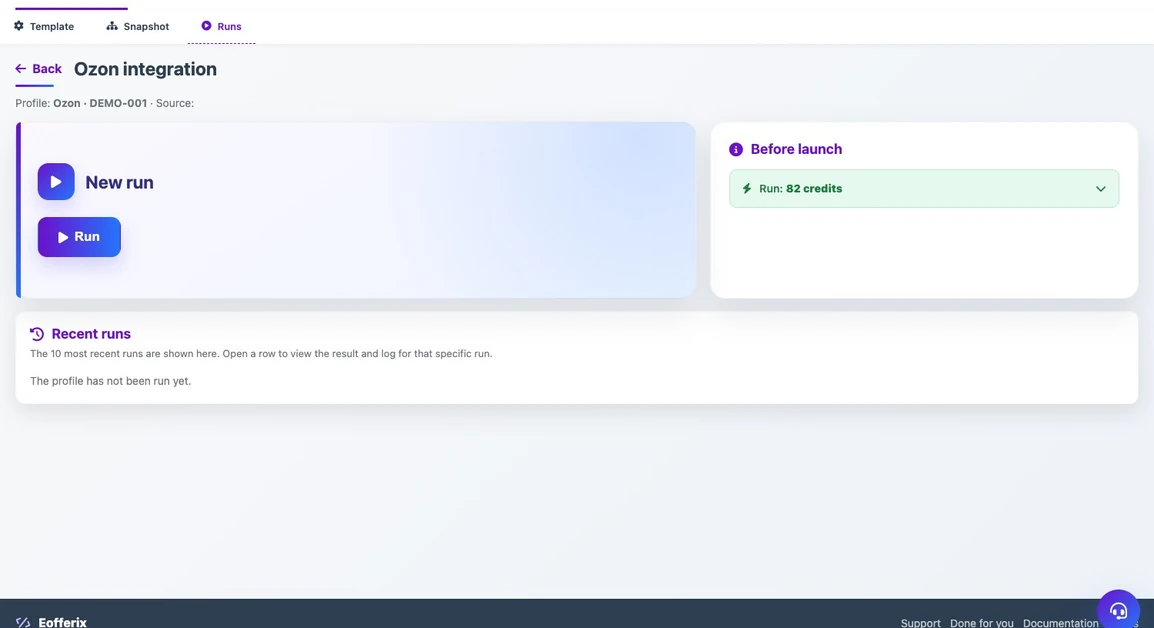
The page contains New run with a Run button, Before launch and Recent runs. The history is empty before the first exchange. A green cost block shows the credit estimate; it does not confirm that every product value has already been validated.
Check the mode and selected actions
Return to Template to change the settings. Check the seller account, exchange mode and actions: product cards, prices, stock, archiving or restoring from the archive. Only enabled actions are sent. For stock, check the warehouse; for product cards, check the category, product type and required attributes.
- Safe synchronization: create and update products while preserving products missing from the source.
- Update existing only: skip new products.
- Add new only: preserve existing products unchanged.
- Full synchronization: products managed by this profile and missing from the source may have their stock set to zero and be archived when the corresponding actions are enabled. An empty source should not be used to clear the seller account.
Check without sending first
Keep Check without sending enabled for the first run. Save the profile and run it. Eofferix prepares the data and checks values and category requirements without changing products in Ozon. Read any errors in that run’s result, correct the profile or field mapping, and check again.
The mapping check on the run page validates saved field assignments. If there is an error, the Ozon preflight check block and Open mapping link appear. This is not a check of five source rows: product values are checked during execution, before changes are sent to Ozon.
Start the exchange
Once the check finishes without errors, disable Check without sending and save the profile for a real exchange. Sending requires a valid Client ID and API key for your seller account. Open Runs again, wait for the estimate and click Run.
Open the newly created run to follow that exchange’s progress. Profile changes apply to later runs: an existing run keeps its saved settings version.
Check the selected run’s result
The list shows the ten most recent runs. Open the relevant row and check its status, stages, cost and Ozon messages. Successful XML preparation does not confirm delivery to Ozon. For a real exchange, wait for the synchronization result and check errors for individual products.
Ozon accepting the data does not mean the product is already on sale. Card checks, moderation and stock affect availability. Restoring a product from the archive does not guarantee immediate availability for purchase either.
If a run fails
Read that run’s messages to identify the field, seller code, category, price, image or warehouse to fix. Correct the cause and create a new run. If a real send is interrupted, first check confirmed actions and product status in Ozon: some changes may already have been accepted. A missing response does not prove that nothing was sent.
Learn more: Ozon connection and profile settings, Ozon field mapping.