
The consolidated catalog is Eofferix’s working product database. It can store products, offers, sections, properties, prices, stock, images, descriptions, and service identifiers. Data can come from connected sources or be added manually.
Use the catalog when you need to do more than transform data once: for example, when you need to update it regularly, combine several sources, and send the resulting catalog to other systems. You can load data from multiple suppliers, calculate final prices and stock, then create separate exports for a website, an inventory system, or a marketplace. If the data does not need to persist between runs, a regular export may be enough.
How data enters and updates the catalog
Each source is connected to the catalog through an import profile. The profile defines which incoming values belong to products, offers, and sections, which transformations to apply, and how to identify existing products and offers.
- The source sends Eofferix a file, spreadsheet, or another data set.
- The service applies the configured mappings and transformations.
- For products and offers, Eofferix looks for existing records using the identifiers selected in the profile. Sections are matched by name only, and only when Section name is selected as the section identification mode.
- Matched records are updated. What happens to new or missing records depends on the selected import mode.
- The current catalog becomes available for review and subsequent exports.
Matching article or SKU values in two sources do not guarantee that Eofferix will combine the records: the field must be part of the configured identification. Separate identification groups use AND, while fields inside one group form a prioritized OR list tried from left to right. For example, (SKU OR External code) AND Supplier. Eofferix uses the first complete combination that finds existing records. If it finds several records, the selected duplicate policy is applied to that full result set without falling through to the next alternative. Any available fields can be combined this way, and extra alternatives do not consume extra credits. See “Sources for importing into the consolidated catalog” and “Import modes for the consolidated catalog” for details.
If a value comes from a source, a later import can overwrite a manual change. Keep this in mind when editing imported data directly in the catalog.
How to open the catalog
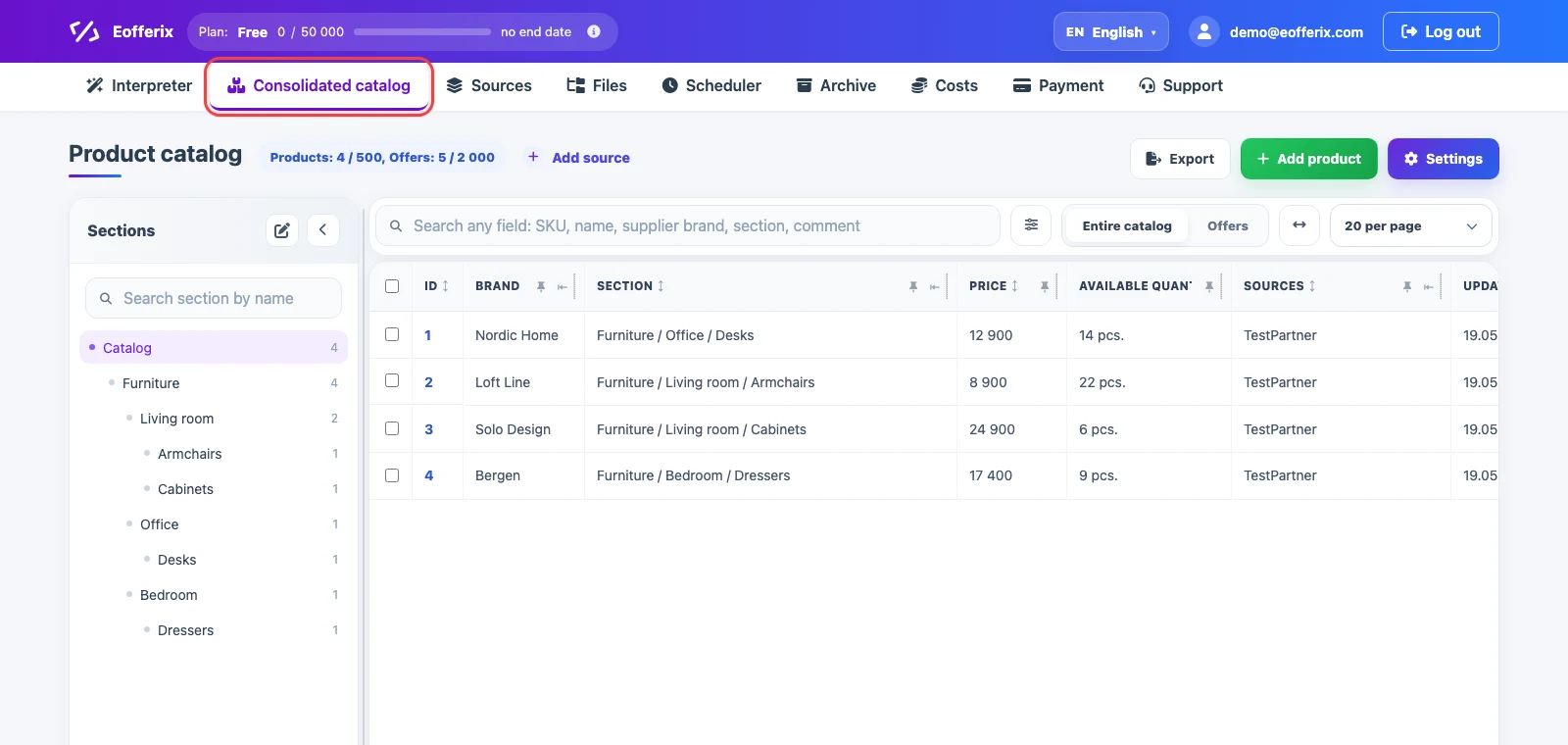
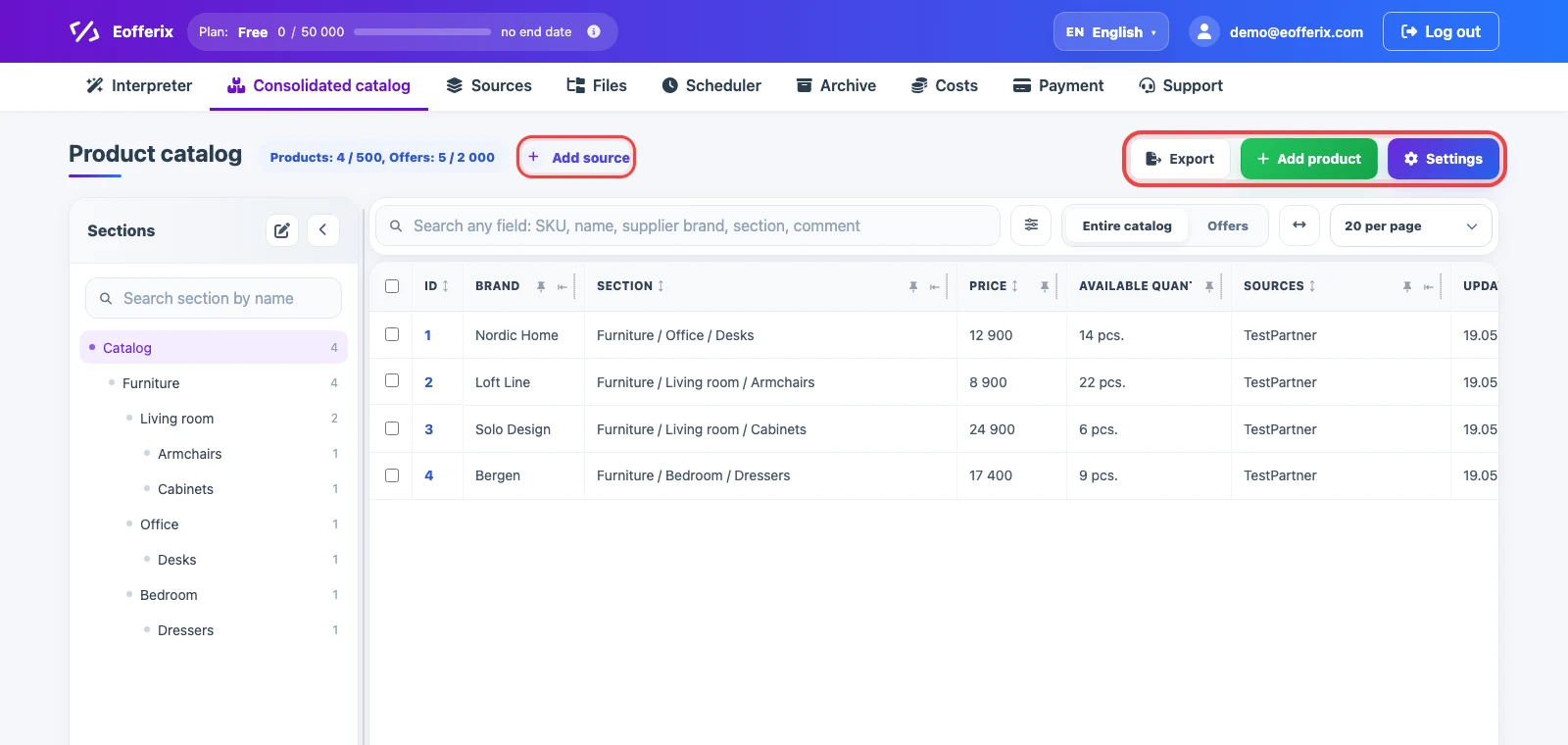
Open Consolidated catalog from the top menu. The top of the page shows the number of products and offers, together with the main actions: add a source, create an export, add a product manually, or open the catalog settings.
What is on the main screen
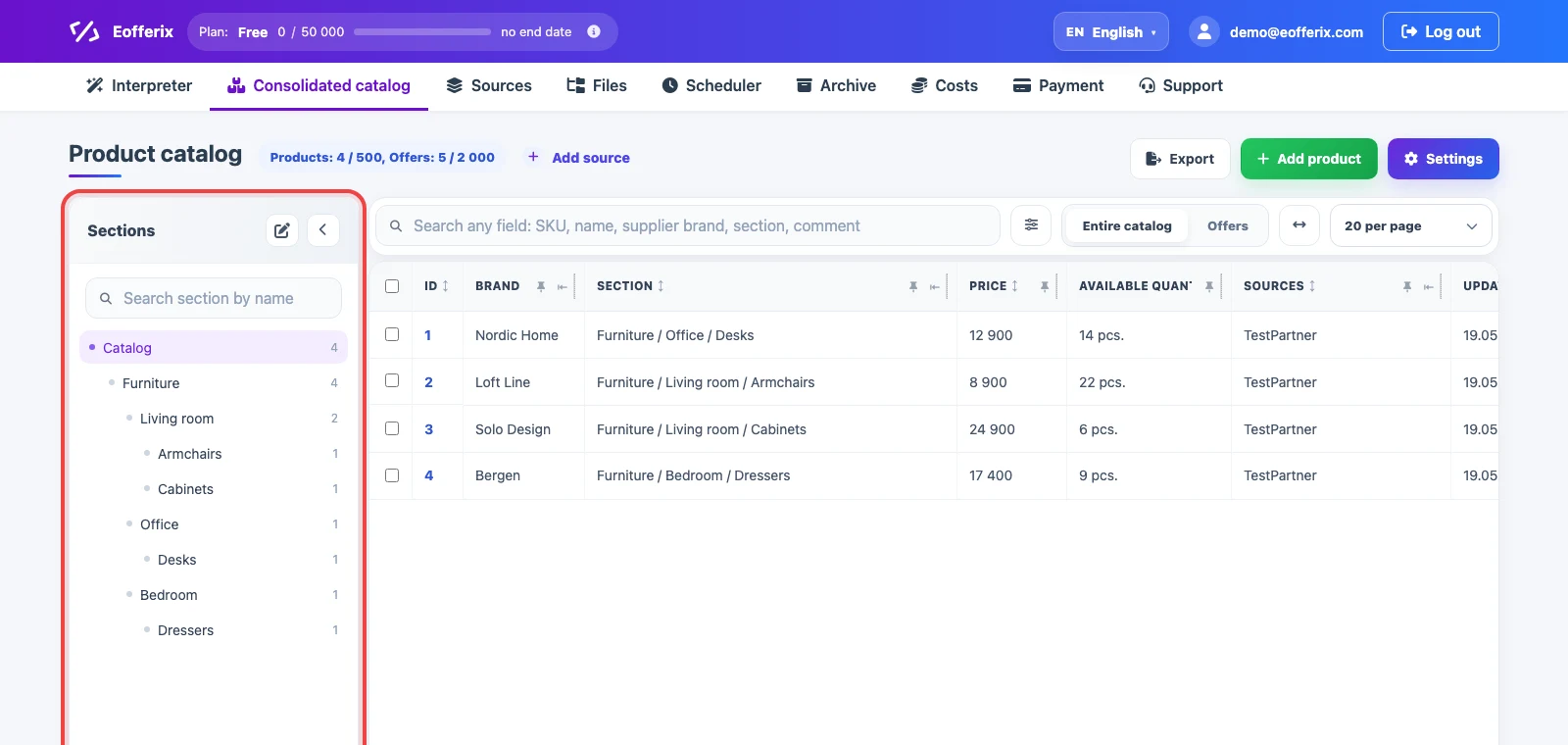
The section tree is on the left. Selecting a section shows the products in that catalog branch. The table is on the right. You can switch between products and offers, search and filter records, change the sorting, and choose which columns are displayed.
Search, filters, sorting, and column display are covered in “Consolidated catalog table: search, filters, sorting, and columns”.
Products and offers
A product describes the main catalog item: its name, brand, section, description, images, and other properties. If the catalog does not use separate variants, the product can also store its own SKU, price, and stock.
An offer is a sellable variant of a product. Variants of the same product can differ by color, size, SKU, price, or stock. One product can be linked to several offers, but offers are not required for every catalog.
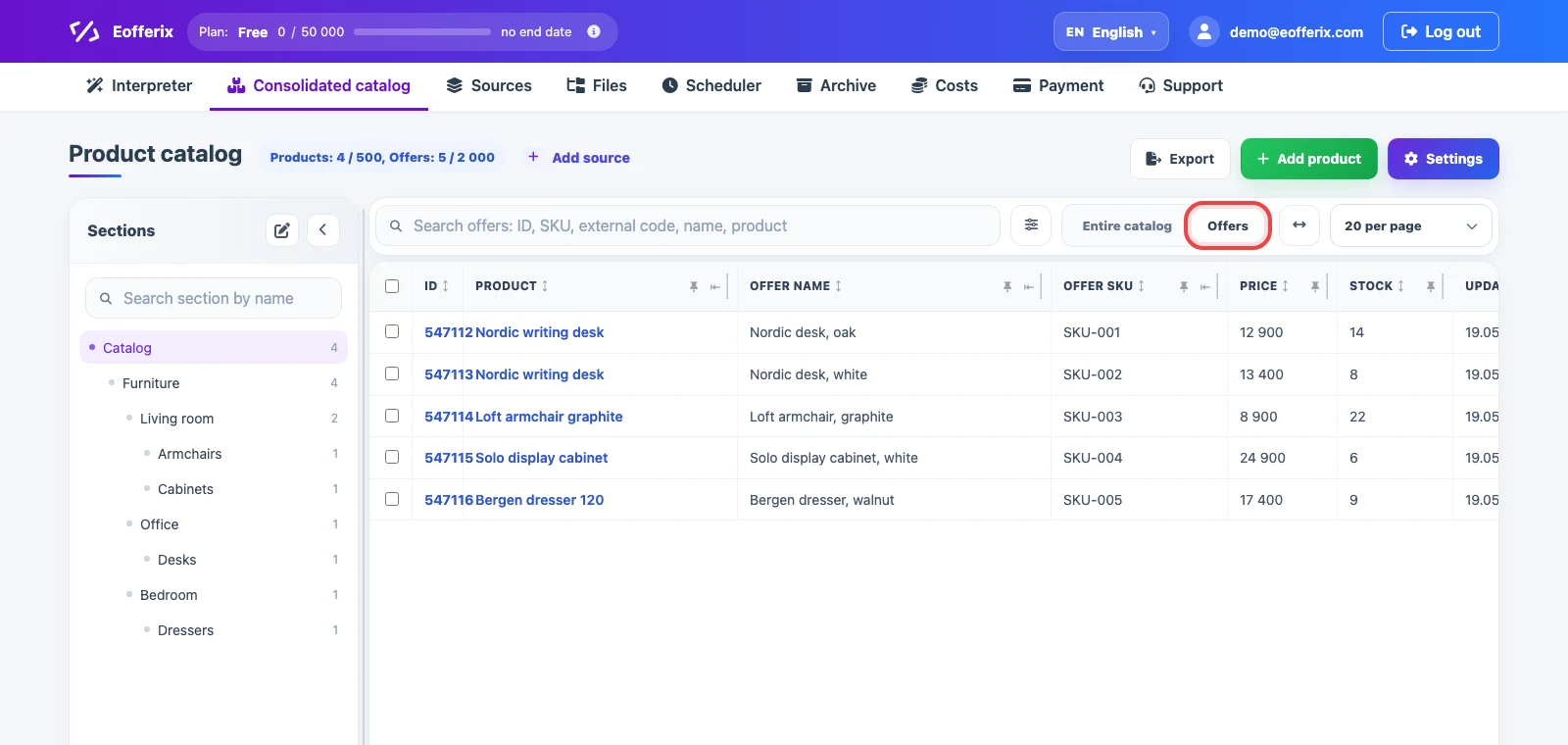
The Entire catalog / Offers switch changes the rows and available columns. In the offers view, you can see both the variant data and its linked product.
Where the data came from
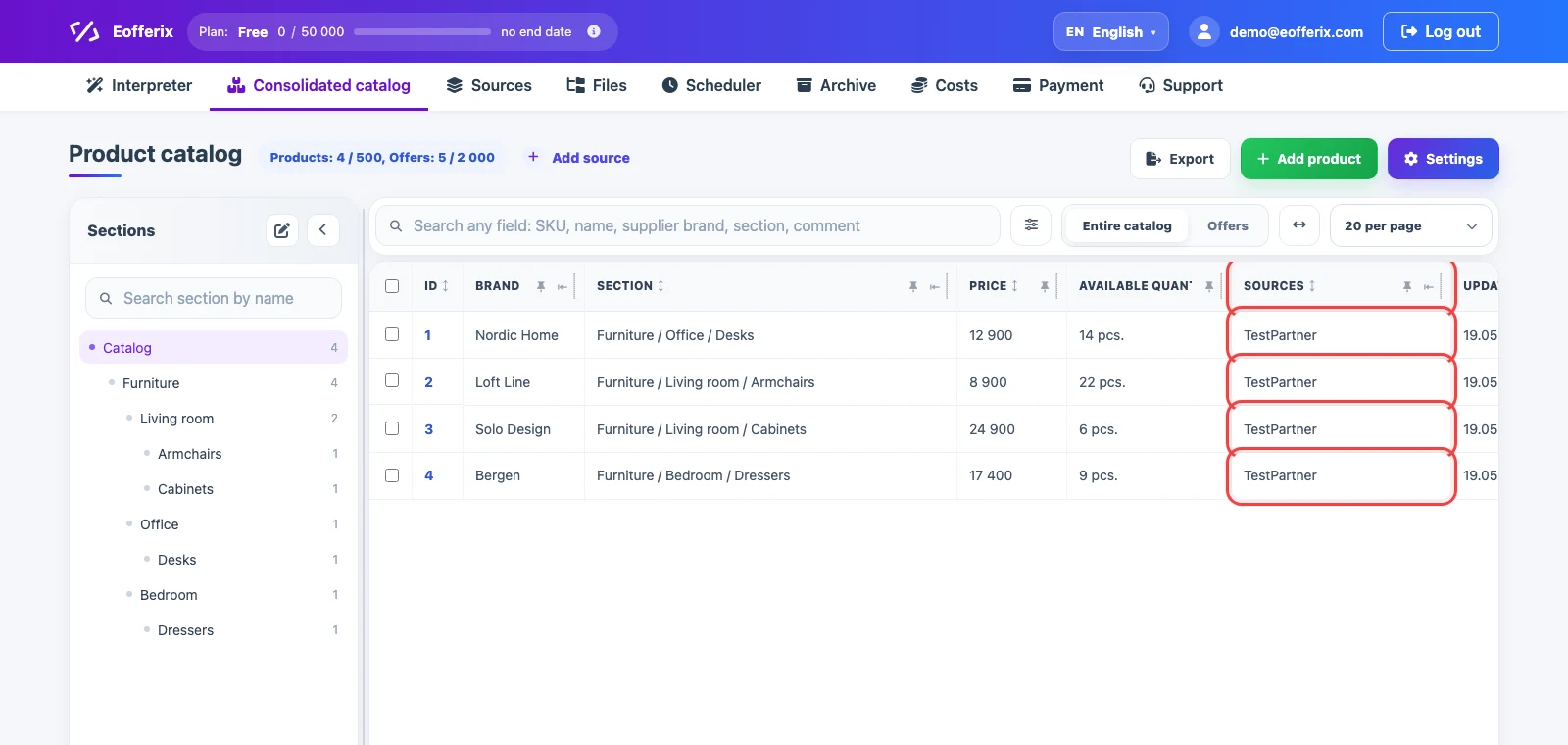
The Sources column shows which sources are linked to a record. A product can have one source, a manual origin, or several sources when their data has been matched to the same record according to the profile rules.
What you can do with the catalog
- Add source — create a profile that imports data into the catalog.
- Export — create an export profile based on the current catalog.
- Add product — create a record manually.
- Settings — configure the table, properties, sections, prices, and stock.
Detailed settings and examples
- Consolidated catalog properties: products, offers, and sections
- Final price rules
- Final stock rules
- How to manage the catalog section tree
- Export profiles
Practical examples: combining stock from several suppliers by SKU, sending products from several sources to Ozon, and using one catalog for several exports.